Download Edge Animations Videos
Use the Asset Manager to check for available videos, and download videos to your Edge Animations system.
Open Edge Animations
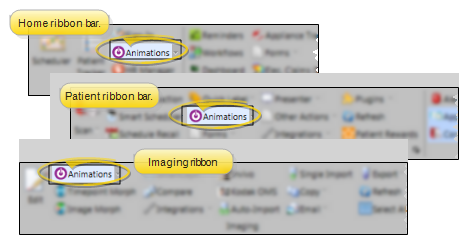
Select the Animations icon from the Home, Patient, or Imaging ribbon bar. (You can also open this feature from the Quick Access toolbar at the top of your Edge Cloud system window.) When it is running, the Animations icon appears in your computer's notification area.
If you plan to work on or present filmstrips or videos that contain images or treatment information about a specific patient, it is best to open the patient folder first, then launch Edge Animations. This way, you can integrate the patient's images into your filmstrip and customize them with your patient findings.
When you click the Edge Animations icon, your comprehensive Edge Animations module opens; You can optionally click the arrow beside the icon, then select to open either about-edge-animations or the standard Compliance Animations video list.
Open the Asset Manager
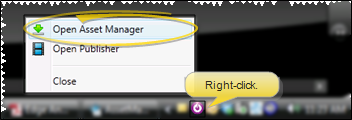
Right-click the Edge Animations icon in your computer's notification area and choose Open Asset Manager.
Check for Updates
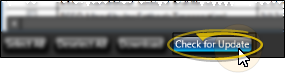
Click Check for Updates in the center area of the Asset Manager window to see if there are new or updated animations that you can add to your Edge Animations system. You might also be notified of new videos when you first open Edge Animations.
An active Internet connection is required for this feature to work.
Download Videos
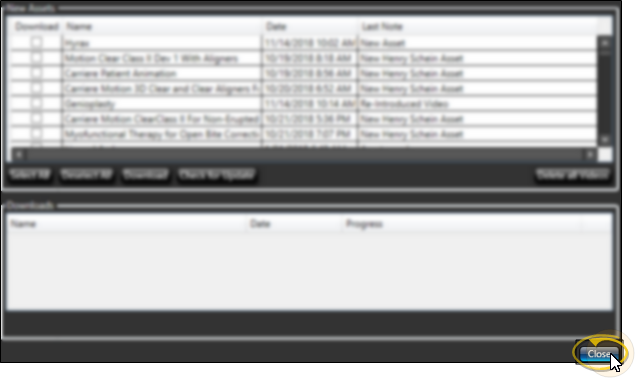
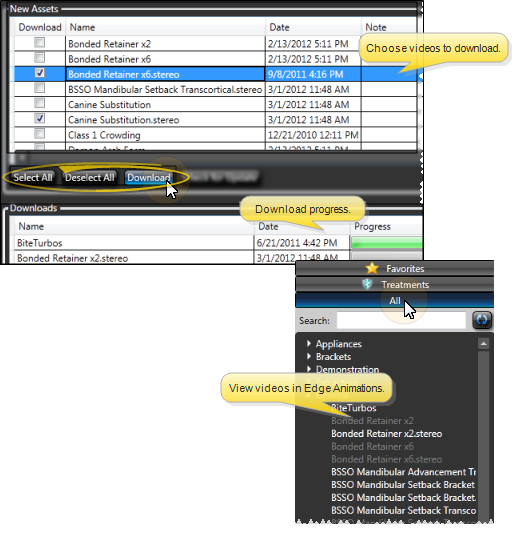
All new and updated Edge Animations videos appears on your screen. You can select individual videos you wish to download to your system, or use Select All and Deselect All. When you have selected one or more videos, click Download to copy the videos to your Edge Animations system. The download progress is shown at the bottom of the window. The more videos you choose to download at once, the longer the download will take. Downloaded videos will be added to the appropriate sections of your Edge Animations module.
If you have enabled the Exclude Stereo Videos option in your Edge Animations settings, those files will not be included in your filmstrip list, even if you download them from the Asset Manager.
An active Internet connection is required for this feature to work.
Delete Videos
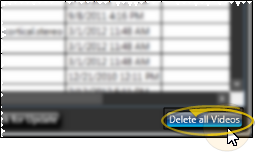
Click Delete All Videos in the center area of the Asset Manager window to delete all downloaded Edge Animations videos from your system. This does not delete any videos or animations that you have created or edited and saved. If you choose to delete all videos, you can always re-download them any time you wish with the Asset Manager.
Exit the Asset Manager
Click Close at the bottom of the Asset Manager window to exit the window. You might need to refresh, or exit and re-enter Edge Animations before any changes take effect.