
Edit Edge Animations Filmstrips
After building a filmstrip, you can edit individual images and videos to enhance your presentation. Add annotations, apply effects, record voice narration, and more.
Editing Tools Overview
Select an item in your filmstrip and use the editing tools to customize it.
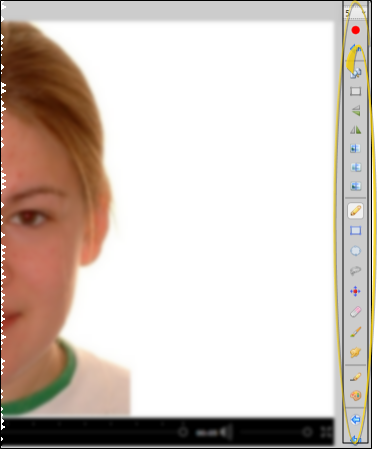
Annotation Tools
Add visual annotations to highlight important areas of images.
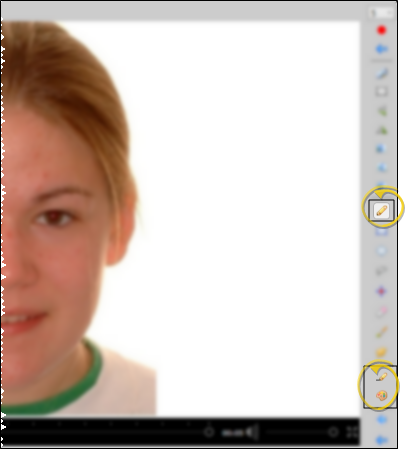
Draw Annotations
Use the brush and drawing tools to add freehand annotations to your images.
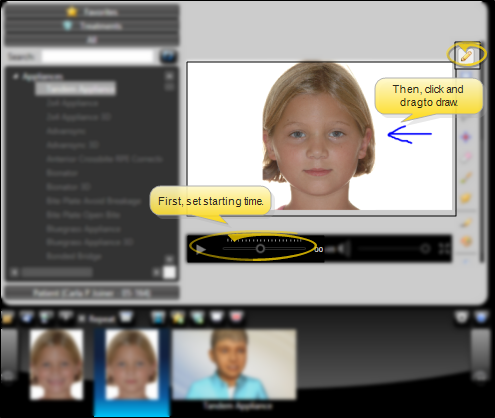
Annotation Colors
Choose from a variety of colors for your annotations to match your practice branding or highlight specific areas.
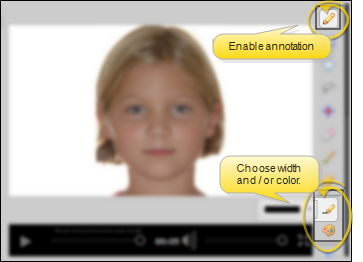
Undo Annotations
Made a mistake? Use the undo button to remove the last annotation.
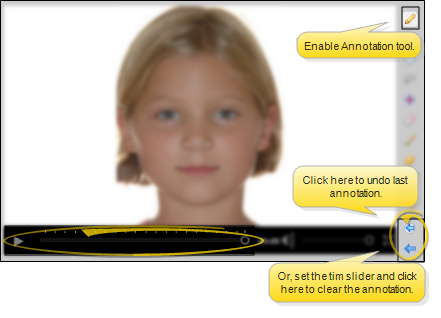
Image Editing Tools
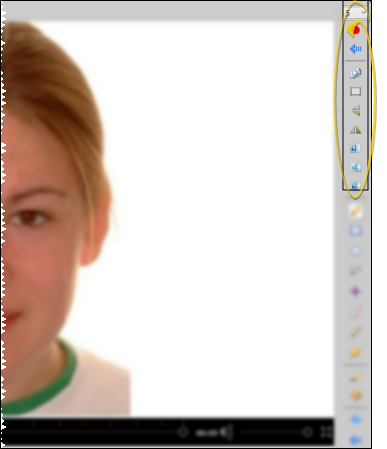
Apply various effects and transformations to your images.
Flip & Mirror
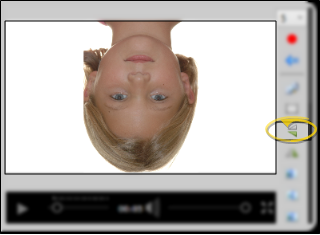
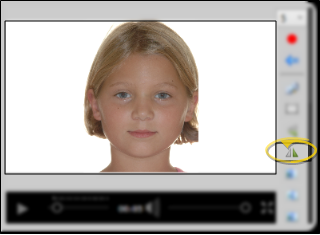
Flip images horizontally or vertically for comparison views.
- Flip: Rotate the image vertically
- Mirror: Flip the image horizontally
Blur Tool
Blur sensitive areas of an image to protect patient privacy when sharing or presenting.
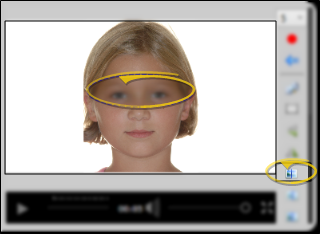
Sharpen & Smooth
Enhance image clarity with sharpen and smooth tools.
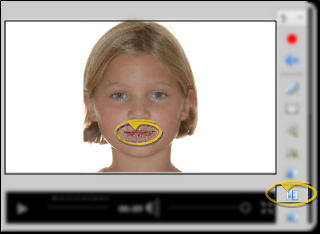
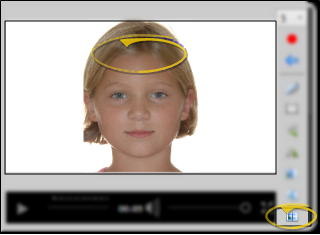
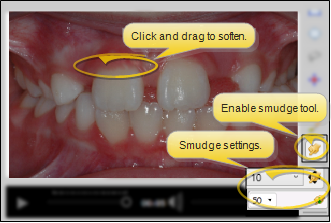
Brush & Smudge
Use the brush tool for detailed edits and the smudge tool to blend areas.
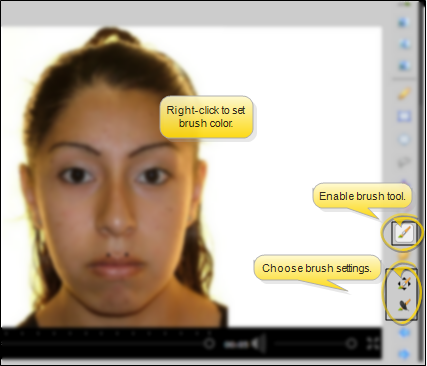
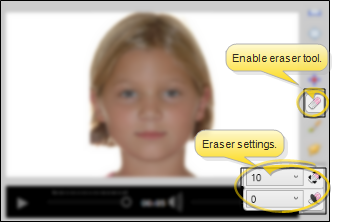
Erase
Remove parts of annotations or edits.
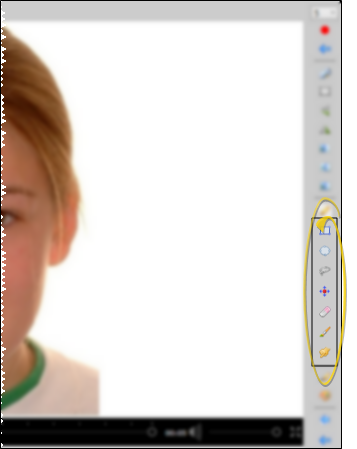
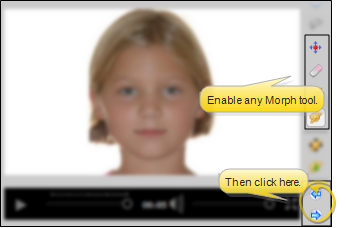
Morphing Tools
Create smooth transitions between before and after images.
Voice Recording
Add voice narration to individual images in your filmstrip.
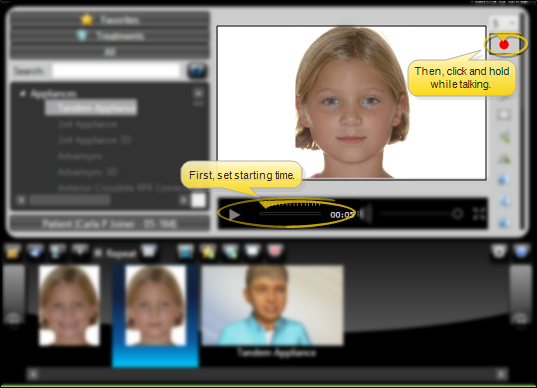
Record Voice
Click the voice recording button to narrate while viewing an image. Your recording will play when that image appears in the filmstrip.
Clear Voice Recording
Remove an existing voice recording from an image.
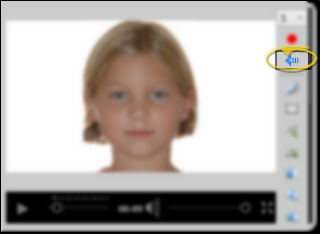
Timing Settings
Control how long each image displays during playback.
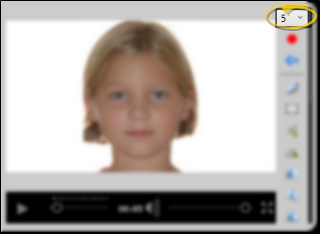
Set Display Duration
Adjust the number of seconds each image appears before advancing to the next item.
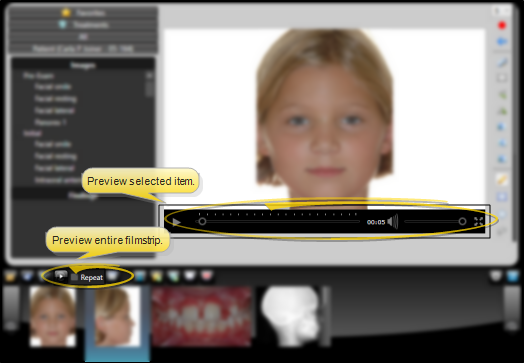
Preview Your Work
Preview Item or Filmstrip
Preview individual items or the entire filmstrip to see how your edits will appear.
Toggle Original View
Compare your edits with the original image.
Undo/Redo Changes
Use undo and redo to step through your editing history.
Next Steps
- Play Filmstrips - Present your edited filmstrip
- Publish & Share - Export as a video file