Create Edge Animations Filmstrips
An Edge Animations filmstrip is a series of videos and images that you have put together into one animation. You can choose to save or publish your filmstrip as a video, or simply play the filmstrip immediately without saving any changes.
It is your responsibility to secure authorization for any copyrighted material you use in your publications.
Open Edge Animations
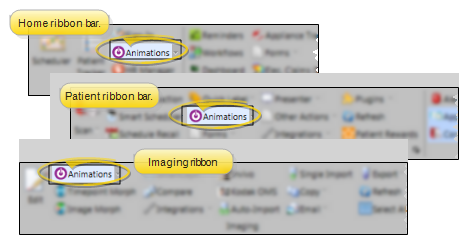
Select the Animations icon from the Home, Patient, or Imaging ribbon bar. (You can also open this feature from the Quick Access toolbar at the top of your Edge Cloud system window.) When it is running, the Animations icon appears in your computer's notification area.
If you plan to work on or present filmstrips or videos that contain images or treatment information about a specific patient, it is best to open the patient folder first, then launch Edge Animations. This way, you can integrate the patient's images into your filmstrip and customize them with your patient findings.
When you click the Edge Animations icon, your comprehensive Edge Animations module opens; You can optionally click the arrow beside the icon, then select to open either about-edge-animations or the standard Compliance Animations video list.
Create or Load a Filmstrip
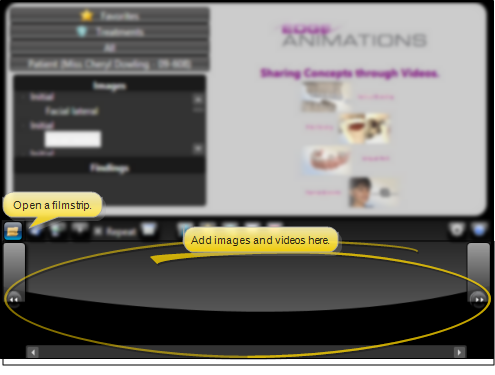
When you first launch Edge Animations, the filmstrip area at the bottom of the window is blank. You can either start creating a new filmstrip from scratch, or click Open from the filmstrip ribbon bar to load an Edge Animations filmstrip that you have already saved into the window.
Add Patient Images
You can hard-code patient images from Edge Imaging into a filmstrip, or insert an image as a template that will be replaced with the active patient's picture when Edge Animations is launched from their patient folder.
This option is available only if you launched Edge Animations from the patient folder.
Add an Image to a Filmstrip
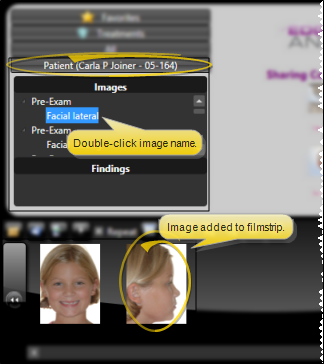
Open the Patient list at the left side of the Edge Animations window, and double-click the image you wish to add to the filmstrip. That image is hard-coded into the filmstrip. To make the image a template, use the Image Properties.
Adjust Image Properties
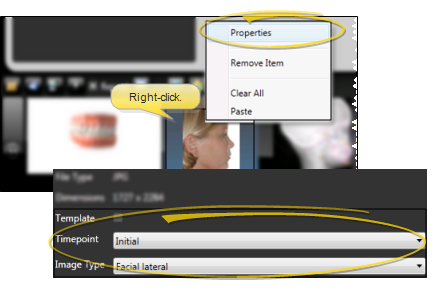
Right-click an image and select Properties. You can then flag the image as a template so it is replaced with the active patient's picture when you open the filmstrip for someone else. You can also choose a different image type and timepoint to use for this image.
When you open the filmstrip for a different patient, and that patient does not have an Edge Imaging image that matches the template's image type and timepoint, the image will be blank in the filmstrip.
Copy / Paste Images
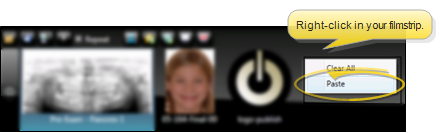
You can copy and paste any image (i.e. from your computer, from Edge Imaging, or from the Internet) into your Edge Animations filmstrip. First, right-click the image you want to use and select Copy. Then, right-click in your Edge Animations filmstrip bar and select Paste. The image will be hard-coded into the filmstrip.
When you copy and paste an image , it is hard-coded into the Edge Animations filmstrip: You cannot turn that image into a template, even if was copied from an Edge Imaging Imaging page.
Add Edge Animations Videos
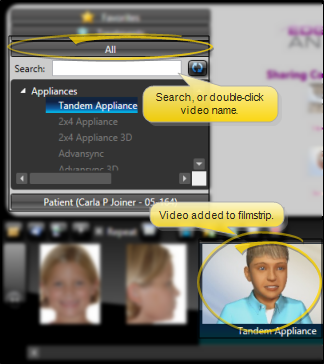
Select the All tab at the left of your Edge Animations window, then double-click the video that you want to add. Or, use the search box to locate an item within the selected list. When you search for a filmstrip or video, you can search both the name and description.
Edge Animations videos that you have not downloaded with the Asset Manager appear dimmed in the list. If you have enabled the Exclude Stereo Videos option in your Edge Animations settings, those files will not be included in your filmstrip list, even if you download them from the Asset Manager.
The video is added as a single element to the end of your filmstrip.
Add Edge Animations Filmstrips
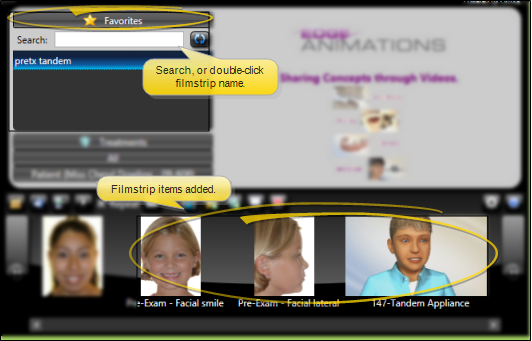
To add a the contents of another filmstrip into the filmstrip you are working on, select the Favorites or Treatments tab at the left of your Edge Animations window, then double-click the filmstrip that you want to add. Or, use the search box to locate an item within the selected list. When you search for a filmstrip or video, you can search both the name and description.
Each frame of the filmstrip is added individually to the end of your new filmstrip.
Import Images or Videos
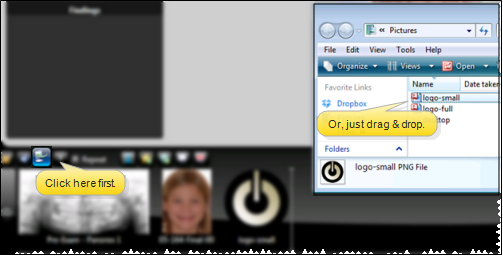
You can import any image or video file in .jpg, .png, .wmv, .mp4, .mod, .mov, or .avi format into your Edge Animations filmstrip. The file is added as a single element to the end of your filmstrip. To import a file, click the Import icon from the filmstrip toolbar, then choose the image or video. Or, simply drag and drop the file into your filmstrip.
Edge Animations and Patient Findings Integration
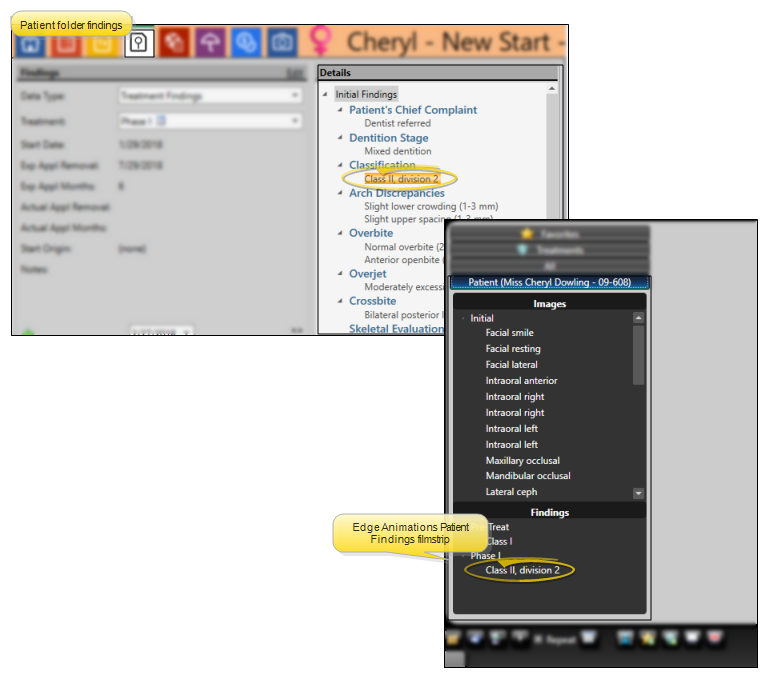
When you launch Edge Animations for a patient, the Findings section of the Edge Animations Patient tab can automatically list the treatment filmstrips most relevant for them.
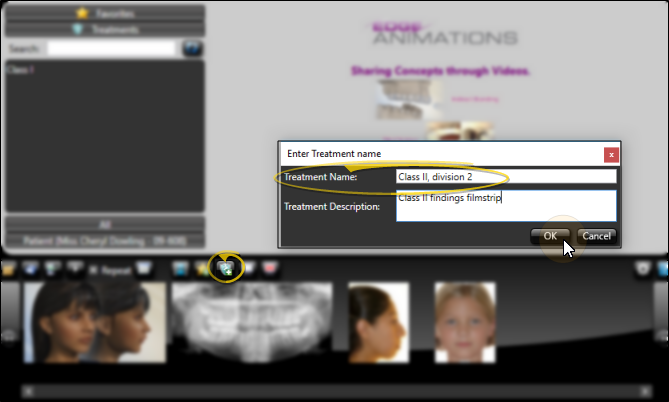
To do this, first create an Edge Animations filmstrip for a specific finding, and save the filmstrip in the Edge Animations Treatments list. The name of the filmstrip must EXACTLY MATCH the findings description in your Edge Cloud system. For example, you might create a filmstrip containing videos you'd like to present to a patient with "Class II, division 2 crowding". Once you have everything the way you want it, save that filmstrip to your Treatments tab, with the EXACT name "Class II, division 2 crowding" (or whatever your Edge Cloud findings description is.)
Then, when you launch Edge Animations for a patient with "Class II, division 2 crowding", and click the Patient tab, your filmstrip will appear in the Findings section for you to present to them.
Rearrange and Remove Items
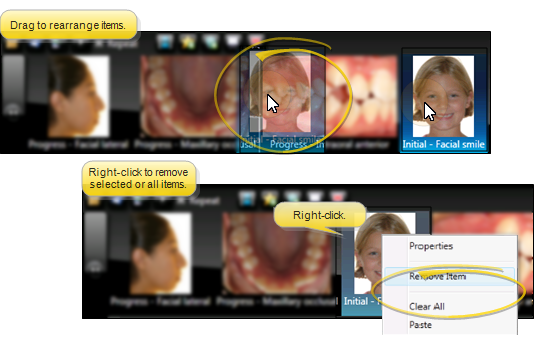
When you add images, filmstrips, or videos to your Edge Animations filmstrip, they are generally added to the end of your work. To rearrange the items, simply drag and drop them into place. To remove an item, you can click to select it, then press Delete on your keyboard, or right-click to remove that item or to remove all items from the filmstrip.
All items are removed from the filmstrip bar when you load a saved filmstrip file.
Filmstrip Properties
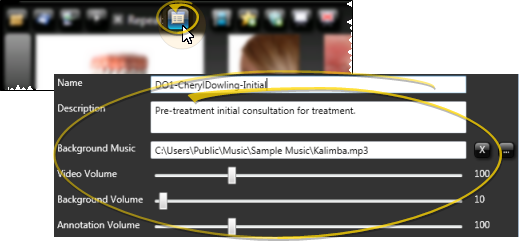
Open the Properties window from the Edge Animations filmstrip ribbon bar to review and change the name, description, background music, and volume settings for your filmstrip.
Name & Description
The filmstrip name is used as the filename (followed by .xml) when you save the filmstrip to your computer. Be sure to enter a description that helps you identify the filmstrip's purpose.
Background Music
Select a soundtrack to play along with your animation. The track will play only after the video is published. You may use any .mp3 or .wav audio file available to your computer. You set up the default audio file in your general Edge Animations settings, but you can choose a different audio file for individual videos with the filmstrip Properties settings. If you have additional audio in the animation, such as recorded annotations or voice-overs, be sure to set the background volume fairly low.
Background music is set up in two places. There is a background music field in Edge Animations settings, and one in the Filmstrip Properties. Adding music in the Filmstrip Properties panel will allow the music to play behind the filmstrip when exported. You can set a different track for each filmstrip, and when you save the filmstrip to Favorites, the background music track will be stored in the saved file. Adding a background audio track in Settings will result in that track being added to every video you export. The track added in Settings overwrites a track that was added in the Filmstrip Properties.
It is your responsibility to secure authorization for any copyrighted material you use in your publications.
Volume Settings
The Video Volume setting controls a voice-over track; the Background Volume setting controls the background music track; the Annotation Volume setting controls any voice recordings you have made for filmstrip images. You set up the default volume levels in your general Edge Animations settings, but you can choose different volume levels for individual videos with the filmstrip Properties settings.
Edit and Annotate Images and Videos
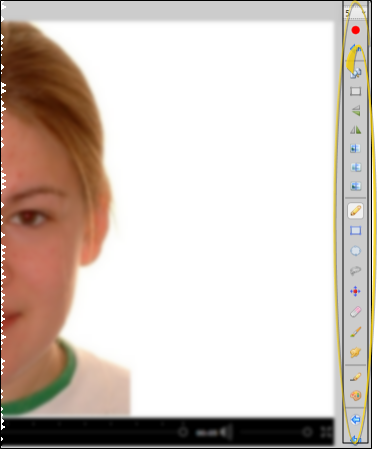
After you have built an Edge Animations filmstrip, you can edit the individual images and videos to further enhance your Edge Animations presentation. See "Edit Edge Animations Filmstrips" for details.
Save Your Filmstrip to a File
Click  Save from the filmstrip ribbon bar and enter a descriptive file name: You want to be able to recognize your filmstrip name easily when you need to open it again in Edge Animations. By default, the filmstrip files are saved in the Jobs folder of your Edge Animations data file location, in .XML format: Filmstrips saved in this manner can be loaded into Edge Animations for editing and viewing, but do not appear in your Favorites or Treatments lists, and so cannot be added to other filmstrips.
When you Save a filmstrip, you create an .XML file that you can later open for editing or viewing within Edge Animations. When you Publish a filmstrip, you create a video file that can be played independently of Edge Animations, such as from YouTube or nearly any device that can play media files.
Save Your Filmstrip to the Favorites or Treatments List
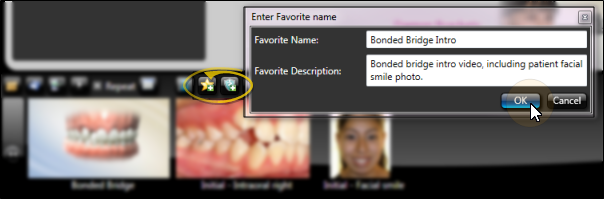
To save the current filmstrip to your Edge Animations Favorites or Treatments list, click Add to Favorites or Add to Treatments from the filmstrip ribbon bar, then provide a file name and description. The filmstrip will be saved to the list you selected. By default, the filmstrip files are saved in the corresponding Assets folder of your Edge Animations data file location, in .XML format. In addition to editing and viewing these filmstrips from Edge Animations, you can add the contents of these filmstrips to other filmstrips.
Edge Animations and Patient Findings Integration
When you launch Edge Animations for a patient, the Findings section of the Edge Animations Patient tab can automatically list the treatment filmstrips most relevant for them.
To do this, first create an Edge Animations filmstrip for a specific finding, and save the filmstrip in the Edge Animations Treatments list. The name of the filmstrip must EXACTLY MATCH the findings description in your Edge Cloud system. For example, you might create a filmstrip containing videos you'd like to present to a patient with "Class II, division 2 crowding". Once you have everything the way you want it, save that filmstrip to your Treatments tab, with the EXACT name "Class II, division 2 crowding" (or whatever your Edge Cloud findings description is.)
Then, when you launch Edge Animations for a patient with "Class II, division 2 crowding", and click the Patient tab, your filmstrip will appear in the Findings section for you to present to them.
Publish a Filmstrip as a Video
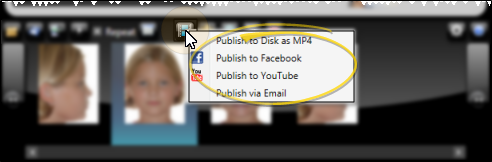
Use the Edge Animations publisher to save filmstrips in video file format on your computer, upload video files to YouTube or Facebook, or send a link to videos via email.
When you Save a filmstrip, you create an .XML file that you can later open for editing or viewing within Edge Animations. When you Publish a filmstrip, you create a video file that can be played independently of Edge Animations, such as from YouTube or nearly any device that can play media files.