Edit Edge Animations Filmstrips
After you have built an Edge Animations filmstrip, you can edit the individual images and videos to further enhance your Edge Animations presentation.
Open Edge Animations
Select the Animations icon from the Home, Patient, or Imaging ribbon bar. (You can also open this feature from the Quick Access toolbar at the top of your Edge Cloud system window.) When it is running, the Animations icon appears in your computer's notification area.
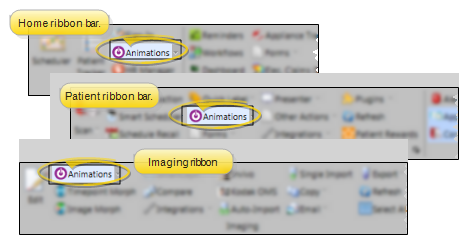
If you plan to work on or present filmstrips or videos that contain images or treatment information about a specific patient, it is best to open the patient folder first, then launch Edge Animations. This way, you can integrate the patient's images into your filmstrip and customize them with your patient findings.
When you click the Edge Animations icon, your comprehensive Edge Animations module opens; You can optionally click the arrow beside the icon, then select to open either about-edge-animations or the standard Compliance Animations video list.
Create or Load a Filmstrip
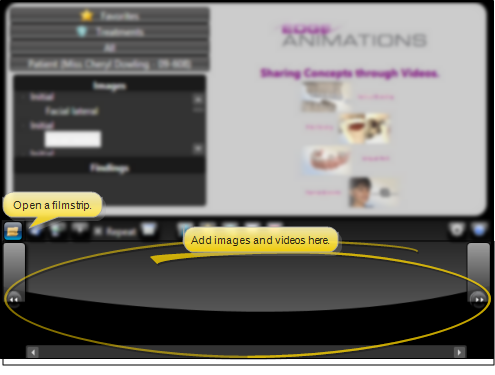
When you first launch Edge Animations, the filmstrip area at the bottom of the window is blank. You can either start creating a new filmstrip from scratch, or click Open from the filmstrip ribbon bar to load an Edge Animations filmstrip that you have already saved into the window.
Choose the Image / Video to Edit
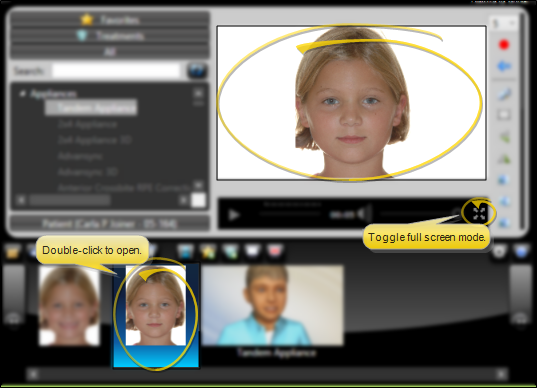
From the filmstrip bar at the bottom of your Edge Animations window, double-click the image or video you want to work with. That item will appear in the "playback" section of the window. You can use the Full Screen icon to toggle between viewing the item with the filmstrip bar below it, or viewing the item in the full Edge Animations window.
Preview an Individual Image / Video
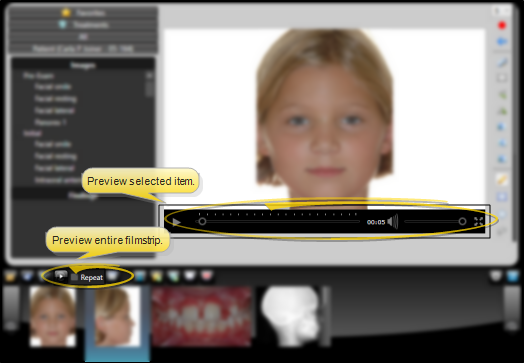
Use the time selection bar underneath image / video to preview how the item will look when you play the filmstrip.
Preview Item vs Preview Filmstrip - You use the time slider controls in the playback section of the window to preview an individual filmstrip item, and the Play / Pause controls on the filmstrip bar to preview the entire filmstrip.
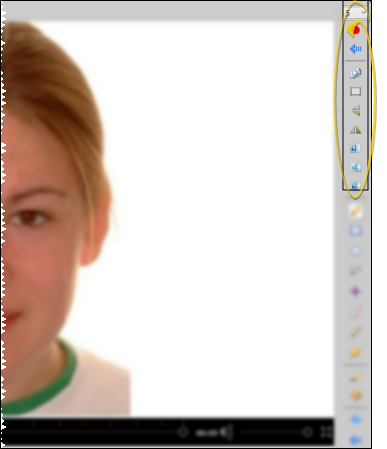
Editing Tools
Use editing tools with the selected filmstrip image or video to change the image orientation, enhance visual impact, and add voice recordings.
With the exception of the time duration setting and voice recording, editing changes are only saved with hard-coded images. Image templates, which are downloaded fresh from the patient folder whenever the filmstrip is loaded, do not save editing changes.
Time Duration
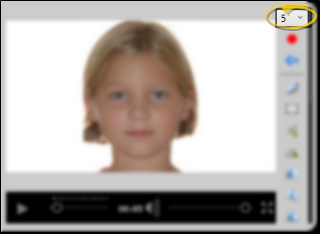
Use the number field at the top of the editing tools bar to specify the number of the seconds the selected image should remain on the screen when the filmstrip is played. The duration of videos you have added to the filmstrip is predetermined by the video file itself and cannot be changed here.
When you use this tool, any changes you make are saved to both hard-coded images and templates when you save or publish the filmstrip.
If you reduce the time duration, the reduction is taken off the end of the frame: If you have added annotations or other morphing changes toward the end of the image time frame, those may be deleted or truncated.
Voice Recording
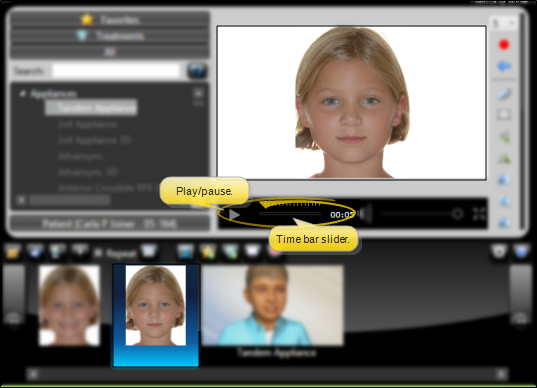
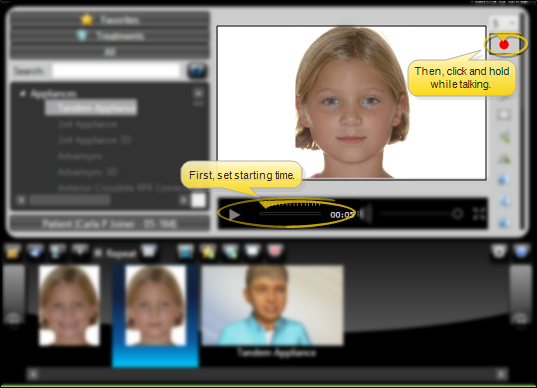
Use voice recording to add audio descriptions and explanations to the selected image or video. First, use the Play / Pause button or the time bar slider at the bottom of the playback window to select the time to start. Then, click and hold the Voice Record button while you speak. When finished, release the button. (Use your Edge Animations settings to select the microphone to use for voice recordings.)
When you use this tool, any changes you make are saved to both hard-coded images and templates when you save or publish the filmstrip.
Clear Voice Recording
Click the Clear Voice Annotation button that appears just under the recording button to remove the audio recording you have made for this image / video.
Show Original
Use the Show Original tool to display / hide a silhouette of the original image onto your morphed or edited image. You can enable / disable this tool throughout this Edge Animations session to see the results of your morphing / editing.
Your changes are saved only for hard-coded images: Image templates, which are downloaded fresh from the patient folder whenever the filmstrip is loaded, do not save editing changes.
Clear Selection
Click the Clear Selection button to remove the focus from the currently active morphing or annotation tool.
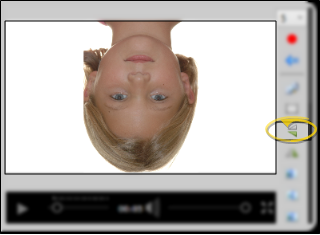
Flip Image
When you "flip" an image, you turn it on its horizontal axis. (Think upside down.) The image will appear flipped for the entire time that it is on the screen, regardless of where the time slider bar is positioned when you click "flip".
Your changes are saved only for hard-coded images: Image templates, which are downloaded fresh from the patient folder whenever the filmstrip is loaded, do not save editing changes. .
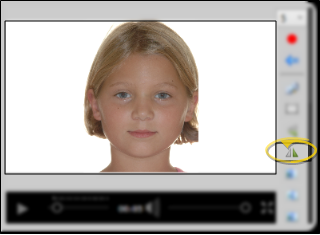
Mirror Image
When you "mirror" an image, you turn it on its vertical axis. (Think of looking at yourself in the mirror.) The image will appear mirrored for the entire time that it is on the screen, regardless of where the time slider bar is positioned when you click "mirror".
Your changes are saved only for hard-coded images: Image templates, which are downloaded fresh from the patient folder whenever the filmstrip is loaded, do not save editing changes. .
Blur Image
Use the Blur tool to soften the entire image, or the currently selected area. Each time you click "blur", the image is softened further. The image will appear blurred for the entire time that it is on the screen, regardless of where the time slider bar is positioned when you click "blur".
Your changes are saved only for hard-coded images: Image templates, which are downloaded fresh from the patient folder whenever the filmstrip is loaded, do not save editing changes. .
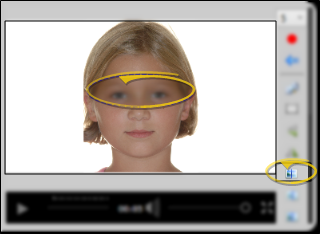
Sharpen Image
Use the Sharpen tool to enhance the clarity of the image, or the currently selected area. Each time you click "sharpen", the image is affected further. The image will appear sharper for the entire time that it is on the screen, regardless of where the time slider bar is positioned when you click "sharpen".
Your changes are saved only for hard-coded images: Image templates, which are downloaded fresh from the patient folder whenever the filmstrip is loaded, do not save editing changes. .
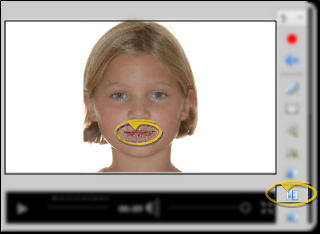
Smooth Image
Use the Smooth tool to smooth the image, or the currently selected area. Each time you click "smooth", the image is softened further. The image will appear smoothed for the entire time that it is on the screen, regardless of where the time slider bar is positioned when you click "smooth".
Your changes are saved only for hard-coded images: Image templates, which are downloaded fresh from the patient folder whenever the filmstrip is loaded, do not save editing changes. .
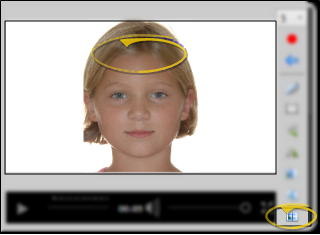
Annotation Tools
Use the annotation tools to draw free-hand illustrations on an image or video at any point in time during playback. The annotations save with hard-coded images, image templates, and embedded videos.
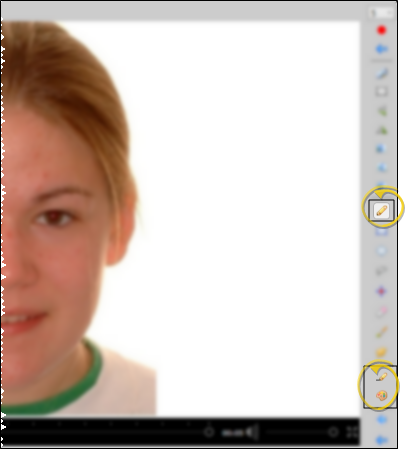
Color / Width Settings
With the Annotation tool selected, use the Color and Width settings to select the settings to use when drawing on your image. You can change these values at any time, and continue drawing.
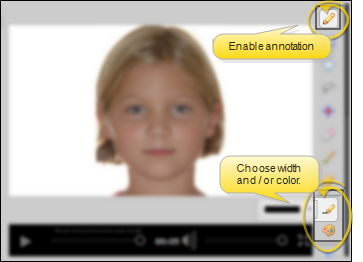
Drawing Annotations
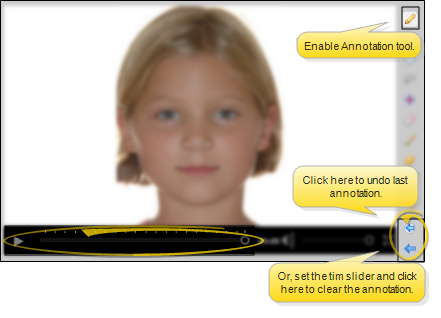
Be sure the Annotation tool at the right edge of the screen is enabled. Then, move the time slider bar at the bottom of the image or video to the time you want the annotation to begin showing. Click and drag your cursor to draw a free-hand illustration. Once an annotation begins, it remains on the screen until the end of the image / video time duration, unless you set a time to clear it (described below). You can apply multiple annotations at multiple times that will display one upon another as the image or video is played. The annotations are saved with hard-coded images, image templates, and embedded videos when you save or publish the filmstrip.
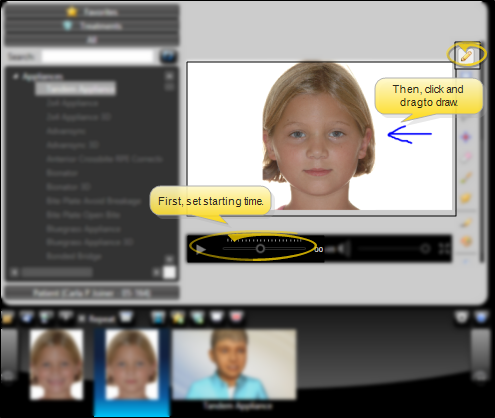
Undo / Clear Annotations
Enable the Annotation tool, then use the Undo Annotation tool near the bottom of the tool panel to completely remove the most recent annotation you have made to the image or video. Or, if you have annotations that you want to stop showing after a certain point, move the time slider bar at the bottom of the image or video to the time you want the annotation to stop, and click the Clear Annotation button. You might do this, for example, when you draw an annotation on an image at the first second of the image playing, then choose to clear the annotation when the image timer reaches three seconds so you can draw another annotation.
Clear Your Selected Tool When Finished - After using an annotation or other editing tool, click Clear Selection to remove the focus from that tool so that you can select a different tool to use.
Image Morphing Tools
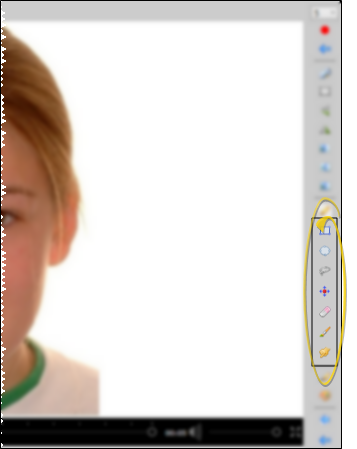
Use image morphing tools with the selected filmstrip image to alter, enhance, and embellish the image.
Morphing changes are only saved with hard-coded images. Image templates, which are downloaded fresh from the patient folder whenever the filmstrip is loaded, do not save morphing changes.
Move / Rotate a Portion of the Image
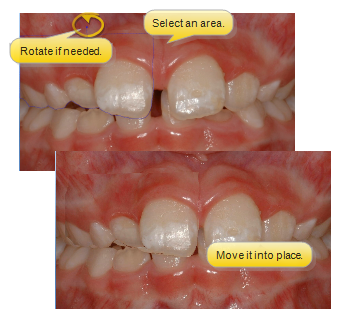
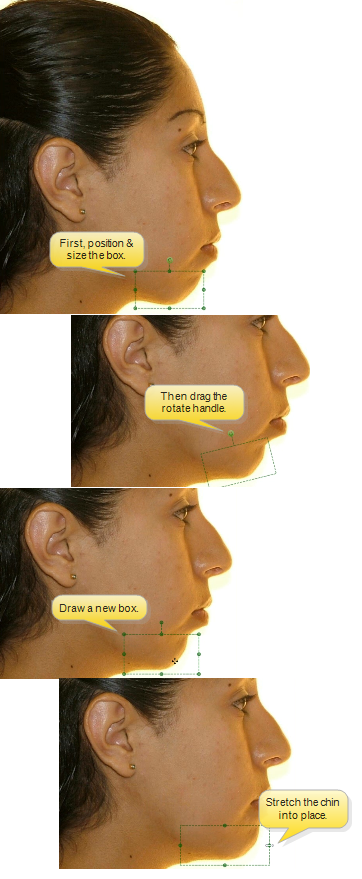
Use the Rectangle, Ellipse or Lasso (free-hand) tools to copy and move / rotate a portion of the image. First, select the tool you want to use, and outline an area of the image. You can then drag that portion of the image, or use the handle at the top of the selected portion to rotate it independently from the rest of the image. These tools are especially useful for showing the potential for straightening and realigning the jaws and teeth.
Stretch an Image
Use the Stretch tool to elongate a portion of the image, such as the chin. Enable the Stretch tool, then draw a box around the area you want to work with. You can click inside the box and drag it to fine-tune the location, and use the corner handles to resize the box. Once the box is in its optimal size and location, use the side, top, and bottom handles to stretch the area.
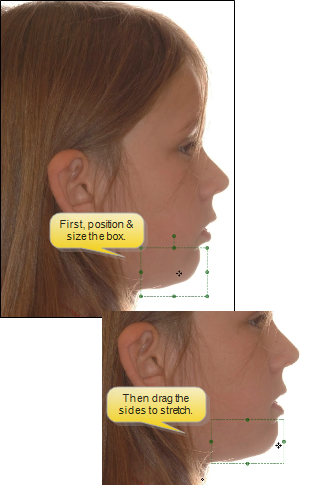
You can rotate and stretch by clicking and dragging the rotation handle at the top of the Stretch box, to bring a portion of the image into a better position.
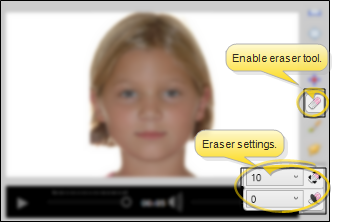
Eraser
Use the Eraser after moving a section of an image or applying an annotation to fine-tune the newly applied area, exposing the original image underneath. First, enable the Eraser tool, and select the radius (width) and softness (transparency) to use with the tool. Then, click and drag to "erase" the unwanted portion of the moved area or annotation.
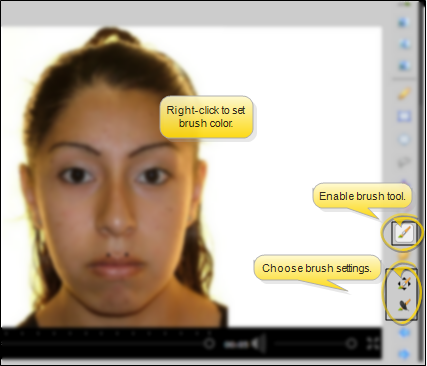
Paint Brush
Use the Brush tool to add free-hand "painting" to the image. Because you can select the cursor location as the color to use, this is especially useful for touching up photographs. You can right-click to select the cursor location as your brush color, and use the radius (width) and softness (transparency) settings to fine-tune your brush. To "paint", click and drag your cursor. Each time you release, then click and drag again, you add another "layer" of paint.
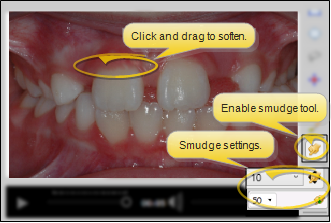
Smudge
Use the Smudge tool to soften harsh lines and blend different areas of the image. It is especially useful for smoothing lines around a moved section. You can use the radius (width) and pressure (movement) settings to fine-tune the tool. Then click and drag your cursor over the area you want softened.
Undo / Redo Morphing Changes
Enable any morphing tool (such as stretch or smudge), then click Undo / Redo at the bottom of the editing tools to remove / re-apply the most recent morphing change you have made to the image. (These buttons are different from the undo / redo annotation buttons at the top of the tool panel.)
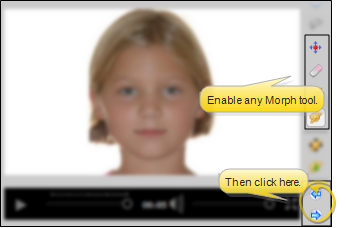
Clear Your Selected Tool When Finished - After using an annotation or other editing tool, click Clear Selection to remove the focus from that tool so that you can select a different tool to use.
Image Properties
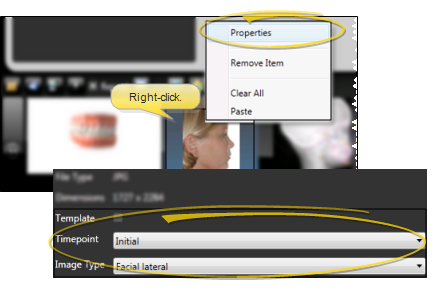
Right-click an image in your filmstrip, and select Properties. You can then review the details about the item, and edit template options, if available.
Media Properties
You can review the image file type and dimensions, but you cannot change them here.
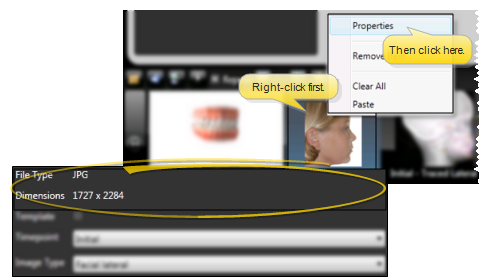
Template Properties
When you add an image to a filmstrip from the Patient list at the left of your Edge Animations window, you can choose whether to "hard code" that exact image into the filmstrip, or make the image a template. If an image is flagged as a template, when you open the filmstrip for a different patient, the template is replaced by the corresponding image type and timepoint from the active patient. To toggle the template flag, right click the image in the filmstrip and select Properties. Then enable / disable the Template option, and select the image type and timepoint you want to use. When you open the filmstrip for a patient that does not have the corresponding image type / timepoint required by the template, an image placeholder will appear in the filmstrip instead. Also, the template option is not available if you cut and paste the patient image into the filmstrip.
Video Properties
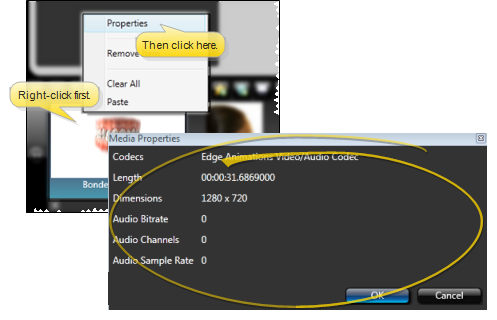
Right-click a video in your filmstrip, and select Properties. You can then review the details about the item.
Rearrange and Remove Items
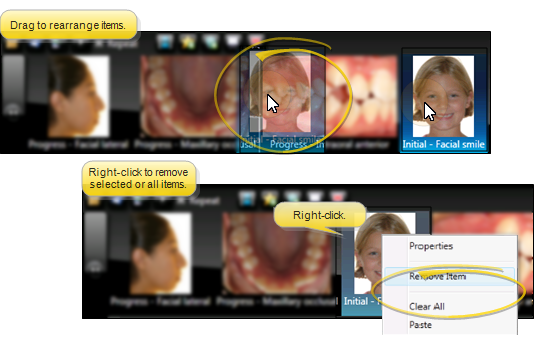
When you add images, filmstrips, or videos to your Edge Animations filmstrip, they are generally added to the end of your work. To rearrange the items, simply drag and drop them into place. To remove an item, you can click to select it, then press Delete on your keyboard, or right-click to remove that item or to remove all items from the filmstrip.
All items are removed from the filmstrip bar when you load a saved filmstrip file.
Save Your Filmstrip to a File
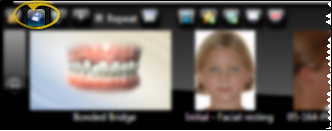
Click  Save from the filmstrip ribbon bar and enter a descriptive file name: You want to be able to recognize your filmstrip name easily when you need to open it again in Edge Animations. By default, the filmstrip files are saved in the Jobs folder of your Edge Animations data file location, in .XML format: Filmstrips saved in this manner can be loaded into Edge Animations for editing and viewing, but do not appear in your Favorites or Treatments lists, and so cannot be added to other filmstrips.
When you Save a filmstrip, you create an .XML file that you can later open for editing or viewing within Edge Animations. When you Publish a filmstrip, you create a video file that can be played independently of Edge Animations, such as from YouTube or nearly any device that can play media files.
Save Your Filmstrip to the Favorites or Treatments List
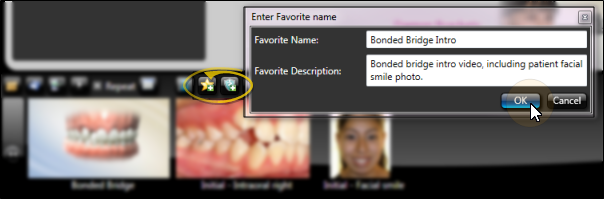
To save the current filmstrip to your Edge Animations Favorites or Treatments list, click Add to Favorites or Add to Treatments from the filmstrip ribbon bar, then provide a file name and description. The filmstrip will be saved to the list you selected. By default, the filmstrip files are saved in the corresponding Assets folder of your Edge Animations data file location, in .XML format. In addition to editing and viewing these filmstrips from Edge Animations, you can add the contents of these filmstrips to other filmstrips.
Edge Animations and Patient Findings Integration
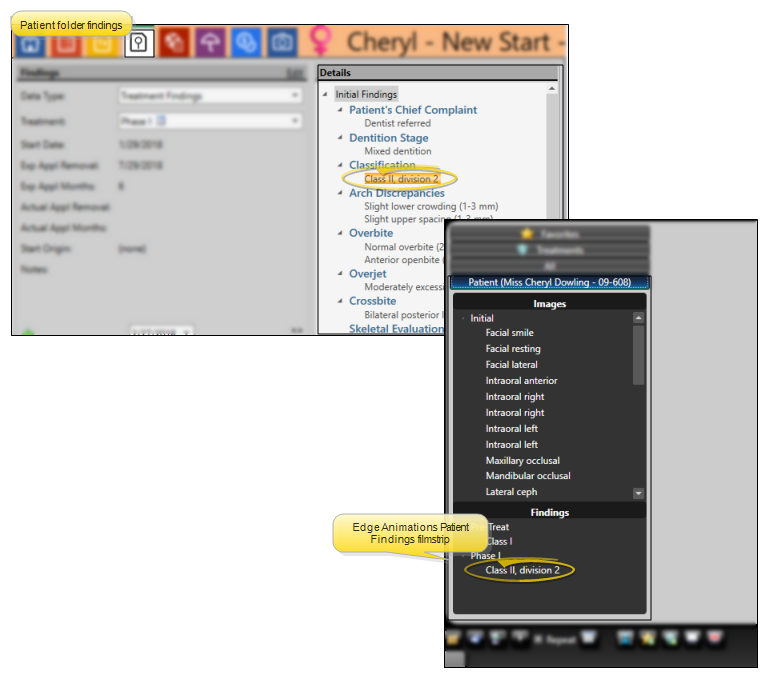
When you launch Edge Animations for a patient, the Findings section of the Edge Animations Patient tab can automatically list the treatment filmstrips most relevant for them.
To do this, first create an Edge Animations filmstrip for a specific finding, and save the filmstrip in the Edge Animations Treatments list. The name of the filmstrip must EXACTLY MATCH the findings description in your Edge Cloud system. For example, you might create a filmstrip containing videos you'd like to present to a patient with "Class II, division 2 crowding". Once you have everything the way you want it, save that filmstrip to your Treatments tab, with the EXACT name "Class II, division 2 crowding" (or whatever your Edge Cloud findings description is.)
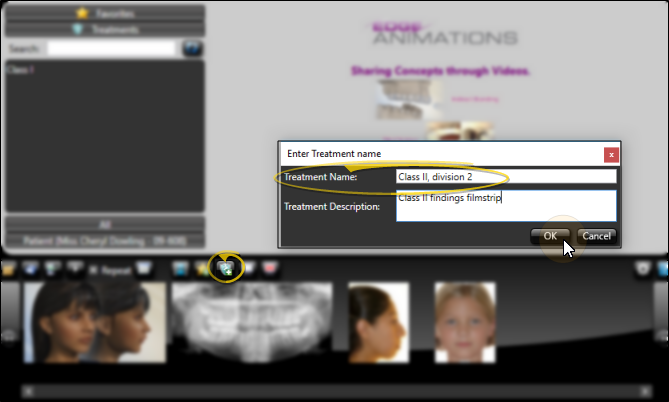
Then, when you launch Edge Animations for a patient with "Class II, division 2 crowding", and click the Patient tab, your filmstrip will appear in the Findings section for you to present to them.
Publish a Filmstrip as a Video
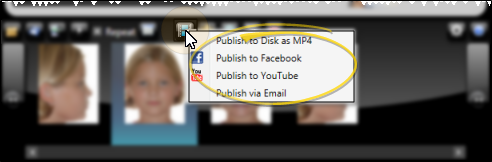
Use the Edge Animations publisher to save filmstrips in video file format on your computer, upload video files to YouTube or Facebook, or send a link to videos via email.
When you Save a filmstrip, you create an .XML file that you can later open for editing or viewing within Edge Animations. When you Publish a filmstrip, you create a video file that can be played independently of Edge Animations, such as from YouTube or nearly any device that can play media files.