
Filmstrip Lists
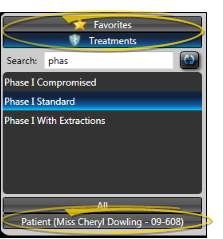
Edge Animations provides several ways to organize and access your filmstrips: Favorites, Treatments, and Patient-specific lists.
Favorites List
The Favorites list stores filmstrips you've created for general use. These can be loaded, edited, or added to other filmstrips.
Open from Favorites
Select the Favorites tab, then double-click a filmstrip to load it, or click to add it to your current filmstrip.
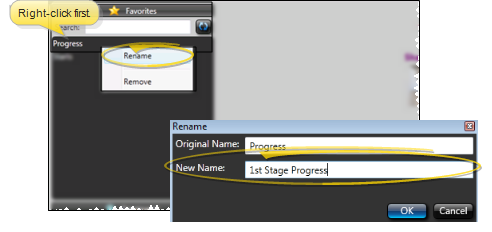
Rename Filmstrips
Right-click a filmstrip in the list to rename it.
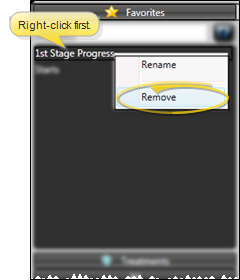
Remove from List
Right-click a filmstrip to remove it from the list.
Treatments List
The Treatments list is designed for condition-specific filmstrips that can be automatically matched to patients.
Patient Findings Integration
When you launch Edge Animations for a patient, the Findings section of the Patient tab can automatically list treatment filmstrips relevant to that patient's conditions.
Set Up Findings Integration
- Create a filmstrip for a specific finding (e.g., "Class II, division 2 crowding")
- Save the filmstrip to the Treatments list
- Use the exact name that matches your Edge Cloud findings description
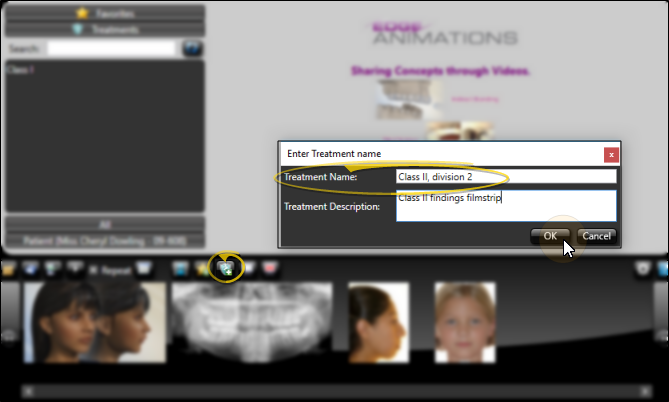
When you open Edge Animations for a patient with that finding, your filmstrip will appear in the Findings section.
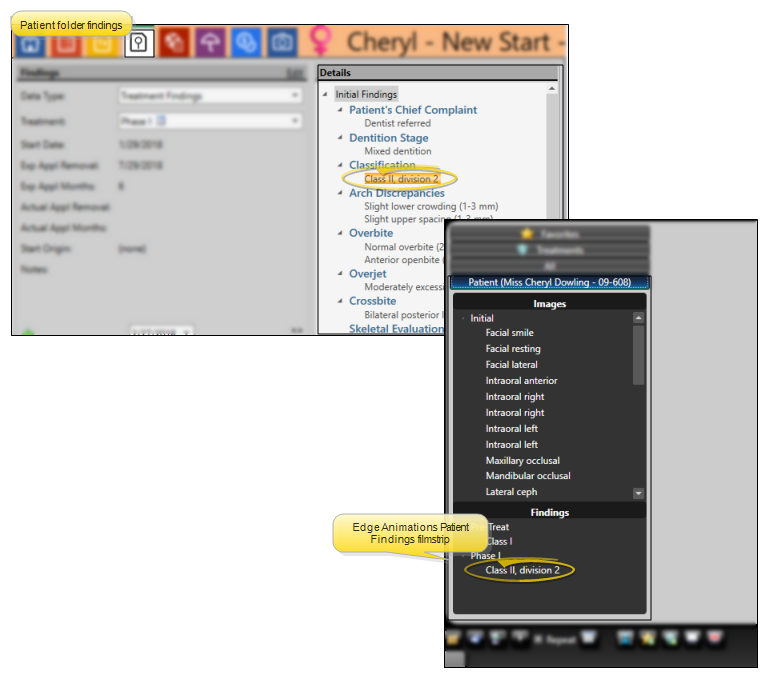
The filmstrip name must exactly match the findings description in your Edge Cloud system for automatic matching to work.
Patient List
The Patient list shows images and content specific to the currently open patient folder.
The Patient tab is only available when Edge Animations is launched from within a patient folder.
Next Steps
- Create Filmstrips - Build new filmstrip presentations
- Play Filmstrips - Present to patients