Play Edge Animations Filmstrips
You can play Edge Animations videos and filmstrips directly from the Edge Animations module, or publish your filmstrips as videos that you can save, share, and watch on any device that plays video files.
If your Compliance Animations and Edge Animations videos have a strange look to them, such as garbled artifacts showing on an image, enable the Render in Software option in the settings window. This will render your videos directly in the software, rather than on your monitor's video card, and produce a cleaner-looking result. However, when this option is enabled, you may have a choppier video presentation. See "Set Up Edge Animations" for details.
Open Edge Animations
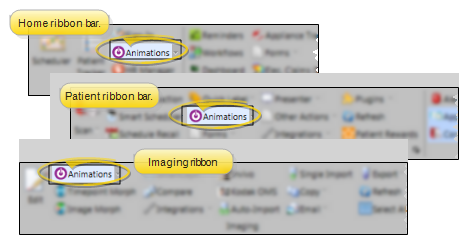
Select the Animations icon from the Home, Patient, or Imaging ribbon bar. (You can also open this feature from the Quick Access toolbar at the top of your Edge Cloud system window.) When it is running, the Animations icon appears in your computer's notification area.
If you plan to work on or present filmstrips or videos that contain images or treatment information about a specific patient, it is best to open the patient folder first, then launch Edge Animations. This way, you can integrate the patient's images into your filmstrip and customize them with your patient findings.
When you click the Edge Animations icon, your comprehensive Edge Animations module opens; You can optionally click the arrow beside the icon, then select to open either about-edge-animations or the standard Compliance Animations video list.
Create or Load a Filmstrip
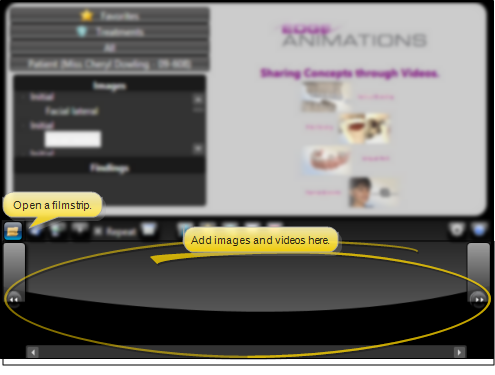
When you first launch Edge Animations, the filmstrip area at the bottom of the window is blank. You can either start creating a new filmstrip from scratch, or click Open from the filmstrip ribbon bar to load an Edge Animations filmstrip that you have already saved into the window.
Play / Pause Filmstrip
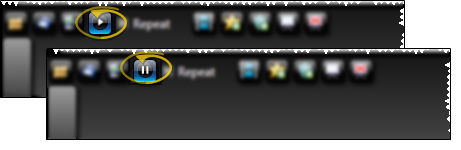
Click Play / Pause in the toolbar above the filmstrip, or press F5 on your keyboard, to start / pause playing the filmstrip at the current point in time. When the playback reaches the end of a video or image duration, it automatically continues with the next item until it reaches the end of the filmstrip.
Skip Forward / Backward One Second - Press F6 on your keyboard to skip forward, or F3 to skip backward one second in your filmstrip.
Skip to Next / Previous Media - Press F7 on your keyboard to skip to the next image or video, or F2 to skip back to the previous image or video in your filmstrip.
Repeat Option - Enable the Repeat option to play the filmstrip over and over in a continuous loop until you manually stop it.

Use the Presenter
Use the Presenter to duplicate whatever is currently being shown on your patient folders, responsible party pages, professional pages, Edge Animations or Edge Imaging screen onto a secondary monitor. This feature is particularly useful for showing patient images to parent and professionals, as well as presenting case, compliance, and treatment progress information.
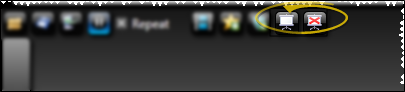
Preview an Individual Image / Video
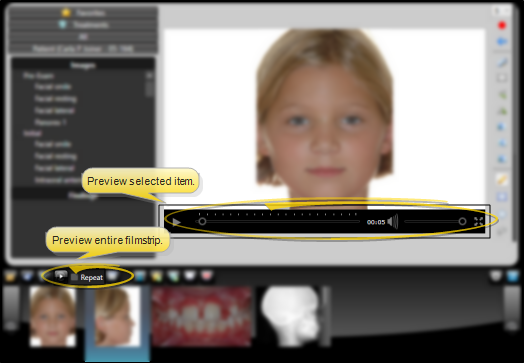
Use the time selection bar underneath image / video to preview how the item will look when you play the filmstrip.
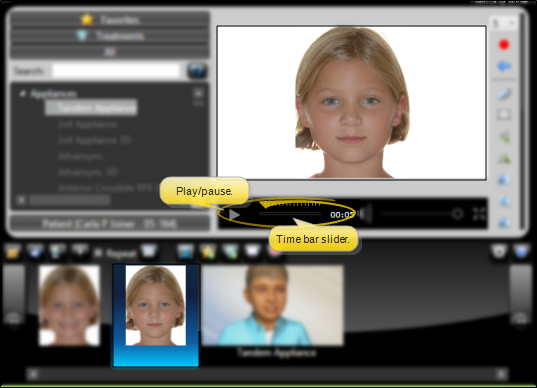
Preview Item vs Preview Filmstrip - You use the time slider controls in the playback section of the window to preview an individual filmstrip item, and the Play / Pause controls on the filmstrip bar to preview the entire filmstrip.