
Archive Patient Images
Use the Archive Images feature to move the images of patients who are no longer active off of the data server to an archive directory. Your images may optionally still be available for viewing and editing in the patient folder, and can optionally be used in your Patient Tracker, Treatment Hub, and mail merge letters, as long as the image cache is not deleted.
Before archiving images the first time, you need to create a folder for storing the archived images, such as C:\ImageArchive.
We recommend you archive images after hours. Archiving can take a long time, especially when a large group of patients is involved.
Open Archive Images Tool
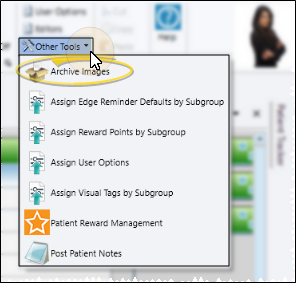
Select Other Tools from the Tools section of the Home ribbon bar. Then select Archive Images.
Select Archive Options
Select the options to use for this archiving job.
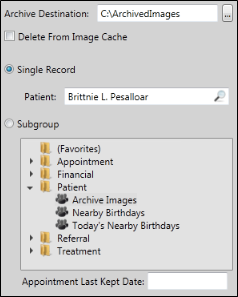
Archive Destination - If you supply an Archive Destination, the images will be copied to that location in a folder identified by the patient's primary ID number. We strongly advise you to back up this folder whenever you archive images to preserve the integrity of your patient records. You will still be able to view and edit the images from the patient folder only if you do not delete the image cache (described below).
Image Cache Option - If you do not use the Delete from Image Cache option, the images will be linked to the patient folder via the image cache on your server, so that you can still view and edit them. If you enable the Delete from Image Cache option, you must supply an Archive Destination to preserve a copy of the images. The images are then deleted from the server, and no longer linked to your patient folders.
Choose Single Patient or Subgroup to Archive - You can archive images for a single patient or for a subgroup. You can use the Archive Images subgroup in the Patient subgroup folder or create your own. Either way, we highly recommend using the Prompt for the Last Kept Appointment Date element in your subgroup to be sure you are archiving only patients that have been inactive for quite some time.
Click for sample archive subgroups.
Archive Images Sample #1
Has unarchived timepoint = YES AND
Patient status = DISMISSED (or your dismissed status description) AND
Appointment Last Kept Date < PROMPT
Archive Images Sample #2
Has unarchived Time point = YES AND
Status requires appointment = NO AND
Appointment Last Kept Date < PROMPT
Review Patients to Archive
After selecting the patient or subgroup you wish to archive, a list of those patients appears at the right of the window. You can click a patient name to open that folder and review the information, to be sure you want to archive this patient's images. If you see a patient you do not want to archive, adjust either the subgroup you used, or the patient folder data so that patient does not appear in the lsit.

Archive the Images
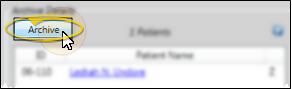
After reviewing the patient list, click Archive to begin the archiving process.
Each time you archive images, be sure to back up your archive directory and store it in a safe place.
View & Edit Archived Images
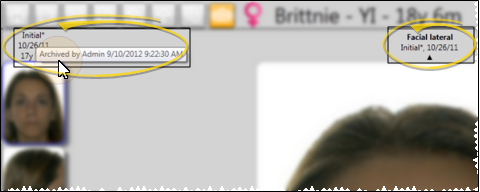
As long as the image cache has not been deleted, you can view archived images in the patient folder, as well as use them in your Patient Tracker, your Treatment Hub and mail merge letters. Archived images are identified by an asterisk beside the timepoint name. You can hover over the timepoint name to view the archived date and operator. You can still edit images and import new images for this patient, but they will continue to be stored in the image cache, and not your general system database.