
Auto-Import Images
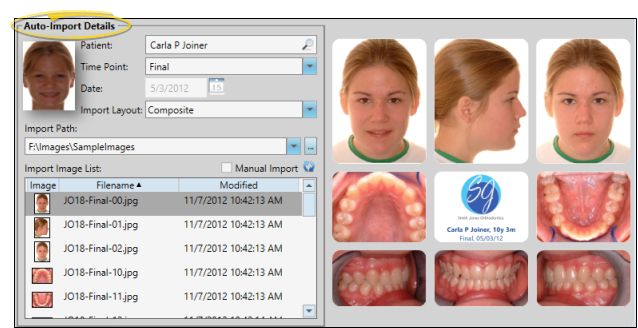
Use the Auto Import feature to import or scan one or more images into an imaging layout. The images are tagged with a timepoint, indicating the point in treatment when they were taken. You can auto import images into other timepoints throughout treatment, providing you with a visual progression of the patient's condition across time.
With the inVisit filter enabled in the patient's Edge Cloud Treatment Hub, you will see the patient's inVisit virtual visit summaries among the treatment chart records. You can double-click or right-click the visit summary to open your inVisit management portal to that visit, or right-click to import the inVisit photos into the patient's Edge Imaging page.
Open the Auto Import Window
From the Imaging section of the Home or Imaging ribbon bar, select Auto Import. (The location of the icon depends on the ribbon bar you are working with.)

Choose Import / Scan Details
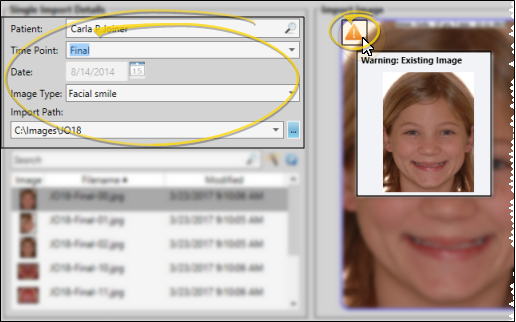
Choose the patient, timepoint, date, and image type or layout to add your image(s) to. Then, if you are using Single Import or Auto Import, select the Import Path where the image(s) are located. If you are scanning the image(s), you can ignore the Import Path.
Choose a Patient
To change the patient to work with, click in the Patient field to open Fast Find and search for a different patient. This provides an efficient way to work with multiple patients in one session.
Timepoint
Choose the timepoint for this image, or type a new timepoint unique to this patient.
Date
If you are importing into a new timepoint, enter the date the image(s) were taken. This date will be applied to all future images you import into this timepoint. If you cannot enter a date, images have already been imported into this time point.
Although all images in a timepoint have the same timepoint date, you can edit the date an individual image was taken via the Edit > Image Properties tool.
Image Type or Layout
Single Images - When you use Single Import, or Scan to add a single image to the patient folder, you choose the image type you are adding to the layout. If you right-clicked a layout to launch Single Import, that image type is selected by default.
Multiple Images - When you use Auto Import or Multi-Scan to add multiple images to the patient folder, you choose the layout to use to import those images. Note that only the image types specified in the selected layout will be Auto Imported, even if the image list includes other image types.
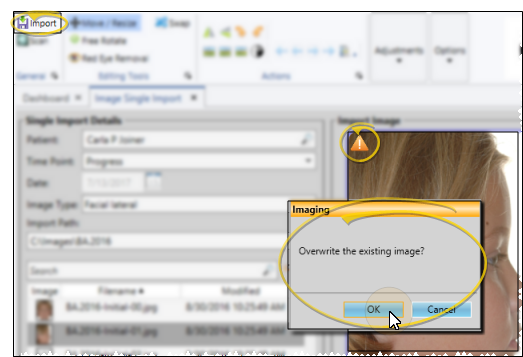
If an image already exists for an image type in this timepoint, you will see a Warning icon in the preview section of the window. You can hover over the icon to view the existing image. (X-Ray Location images do not show this warning: They do not overwrite any images, but simply add images to the Index layout of the patient's Imaging page, and optionally the patient's tooth chart.)
Import Path
If you are using Single Import or Auto Import, choose the location of this patient's original images. You can click the dropdown button to select from a list of paths you've used on this workstation, or click [...] to browse to a different location if needed. You then see a list of the images found in that folder. You can ignore the Import Path and list of images when you are using Scan or Multi-Scan to add one or more image(s) to the patient folder.
Review the Image List
Once you select the Import Path of the images you wish to Auto Import into the patient folder, you can review and change that list before continuing.
Zoom an Image
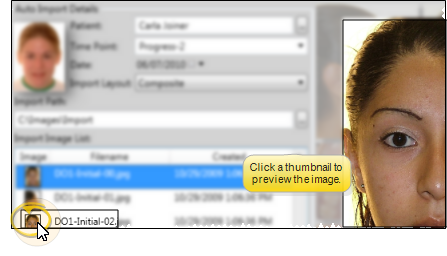
Click a thumbnail in the image list to display a large picture of that graphic at the right of the window. Move your cursor off the thumbnail return to the layout preview.
Remove an Image
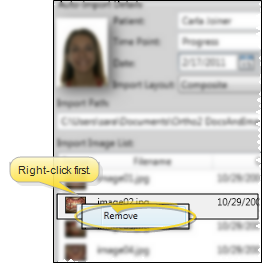
If you do not want to import an image in the list into the layout, right-click that image and select Remove. This does not delete the image from the original location. This feature is especially useful if, for example, you take several photos of the same image type (i.e. Facial smiling), but want to import only the best one into the patient record.
Choose the First Image to Use
By default, Edge Imaging will begin importing from the first image file in the list, and continue until all images that match the image types in the layout are imported. However, you can click a different file to start with. The layout preview at the right will be adjusted accordingly so you can see the results of your action. This feature provides a way for you to store the multiple sets of images in one location, and choose which image is the "first" in the series to auto import.
Swap or Scan Additional Images
If the image you need to import is not in the list, you can enable the Swap tool in the Imaging ribbon bar to drag and drop external images onto the layout, or enable the Manual Import option to scan additional images (such as x-rays) from any scanning device connected to your computer.
Rearrange the Image Layout
A preview of the image layout appears at the right of the window. If the images are not in the correct place, enable the Swap tool in the Imaging ribbon bar, then drag and drop them into new locations. The image you are dragging is swapped with the image that is currently in the new location. This feature is useful when the original images are taken out of order. To return the layout to its original default state, be sure the Manual Import option is disabled, and click the Refresh button.
Preview and Edit the Image(s)
A preview of your selected image(s) appears at the right of the window. You can move, rotate, and edit images before importing them into the patient record.
Edit Images - While editing an image, you can use the icons in the Editing Tools section of the Imaging ribbon bar to move, re-size, manually rotate, and remove red eye from patient images.
Image Actions - While editing an image, you can use the tools in the Actions section of the Imaging ribbon bar to change the image orientation, manipulate image resolution, and access image and time point properties. The Actions tools also provide you with a way to reverse or re-apply changes you have made to your images.
Image Adjustment - While in imaging Edit mode, you can use the slider bars in the Adjustments section of the Imaging ribbon bar to manually adjust the brightness, gamma, saturation, contrast, and hue values of your images.
Image Options - While in imaging Edit mode, you can use the tools in the Options section of the Imaging ribbon bar to enable / disable viewing tools that are designed to help make editing more accurate.
Import Image(s)
Click Import from the General section of the Imaging ribbon bar to save your selections and begin the import process.
Verify Overwrite
If you are importing an image (or images) that will overwrite an existing image in this time point, you must confirm your action before continuing.
Keep or Delete Original Images
After images are imported, you see a completion notification dialog. If the "Delete After Import" option in your Imaging User Options is set up to either retain original images or delete original images, you simply see a notice that the process is complete. However, if the "Delete After Import" option is set up to prompt you before deleting original images, select either Yes or No to direct the handling of the original images.