Copy a Patient Image / Timepoint to Another Patient
You can copy an individual image or an entire timepoint to another patient. This feature is particularly useful when images were accidentally imported into the wrong patient folder.
Choose the Image or Timepoint to Copy
You can copy an individual patient image as well as all of the images in an entire timepoint from one patient to another.
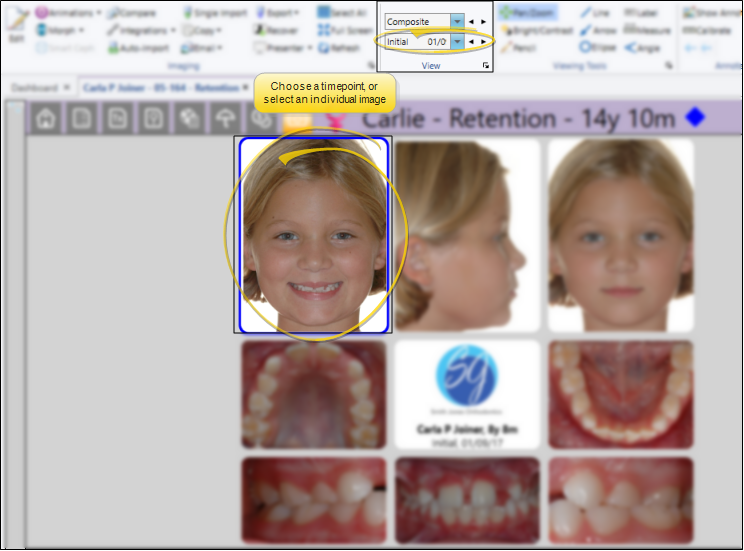
Choose a Timepoint - To choose a timepoint to copy, simply go to the patient's Imaging page and view that timepoint on your screen. All of the images in this timepoint will be copied to the other patient.
Choose an Image - To select an individual image, you can simply click the image in the layout. You can copy only one individual image to another patient at one time.
Copy to Another Patient
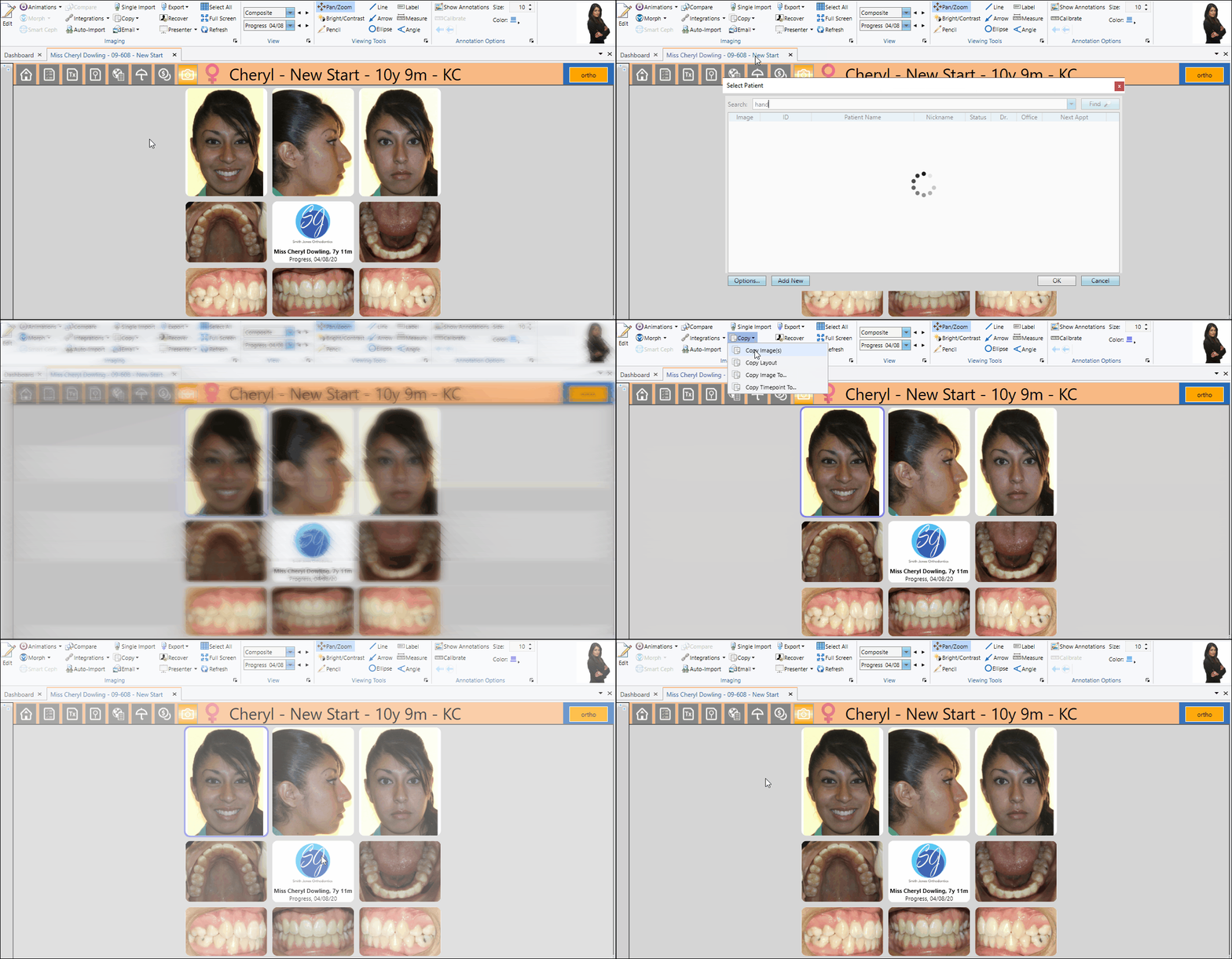
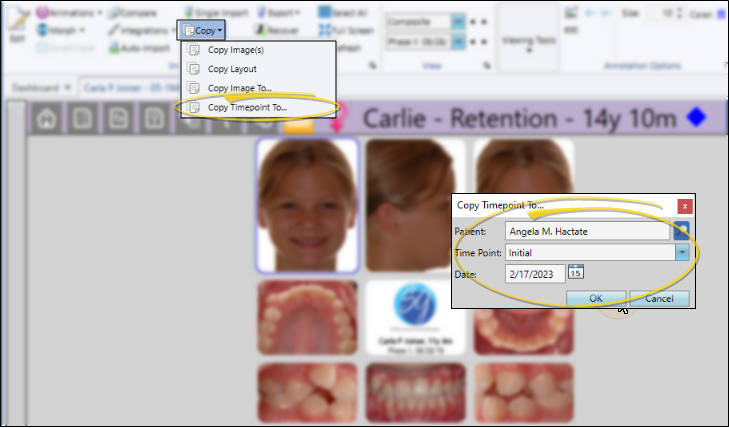
After selecting your timepoint or image, click Copy from the Imaging section of the ribbon bar, and choose to copy the timepoint or the image. Once the copying is completed, the image(s) are saved in the new patient folder, and remain in the original patient folder.
When you copy images to another patient, any existing image/timepoint will be overwritten.
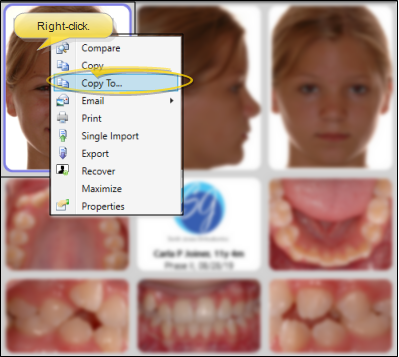
You can also right-click an image and select Copy to to copy that image to another patient.
Copy the Timepoint
Choose Copy Timepoint To, and use Fast Find to choose the patient folder to copy to. The timepoint name you selected is the default for the new patient, but you can change it if you need to. If the new patient already has images in the timepoint name you select, you cannot change the date. Otherwise, you can also enter the date to assign to the images.
If you select a timepoint that already has images, all the original images will be overwritten.
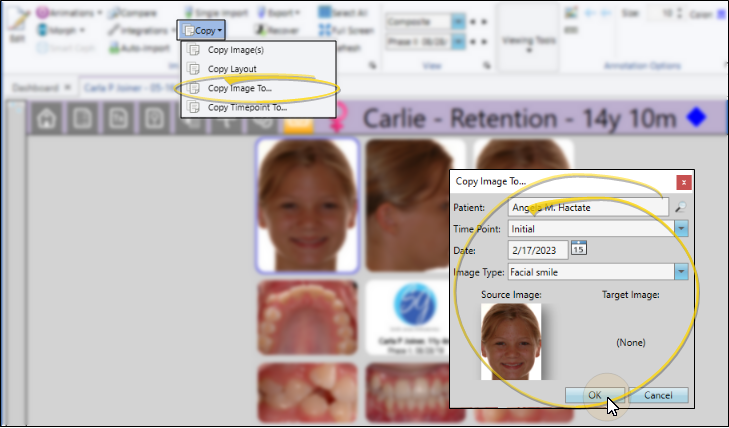
Copy the Image
Choose Copy Image To, and use Fast Find to choose the patient folder to copy to. The timepoint name and image type you selected are the defaults for the new patient, but you can change them if you need to. If the new patient already has images in the timepoint name you select, you cannot change the date. Otherwise, you can also enter the date to assign to the image.
If you select a timepoint and image type that already has an image, the original image will be displayed for your review: If you continue, the original image will be overwritten.