
Image Editing Actions
Mirror, Flip, Rotate, Sharpen, Blur, Smooth, Auto-Contrast
While editing an image, you can use the tools in the Actions section of the Imaging ribbon bar to change the image orientation, manipulate image resolution, and access image and time point properties. The Actions tools also provide you with a way to reverse or re-apply changes you have made to your images.

Enable Image Editing Tools
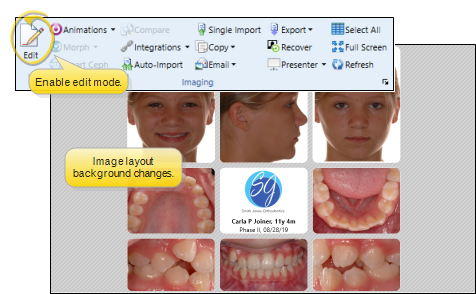
To use image editing tools, enable the Edit icon from the Imaging section of the ribbon bar. Then, select the image you want to work with. Your Edge Imaging background changes slightly to indicate when you are in Edit mode.
Editing mode is not available from cardflow layouts. You can, however, maximize individual images in a cardflow layout to edit them.
Use Editing Actions
Select the image to work with, then enable the tool you want to use in the Actions section of the Imaging ribbon bar.
Mirror - When you "mirror" an image, you turn it on its vertical axis. (Think of looking at yourself in the mirror.)
Flip - When you "flip" an image, you turn it on its horizontal axis. (Think upside down.) You can use your Image Types editor to choose to flip certain image types as they are first imported into a patient record.
Rotate 90° - Use the Rotate 90 tools in the Actions section of the Imaging ribbon bar to turn an image 90 degrees clockwise or counter-clockwise. If you can't remember which button rotates clockwise and which rotates counter-clockwise, you can hover over the buttons on the ribbon bar to see a tooltip. You can use your Image Types editor to choose to rotate certain image types a specific number of degrees as they are first imported into a patient folder.
Sharpen - Use the Sharpen tool to enhance the clarity of the image, or the currently selected area. Each time you click "sharpen", the image is affected further.
Blur - Use the Blur tool to soften the entire image, or the currently selected area. Each time you click "blur", the image is softened further.
Smooth - Use Smooth to smooth the image, or the currently selected area. Each time you click Smooth, the image is affected further.
Auto Contrast - Use Auto Contrast to automatically correct poor contrast by adjusting shadows and highlights for the selected image while preserving image detail and color balance.
Undo - Use the Undo Last and Undo All tools in the Actions section of the Imaging ribbon bar to reverse unsaved changes you have made to the image. You can click Undo Last Action (or press Ctrl+Z on your keyboard ) repeatedly to reverse changes one at a time, or click Undo All Actions to reverse all changes at once. After you save changes or exit editing mode, you cannot undo your actions. You can, however, Restore the image to its original state if needed.
Redo - Use the Redo Last and Redo All tools in the Actions section of the Imaging ribbon bar to reapply un-saved changes you have made to the image, after using the Undo actions described above. You can click Redo Last Action (or press Ctrl+Y on your keyboard ) repeatedly to reapply changes one at a time, or click Redo All Actions to reapply all changes at once. After you save changes or exit editing mode, you cannot redo your actions. You can, however, Restore the image to its original state if needed.
Changes History - Use the History tool in the Actions section of the Imaging ribbon bar to review the unsaved changes you have made to an image. You can also click in the history list to return to a specific point in the editing trail.
Restore Original Image - Use the Restore tool in the Actions section of the Imaging ribbon bar to return the selected image to the original, as it was imported into the patient record. This will undo all changes you have saved during any editing session.
Save Changes
Click Save in your Quick Access toolbar or File ribbon bar (or press Ctrl+S on your keyboard) to save any changes you have made. If you are in Edit mode, and have enabled the Exit Edit on Save setting in your Imaging User Options, you return to viewing mode after saving the image. Otherwise, you remain in Edit mode, where you can make more changes as needed.
Cancel Changes
Click Cancel in the Imaging section of the ribbon bar to exit editing mode, ignoring any unsaved changes.
If you edit an image in error, you can use the Undo toolsin the Actions section of the Imaging ribbon bar to reverse individual changes while still in editing mode, and the Restore tool to revert an image to its original imported state even after you save changes.