Image Edit Mode Options
Grid Lines, Silhouettes
While in imaging Edit mode, you can use the tools in the Options section of the Imaging ribbon bar to enable / disable viewing tools that are designed to help make editing more accurate.
Enable Image Editing Tools
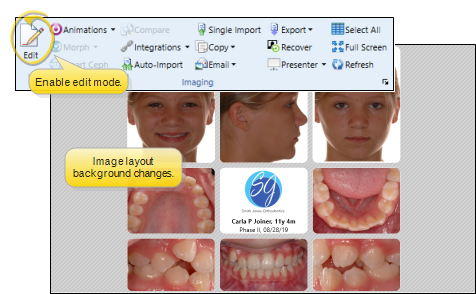
To use image editing tools, enable the Edit icon from the Imaging section of the ribbon bar. Then, select the image you want to work with. Your Edge Imaging background changes slightly to indicate when you are in Edit mode.
Editing mode is not available from cardflow layouts. You can, however, maximize individual images in a cardflow layout to edit them.
Enable / Disable Silhouette
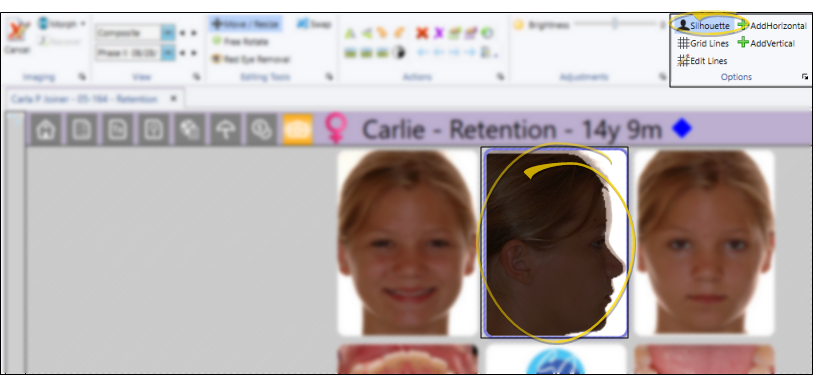
The Silhouette tool, available when you have selected an individual image, shows a dim image of the prior timepoint's image that appears behind the current image. Displaying this "double-image" can help you better visualize and present changes that have occurred during treatment..
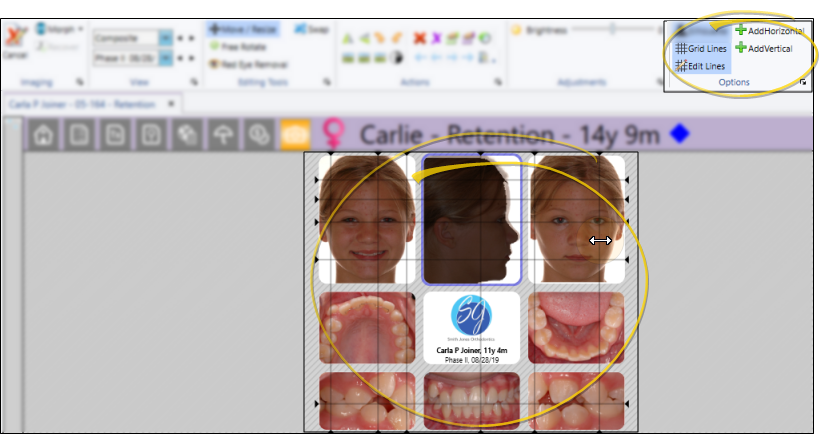
Show / Hide Grid Lines
While editing a static layout or auto-importing images, you can click the Grid Lines icon to show / hide lines superimposed over the layout. You can then add more horizontal and vertical lines, and enable the Edit Lines tool to drag individual lines to adjust their position on the screen, ordrag them off the screen to remove them from view. Any changes you make to grid lines remain in effect the next time you enable grid lines. Note that grid lines are never included when you copy or print an image or layout.