Export Images and Layouts to JPG
You can export individual patient images or entire image layouts to .JPG files that t you can use in another application, such as a newsletter or word processing document. When you export one or more specific images, you can choose to export them as they currently look, or export them as they were originally imported into the patient record.
The Image Caption set up in your Image Caption editor displays at the top of card flow layouts, card flip layouts, and maximized images. In addition, you can optionally "burn" this caption onto image layouts. and when you email, export, and merge patient images. See "General Imaging Editor" for details about the "burning" option.
Choose the Image(s) or Layout to Export
You can export individual patient images and image layouts, as well as export images from the Maximized and Image Morph screens.
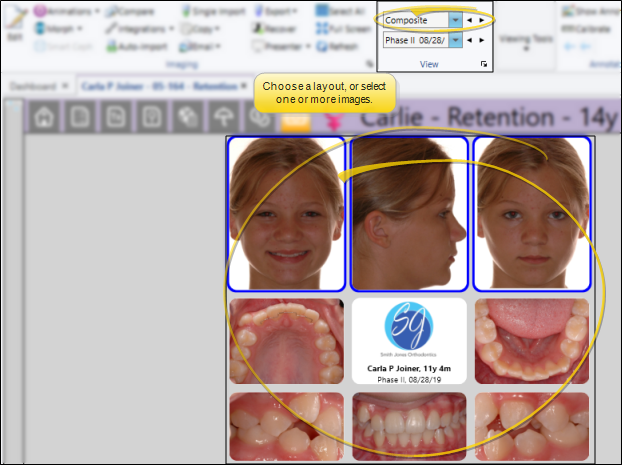
Choose a Layout - To choose an image layout to export, simply go to the patient's Imaging page and view that layout on your screen. You can export "static" and "dynamic" layouts, such as Index and Composite layouts. If you export a Cardflip layout, only the image you currently see on your screen will be exported. You cannot export Cardflow layouts.
Choose One or More Images - To select an individual image, you can simply click the image in the layout. If you want to select multiple consecutive images, hold down the Shift key, then choose the first and last image to include. To select multiple non-consecutive images, hold down the Ctrl key, then click each image you want to include. In addition, you can click Select All from the ribbon bar (or press Ctrl-A on your keyboard) to include all images in the layout.
Export the Image(s)
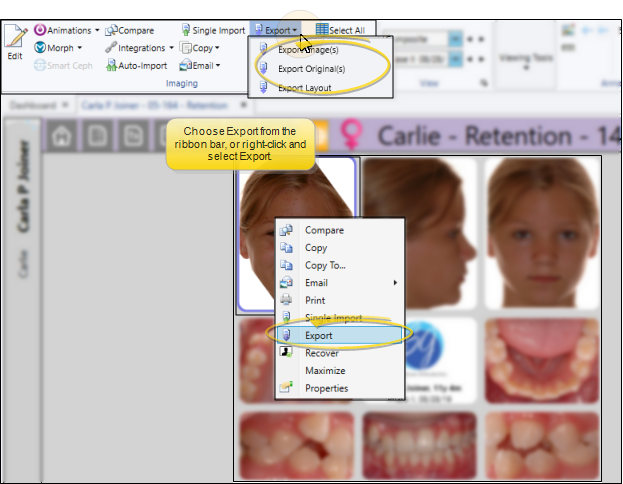
After selecting your layout or images, click Export from the Imaging section of the ribbon bar. You can then choose whether you want to export individual images either as they currently look, including any editing you have done to them, or as they were originally imported into the patient folder. Or, you can choose to export the entire layout.
You can also select one or more images, then right-click and select Export to export them as they currently look. When you right-click to export, you do not have the option to export original images.
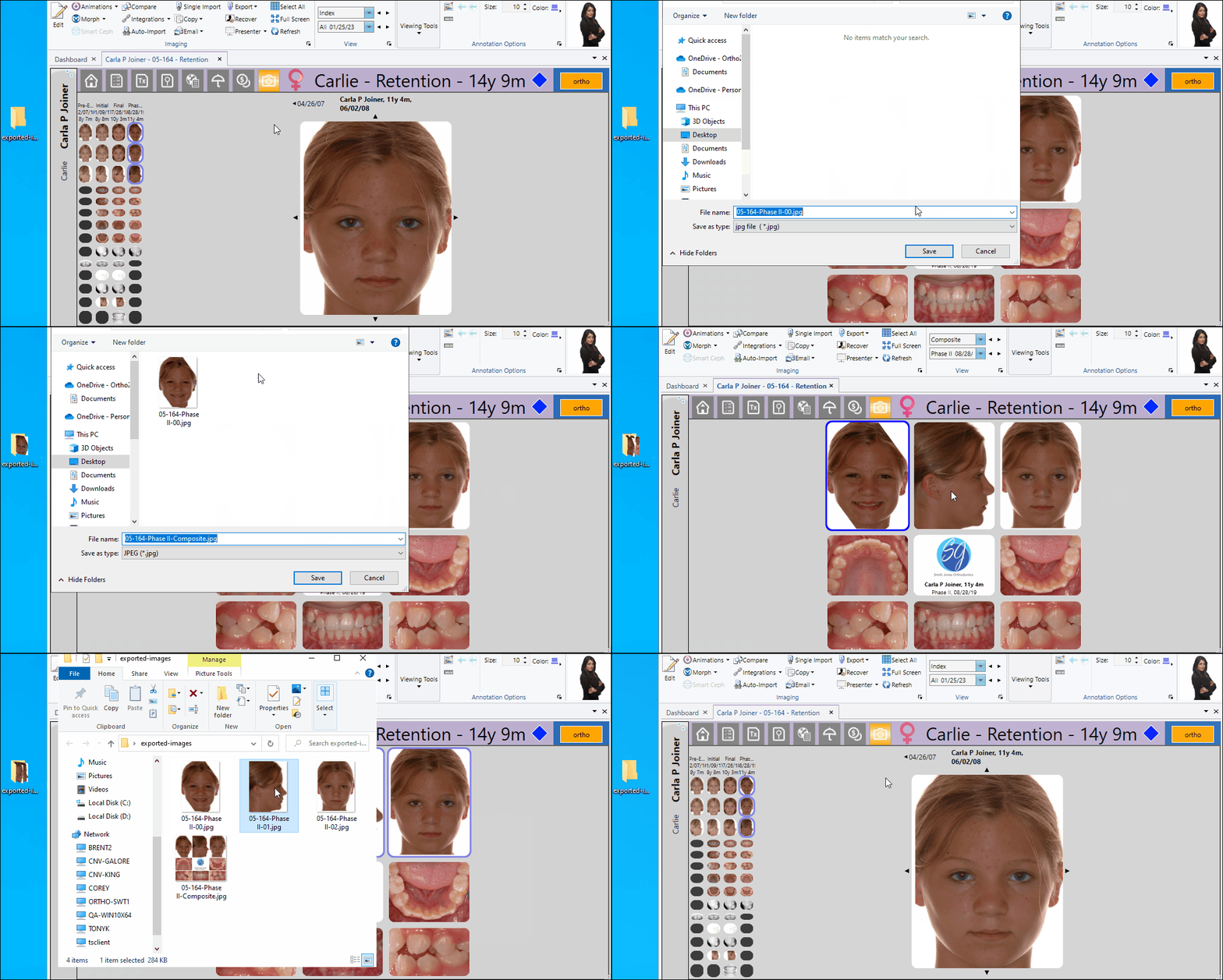
Navigate to the folder where you want to save the JPG file(s). When you export a single image or a layout, you can change the default filename if you want to. However, if you export multiple individual images, they are automatically saved with the default filenames.
The default filename for saved individual images includes the patient id number, timepoint name and the number of the image type. The default for image layouts includes the patient id number and layout type. You can optionally use the settings in your Image General editor to include the patient name in the filename as well.
When you export multiple individual images to a location that has existing files, any files with matching filenames will be overwritten without warning.