
Image Morphing
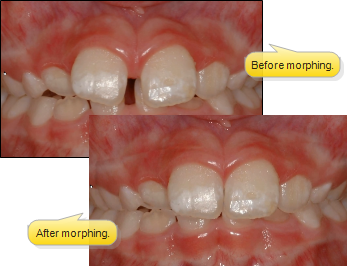
Use Image Morph tools to cosmetically manipulate images. This feature is especially useful for cleaning up patient photos, sharpening the details of x-ray images, and showing patients the potential results of orthodontic treatment.
This feature is a part of the Premier Imaging add-on module to Edge Imaging. Please contact Ortho2 for further information.
Premier Imaging supports two types of morphing: Image Morph tools, which give you a way to clean up and enhance an individual image, and Timepoint Morph tools which create animated presentations of the changes among two or more images. This article describes Image Morph tools. See "Timepoint Morph" for details about using timepoint morphing tools instead.
Open Image Morph Tools
Select the image you want to work with. Then, from the Imaging section of the Imaging ribbon bar, open the Morph dropdown and select Image Morph.
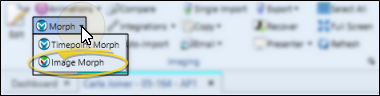
Image Morph Actions
Select a tool from the Actions section of the Morph ribbon bar to visually enhance the entire image, as well as undo and reapply changes you have made to the image.

Clear Selection - Use the Clear Selection tool, or simply click somewhere in the image window to reset your cursor's selection.
Flip - When you "flip" an image, you turn it on its horizontal axis. (Think upside down.) You can use your Image Types editor to choose to flip certain image types as they are first imported into a patient record.
Mirror - When you "mirror" an image, you turn it on its vertical axis. (Think of looking at yourself in the mirror.)
Sharpen - Use the Sharpen tool to enhance the clarity of the image, or the currently selected area. Each time you click "sharpen", the image is affected further.
Blur - Use the Blur tool to soften the entire image, or the currently selected area. Each time you click "blur", the image is softened further.
Smooth - Use Smooth to smooth the image, or the currently selected area. Each time you click Smooth, the image is affected further.
Auto Contrast - Use Auto Contrast to automatically correct poor contrast by adjusting shadows and highlights for the selected image while preserving image detail and color balance.
Undo - Use the Undo Last and Undo All tools in the Actions section of the Imaging ribbon bar to reverse unsaved changes you have made to the image. You can click Undo Last Action (or press Ctrl+Z on your keyboard ) repeatedly to reverse changes one at a time, or click Undo All Actions to reverse all changes at once. After you save changes or exit editing mode, you cannot undo your actions. You can, however, Restore the image to its original state if needed.
Redo - Use the Redo Last and Redo All tools in the Actions section of the Imaging ribbon bar to reapply un-saved changes you have made to the image, after using the Undo actions described above. You can click Redo Last Action (or press Ctrl+Y on your keyboard ) repeatedly to reapply changes one at a time, or click Redo All Actions to reapply all changes at once. After you save changes or exit editing mode, you cannot redo your actions. You can, however, Restore the image to its original state if needed.
Changes History - Use the History tool in the Actions section of the Imaging ribbon bar to review the unsaved changes you have made to an image. You can also click in the history list to return to a specific point in the editing trail.
Image Morph Tools
Choose an icon from the Tools section of the Morph ribbon bar to adjust a portion of the image.

Move / Rotate a Portion of the Image
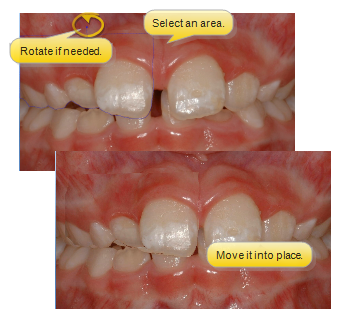
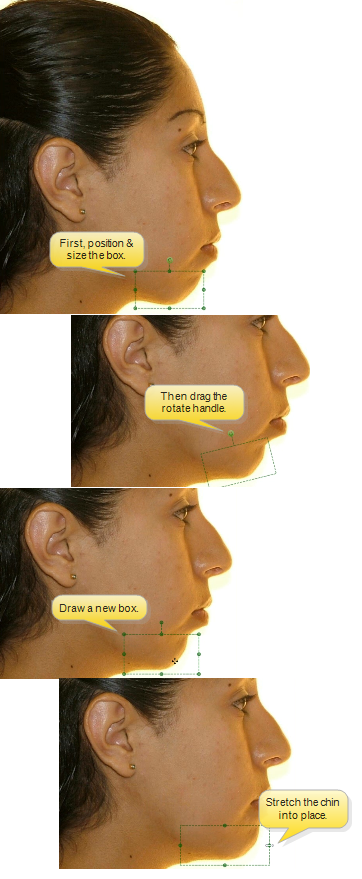
Use the Rectangle, Ellipse or Lasso (free-hand) tools to copy and move / rotate a portion of the image. First, select the tool you want to use, and outline an area of the image. You can then drag that portion of the image, or use the handle at the top of the selected portion to rotate it independently from the rest of the image. These tools are especially useful for showing the potential for straightening and realigning the jaws and teeth.
Stretch an Image
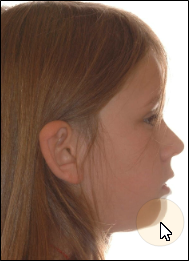
Use the Stretch tool to elongate a portion of the image, such as the chin. Enable the Stretch tool, then draw a box around the area you want to work with. You can click inside the box and drag it to fine-tune the location, and use the corner handles to resize the box. Once the box is in its optimal size and location, use the side, top, and bottom handles to stretch the area.
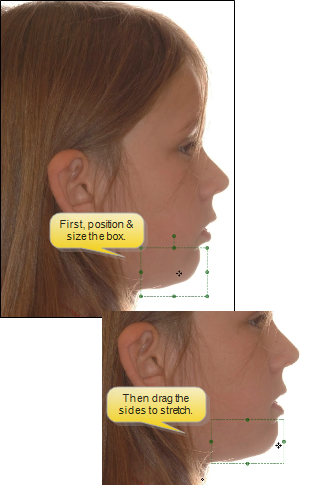
You can rotate and stretch by clicking and dragging the rotation handle at the top of the Stretch box, to bring a portion of the image into a better position.
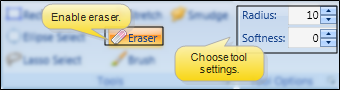
Eraser
Use the Eraser after moving a section of an image or applying an annotation to fine-tune the newly applied area, exposing the original image underneath. First, enable the Eraser tool, and select the radius (width) and softness (transparency) to use with the tool. Then, click and drag to "erase" the unwanted portion of the moved area or annotation.
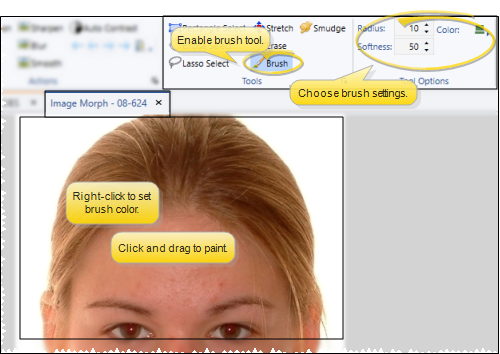
Brush
Use the Brush tool to add free-hand "painting" to the image. Because you can select the cursor location as the color to use, this is especially useful for touching up photographs. You can right-click to select the cursor location as your brush color, and use the radius (width) and softness (transparency) settings to fine-tune your brush. To "paint", click and drag your cursor. Each time you release, then click and drag again, you add another "layer" of paint.
Smudge
Use the Smudge tool to soften harsh lines and blend different areas of the image. It is especially useful for smoothing lines around a moved section. You can use the radius (width) and pressure (movement) settings to fine-tune the tool. Then click and drag your cursor over the area you want softened.
Image Morph General Options
Choose a tool from the General section of the Morph ribbon bar to save, export, or display your morphed and original image.

Save As
Click Save As to save the changed image (including the Show Original silhouette, if enabled as described below) to an image type and timepoint. Any existing image will be replaced by your morphed image. Therefore, you might want to save morphed images to a special timepoint created just for presentation purposes.
Export
Click Export, then enter the location and filename to save the morphed image as a .JPG file.
Show Original
Use the Show Original tool to display / hide a silhouette of the original image onto your morphed or edited image.
If you save your changes with the Show Original option enabled, the silhouette is saved also, providing you with a "before" and "after" view in a single image.
Presenter
Use the Presenter to duplicate whatever is currently being shown on your patient folders, responsible party pages, professional pages, Edge Animations or Edge Imaging screen onto a secondary monitor. This feature is particularly useful for showing patient images to parent and professionals, as well as presenting case, compliance, and treatment progress information.
Print the Morphed Image
Click Print from your File ribbon bar or Quick Access toolbar (or press Ctrl+P on your keyboard) to print a copy of the current screen contents. This provides a way to print a copy of the currently displayed morphed image, without having to save it.