
Recover Deleted Patient Images
You can use the Edge Imaging Recover tool to restore a patient image that was previously deleted.
Open Recover Image Tool
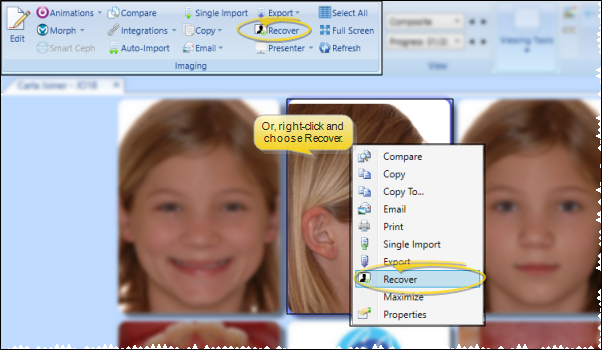
Click Recover from the Imaging section of the Edge Imaging ribbon bar. Or, right-click an image in an imaging layout to open the Recover image tool for that patient.
Choose the Image to Recover
All the images that have been deleted from this patient's record are listed, along with the backup image name, the date the image was deleted, and whether the image was an external file. Select the image you want to restore, and click Ok.
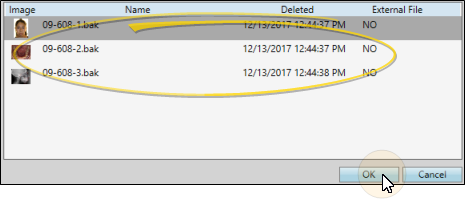
Image Details
Verify the patient, then enter the timepoint and image type for the image you plan to recover. When finished, click Ok to recover the image.
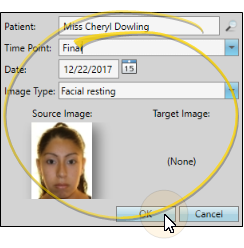
Patient - Usually, the selected patient is correct. However, if you need to restore the deleted image to a different patient, you can use Fast Find to search for and select that patient.
Timepoint - Choose the timepoint to use for the recovered image. Timepoints that already exist for the patient appear at the top of the list, but you can choose whatever timepoint is appropriate.
Date - Select the timepoint date. If the selected timepoint exists for the patient, you cannot change the date.
Image Type - Select the image type of the image you want to recover.
Source Image / Target Image - A thumbnail of the image you are recovering appears as the Source Image. If an image already exists for the timepoint and image type you selected, that image appears as the Target Image. If you continue to recover the deleted image, it will overwrite the current Target Image.
Finish
As soon as you click Ok to recover a patient image, it is saved in the patient folder.