Swap Images (Drag & Drop)
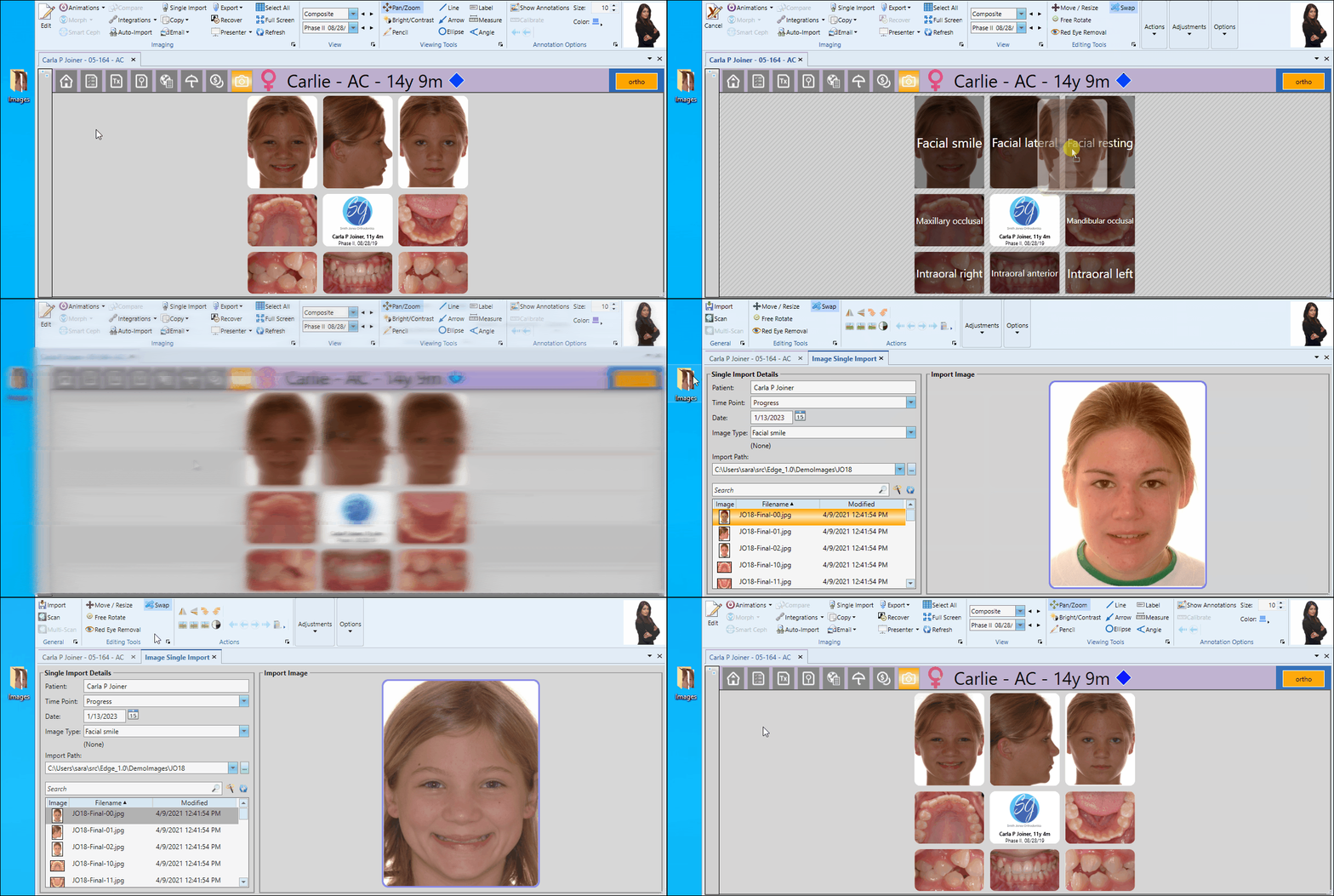
You can use the Swap tool to add external images to a patient folder, or to rearrange images in a layout. Swap is available from both image Editing mode and Single Import mode. You can enable Swap from the Editing section of the Imaging ribbon bar, or by holding down the ALT key on your keyboard.
Enable Image Editing Tools
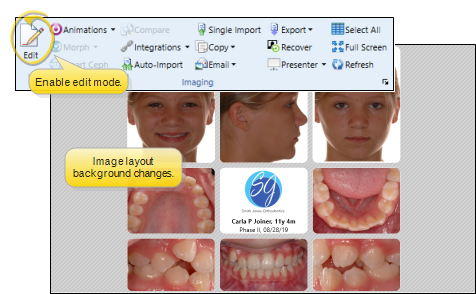
To use image editing tools, enable the Edit icon from the Imaging section of the ribbon bar. Then, select the image you want to work with. Your Edge Imaging background changes slightly to indicate when you are in Edit mode.
Editing mode is not available from cardflow layouts. You can, however, maximize individual images in a cardflow layout to edit them.
Enable Swap Tool
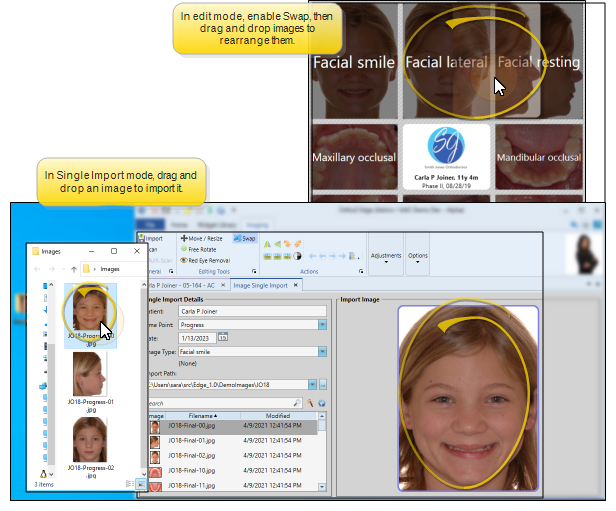
Enable the Swap icon from the Editing Tools section of the Imaging ribbon bar, or hold down the ALT key on your keyboard.

Add or Rearrange Images
With Swap enabled, or while holding down the ALT key on your keyboard, drag and drop images within an imaging layout to rearrange them, or drag new images from an external location onto your Imaging window or Single Import window, replacing the image that was already there.
In addition, if you hold down the ALT key and drag an external image onto an imaging layout while in viewing mode, you initiate the Single Import feature for that image type.
Save Changes
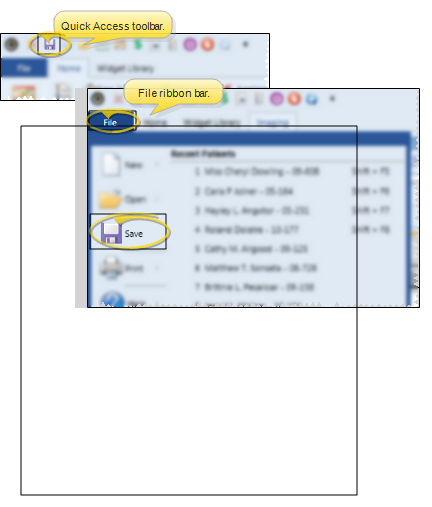
Click Save in your Quick Access toolbar or File ribbon bar (or press Ctrl+S on your keyboard) to save any changes you have made.