Edge Proposal Templates Editor
Use the Edge Proposal Templates editor to set up your standard treatment options, such as full braces, limited treatment, and Invisalign. Each template defines the default treatment fee and months, finance charge, associated discounts, and available add-ons. You can also set up default payment structures that your patients' families can use as starting points as they use the Edge Proposal app to personalize their treatment and set up their payment plan.
Open the Edge Proposal Templates Editor
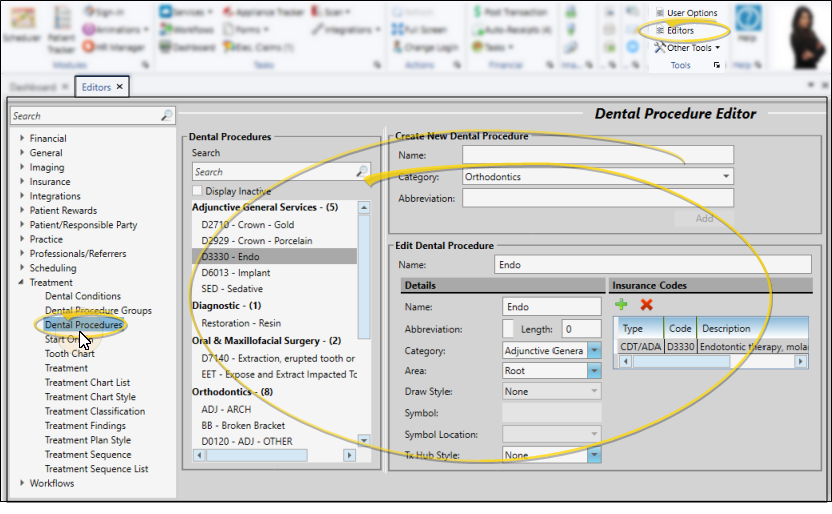
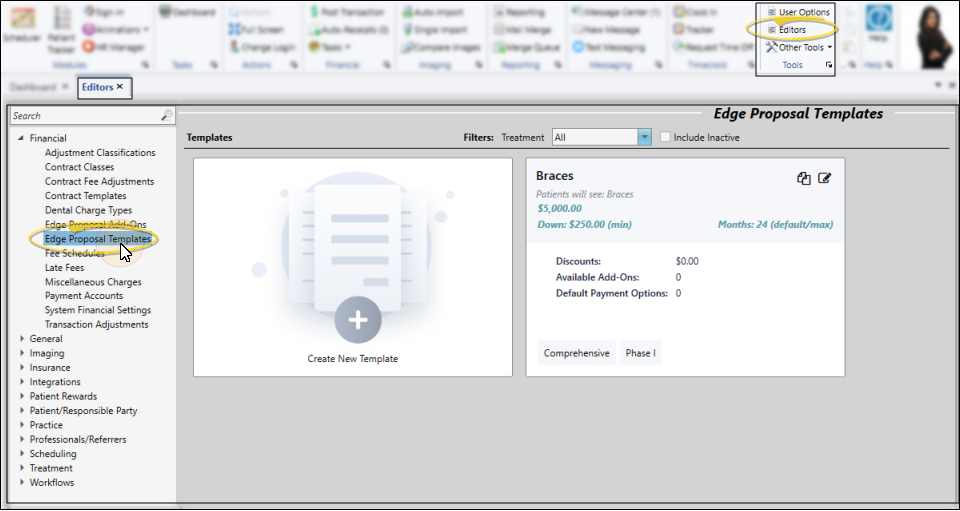
Select Editors from the Tools section of the Home ribbon bar. Then, from the Financial section, open the Edge Proposal Templates editor. (You can also use the Search field to look for the editor you want to work with.)
View Template Cards
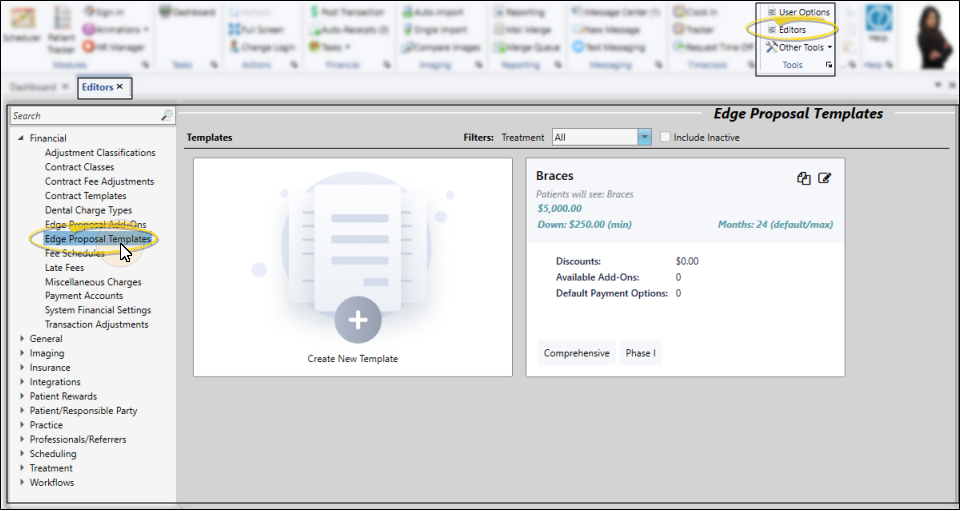
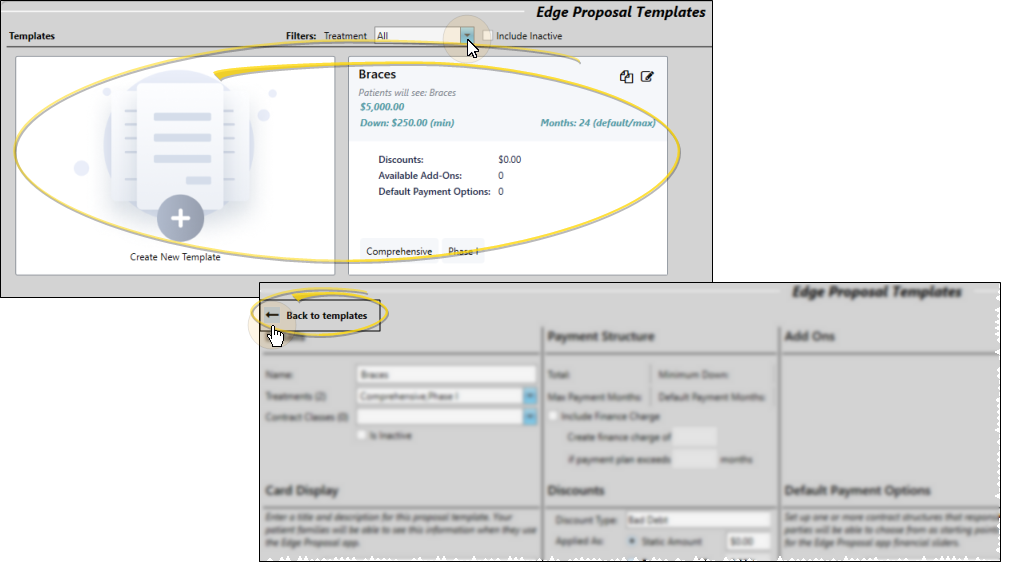
Your existing templates appear as "cards" on your screen. You can use the filter at the top of the window to display only cards associated with a specific phase of treatment, as well as include or exclude inactive templates. Each card displays the template title, financial summary, discounts, and selected add-ons. You also see the image and description that your families will see when they use the Edge Proposal app to customize their treatments and payment plan.
After viewing or editing template details, click the Back to Templates arrow to return to this window.
Create or Edit a Template
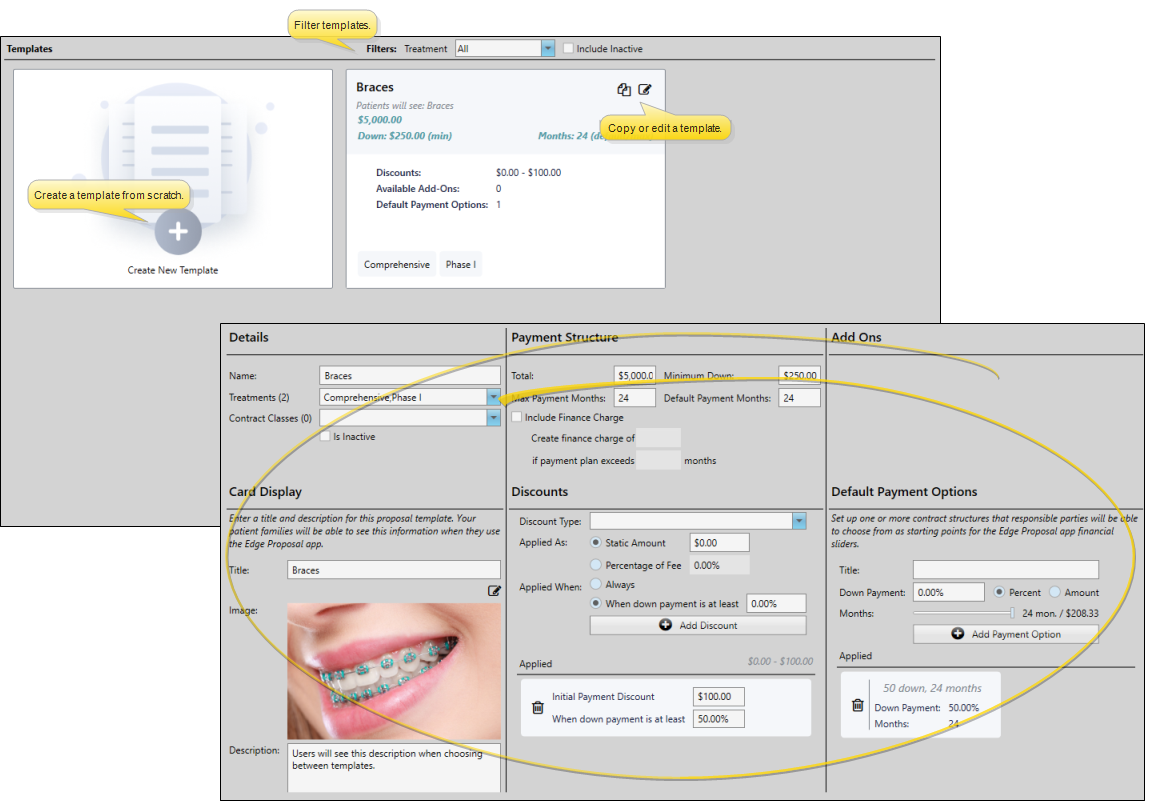
To create a new template, click Create New Template on the "empty" card, then enter the template description and select at least one treatment phase to use with this template. You can also click the Copy icon at the top left of a card to copy it, or click the Edit icon to edit an existing template. The template details then appear for you to review and edit.
Once you create a record, you cannot delete it. You can, however, flag it Inactive. Records you flag as Inactive are not available for general use, but they remain in your system for reporting and other data collection needs. In addition, you can toggle records back to Active whenever needed.
Template Details
Use the Details section of the template window to enter a title, select one or more treatment phases and contract classes for this template. You can create a template for each treatment phase, or create just one or two templates that you assign to all treatments so that you have only a small number of financial starting points. When you create a proposal for a patient, only templates assigned to the treatment phase you select for the proposal will be available to you.
Office Use Only - This section is for your use only: Your patient families will not see this infromation when they use the Edge Proposal app.

Card Display
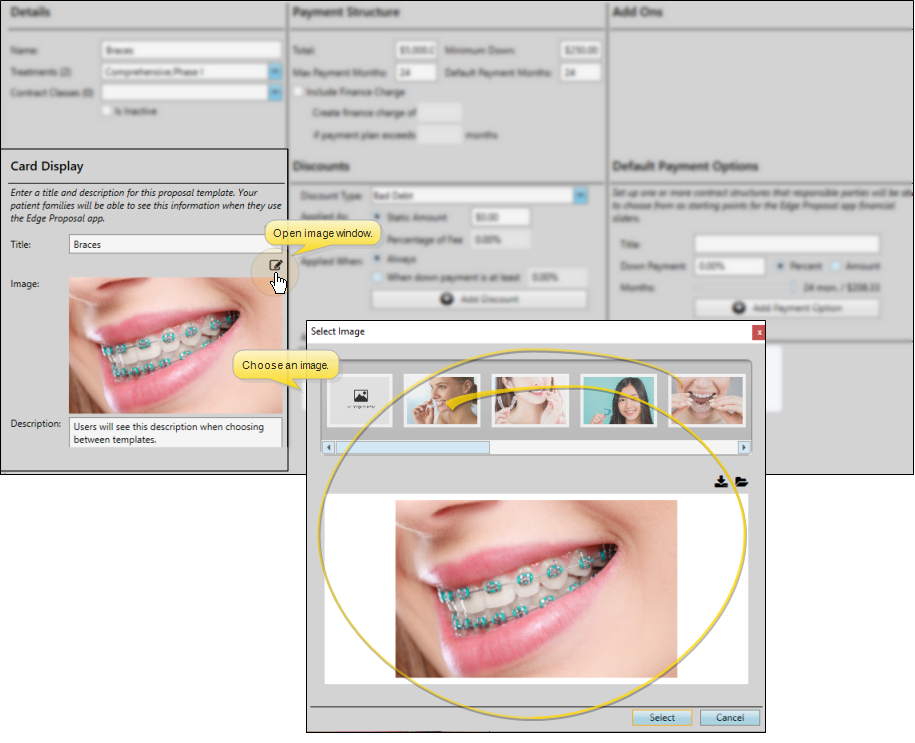
Use the Card Display section of the template window to enter a title and description. You can click the Edit icon beside the image to choose or download an image for this template.
Public Display - Your patient families will be able to see this information when they use the Edge Proposal app.
Choose an Image
Your available images are shown at the top of the Edit Image window. You can select one of these to use, or download a different image.
Download From Your Computer
Click Download From Computer, then browse to an image you want to add to your Edge Proposal image choices. You can then select the image from the choices at the top of the window.
Download Image from the Internet
Click Download From Web, then enter the web address for an image you want to link to. It is generally easiest to go to the web site where the image is located, right-click and copy the web address, then paste the address into the URL field.
It is your responsibility to secure authorization for any copyrighted material you use in your publications.
Click Select to choose the image for this template. Or click Cancel to exit without changing the associated image.
Payment Structure
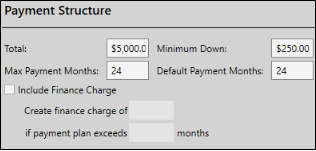
Enter the default treatment amount (base fee), expected number of treatment months, minimum down payment, and maximum contract months.
You can also apply a finance charge that kicks in when the contract goes past a certain number of months. For example, you might set the maximum number of contract months at "30", but apply a finance charge if the payments go more than "24" months.
You cannot change the financial details of a proposal template, including the treatment fee, finance charges, and discounts, as you create a proposal for a patient. However, you will be able to edit the details from the patient's Finance page before you activate and share the proposal with the family.
Discounts
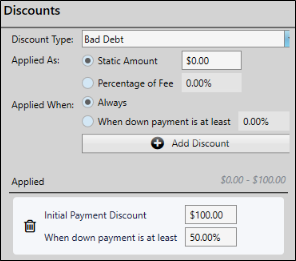
Use the Discounts section to manage non-production discounts. You can choose to apply a discount automatically, or apply it when the down payment reaches a certain percentage of the treatment fee. This can be particularly effective for encouraging families to choose larger down payments.
To add a new discount, fill out the information and click the Add Discount button. To remove a discount from this template, select the discount from the list of Applied Discounts and click the trash icon. See "Transaction Adjustments Editor" for details about creating your list of non-production discount descriptions.
You cannot change the financial details of a proposal template, including the treatment fee, finance charges, and discounts, as you create a proposal for a patient. However, you will be able to edit the details from the patient's Finance page before you activate and share the proposal with the family.
Add-Ons
Use the Add Ons section of the window to link options from your Edge Proposal Add-Ons editor to the template, giving your families even more treatment plan customization. Any add ons that you enable for the template that have been flagged as "Default as Selected" in your Edge Proposal Add-Ons editor will be automatically selected when your patients' families first open the Edge Proposal app. Any other add ons you enable here can be selected manually with the Edge Proposal app.

Default Payment Options
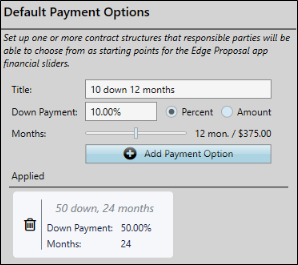
Use the Default Payment Options section of the window to set up one or more contract structures that responsible parties will be able to choose from as starting points for the Edge Proposal app financial sliders. To create a payment structure, fill in the title, down payment percent or amount, and use the slider to adjust the number of payment months. Then click Add Payment Option. The slider is bound by the number of default and maximum months set up in the Payment Structure section of the window. To remove a payment option from this template, select it from the list of applied options and click the trash .
After you create a proposal for a patient, you can edit the proposal details to optionally "lock" either the down payment amount or payment months to restrict the responsible party from changing that value of the payment plan.
Save Changes
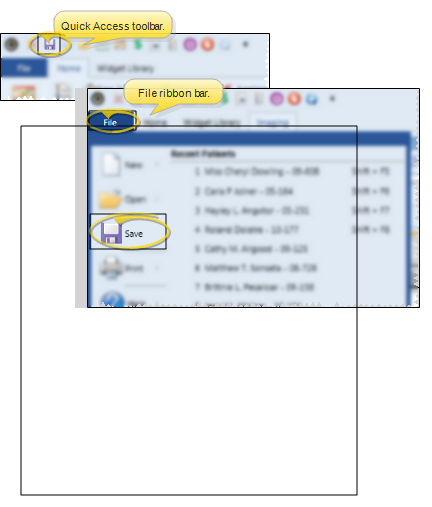
Click Save in your Quick Access toolbar or File ribbon bar (or press Ctrl+S on your keyboard) to save any changes you have made.