
Edge Broadcast Application Settings
You can use the Edge Broadcast application settings to update the information you provided at registration, including your email address, password, and social media IDs.
Your practice can have only one Edge Broadcast registration and log in password that you share among all staff that needs to access the Edge Broadcast service.
Open Edge Broadcast Service
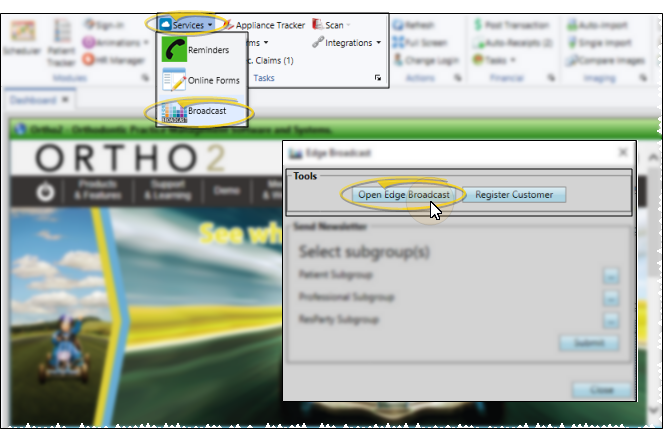
Select Services from the Tasks section of the Home ribbon bar and choose Broadcast. Then choose the Open Edge Broadcast option from the Tools section of the window. Or, navigate to https://edgebroadcast.ortho2.com. The Edge Broadcast application main window will open in your default browser.
Open Application Settings
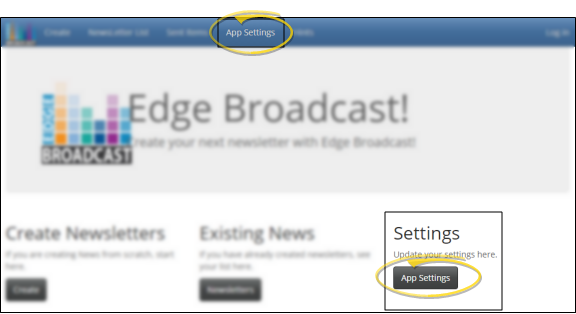
Click App Settings from the Edge Broadcast main window, or from the ribbon bar at the top of the screen. If you are not already logged into Edge Broadcast, enter the email address and password associated with your Edge Broadcast account.
Update Your Settings
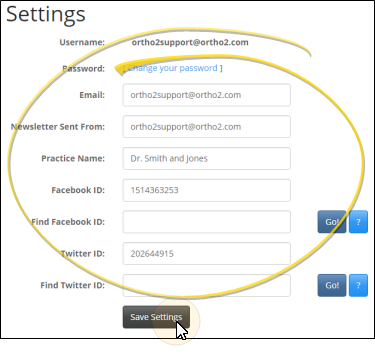
Update your Edge Broadcast password, email address, social media IDs as needed.
Username
Your Edge Broadcast user name is the email address you used to register your account. If you change the email address field below, that will become your new user name.
Password
To change your password, click the link, then enter your current password and your new password. You must confirm your new password before continuing.
Email
If you change the email address in this field, it will become your new Edge Broadcast user name.
Newsletter Sent From
Enter the email address you want your newsletters to be from. This can be different from the email address you use to log into Edge Broadcast.
Practice Name
This field should be the name of your practice, as you would like your newsletter recipients to see it.
Facebook ID / Find Facebook ID
Entering your Facebook ID (not your page name) in your Edge Broadcast settings allows you to import social media posts into your newsletters. If you don't know your ID, type your Facebook page name in the Find Facebook ID field (if you don't know your name, go to your Facebook page, copy the information after .com/, and paste it into the Find Facebook ID field). Then, click Go! Your ID is then entered into the field above. You can optionally enter the social media IDs while editing a newsletter template.
Twitter ID / Find Twitter ID
Entering your Twitter ID (not your handle) in your Edge Broadcast settings allows you to import social media posts into your newsletters. If you don't know your ID, type your Twitter "handle" in the Find Twitter ID field (if you don't know your handle, go to your Twitter page, copy the information after .com/, and paste it into the Find Twitter ID field). Then, click Go! Your ID is then entered into the field above. You can optionally enter the social media IDs while editing a newsletter template.
Save / Cancel Your Changes
Click Save Settings at the bottom of the window to save your changes. Or, exit the window without clicking the button to ignore your changes.
Remember, if you changed your email address or password, you will need to log in with the new credentials the next time you open Edge Broadcast.