
Manage Edge Broadcast Newsletters
Your Edge Broadcast Newsletter List includes all the newsletters you have sent, as well as newsletters you are working on. You can edit, clone, and update newsletter settings from this window, as well as test how your newsletter email messages will look. In addition, you can inactivate newsletters you do not need to see regularly, and delete newsletter templates that have not been sent to anyone.
Open Edge Broadcast Service
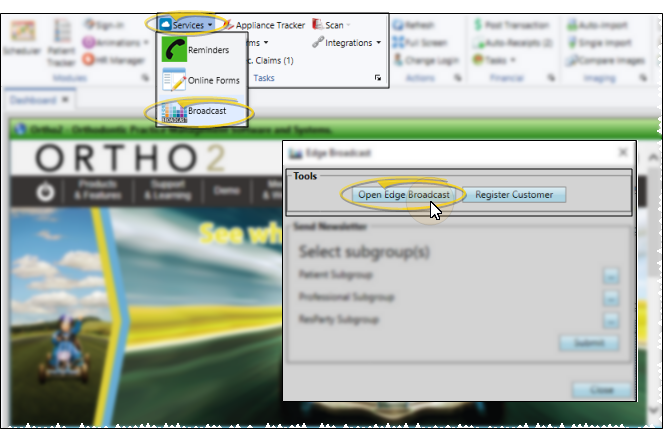
Select Services from the Tasks section of the Home ribbon bar and choose Broadcast. Then choose the Open Edge Broadcast option from the Tools section of the window. Or, navigate to https://edgebroadcast.ortho2.com. The Edge Broadcast application main window will open in your default browser.
Open Your Newsletter List
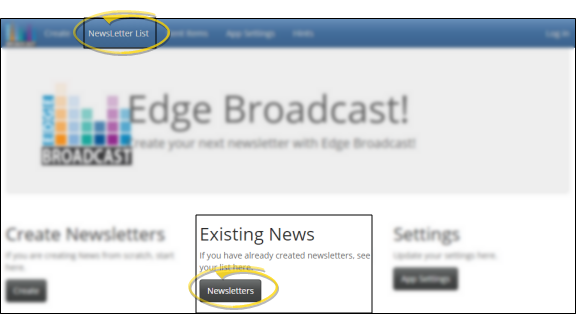
Click Newsletters from the Edge Broadcast main window, or click Newsletter List from the ribbon bar at the top of the screen. If you are not already logged into Edge Broadcast, enter the email address and password associated with your Edge Broadcast account.
Find a Newsletter
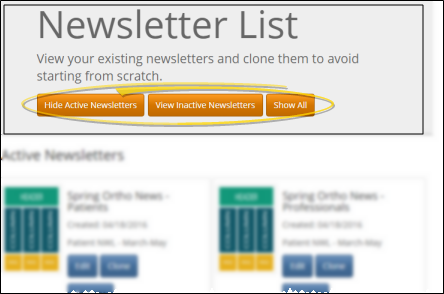
Edge Broadcast keeps a copy of all newsletters you have sent out, as well as newsletters you are working on. You can use the Hide / View Active Newsletters, Hide / View Inactive Newsletters and Show All buttons in the Newsletter List header to filter the type of newsletter to include in the list. Newsletters you have just created or cloned appear at the beginning of the list to make them easy to find.
Manage Newsletters
The list includes the newsletter name, description, and date it was created to help you identify each publication. In addition, a picture of the formatting template that was used to create the newsletter appears, to give you an idea of what the newsletter looks like.
Edit
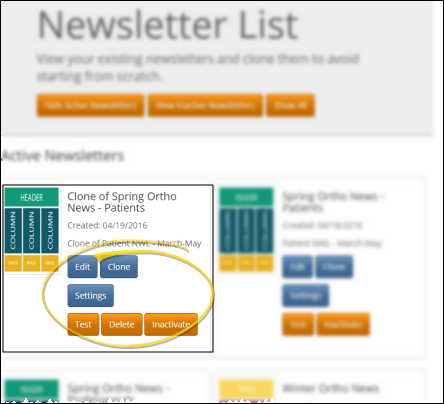
You can save and edit your Edge Broadcast newsletters as many times as you need to before sending them to your patients, parents, and professionals. See "Edit Edge Broadcast Newsletter Contents" for details.
Clone
You can design Edge Broadcast newsletters from scratch, or clone an existing newsletter to use as a template. You can include articles, images, and Facebook and Twitter posts to keep your newsletters fresh and relevant. See "Create or Clone a Newsletter" for details.
Settings
The Newsletter Settings window includes a name, email subject, and description for your Edge Broadcast newsletter, as well as the color theme. This window opens for you automatically after you select the layout for a new newsletter, or you can open it for existing / cloned newsletters from the Newsletter List. The name and description are for your use only: Newsletter recipients will not see these fields. However, the email subject will be included in the message that recipients see when you publish your newsletter. See "Edge Broadcast Newsletter Settings" for details.
Test
You can click Test from the Newsletter List window, then enter an email address (such as your own address) to see what the newsletter email message will look like when someone receives it. (See "Edit Edge Broadcast Newsletter Contents" for details about previewing a newsletter without sending it.)
Delete
Click Delete to remove a newsletter from your Edge Broadcast service.
You can only delete newsletters that have not been sent to anyone.
Inactivate / Reactivate
You can inactivate newsletters you no longer need to use or see on a regular basis. You can use the Hide / Show Inactive Newsletters or Show All button at the top of the Newsletter List window to include inactive newsletters in the list. While viewing inactive newsletters, you can click Reactivate to include a newsletter in the active newsletter list again.