
Edge Broadcast Newsletter Settings
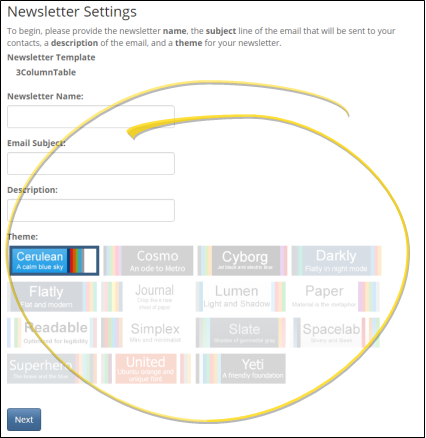
The Newsletter Settings window includes a name, email subject, and description for your Edge Broadcast newsletter, as well as the color theme. This window opens for you automatically after you select the layout for a new newsletter, or you can open it for existing / cloned newsletters from the Newsletter List. The name and description are for your use only: Newsletter recipients will not see these fields. However, the email subject will be included in the message that recipients see when you publish your newsletter.
Open Edge Broadcast Service
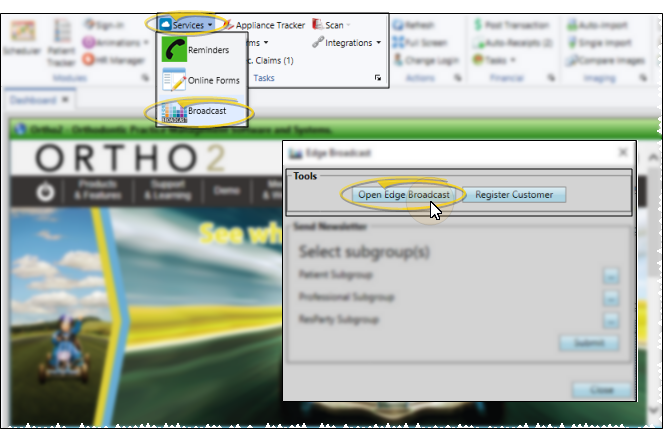
Select Services from the Tasks section of the Home ribbon bar and choose Broadcast. Then choose the Open Edge Broadcast option from the Tools section of the window. Or, navigate to https://edgebroadcast.ortho2.com. The Edge Broadcast application main window will open in your default browser.
Open the Settings Window
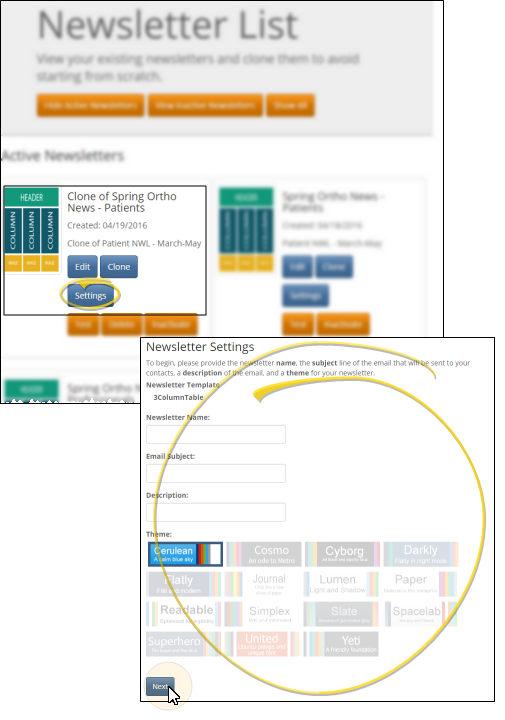
When you create a newsletter from scratch, the Newsletter Settings window opens automatically after you select the template to use. To edit the settings for a cloned / existing newsletter, find the newsletter you want to update in the Newsletter List, and click Settings.
Choose Your Settings
Newsletter Template
This field displays the template that was used to create the newsletter originally.
Once you create a newsletter, you cannot change the template it is based upon. You can, however, use newsletter settings and editing tools to change the newsletter layout however you want.
Newsletter Name / Description
These fields are for your use only, to help you organize your newsletters and remember the content within each one.
Email Subject
This field will be the email subject that your newsletter recipients will see when they get the newsletter email in their inbox.
Theme
The newsletter theme determines the colors, fonts, and sizes of the styles available to your Edge Broadcast newsletter. The currently selected theme is highlighted, but you can click to select any theme you wish. You can also change the theme while editing your newsletter.
Changing the newsletter theme updates the styles used for titles, headings and body text. If you have manually edited the font, size, or color of any text in your newsletter, those items will not be updated when you change the theme. Only titles, headings, and body text that are linked to styles will be updated to the new theme.
Finish
When you are happy with your newsletter settings, click Next (when creating a new newsletter) or Update (when editing a newsletter) to continue to the editing window.