
Register for Edge Broadcast
Your Edge Broadcast registration provides you with access to the Edge Broadcast newsletter services, including links to your social media sites so you can easily generate fresh newsletter content by automatically inserting recent posts.
Your practice can have only one Edge Broadcast registration and log in password that you share among all staff that needs to access the Edge Broadcast service.
Edge Broadcast requires that your Edge Cloud system be configured for Edge Reminders.
You can use the Edge Broadcast application settings to update the information you provided at registration, including your email address, password, and social media IDs.See "Edge Broadcast Application Settings" for details.
Open Edge Broadcast Registration Window
Select Services from the Tasks section of the Home ribbon bar and choose Broadcast. Then select the Register Customer option from the Tools section of the window. (An active Internet connection is required for this feature to work.)
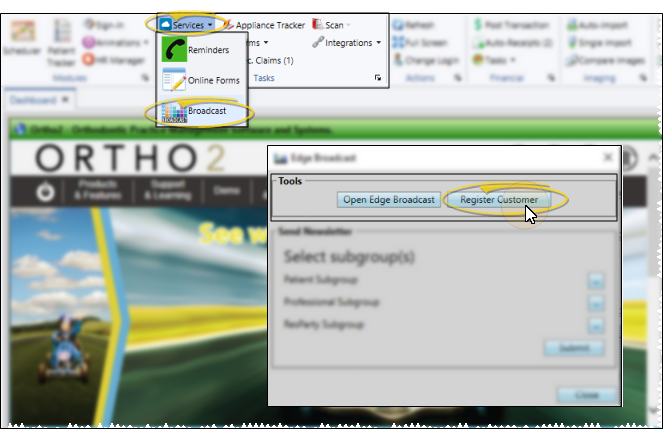
Complete the Registration Form
The Edge Broadcast Customer Registration window opens in your default Internet browser. You must enter your practice name, email address, and password, and optionally link your Facebook and Twitter accounts to your Edge Broadcast service.
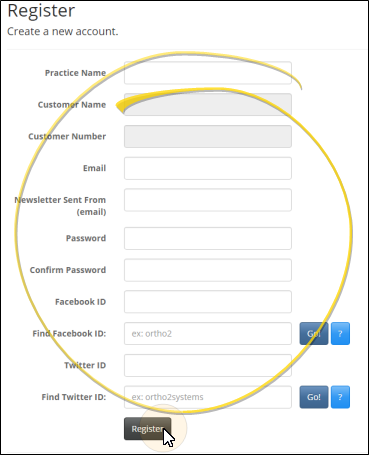
Practice Name
This field should be the name of your practice, as you would like your newsletter recipients to see it.
Customer Name / Customer Number
These are your Ortho2 customer identification fields, and will be auto-filled for you.
Email (Username)
Enter an email address that everyone in your practice will use to log into Edge Broadcast.
Newsletter Sent From (email)
Enter the email address you want your newsletters to be from. This can be different from the email address you use to log into Edge Broadcast.
Password
Enter a password that everyone in your practice will use to access Edge Broadcast. Retype the password in the confirm password field. The fields must match before you can continue.
Facebook ID / Find Facebook ID
Entering your Facebook ID (not your page name) in your Edge Broadcast settings allows you to import social media posts into your newsletters. If you don't know your ID, type your Facebook page name in the Find Facebook ID field (if you don't know your name, go to your Facebook page, copy the information after .com/, and paste it into the Find Facebook ID field). Then, click Go! Your ID is then entered into the field above. You can optionally enter the social media IDs while editing a newsletter template.
Twitter ID / Find Twitter ID
Entering your Twitter ID (not your handle) in your Edge Broadcast settings allows you to import social media posts into your newsletters. If you don't know your ID, type your Twitter "handle" in the Find Twitter ID field (if you don't know your handle, go to your Twitter page, copy the information after .com/, and paste it into the Find Twitter ID field). Then, click Go! Your ID is then entered into the field above. You can optionally enter the social media IDs while editing a newsletter template.
Finish
After completing the registration fields, click Register at the bottom of the window to complete the process. You're now on your way to sending electronic newsletters to your patients, parents, and professionals.