Send Edge Broadcast Newsletters
You can send your Edge Broadcast newsletters to any patients, parents, and professionals that have a valid email address in your Edge Cloud system. The recipients will get an email message from you that contains the newsletter content, and unless you removed the link in the template, can click a link at the top of the message to open the newsletter in their default Internet browser.
Get Started
Create Subgroups
Before you can send an Edge Broadcast newsletter, you must create subgroups for the patients, professionals, and / or responsible parties you wish to send your newsletter to. See "Subgroup Editor" for details about how to create subgroups. Only records with valid email addresses in your Edge Cloud system will receive a newsletter.
Create Your Newsletter
You can design Edge Broadcast newsletters from scratch, or clone an existing newsletter to use as a template. You can include articles, images, and Facebook and Twitter posts to keep your newsletters fresh and relevant. See "Create or Clone a Newsletter" for details.
Preview / Test Your Newsletter
We highly suggest you use the Preview option from the newsletter editing window, and / or the Test option from the Newsletter List to "try out" your newsletter before you send it out. Once you send a newsletter, you can inactivate it so you do not see it in your Newsletter List any more, but you cannot delete it.
Send Your Newsletter
Open the Edge Broadcast Options Window
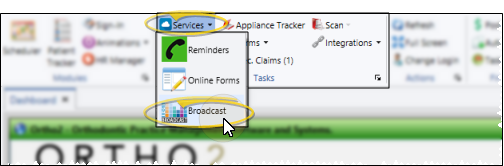
Select Services from the Tasks section of the Home ribbon bar and choose Broadcast.
Choose Subgroups
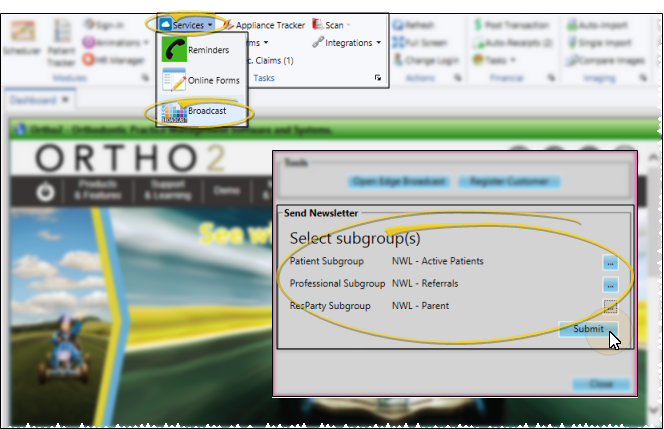
Select a subgroup for the patients, professionals, and / or responsible parties you wish to send your newsletter to. All of the selected groups will receive the same email message with the same newsletter content. If you want to send different newsletters to different people, for example, if you have prepared a newsletter for patients and parents, and a different newsletter for professionals, select only the subgroup(s) you want to use for this newsletter. After sending this newsletter, you can return to Edge Broadcast to select a different subgroup and a different newsletter. When you are happy with your choices, click Submit to continue.
Send Newsletter
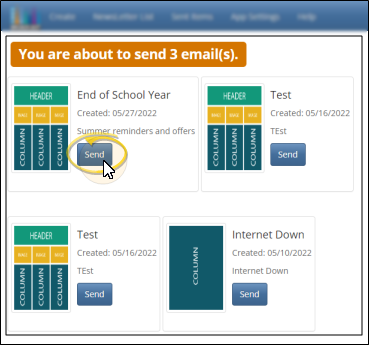
After submitting the subgroup(s) you want to use, the Edge Broadcast application opens in your default browser, showing you how many recipients matched your subgroup. (If you are not already logged into Edge Broadcast, enter the email address and password associated with your Edge Broadcast account.} Choose the newsletter you want to send to the selected subgroup(s), and click Send.
Your newsletter is sent immediately to the patients, professionals, and responsible parties that fit the subgroups you selected, provided they have a valid email address in your Edge Cloud system. The Edge Broadcast window updates the progress, and lets you know when all newsletters have been sen
Review Sent Newsletter Data
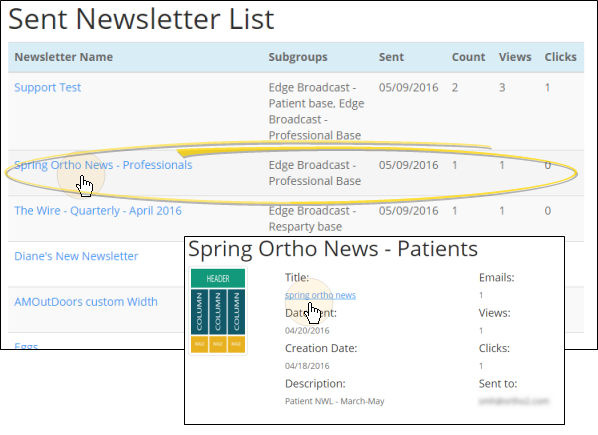
Use the Sent Items window to review the data regarding Edge Broadcast newsletters you have sent. See "Review Sent Newsletter Statistics" for details.