Set Up Scheduled Reminders
Use the Scheduled Reminders tab of your Reminders editor to schedule recurring messages, such as daily appointment reminders, and weekly birthday reminders.
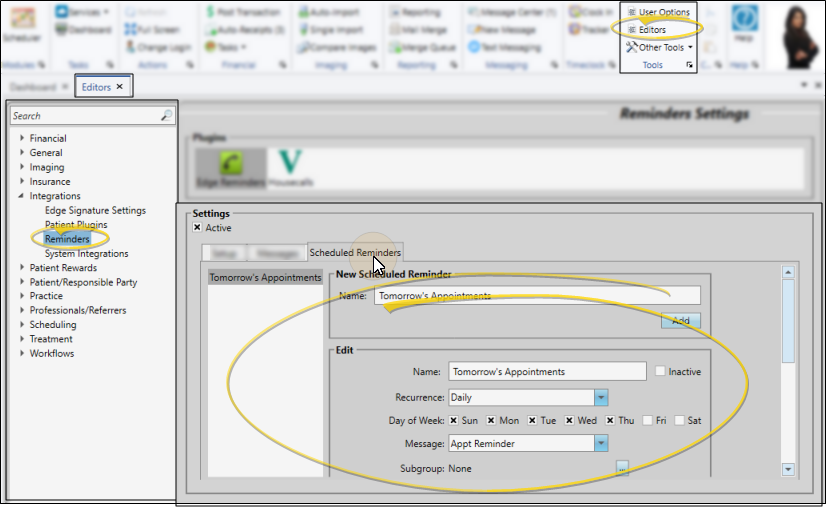
Use the Messages tab of your Reminders editor to create and edit the Edge Reminders messages you send via email and text message. (To create and update telephone voice messages, contact Ortho2.) You must have at least one message created before you can schedule reminders. See "Set Up Edge Reminders Messages" for details.
Open the Reminders Editor
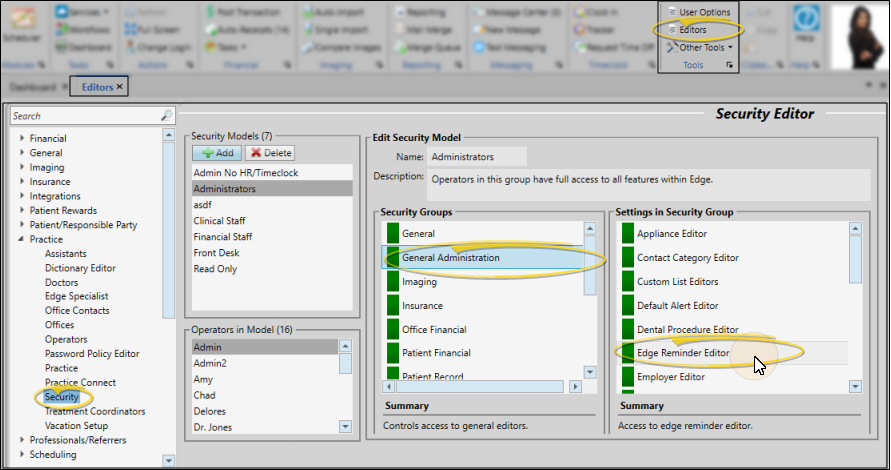
Only operators assigned to a security model that allows full access to the Edge Reminders Editor settings of the General Administration group can open this editor. See "Security Editor" for details.
Select Editors from the Tools section of the Home ribbon bar. Then, from the Integrations section, open the Reminders editor. (You can also use the Search field to look for the editor you want to work with.) Finally, choose the Edge Reminders plug in.
Create or Edit a Scheduled Reminder
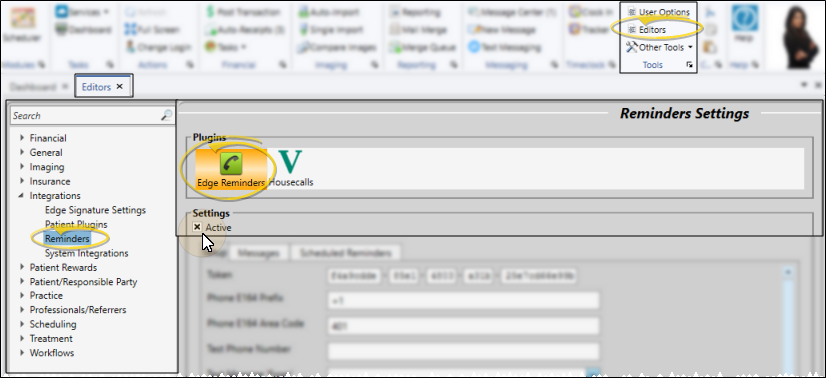
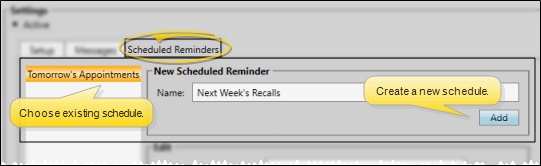
Open the Scheduled Reminders tab, then choose an existing scheduled reminder from the list at the left, or type a description of a new schedule and click Add.
Enter Details
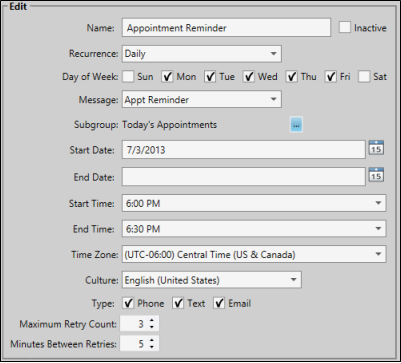
Enter or edit the scheduled reminder details.
Name
Use a descriptive name for your scheduled reminder.
Inactive / Active Toggle
Once you create a record, you cannot delete it. You can, however, flag it Inactive. Records you flag as Inactive are not available for general use, but they remain in your system for reporting and other data collection needs. In addition, you can toggle records back to Active whenever needed.
Recurrence
Select how often you want the reminders to be sent: Daily, Weekly, Monthly, etc.
Day of Week
If you select the Daily recurrence, enable each day of the week that you want the reminders to be run (generally week days).
Message
Choose the message to send when this reminder is run. (See "Set Up Edge Reminders Messages" for details about setting up your messages.)
Choose Subgroup
Select the subgroup to use when selecting who should receive the message. Only records that fit your selected subgroup will be included.See "Subgroup Editor" for details.
Start / End Date
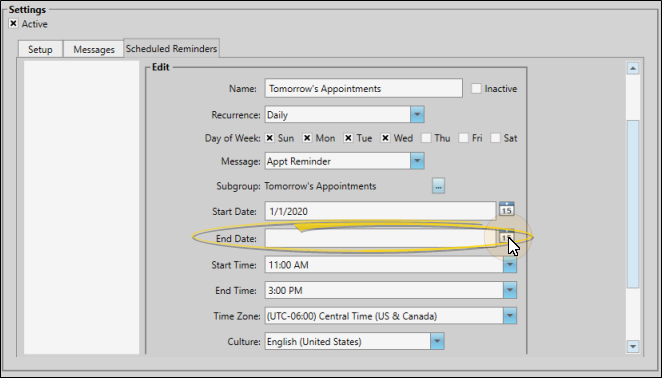
Enter the first date, and optionally the last date that you want the scheduled reminder to run. If you want the reminder to recur for an undetermined length of time, leave the end date blank.
Start / End Time
Enter the starting and ending times for sending the reminder messages. Message delivery will be attempted only during the time of day you set.
For best results, set your starting and ending times as early and late as you are comfortable with: It may take some time for reminders to go through the servers, especially during popular times of the day. You may need to do some experimenting to get the time span just right.
Time Zone
Select your time zone from the drop down list to be sure the messages are delivered at the appropriate local time.
Culture
Select the format to use for the date and time, according to the standardized culture settings for your area.
Delivery Method(s)
Enable each type of delivery method, telephone, email, and/or text, that you want to use for this reminder. (You flag the phone number / email address to use for each type of reminder message in the patient and responsible party contact details See "Set Up Contacts for Edge Reminders" for details).
Retries
Select the maximum number of retries, and minutes between retries, for telephone messages. These fields, which are operator-specific, are ignored for email and text messages.
Stop Scheduled Reminders
To stop scheduled reminders from being sent, edit the reminder set and enter an End Date. Disabling the Active option at the top of the Reminders editor does NOT stop scheduled reminders, it only disables the ability to send manual reminder sets.
Save Changes
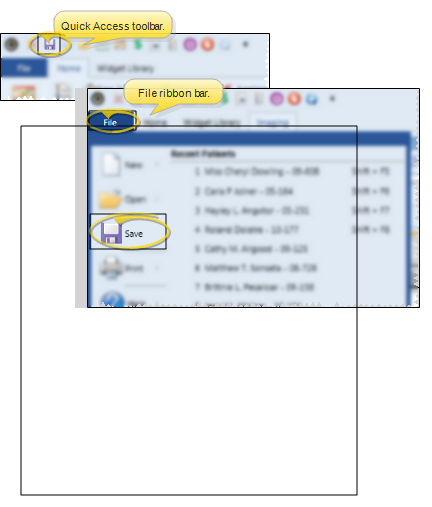
Click Save in your Quick Access toolbar or File ribbon bar (or press Ctrl+S on your keyboard) to save any changes you have made.
Preview Scheduled Reminders
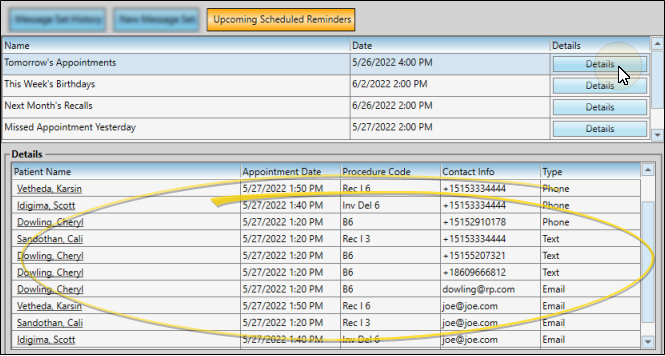
Use the Upcoming Scheduled Reminders tab of your Edge Reminders window to review the messages that are scheduled to be sent. See "Upcoming Scheduled Reminders" for details.