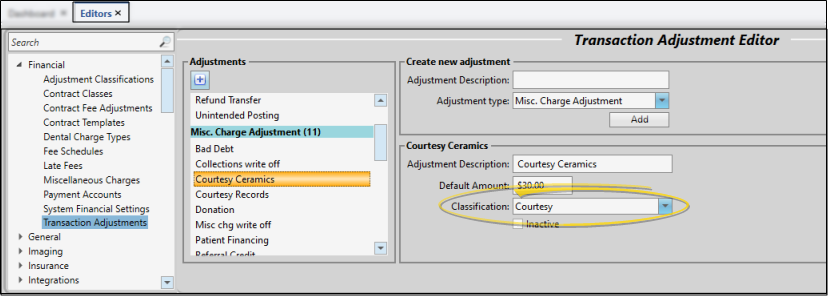
Adjustment Classification Editor
Use the Adjustment Classifications editor to create your list of reasons for adjusting patient accounts. The responses can be assigned to the Contract Adjustment and Miscellaneous Charge Adjustment records in your Transaction Adjustments editor, and the data is collected whenever you apply an adjustment to a patient account. You can optionally add standard Gaidge descriptions to this list.
Open the Editor
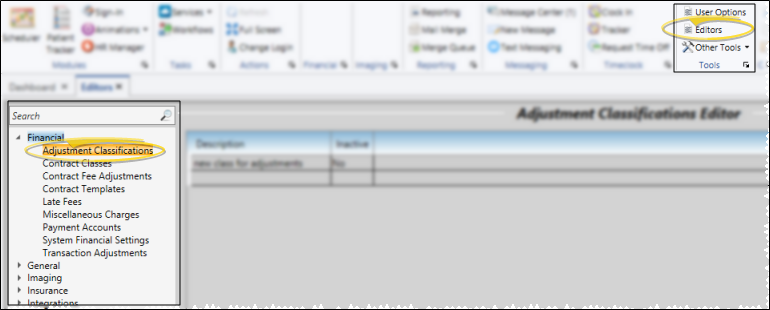
Select Editors from the Tools section of the Home ribbon bar. Then, from the Financial section, open the Adjustment Classifications editor. (You can also use the Search field to look for the editor you want to work with.)
Adjustment Classification Settings and Options
Add a Description
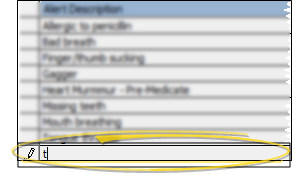
- Click in a blank field at the bottom of the editor and type your description.
Edit Descriptions - Click in the field you want to modify and type your changes, or cut, copy, and paste You can cut, copy and paste to add and edit text and/or images to many areas of your system using standard keyboard shortcuts ( Ctrl+X , Ctrl+C , Ctrl+V , respectively). Or, you can often right-click the field or image you are working with and select the action from a menu. In many cases, Ctrl+A selects all available text or images, ready for you to cut or copy, Ctrl+Z performs an Undo of the last action, and Ctrl+Y performs a redo of the last action. as needed.
Insert Standard Gaidge Responses
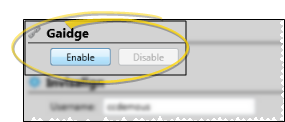
- (Optional.) - Enable the Gaidge integration in your System Integrations editor to connect your Edge Cloud practice data with your Gaidge practice performance analysis system, and automatically add standard Gaidge responses to your Contract Classes, Start Origin, and Treatment Classification editors. If you later disable the integration, the responses are not removed from the editors. See "Edge Cloud / Gaidge Integration" for details.
Inactive Option
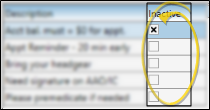
Once you create a record, you cannot delete it. You can, however, flag it Inactive. Records you flag as Inactive are not available for general use, but they remain in your system for reporting and other data collection needs. In addition, you can toggle records back to Active whenever needed.
Save Changes
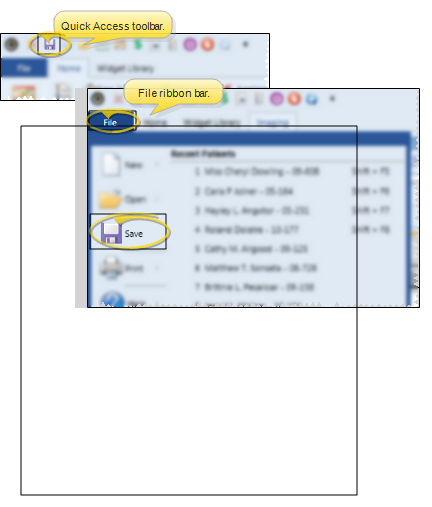
Click Save in your Quick Access toolbar or File ribbon bar (or press Ctrl+S on your keyboard) to save any changes you have made.
Assign Classifications to Adjustments
Open your Transaction Adjustments editor to assign classifications to miscellaneous charge, contract, and dental procedure discount descriptions as needed. See "Transaction Adjustments Editor" for details.