
Appliance and Destination Editor
Use the Appliance editor to list the types of patient appliances you prescribe, and to define the destinations, or facilities you use for laboratory and other appliance services. If you have your own appliance lab, we suggest you include your office as a destination.
Open the Appliances Editor
Select Editors from the Tools section of the Home ribbon bar. Then, from the General section, open the Appliances editor. (You can also use the Search field to look for the editor you want to work with.)
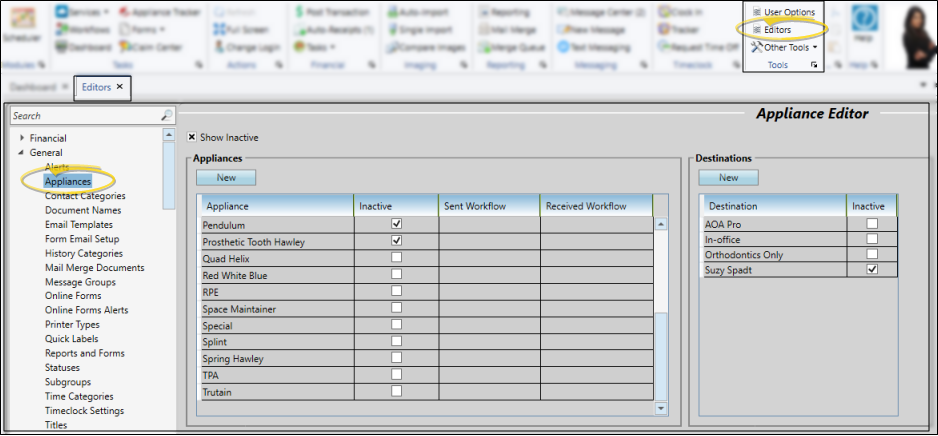
Appliance Settings and Options
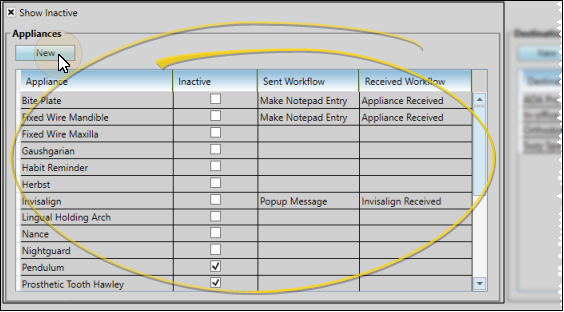
Create or Edit an Appliance - Click New in the Appliances section of the window, then edit the New Appliance description at the bottom of the list, or select an existing description to work with. You can type your appliance description, or use cut, copy, and paste You can cut, copy and paste to add and edit text and/or images to many areas of your system using standard keyboard shortcuts ( Ctrl+X , Ctrl+C , Ctrl+V , respectively). Or, you can often right-click the field or image you are working with and select the action from a menu. In many cases, Ctrl+A selects all available text or images, ready for you to cut or copy, Ctrl+Z performs an Undo of the last action, and Ctrl+Y performs a redo of the last action. tools.
Assign Workflows - (Optional.) Select an appliance to work with, then click in the Send Workflow or Received Workflow column to assign a workflow to be triggered when the selected appliance is either flagged as "sent" or "received" in a patient folder. (See "Workflow Editor" for details about creating workflows.)
Use the Appliance Checked In workflow trigger to activate a workflow whenever a patient appliance has been flagged as "received", regardless of the appliance type. This workflow option is in addition to the workflows you assign to specific appliances, as described above.
Inactive / Active Toggle - Once you create a record, you cannot delete it. You can, however, flag it Inactive. Records you flag as Inactive are not available for general use, but they remain in your system for reporting and other data collection needs. In addition, you can toggle records back to Active whenever needed.
Destination Settings and Options
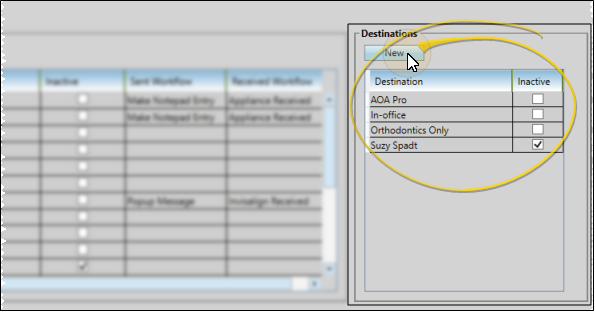
Create or Edit a Destination - Click New in the Destination section of the window, then edit the New Destination description at the bottom of the list, or select an existing description to work with. You can type your destination description, or use cut, copy, and paste You can cut, copy and paste to add and edit text and/or images to many areas of your system using standard keyboard shortcuts ( Ctrl+X , Ctrl+C , Ctrl+V , respectively). Or, you can often right-click the field or image you are working with and select the action from a menu. In many cases, Ctrl+A selects all available text or images, ready for you to cut or copy, Ctrl+Z performs an Undo of the last action, and Ctrl+Y performs a redo of the last action. tools.
Inactive / Active Toggle - Once you create a record, you cannot delete it. You can, however, flag it Inactive. Records you flag as Inactive are not available for general use, but they remain in your system for reporting and other data collection needs. In addition, you can toggle records back to Active whenever needed.
Save Changes
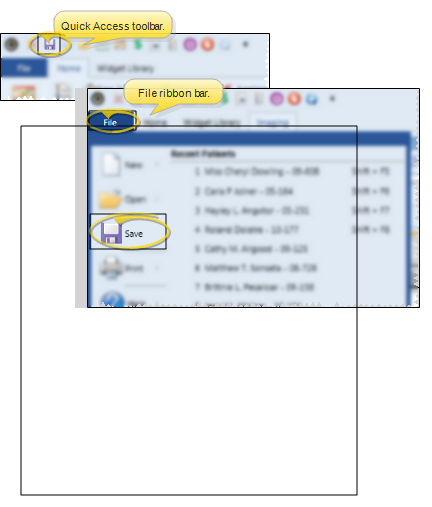
Click Save in your Quick Access toolbar or File ribbon bar (or press Ctrl+S on your keyboard) to save any changes you have made.
Use Appliances and Destinations
Apply Appliances to Patient Folders - You track the type of appliances sent for consultation or service, along with their service locations and dates in the Appliances section of the Milestones panel of the patient folder. You can optionally assign and use barcodes to facilitate the appliance tracking process. See "Patient Appliances" for details.
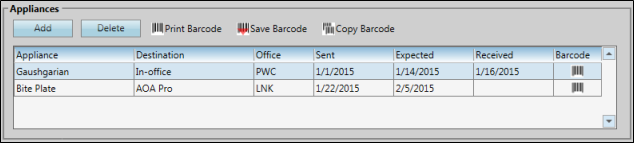
Track Appliances - The Appliance Tracker lists patient appliances you have sent to lab destinations but have not yet been returned. Use this feature to review and edit expected appliance information. See "Appliance Tracker" for details.

Appliance Reports
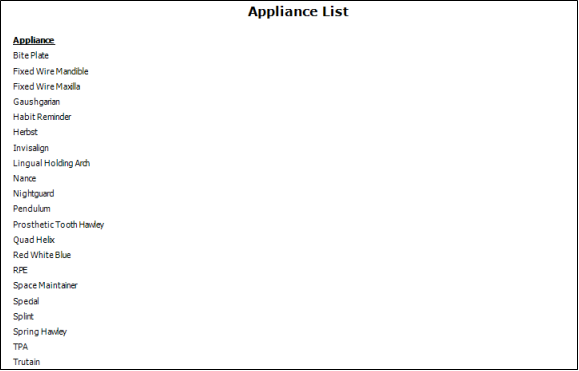
Appliance List
Run the Appliance List report to obtain a list of patient appliances you track in your Edge Cloud patient folders. Both active and inactive records are included in the report. See "Appliance List" for details.
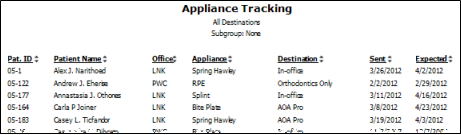
Appliance Tracking
Run the Appliance Tracking report to review the patient appliances you have sent for service, but that are not yet returned. The report uses data you have entered into the Appliance Tracking feature, including the appliance destination and the date you expect the service to be completed. You can specify which destination to include on the report, or choose to see all non-returned appliances. See "Appliance Tracking Report" for details.
Appliance Tracking - Back Dates
Run the Appliance Tracking - Back Dates report to review the patient appliances that have been returned from service or consultation. The report uses data you have entered into the Appliance Tracking feature, including the appliance destination and the dates of service. You can specify one or more appliances to include on the report, or choose to see all returned appliances. See "Appliance Tracking Back Dates Report" for details.
