Document Names Editor
Use the Document Name editor to add, edit, and delete descriptions that you can use when you capture or scan documents into your correspondence histories.
Open Document Names Editor
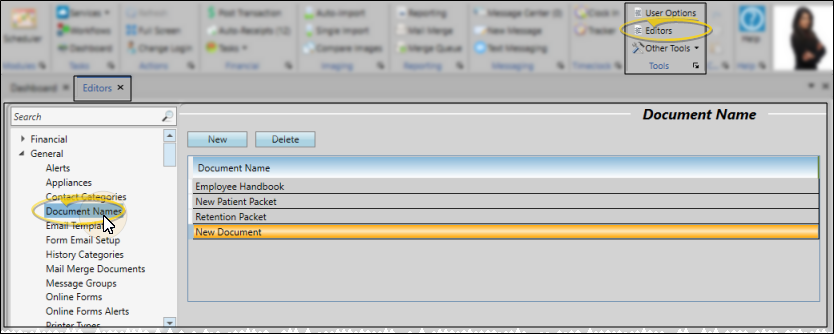
Select Editors from the Tools section of the Home ribbon bar. Then, from the General section, open the Then from the General section, open the Document Names editor.
Add, Edit, and Delete Document Names
Create or Edit a Descriptiont - Click New, then edit the New Document description at the bottom of the list, or select an existing name to work with. You can type your descriptions, or use cut, copy, and paste You can cut, copy and paste to add and edit text and/or images to many areas of your system using standard keyboard shortcuts ( Ctrl+X , Ctrl+C , Ctrl+V , respectively). Or, you can often right-click the field or image you are working with and select the action from a menu. In many cases, Ctrl+A selects all available text or images, ready for you to cut or copy, Ctrl+Z performs an Undo of the last action, and Ctrl+Y performs a redo of the last action. tools.
Edit Descriptions - Click in the field you want to modify and type your changes, or cut, copy, and paste You can cut, copy and paste to add and edit text and/or images to many areas of your system using standard keyboard shortcuts ( Ctrl+X , Ctrl+C , Ctrl+V , respectively). Or, you can often right-click the field or image you are working with and select the action from a menu. In many cases, Ctrl+A selects all available text or images, ready for you to cut or copy, Ctrl+Z performs an Undo of the last action, and Ctrl+Y performs a redo of the last action. as needed.
Delete Descriptions - Click the record you want to remove, then click Delete. The description is removed from the list, but not removed from any patients that already have the description assigned to them.
Save Changes
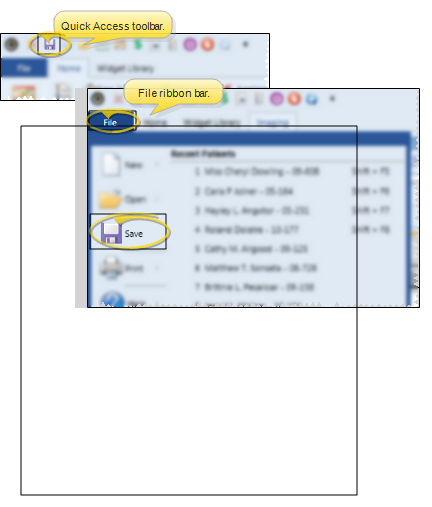
Click Save in your Quick Access toolbar or File ribbon bar (or press Ctrl+S on your keyboard) to save any changes you have made.