History Categories Editor
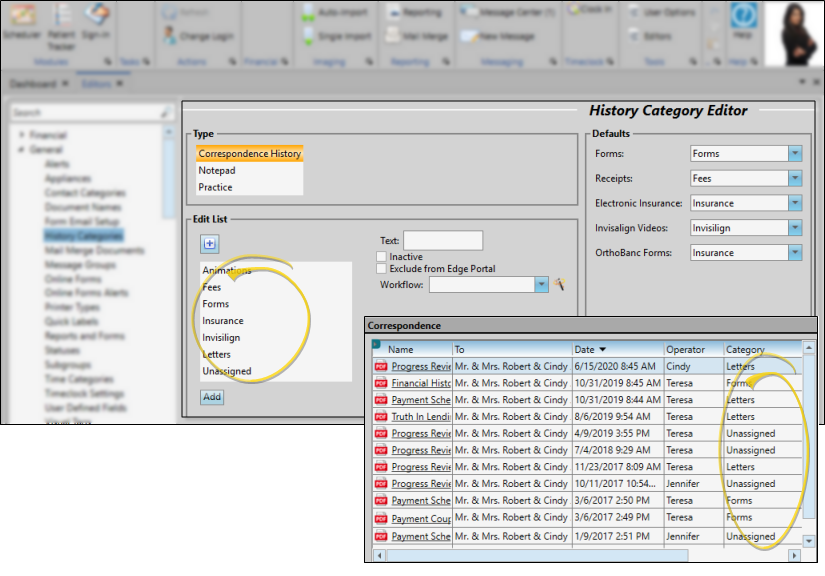
Use the History Category editor to set up the categories for sorting and filtering the forms and documents recorded in the correspondence histories and notepads of your patients, responsible parties, professionals, employees, and your practice.
Open the History Categories Editor
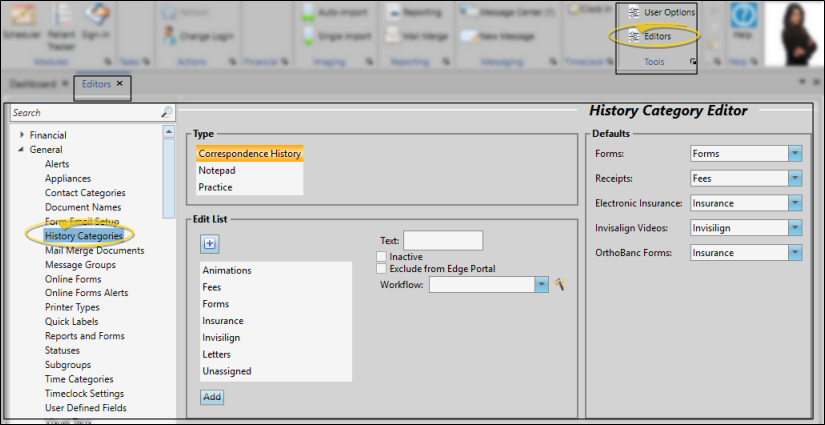
Select Editors from the Tools section of the Home ribbon bar. Then, from the General section, open the History Categories editor.
Create and Edit Categories
Category Types
Before you create or edit a category, select the type of category you want to work with. The list of categories you have created changes to reflect the type you choose.

Correspondence History - You will use the descriptions in this list to categorize items that are recorded in your patient, responsible party, professional, and employee correspondence histories, such as forms, mail merge documents, and scanned items. You can optionally choose to exclude documents assigned to these categories from Edge Portal.
Notepad - You will use the descriptions in this list to categorize notepad entries for your patents, responsible parties, professionals, and employees.
Practice - You will use the descriptions in this list to categorize items that you add to your practice correspondence widget.
Create or Edit a Category
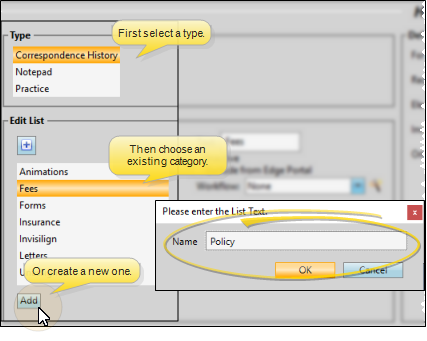
First, select the type of category to work with at the top of the window. Then either choose an existing category from your list, or click Add at the bottom of the window, and type a new category name. If not all your records appear in the list, use the Show / Hide Inactive icon at the top of the window to include both active and inactive records.
History Category Details
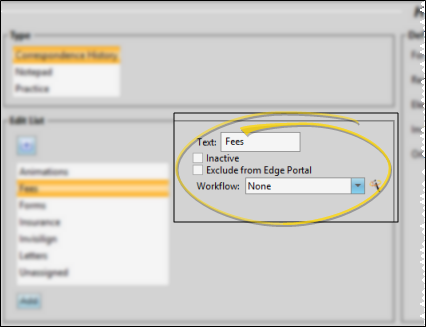
Select the details for your selected category.
Text - You can change the name of the category in this field.
Inactive / Active Toggle - Once you create a record, you cannot delete it. You can, however, flag it Inactive. Records you flag as Inactive are not available for general use, but they remain in your system for reporting and other data collection needs. In addition, you can toggle records back to Active whenever needed.
Exclude from Edge Portal (Correspondence History categories only.) - Enable this option to prevent documents assigned to this category from appearing in your Edge Portal. (Edge Portal is our mobile device app, available from Ortho2. Please contact your Ortho2 Regional Manager for details.)
Workflows - (Correspondence History and Practice categories only.) Select an existing workflow, or use the Workflow Wizard icon to create a new workflow to assign to this category. When you enter an item that is assigned to this category into a correspondence history, the assigned workflow (if any) will be triggered automatically.
Set Up Default Categories
This feature applies to your Correspondence History type categories only.
Use the Defaults section of the History Categories editor to assign a default category description to several types of forms. When you run one of these forms, it is automatically saved in the appropriate correspondence history with the selected category.
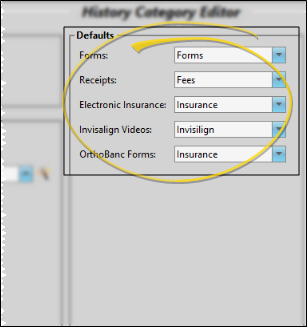
Merge Document Categories - You use the Mail Merge Document editor, not this editor, to select the default category to assign to your mail merge documents. See "Mail Merge Document Editor" for details.
Save Changes
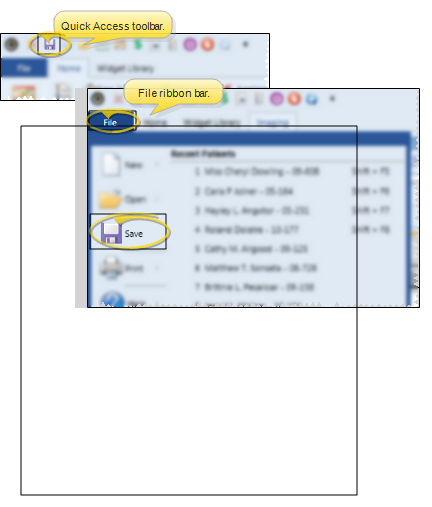
Click Save in your Quick Access toolbar or File ribbon bar (or press Ctrl+S on your keyboard) to save any changes you have made.