Edge Signature Settings Editor
Use theEdge Signature Settings editor to assign workflows that you want to activate when a specificEdge Signature document has been signed.
Prepare Documents for Edge Signature - Add Edge Signature variables to your mail merge documents wherever you need a patient, responsible party, orthodontist, professional, operator, or assistant to digitally initial or sign the document. See "Edge Signature" for details.
Open the Edge Signature Settings Editor
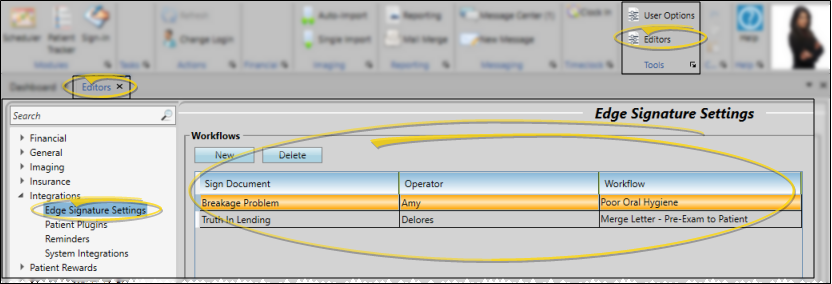
Select Editors from the Tools section of the Home ribbon bar. Then, from the Integrations section, open theEdge Signature Settings editor. (You can also use the Search field to look for the editor you want to work with.)
Assign Workflows to Documents
You can create a new workflow to trigger, or assign a previously created workflow to your Edge Signature documents.
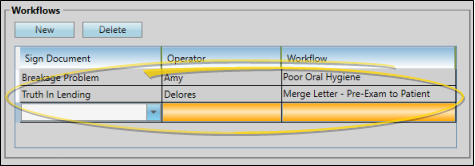
Click New at the top of the window, then select the newly created blank record at the bottom of the list to edit the details. Use the Sign Document column to select the Edge Signature document you want to work with. Then choose an Operator to assign the workflow to. and the Workflow to trigger when that document is signed. You can either select an existing workflow, or use the Workflow Wizard icon to create a new workflow to assign to this document. (See "Workflow Editor" for details about creating workflows.)
You can also remove a workflow from a document by select the row you want to remove, then clicking Delete at the top of the window.
Save Changes
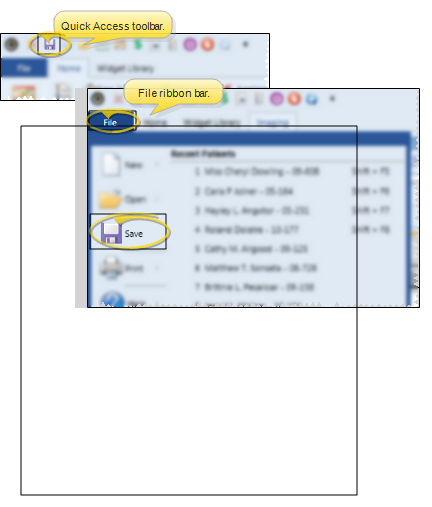
Click Save in your Quick Access toolbar or File ribbon bar (or press Ctrl+S on your keyboard) to save any changes you have made.