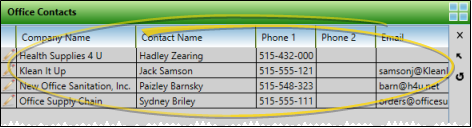
Office Contacts Editor
Use the Office Contacts editor to set up and maintain the list of people, services, agencies, and other office resources that help you keep your practice running. Each contact record includes the contact name, company name, phone number, email address, user-defined fields, a notepad and correspondence history to help you track all the details you need.
Your security model must have read-only or full access to the General Administration > Office Contacts Editor security group rights to be able to view and / or change the Office Contacts editor. You can, however, view contact phone numbers and email addresses with the Office Contacts widget, even if you have no security access.
Open the Office Contacts Editor
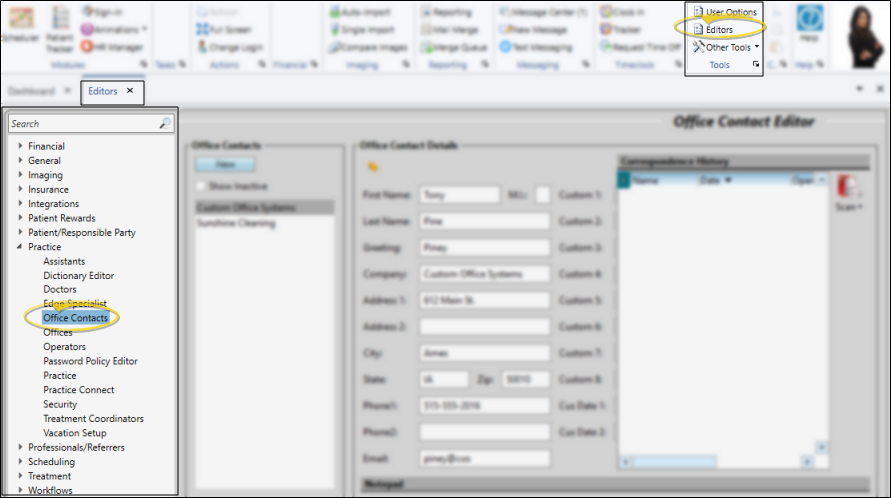
Select Editors from the Tools section of the Home ribbon bar. Then, from the Practice section, open the Office Contacts editor. (You can also use the Search field to look for the editor you want to work with.)
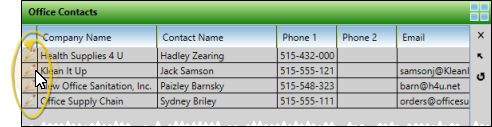
If you have appropriate security rights, you can click Edit from the Office Contacts widget to open the editor. See "Office Contacts Widget" for details.
Create or Edit Office Contacts
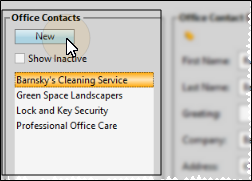
Click New at the top left of the window to create a new record, or choose an existing record from the list. If not all your records appear in the list, you can enable the Show Inactive option to see them. Once you create a record, you cannot delete it. You can, however, flag it Inactive. Records you flag as Inactive are not available for general use, but they remain in your system for reporting and other data collection needs. In addition, you can toggle records back to Active whenever needed.
Office Contact Details
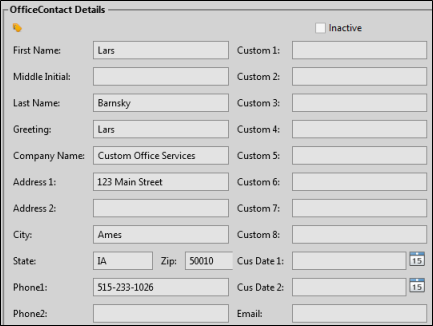
Name, Greeting, Company Name - Enter the name of the contact, the preferred greeting name, and the company name. The greeting field is primarily used for mail merge documents: Enter the greeting as you would like to see it in the salutation of a letter.
Address, Phone, Email - Enter the address, phone numbers and email address of the party.
Inactive / Active Toggle - Once you create a record, you cannot delete it. You can, however, flag it Inactive. Records you flag as Inactive are not available for general use, but they remain in your system for reporting and other data collection needs. In addition, you can toggle records back to Active whenever needed.
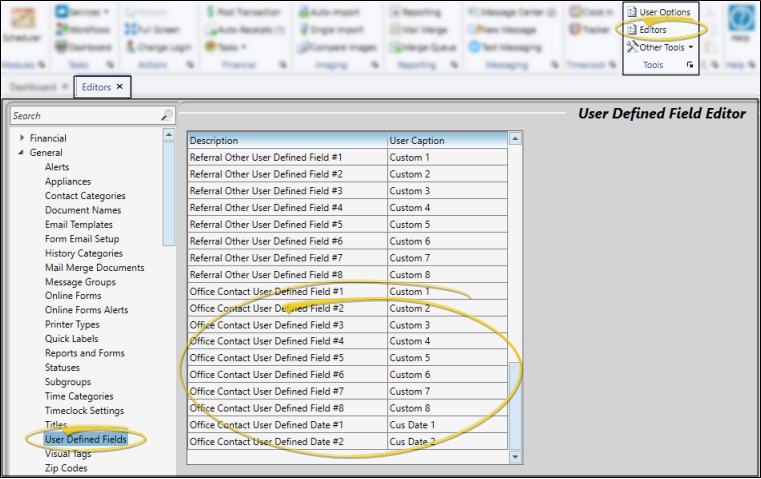
Custom Fields - Use the User Defined Fields editor to set up the captions, or names, of unique fields available in several types of records, including your Patient and Responsible Party records, your Employer, Assistant, Dentist, Referrer, and Insurance editors, your Office Contacts list, and your patient identification fields. You can use these fields to track any sort of information you deem necessary. You can change the "Office Contacts User Defined Fields" in your User Defined Fields editor to track additional contact details.
Print a Label
Select the Label icon at the top of the window to print a mailing label for the selected office contact. See "Office Contacts Quick Labels" for details about setting up and printing the label.

Notepad
Use the notepad to type free-form notes. You can categorize your notes, then use the filter to view only the categories of notes you need to see. In addition, you can use entries from the internal Edge Cloud dictionary, as well as your personal and shared dictionaries, to auto-complete your text.
Notepad Security
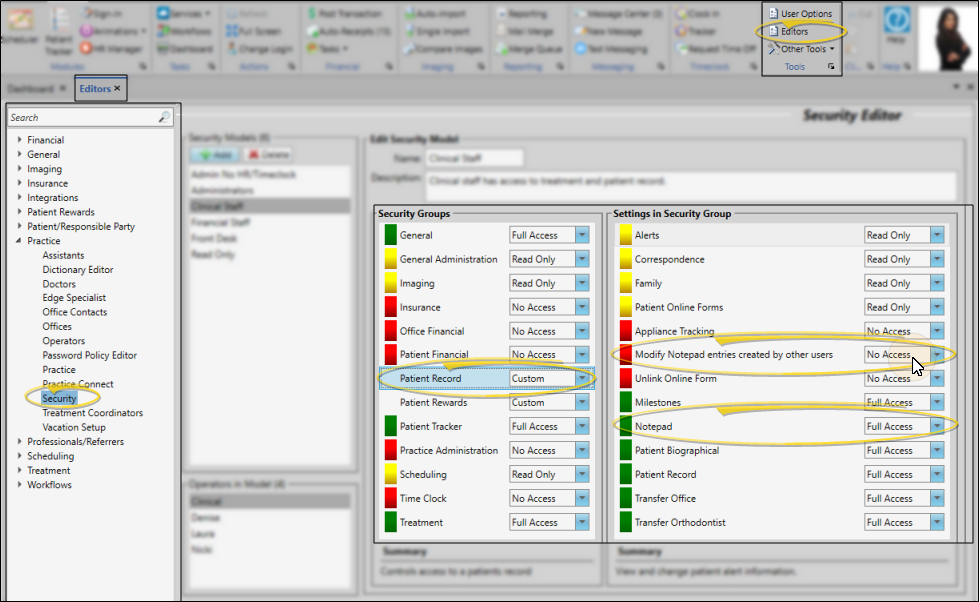
Use the Patient Record security group in your Security editor to set up the level of access Edge Cloud users have to creating, editing, deleting, and viewing notepad entries.
If the Notepad option is set to Full Access, which gives the user rights to create and edit notepad entries, you can set the Modify Notepad Entries Created by Other Users to No Access. The user will then still be able to create notepad entries, but only edit and delete entries they created themselves. If you leave the Modify Notepad Entries setting to Full Access, the user will be able to edit / delete anyone's notepad entries.
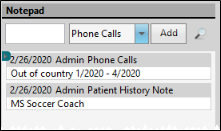
View Notes - All notepad entries are date stamped automatically, and listed by date, user, and category. Newer entries appear at the top of the notepad. You can use the Filter icon to view only certain types of notes.
Filter Notes to Display - Click the Filter icon at the left of the frame to select the categories of items to display. When you are finished, move your cursor off the filter selection box to close it. Edge Cloud remembers filter settings by user and page: So, no matter what workstation you use, or which notepad you are working with, your favorite filters go along with you. See "History Categories Editor" for details about setting up your categories.
Add a Note - Type your note in the text field at the top of the notepad window, and select a category from the drop down list. You can use the Notepad Font section of the ribbon bar, as well as standard word processing keyboard shortcuts (i.e. cut, copy, paste, bold, underline, italics) to enhance the text. As you type, your Edge Cloud dictionaries provide suggestions to auto-complete the text. If your text is not recognized, you may right-click for spelling suggestions, or to add the text to a dictionary for later use. When you are finished, click Add. The date, your Edge Cloud user name, and the assigned category are inserted automatically, and the new note is added to the beginning of the notepad. (See "History Categories Editor" for details about creating your notepad category list.)
Edit a Note - Right-click a note and choose Edit, then make your changes to the text. As you type, your Edge Cloud dictionaries provide suggestions to auto-complete the text. If your text is not recognized, you may right-click for spelling suggestions, or to add the text to a dictionary for later use.You can also right-click to access a basic text editing menu, or use standard cut, copy, and paste You can cut, copy and paste to add and edit text and/or images to many areas of your system using standard keyboard shortcuts ( Ctrl+X , Ctrl+C , Ctrl+V , respectively). Or, you can often right-click the field or image you are working with and select the action from a menu. In many cases, Ctrl+A selects all available text or images, ready for you to cut or copy, Ctrl+Z performs an Undo of the last action, and Ctrl+Y performs a redo of the last action. keyboard shortcuts. You cannot change the category assigned to the note.
Search Notes - Click the Search icon beside the Add button to search for any text within the notepad entries.
Delete a Note - Right click a note, and choose Delete to remove it from your Edge Cloud system.
Correspondence History
View the Correspondence History
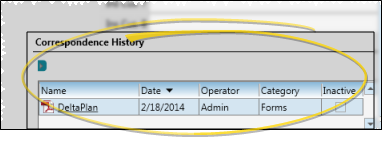
View the Correspondence History section of the window to review the documents you have saved for this party.
Use the Correspondence History
You can filter the correspondence history items you wish to see, open and view items, and scan and drag new items into the history.
Filter Items to Display - Click the Filter icon at the left of the frame to select the categories of items to display. When you are finished, move your cursor off the filter selection box to close it. Edge Cloud remembers filter settings by user and page: So, no matter what workstation you use, or which notepad you are working with, your favorite filters go along with you. See "History Categories Editor" for details about setting up your categories.
Inactive / Active Toggle - Once you create a record, you cannot delete it. You can, however, flag it Inactive. Records you flag as Inactive are not available for general use, but they remain in your system for reporting and other data collection needs. In addition, you can toggle records back to Active whenever needed.
View a Document / Video - Click the file name to open a document or run a video. You must have an appropriate viewing / editing tool, such as Adobe Acrobat, installed to be able to open files.
Drag Document / Image / Video - You can drag and drop almost any type of digital file into a correspondence history for archive and reference purposes. Files you may want to drag and drop include .PNG graphic files, .PDF document files, .MP3 sound files, and .MP4 video files. See "Drag & Drop Documents" for details.
Scan Document - Use the Scan tool to send a digital copy of any document from your scanning device to a correspondence history.See "Scan Documents" for details.
Save Changes
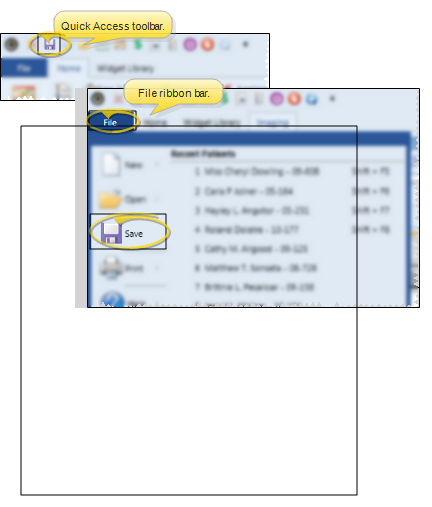
Click Save in your Quick Access toolbar or File ribbon bar (or press Ctrl+S on your keyboard) to save any changes you have made.
Office Contacts Widget
Use the Office Contacts widget to have immediate access to the contact details of the businesses and suppliers you work with on a regular basis. See "Office Contacts Widget" for details.