
Doctor / Orthodontist Editor
Use your Doctor / Orthodontist editor to create a list of the doctors in your practice, recording the pertinent biographical and licensing credentials for each doctor. Some fields are required for submitting certain types of insurance claims. If you have Edge Cloud, you should set up the editor for each specialty in your practice,
The term is "Doctor" for Edge Specialist users and "Orthodontist" for Edge Cloud users.
Open the Editor
Select Editors from the Tools section of the Home ribbon bar. Then, from the Practice section, open the Doctor / Orthodontist editor. (You can also use the Search field to look for the editor you want to work with.)
The term is "Doctor" for Edge Specialist users and "Orthodontist" for Edge Cloud users.
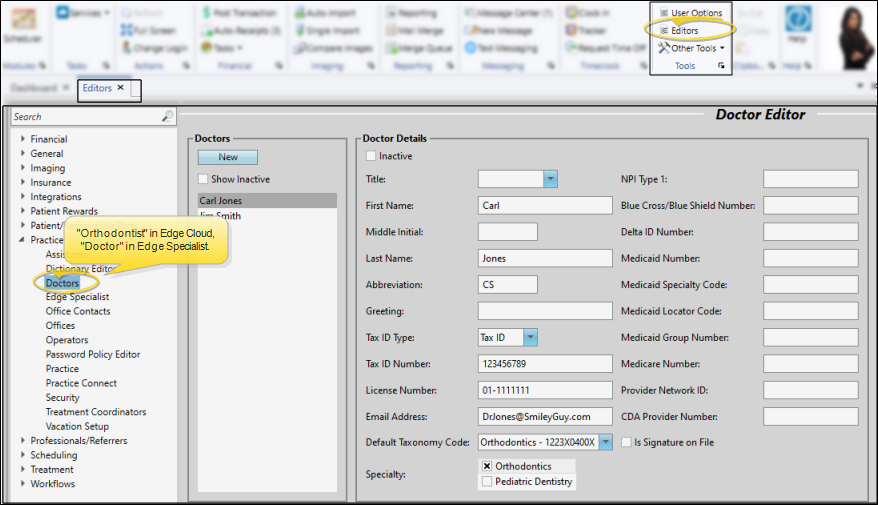
Create or Edit a Doctor / Orthodontist Record
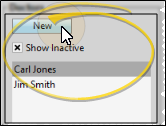
Click New at the top left of the window to create a new doctor for your practice, or choose to work with an existing record. If not all your records appear in the list, you can enable the Show Inactive option to see them.
Once you create a record, you cannot delete it. You can, however, flag it Inactive. Records you flag as Inactive are not available for general use, but they remain in your system for reporting and other data collection needs. In addition, you can toggle records back to Active whenever needed.
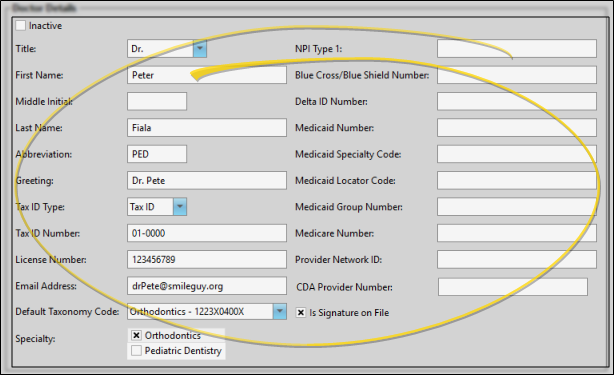
Doctor Details
All of the settings in this editor are system-wide: When you change a setting, it changes for all Edge Cloud users and computers in your system.
Inactive / Active Toggle - Once you create a record, you cannot delete it. You can, however, flag it Inactive. Records you flag as Inactive are not available for general use, but they remain in your system for reporting and other data collection needs. In addition, you can toggle records back to Active whenever needed.
Title & Name - Enter the doctor's title and full name in these fields.
Abbreviation - Enter an abbreviation for this provider, such as his or her initials. Be sure the abbreviation is easy to distinguish from other provider abbreviations. The abbreviation appears on the Patient Information Panel of the patient folder, among other places in your system.
Greeting - The greeting field is primarily used for mail merge documents. Enter the greeting as you would like to see it in the salutation of a letter.
Tax ID Type, Tax Number & License Number - Record the appropriate tax and license numbers for this provider, and select the type of ID used for tax purposes.
Email address - Enter the email address to use for this provider.
Default Taxonomy Code - Select the appropriate code for this provider. This field is used when filing insurance claim, and in certain practice reports.
Specialty - (Edge Specialist users only.)Specialties are used for filing electronic insurance claims scheduling patient appointments, and for practice reports. Enable all specialties that apply to each person's record.
NPI Type 1 - The NPI (National Provider Identifier) field complies with the Health Insurance Portability and Accountability Act (HIPAA), allowing a 10 digit number. You may be required by law to have this number appear on paper and/or electronic insurance claims.
Medicaid, Medicare, Blue Shield, Delta, Provider Network ID Fields - Enter this provider's identification into the fields for each network with which you participate.
CDA Provider Number - (Applies to practices integrating with CDAnet/ITRANS insurance processing. If you practice in Canada, you must enter the CDA Provider Number here in order to submit insurance claims via CDAnet/ITRANS directly through Edge Cloud. You can use the search icon to help you find the appropriate code. See "Canadian CDAnet/ITRANS Insurance Processing" for details.
Is Signature on file - Enable this option if you want your insurance forms to default to checking the doctor's "Signature is on file" field for this orthodontist.
Save Changes
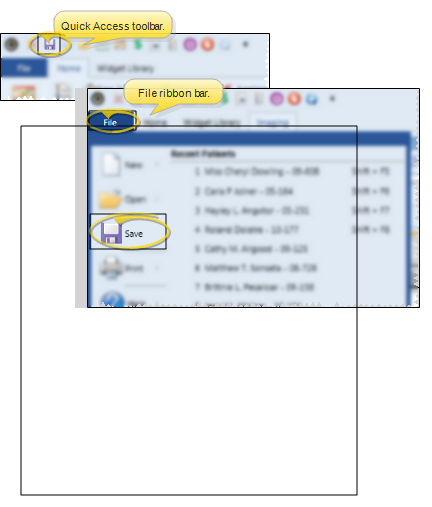
Click Save in your Quick Access toolbar or File ribbon bar (or press Ctrl+S on your keyboard) to save any changes you have made.
Print Orthodontist List
Run the Orthodontist List report to review the list of active records in your Doctor / Orthodontist editor, along with their abbreviations, professional identification numbers, and email addresses. Only active records are included in the report: Any items flagged Inactive in the editor are omitted. If you have Edge Specialist, the records for both orthodontics and pediatric dentistry are included in the report. See "Orthodontist List" for details.

Doctor Data Security
You can assign doctors to specific offices in your Office editor, then use the Office Permissions option in your Operator editor to limit employee access to your doctors' Edge Cloud data. See "Operator Editor" for details.