Workflow Time Trigger Editor
Use the Time Triggers editor to schedule workflows for specific days and times, for a specific operator. If the assigned operator is not logged into Edge Cloud at the specified time, the trigger will be activated as soon as the operator logs in.
Additional Workflow Trigger Options
This article describes the Time Trigger editor, which schedules workflowsfor a specific day, time, and operator. You might also be interested in the Workflow Triggers editor, which triggers workflows when specific events occur, such as creating a new patient folder or posting a miscellaneous charge, or Quick Action Workflows, which allow you to trigger your favorite workflows at any time.
Assigning Non-Edge Cloud Tasks
The Time Trigger editor can only trigger workflow activities that happen in Edge Cloud. Use the Tasks widget to assign, prioritize, and track essential office activities that do not happen within your Edge Cloud system. See "Tasks Widget" for details.
Open the Time Trigger Editor
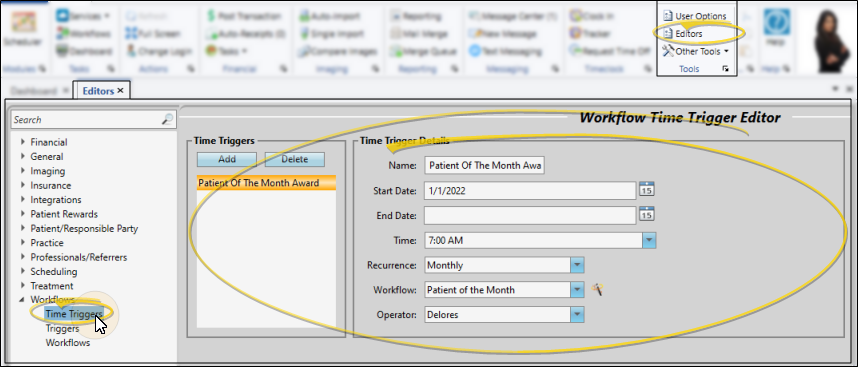
Select Editors from the Tools section of the Home ribbon bar. Then, from the Workflows section, open the Time Triggers editor. (You can also use the Search field to look for the editor you want to work with.)
Time Trigger Details
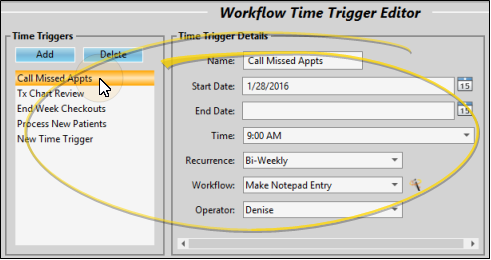
Click add in the Time Triggers list to create a new time trigger, or select to work with an existing record. Then enter the time trigger details.
Name
Enter a descriptive name for the trigger.
Start / End Dates
Enter the first and last dates that you want the trigger to be activated. If you want the trigger to recur for an undetermined length of time, leave the end date blank.
Time
Enter the time of day to activate the trigger. If the assigned operator is not logged into Edge Cloud at the specified time, the trigger will be activated as soon as the operator logs in.
Recurrence
Select how often to repeat the trigger (i.e. Daily, Weekly, Monthly). To create a trigger that you want to activate only once, select any recurrence value, but set both your Start Date and End Date fields to the same date.
Workflow
Choose to trigger an existing workflow, or click the Workflow Wizard icon to create a new workflow to assign. See "Workflow Editor" for details.
Operator
Select the operator that is responsible for completing this trigger's workflow actions. If the assigned operator is not logged into Edge Cloud at the specified time, the trigger will be activated as soon as the operator logs in.
Save Changes
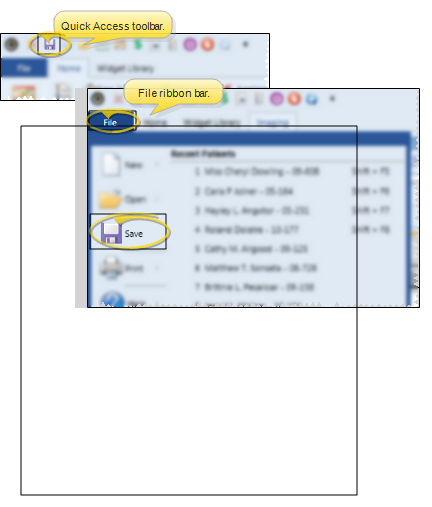
Click Save in your Quick Access toolbar or File ribbon bar (or press Ctrl+S on your keyboard) to save any changes you have made.