
Adjust Receipts
Use the Adjust Receipt wizard to transfer a posted payment to another account, fix an incorrect receipt amount, remove a payment that was returned for insufficient funds or reverse an unintentionally posted receipt.
Adjustment vs. Refund - Do not use this payment adjustment wizard to issue refunds. See "Issue Refunds" for details instead.
Individual Receipt vs Bulk Payment Adjustment - Do not use this payment adjustment wizard to adjust a receipt that was part of a bulk payment. See "Adjust Bulk Payments" for details instead.
Use the Receipt Adjustment Wizard
-
Open the Patient's Ledger - You can adjust receipts from either the Ledger view of the patient folder Finances page, or the expanded Transactions widget on the patient folder Home page.
-
Select the Receipt to Adjust
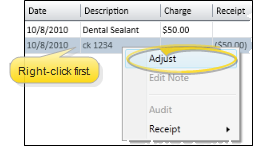
- Right-click the payment to work with and select Adjust.
-
Adjustment Details
- Carefully read the explanation of each choice, then select the best reason for the adjustment and click Next. The rest of the adjustment wizard depends upon which reason you selected.
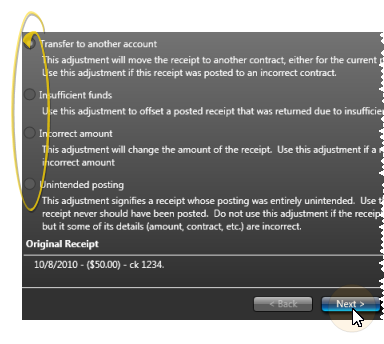
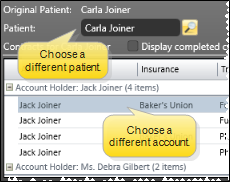
Transfer to Another Account - Choose this option, and click Next. Then, select to move the payment to a different contract for the same patient, or click Search beside the current patient's name to select a different patient. Click Next to continue.
Insufficient Funds - Choose this option, and click Next. Then type a note regarding this adjustment. Click Next to continue..

Incorrect Amount - Choose this option, and click Next. Then enter the correct amount of the payment, and type a note about the adjustment. Click Next to continue.
 note
noteAs you complete an adjustment for an incorrect amount, the proper payment is posted automatically, unless the original transaction was posted through a payment processor (i.e. OpenEdge, Vanco, Vantiv). Then, you are prompted to manually post the payment for the correct amount. After posting the correct payment, you may exit the Post Transaction window.
Unintended Posting - Choose this option, and click Next. Then type a note regarding this adjustment. Click Next to continue.
-
Review & Finish - Review the details of the payment adjustment, then click Finish to complete the transaction, or Back to return to the previous adjustment screen.
noteOnce you adjust a receipt, you cannot right-click to adjust it again: The adjustment transaction is permanent.
Adjustment Reports
Transaction Report - The Receipt Adjustments section of the Transaction report lists transactions entered as receipt adjustments by right-clicking the receipt in he patient's ledger, as well as refunds applied from the Post Transactions window. These transactions are not included in your deposit total. See "Transaction Report" for details.
Adjustment Audit Report - Run an Adjustment Audit report to review receipt adjustments, miscellaneous charge adjustments, treatment fee adjustments, and receipts you have flagged as excluded from your deposit slip (by right-clicking the transaction in the patient's ledger), for any range of dates or Transaction reports. See "Adjustment Audit Report" for details.