
Post Late Fees
You can apply late fee charges to accounts that are past due. Depending on your office protocol, you might apply late fees once each month, or as often as every day.
Get Started
Create Late Fee Policies - Use the Late Fee editor to set up your late fee policies for both contract payments and miscellaneous charges. You can base the fee on either an annual percentage rate applied to the amount that is past due, or a flat dollar amount. Because you might calculate late fees differently in different situations, you can define and select a late fee policy appropriate for each situation. See "Late Fee Editor" for details.
Assign Late Fee Policies - You set up your default late fee policies in your Financial User Options. You can change the late fee policy for individual contracts with the Contract Details editor, and choose a late fee policy for miscellaneous charges on the Responsible Party page of the patient folder.
Print Late Fees Report
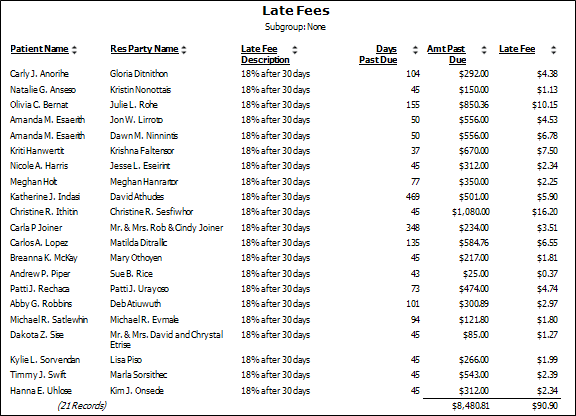
(Optional but highly recommended.) Run the Late Fees report to obtain a list of accounts with late fees ready to be posted. The report includes both the patient and the responsible party names, late fee policy description, number of days the account is past due, the total amount past due, and the amount of the pending late fee. Once late fees are posted to your accounts, they no longer appear on this report. See "Late Fees Report" for details
Post Late Fees
Be sure all payments have been posted before you begin posting late fees, to avoid charging late fees in error.
-
Open Late Fees Window
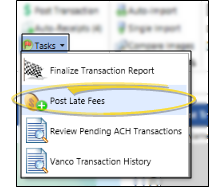
- Select Tasks from the Financial section of the Home ribbon bar, and choose Post Late Fees to open the pending late fees window.
-
Choose Fees to Post
- The Late Fees window includes a list of the accounts that have pending late fees, how far the account is past due, the total amount due, the amount of the pending late fee, and prior late fee information. Choose one or more late fees to post to your patient accounts.
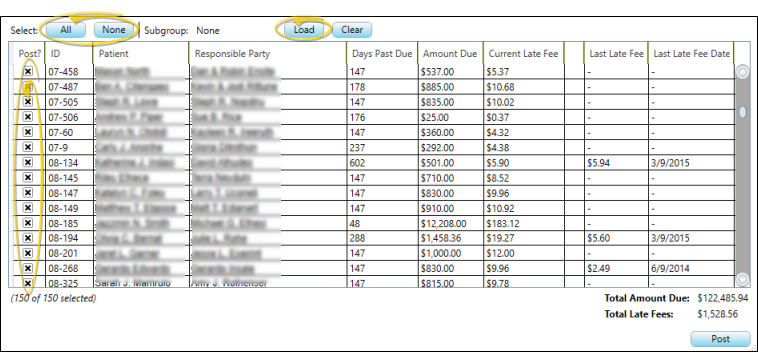
Subgroup Option - Click Load, then select a subgroup of patients to include in the late fee list. Be sure that at some point you view the late fee list for all patients to be sure all fees are being applied appropriately.
Open Patient - Click a name in the Patient column to open that patient folder.
Open Responsible Party - Click a name in the Responsible Party column to open that responsible party page.
Select Fees to Post - You can choose individual late fees to post, or use the All / None buttons to include / exclude all fees in the list. The total amount of fees selected, as well as the total amount due for those accounts, displays at the bottom of the window.
-
Post the Fees - Click Post at the bottom of the window to post the amount shown in the Current Late Fee column to the selected accounts. Fees will not be charges to any accounts that were not selected for posting, but those accounts will still show that a late fee is pending until you either adjust the account appropriately, or return to the late fees task to post the fees. In addition, only pending late fees appear on the Late Fees report. Once posted, can review the fees that have been applied to your patient accounts by printing the Transaction report.