HR Manager Employee Office Information
Use the Office panel of the HR Manager employee record to record data about this person's employment, including the employee ID, employment status, and title. Your HR Manager security settings determine who can view and edit this area of an employee record.
Open an Employee Record
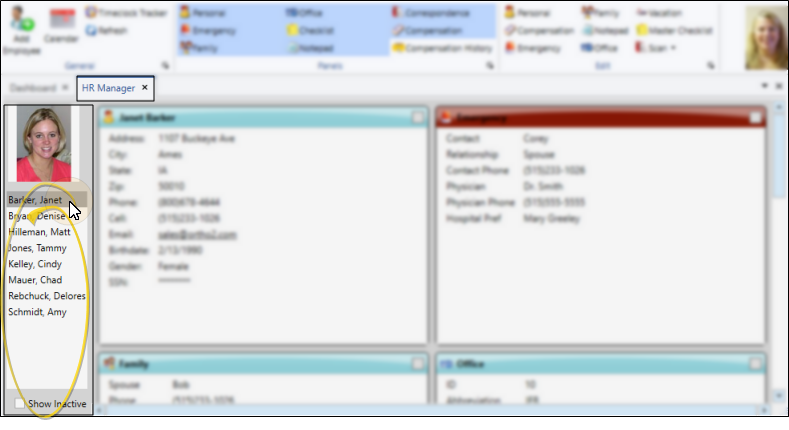
With your HR Manager open, select the employee you want to work with at the left of the window. The photo of the employee appears at the top. If not all your records appear in the list, you can enable the Show Inactive option at the bottom of the window to see them.
Hidden Records - Employee accounts that are flagged with "Hide from Timeclock Tracker / HR Manager" in your Operator editor will not appear in the HR Manager employee list.
View the Office Panel
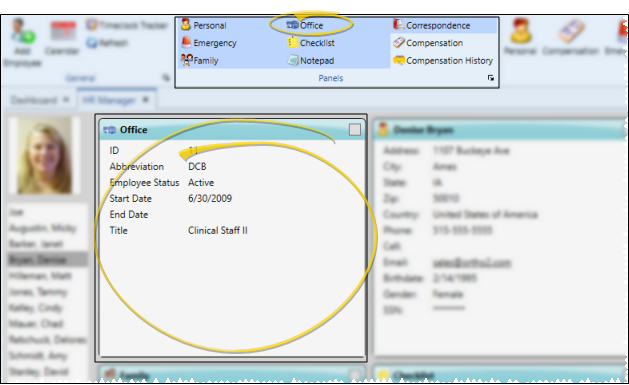
Enable the  Office option from the Panels section of the HR Manager employee record to include that portion of the record on your screen..
Viewing Security Access - All operators with at least "read only"HR Manager security access can view this area of the employee record.
About the Employee Record Window - See "HR Manager Employee Records" for details about expanding, rearranging, and working with the panels of your employee records.
Edit Employee Office Data
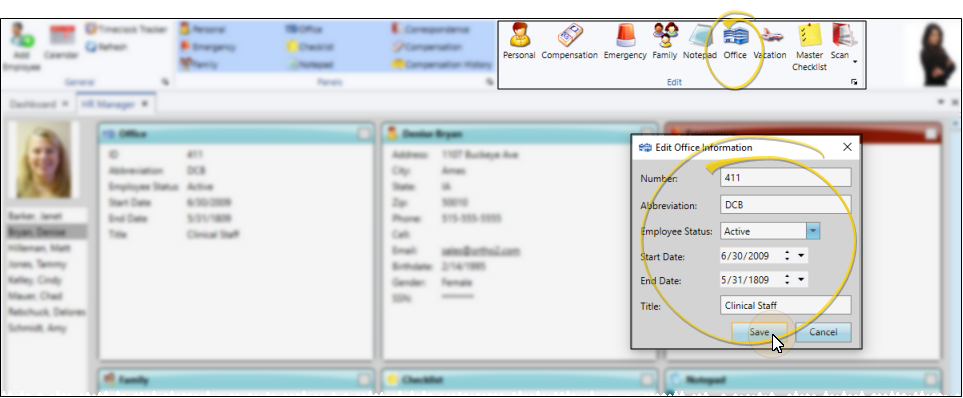
To open the Office editing window, click  Office from the Edit section of the ribbon bar. Then enter the details for this employee. When finished, click Save to save your changes and exit the editing window.
Editing Security Access - While operators with at least "Read Only"HR Manager security access can view this information, only those with "Full" access can open the editing window and make changes.
Employee Abbreviation Sync - The same abbreviation is used in both the employee's HR Manager record and their Edge Cloud operator record, and can be changed from either location.