Employee Photo
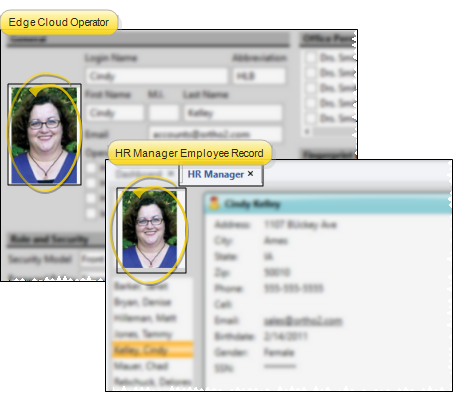
Add a photo of your staff members to your computer system to help you identify the correct person. The same photo is used for both their Edge Cloud operator record and the HR Manager employee record, and can be updated at any time from either location.
Add / Update Photos From Your HR Manager
Open an Employee Record
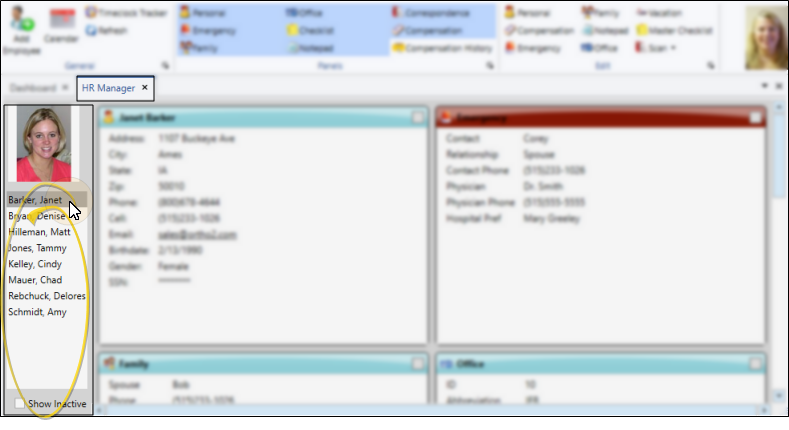
With your HR Manager open, select the employee you want to work with at the left of the window. The photo of the employee appears at the top. If not all your records appear in the list, you can enable the Show Inactive option at the bottom of the window to see them.
Hidden Records - Employee accounts that are flagged with "Hide from Timeclock Tracker / HR Manager" in your Operator editor will not appear in the HR Manager employee list.
Choose a Photo
Double-click the existing photo, or the empty photo space, and choose the photo to use, or drag a photo into the photo space. You can repeat this process to change the photo at any time. To remove the photo completely, right-click the photo and select Clear Image. The same photo appears in both the Edge Cloud Operator Account and HR Manager record. You can use your User Options - Visuals settings to choose whether to display the photo at the far right of your Edge Cloud ribbon bar when the operator is logged into the system. The photo is immediately saved in the employee's HR Manager record.
Clear / Copy Photo
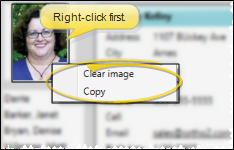
Right-click an HR Manager employee photo, then select Clear Image to remove the photo from the employee's record. This does not remove it from its original location on your computer. You can also select Copy to add the photo to your clipboard. You can then paste the photo into another application, such as an email message or word processing document.
Add / Update Photos From Your Operator Editor
Open an Operator Record
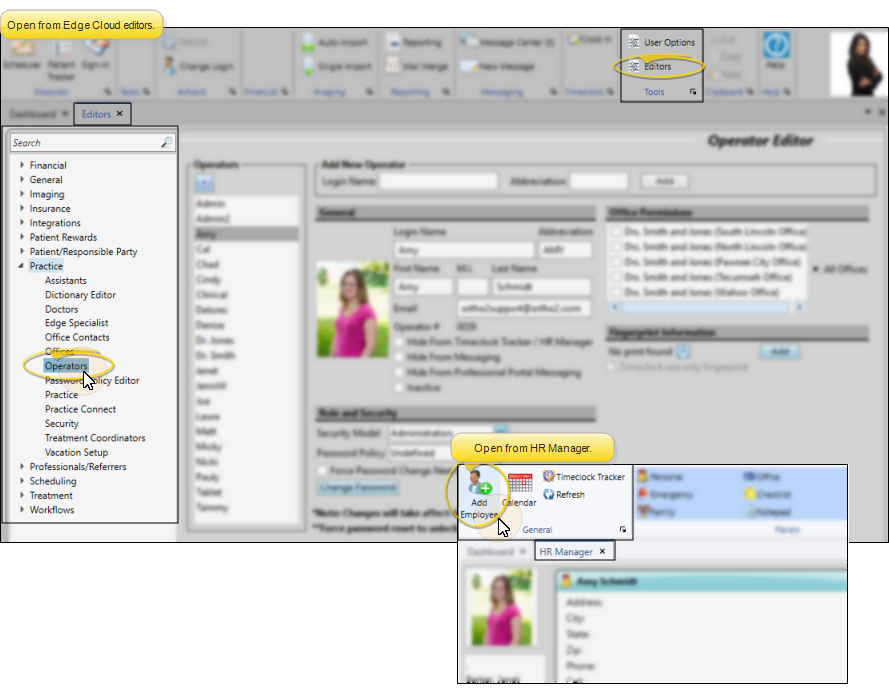
Open your Operator editor and choose the employee to work with from the list at the left.
Choose a Photo
Double-click the existing photo, or the empty photo space, and choose the photo to use, or drag a photo into the photo space. You can repeat this process to change the photo at any time. To remove the photo completely, right-click the photo and select Clear Image. The same photo appears in both the Edge Cloud Operator Account and HR Manager record. You can use your User Options - Visuals settings to choose whether to display the photo at the far right of your Edge Cloud ribbon bar when the operator is logged into the system.
Save Changes
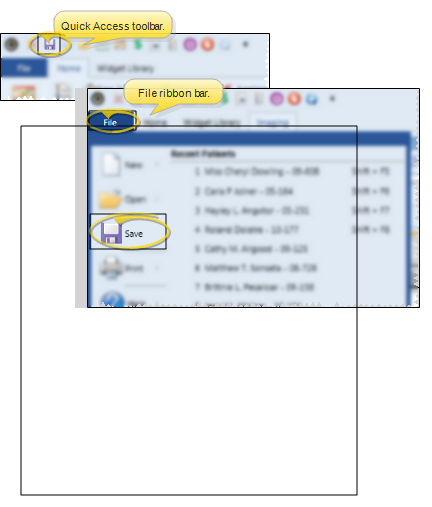
Click Save in your Quick Access toolbar or File ribbon bar (or press Ctrl+S on your keyboard) to save any changes you have made.