Send Employee Merge Letters
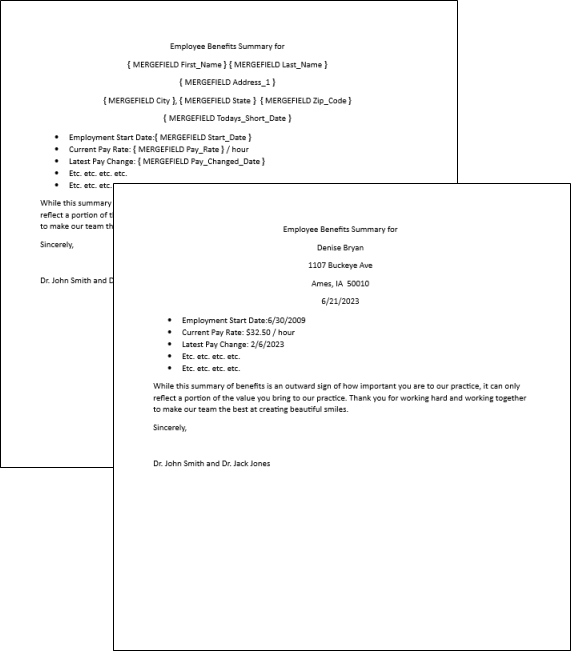
You can use mail merge to send personalized correspondence to employees. You might use this feature to generate holiday party invitations, annual review summaries, policy booklets, and accident reports. Any document you merge for an employee is automatically added to their Correspondence.
Create Employee Documents
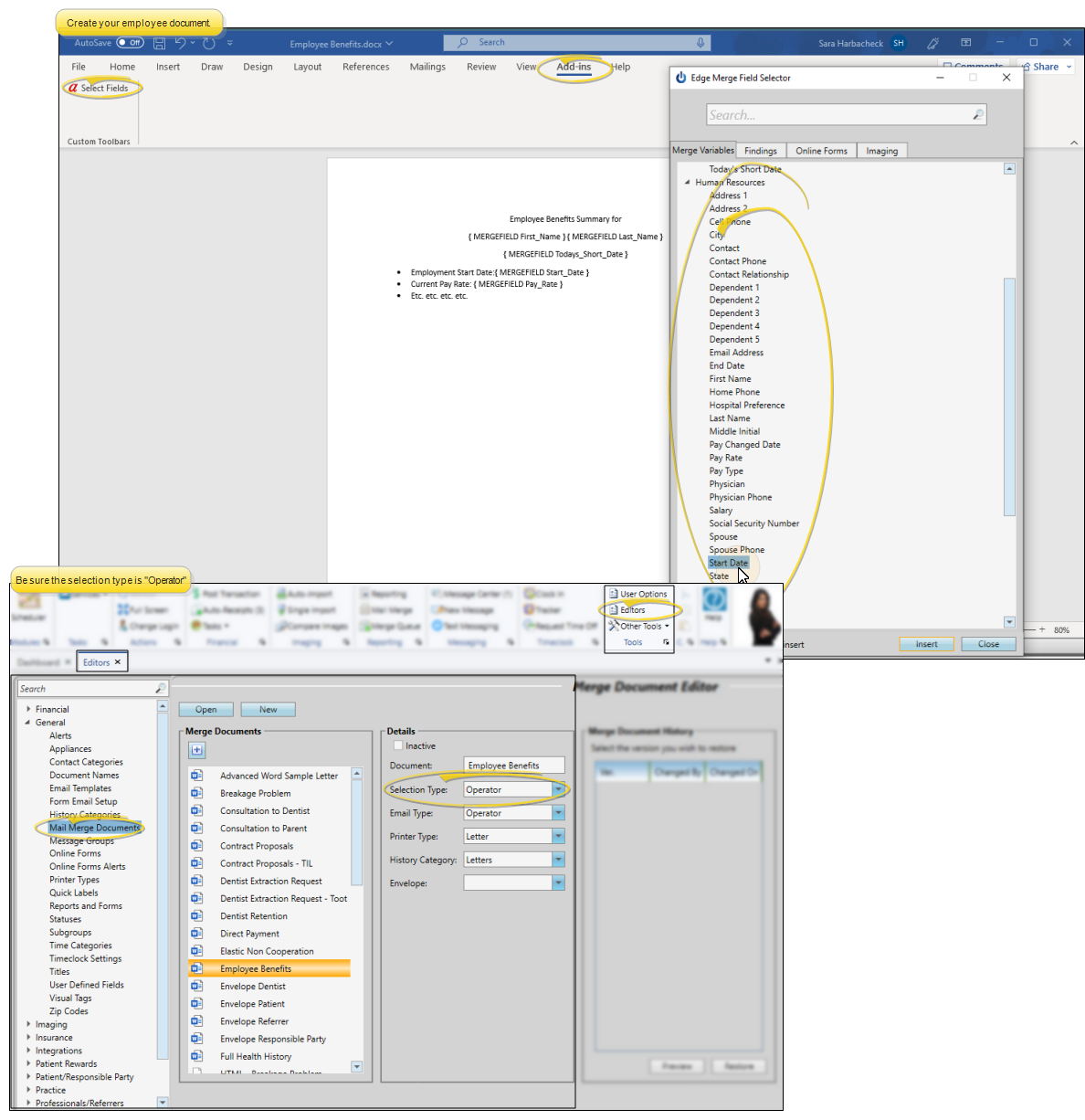
Use your Documents editor to create or edit mail merge documents for your employees. You can use the Human Resources section of the variables list to personalize the document for each employee. The document selection type in the Document editor must be "Operator". See "Mail Merge Document Editor" for details.
Send an Employee Letter
Open Mail Merge and Select a Document
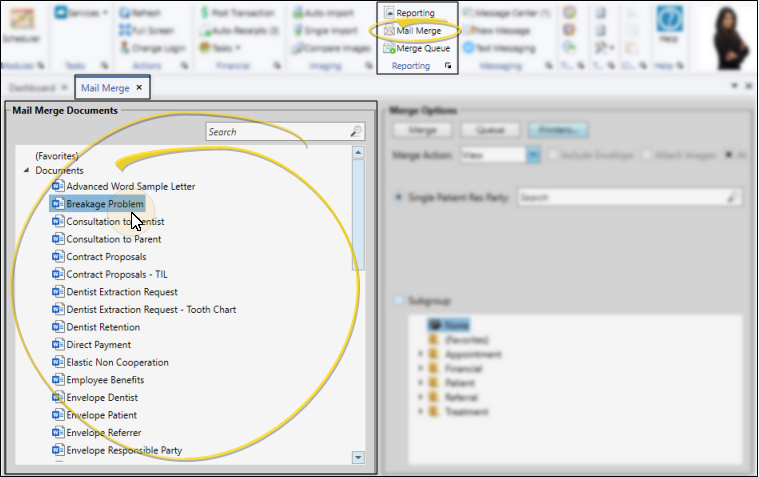
Select Mail Merge from the Reporting section of the Home ribbon bar. Then select a document name from your Favorites or Documents list, at the left of the Mail Merge window. (You can also use the Search field to find the document(s) you want to work with.) You can easily add or remove a document from your "Favorites" list, simply drag and drop it to / from the Documents list.
Select the Recipient
Select the document recipient(s), and the merge action you want to take: Capture, View, Print, or Email. Only mail merge documents that are assigned to the selection type of "Operator" can be sent to employees.
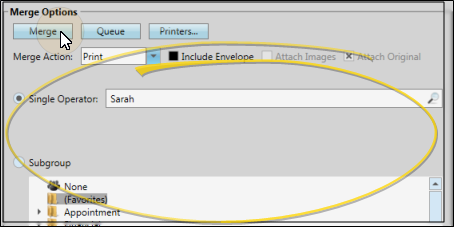
Merge the Document
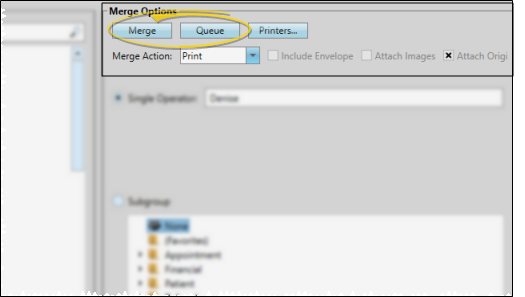
You can either click Merge to process the document immediately, or click Queue to add the document to your mail merge queue for processing at a later time. (See "Mail Merge Queue" for details.) When processed, the document will be Captured, Viewed, Printed, or Emailed depending on which merge action you selected. Captured, printed and emailed documents are permanently added to the employee's HR Manager Correspondence history.