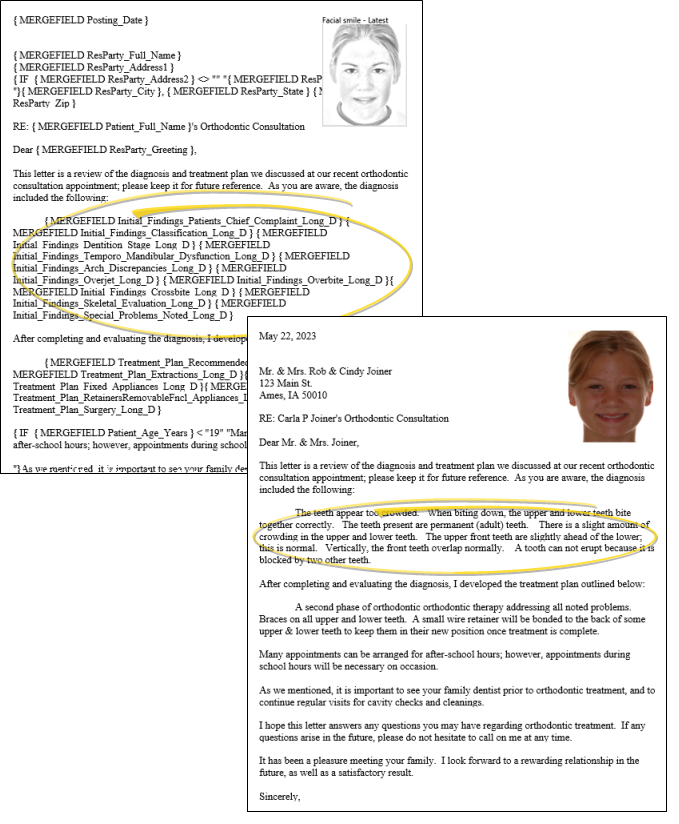
Mail Merge Variables
You can personalize your mail merge documents by placing variables within the text of the document. Then, when you merge the document for a patient, parent, dentist, or other professional, the variables are replaced with information specific to that person.
Open the Mail Merge Documents Editor
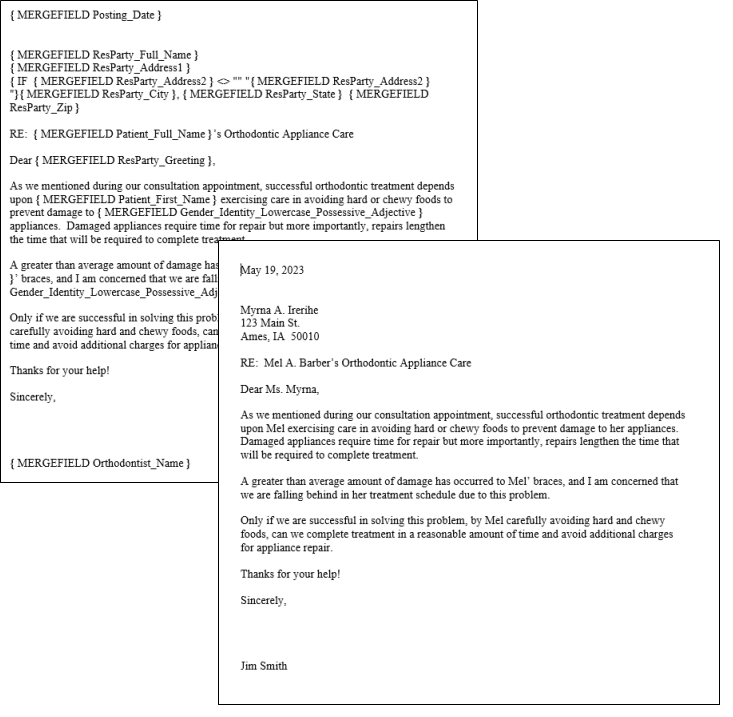
Select Editors from the Tools section of the Home ribbon bar. Then, from the General section, open the Mail Merge Documents editor. (You can also use the Search field to look for the editor you want to work with.)
Create or Edit a Document
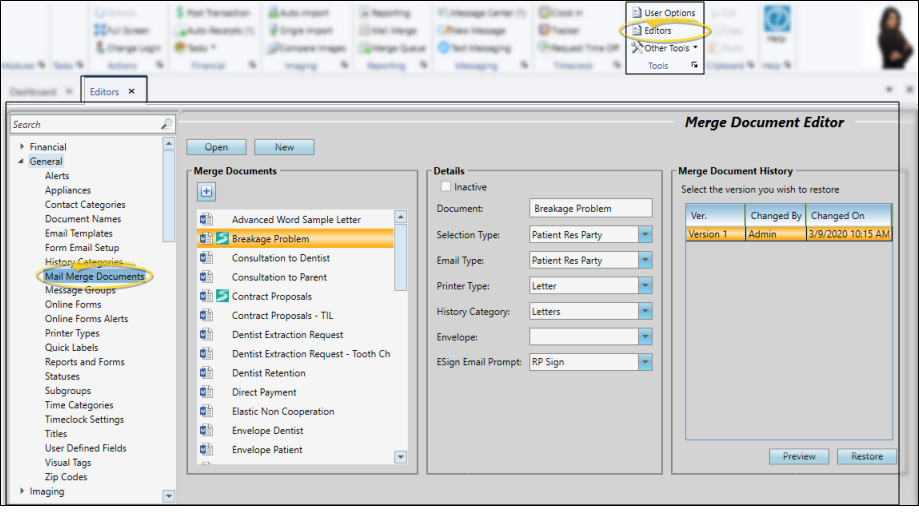
Open your Mail Merge Documents editor, then choose an existing document and click Open, or click New to create a new document. You can create documents with either Microsoft Word or with HTML. Existing documents created in Word are preceded by the Word icon. HTML documents are indicated with your primary browser icon (i.e. ).
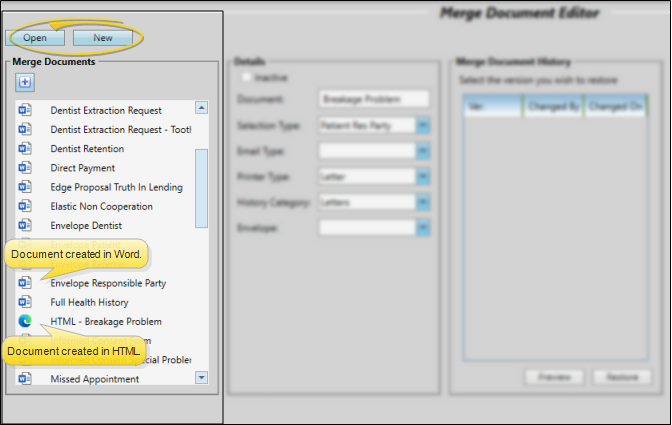
Add Variables to the Document
Toggle Merge Code Display - When creating and editing word processing documents with mail merge codes (such as variables and conditional statements), it is helpful and sometimes necessary to be able to see the codes. During regular daily use, however, you may wish to have them off. While different versions of Word have different ways of accessing this setting, an easy way to toggle the merge code display, regardless of your version of Word, is to press Alt+F9 on your keyboard. (HTML documents always display the inserted codes.)
-
Position Your Cursor
Place your cursor in the document where you want the information to print.
-
Open the Variable Menu
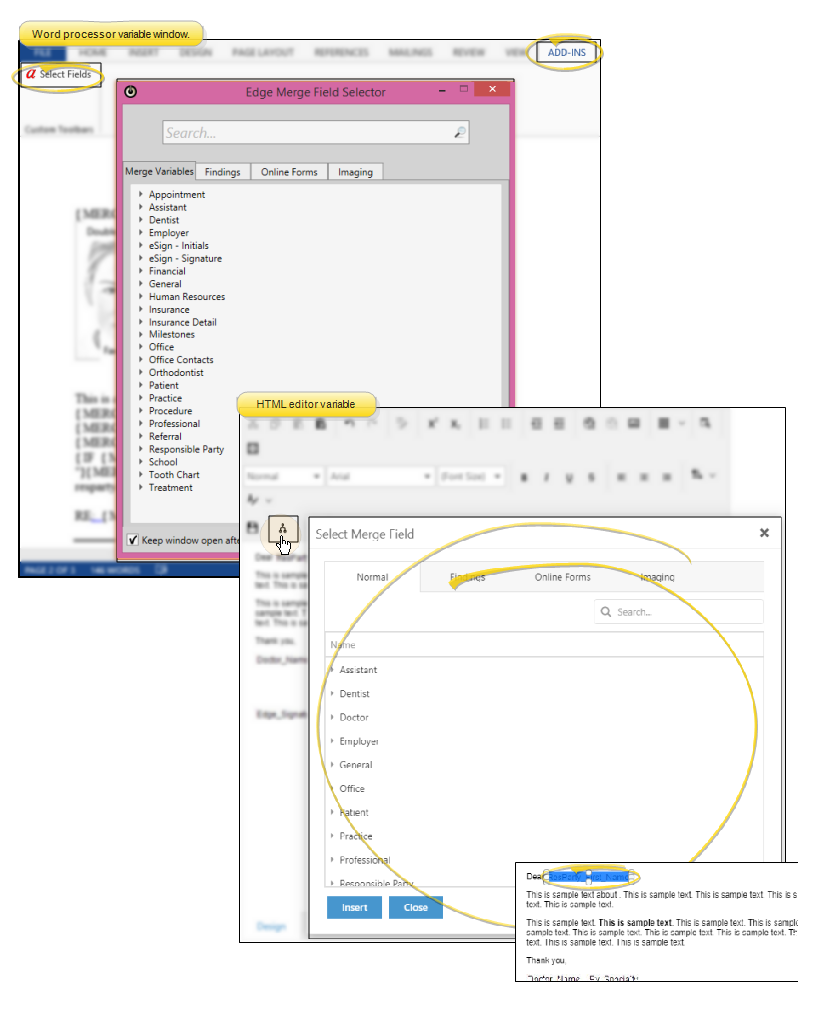
If you're working in your word processor, open the Add-Ins menu (if needed). Choose the Select Fields option to open a window of variable categories, most of which have subcategories. If you're working in the HTML Editor, click the Insert Merge Fields icon on the toolbar to open the window.
-
Choose a Variable
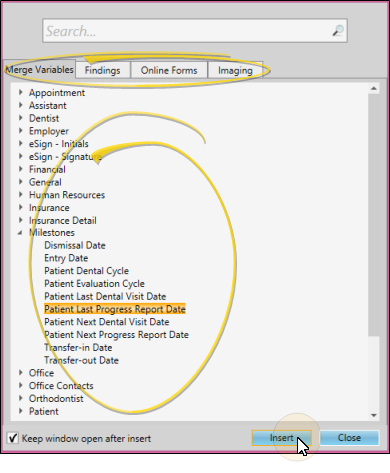
Click a tab at the top of the window, and select the category, and subcategory if needed, for the type of information you want to insert. Then select the variable you want to use and click Insert (or, double-click the variable name). (You can also use the Search field to find the variable to use.) Most variable names are self-explanatory. Certain variables have additional requirements, such as treatment findings variables and patient images. See the links at the bottom of this article for additional information about these variables.
tipIf you will be adding multiple variables in succession, you might want to enable the Keep Window Open option at the bottom of the variables window. If the option is disabled, the window closes as soon as you insert a variable.
-
Review & Edit the Variable Code
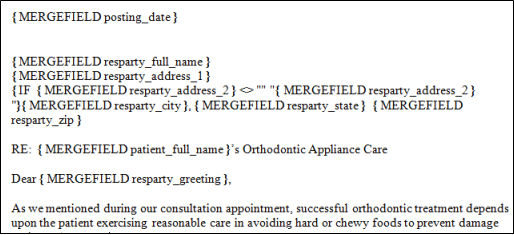
Once you have properly inserted a variable, it appears in the text of your document. (If you are using a word processor and do not see the codes, press Alt+F9 on your keyboard.) You can copy and paste the code, and if you are using a work processor, edit the code to change it into another variable, but be careful - spelling counts! (You can insert, copy, and paste variables in documents created with the HTML editor, but you cannot edit them.)
Save and Exit
Click the X in the upper right corner of the document window. As you exit, you have the opportunity to save the document.
Special Variables
Ad Hoc Variables
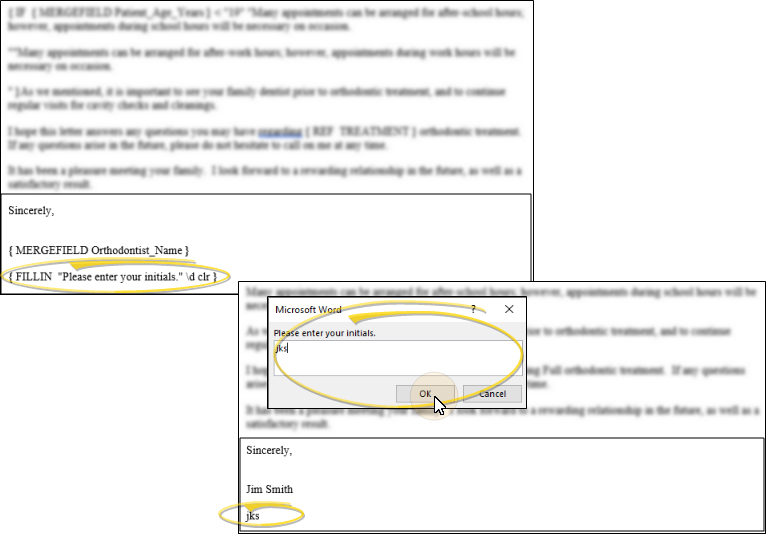
The mail merge Fill In code is a simple way to insert "ad hoc" responses into a specific location in a merge letter, when no Edge Cloud variable fits the situation. When you generate a document that has a Fill In code, the merge will stop and prompt you to enter the text you want to print in place of the code. The text you type is not saved: It is used only for the current merging job, and only in the specific location where the Fill In code exists in the merge document. See "Mail Merge "Fill In" (Ad Hoc) Variables" for details.
Ask For Variables
The mail merge Ask / Ref field code combination is a handy way to ask for a typed response, then place that response at one or more locations in a merge document, or to use that response in a conditional statement. When you generate a document that has Ask / Ref codes, the merge will stop and prompt you to enter unique text. You can then either print that text in one or more locations in the document, or use it to test conditional statements. The response you type is not saved: It is used only for the current merging job. See "Mail Merge "Ask for Text" Codes" for details.
Edge Proposal Acceptance Variables
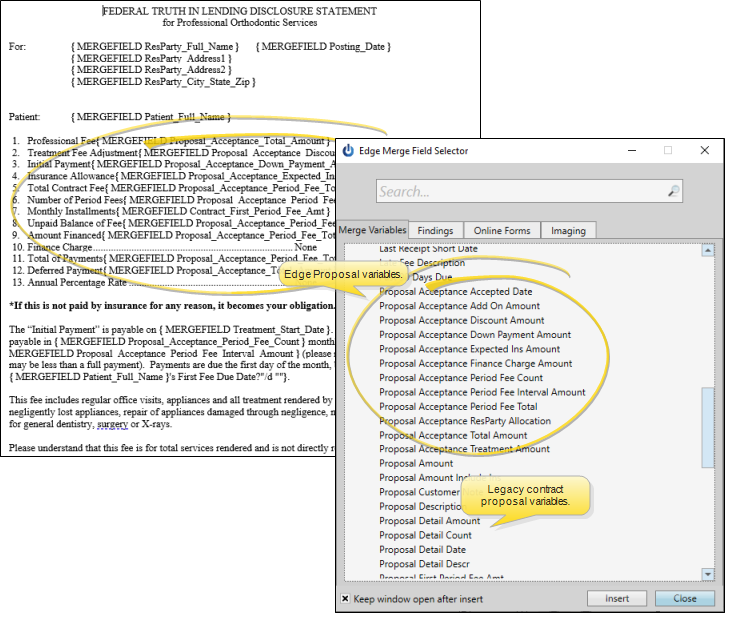
You can use the Proposal Acceptance variables to include accepted Edge Proposal details in your mail merge documents. Documents that use these variables must be set to the Proposal Acceptance document selection type in your Mail Merge Documents editor for the data to merge correctly. (Be sure to use the Proposal Acceptance variables for merging with Edge Proposal: The Proposal variables are for use with the legacy contract proposal system and not Edge Proposal. See "Mail Merge Document Editor" for details.
Edge Signature Variables
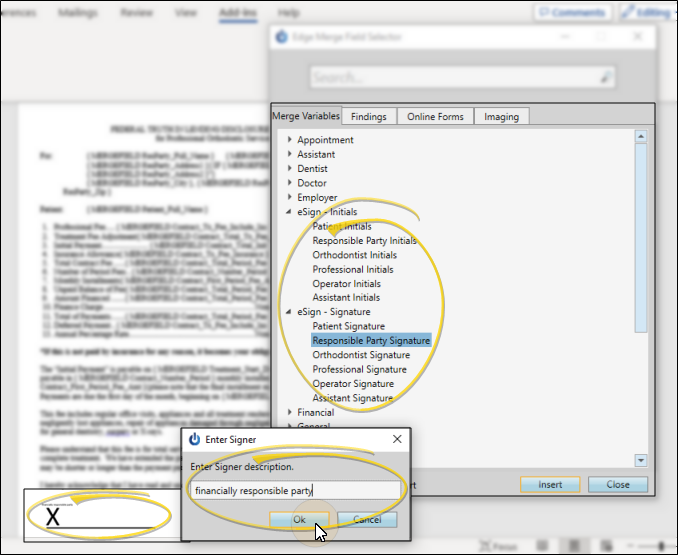
Add Edge Signature variables to your mail merge documents wherever you need a patient, responsible party, orthodontist, professional, operator, or assistant to digitally initial or sign the document. See "Edge Signature" for details.
Gender / Gender Identity Variables
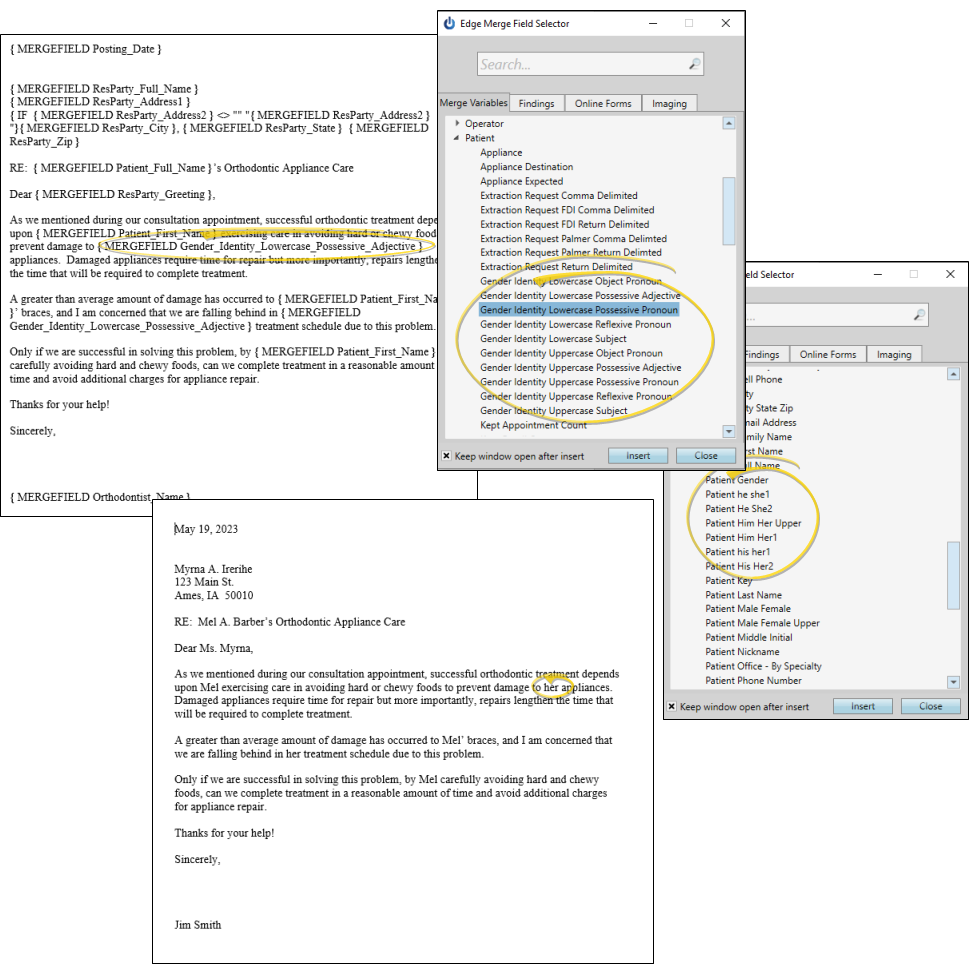
You can use both patient clinical gender and gender identity variables in your mail merge documents. See "Gender Identity Editor" for details about maintain your list of gender identities.
Legacy Contract Proposal Variables
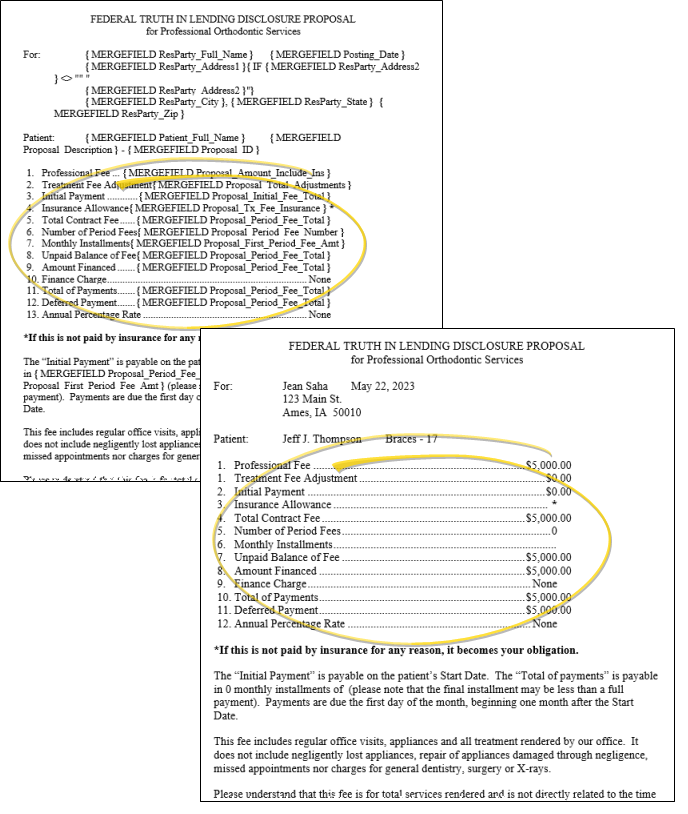
Documents that use variables from the legacy contract proposal system must be set to the Patient Responsible Party document selection type in the Mail Merge Documents editor for the data to merge correctly. See "Mail Merge Document Editor" for details.
Online Form Variables
Documents that use online form variables must be set to the Online Form document selection type for the data to merge correctly. See "Mail Merge Document Editor" for details.
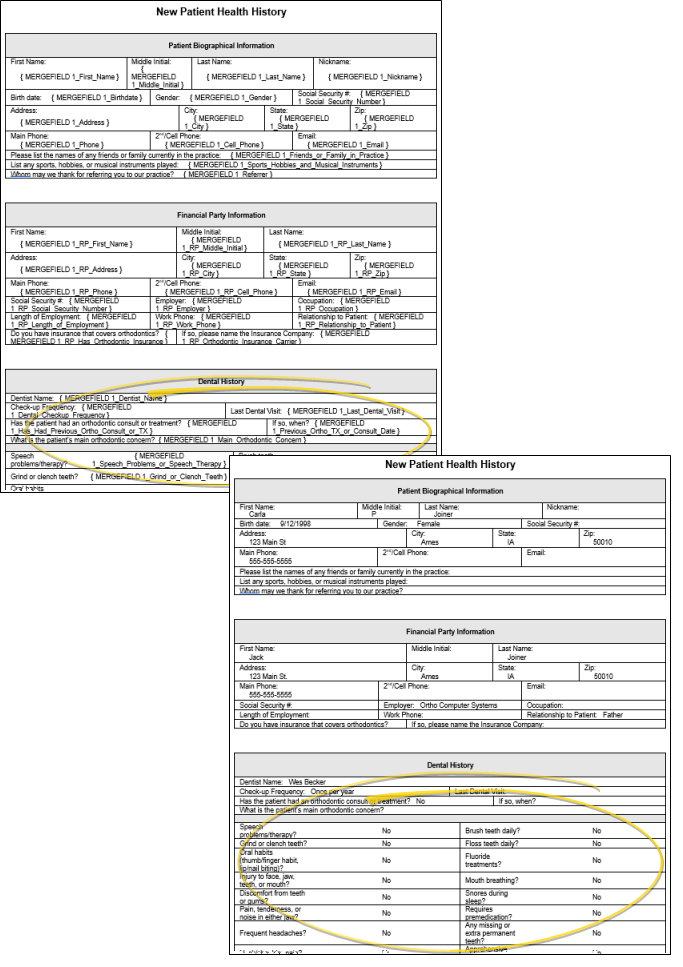
Patient Image Variables
You can add variables that will insert Edge Imaging patient images and layouts into your mail merge documents. See "Mail Merge Patient Images" for details.
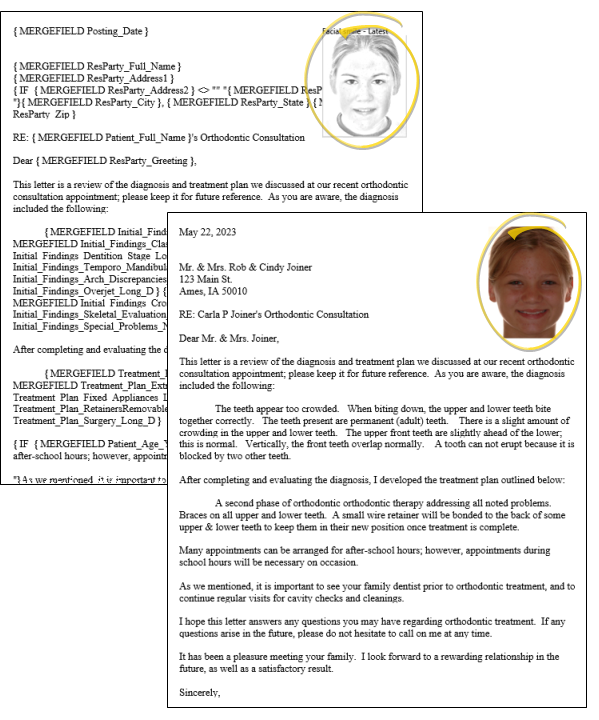
Tooth Chart Variables
You can include a tooth chart variable in a mail merge document to include a graphical representation of your extraction requests in letters you send to a patient's dentist or other professional. You can choose from among several variables, specifying which numbering system to use, and whether to include just extraction requests or all tooth chart notations in the output. You can also include a tooth chart note variable to print the contents of the latest note in the document. See "Patient Tooth Chart" for details.
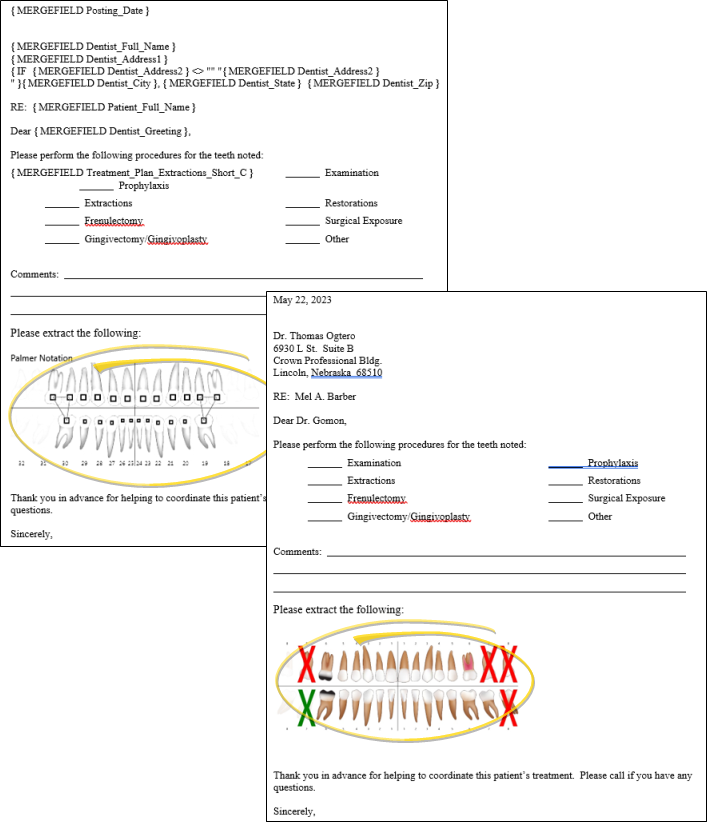
Treatment Findings Variables
You can insert both the short and long descriptions of your patients' treatment findings and miscellaneous information from the Findings page of the patient folder into your mail merge documents, and print them in either list or paragraph form. See "Mail Merge Findings Variables" for details.