
Mail Merge Findings Variables
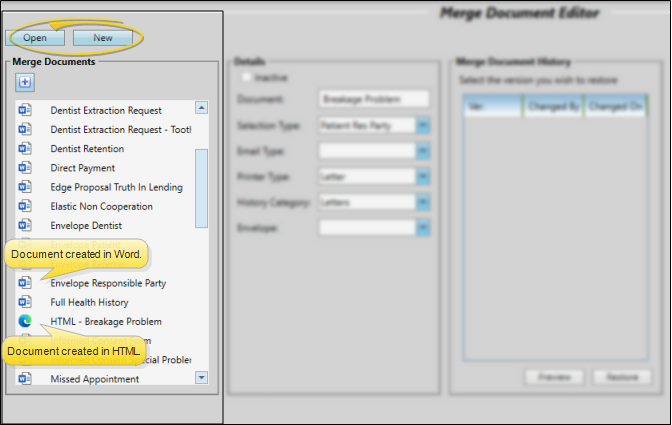
You can insert both the short and long descriptions of your patients' treatment findings and miscellaneous information from the Findings page of the patient folder into your mail merge documents, and print them in either list or paragraph form.
Open the Mail Merge Documents Editor
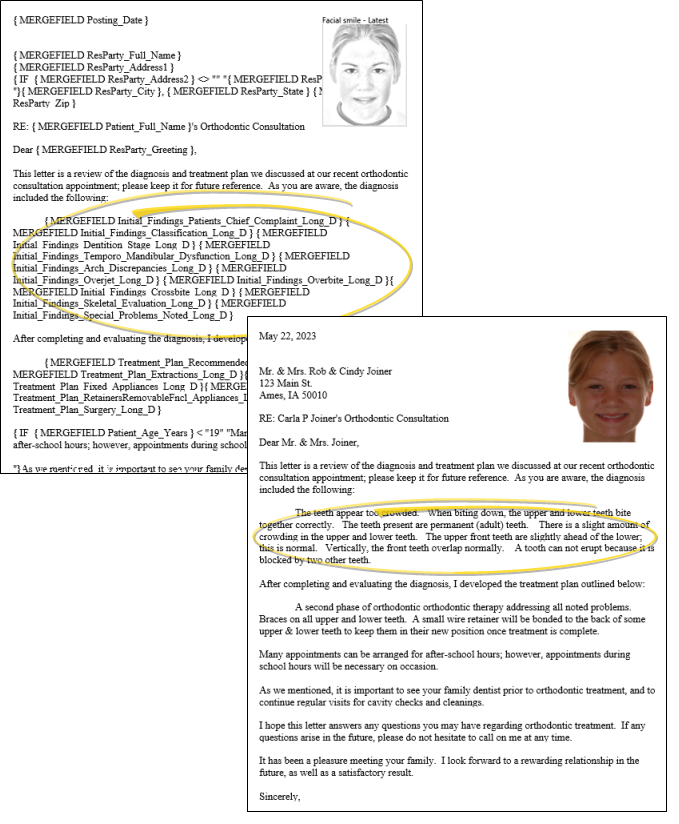
Select Editors from the Tools section of the Home ribbon bar. Then, from the General section, open the Mail Merge Documents editor. (You can also use the Search field to look for the editor you want to work with.)
Create or Edit a Document
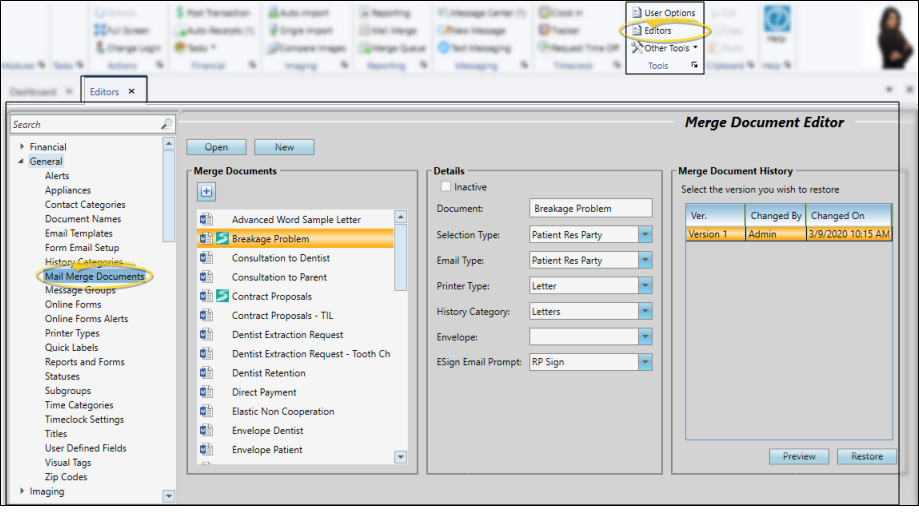
Open your Mail Merge Documents editor, then choose an existing document and click Open, or click New to create a new document. You can create documents with either Microsoft Word or with HTML. Existing documents created in Word are preceded by the Word icon. HTML documents are indicated with your primary browser icon (i.e. ).
Add Findings Variables to the Document
Toggle Merge Code Display - When creating and editing word processing documents with mail merge codes (such as variables and conditional statements), it is helpful and sometimes necessary to be able to see the codes. During regular daily use, however, you may wish to have them off. While different versions of Word have different ways of accessing this setting, an easy way to toggle the merge code display, regardless of your version of Word, is to press Alt+F9 on your keyboard. (HTML documents always display the inserted codes.)
-
Position Your Cursor
Place your cursor in the document where you want the information to print.
-
Open the Variable Menu
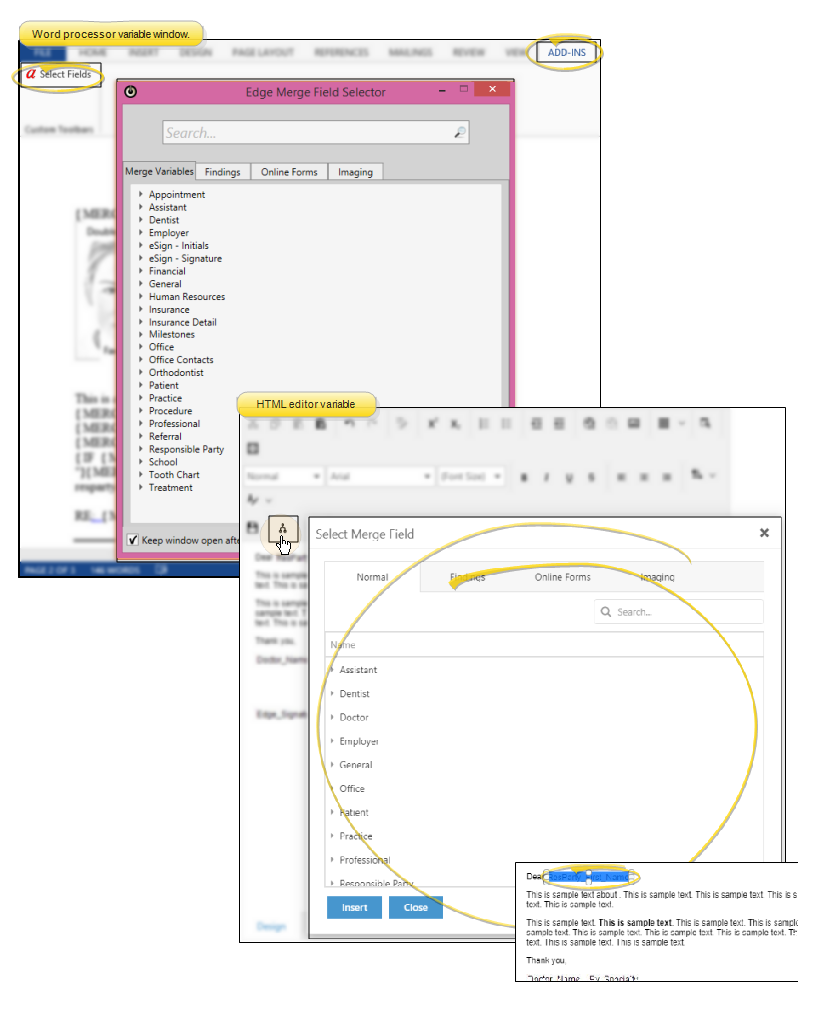
If you're working in your word processor, open the Add-Ins menu (if needed). Choose the Select Fields option to open a window of variable categories, most of which have subcategories. If you're working in the HTML Editor, click the Insert Merge Fields icon on the toolbar to open the window.
-
Choose the Findings Tab
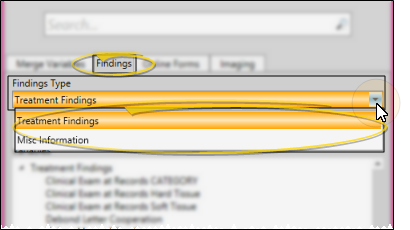
Select the Findings tab at the top of the variable selection window. If you are working in your word processor, choose either the Treatment Findings or Misc. Information findings type. If you are using the HTML editor, only treatment findings are available to you.
-
Select Description Type
Choose whether to print the short or long description, and whether to print the descriptions in a list, or one after the other in paragraph format.
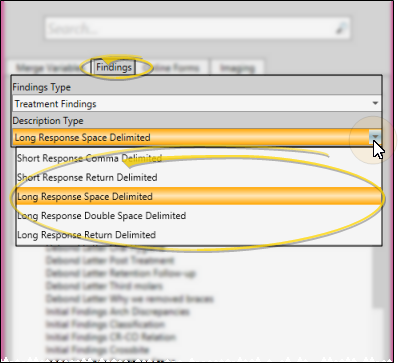
Short Response Comma Delimited - This option prints the short clinical responses. If a patient has multiple responses for the variable, they appear one after another, as if in a paragraph, with a comma between each response. Example merge code:
{MERGEFIELD Initial\_Findings\_ARCH\_DISCREPANCIES\_Short\_C}. The Short_C at the end of the code indicates the format you chose, i.e. "short response, comma delimited".Short Response Return Delimited - This option also prints the short clinical responses. If a patient has multiple responses for the variable, a line feed (carriage return) will separate them to form a vertical list. Example merge code:
{MERGEFIELD Initial\_Findings\_ARCH\_DISCREPANCIES\_Short\_R}. The Short_R at the end of the code indicates the format you chose, i.e. "short response, carriage return".Long Response Space Delimited - This option prints the full sentence layman's responses, with one space inserted BEFORE the response. If a patient has multiple responses for the variable, they appear one after another, as if in a paragraph, with one space between each response. Example merge code:
{MERGEFIELD Initial\_Findings\_ARCH\_DISCREPANCIES\_Long\_S}. The Long_S at the end of the code indicates the format you chose, i.e. "long response, single space".Long Response Double-Space Delimited - This option prints the full sentence layman's responses, with two spaces inserted BEFORE the response. If a patient has multiple responses for the variable, they appear one after another, as if in a paragraph, with two spaces between each response. Example merge code:
{MERGEFIELD Initial\_Findings\_ARCH\_DISCREPANCIES\_Long\_D}. The Long_D at the end of the code indicates the format you chose, i.e. "long response, double space".Long Response Return Delimited - This option prints the full sentence layman's responses. If a patient has multiple responses for the variable, a line feed (carriage return) will separate them to form a vertical list. Example merge code:
{MERGEFIELD Initial\_Findings\_ARCH\_DISCREPANCIES\_Long\_R}. The Long_R at the end of the code indicates the format you chose, i.e. "long response, carriage return".noteSpace and Double-Space Delimited Formatting Note - When using the Long Response Space Delimited or Long Response Double-Space Delimited variable, keep in mind that the space(s) are inserted at the BEGINNING of the response. This could cause some formatting issues, especially if the responses are intended to create a paragraph. Because the spaces are at the beginning of the response, it can cause the first response to appear indented, compared to the rest of the letter.
-
Select the Variable
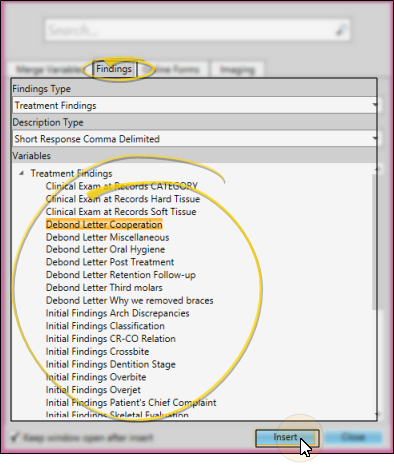
Locate the variable that you want to insert into your document. (You can also use the Search field to find the variable to use.) Then click Insert (or double-click the variable name). The variables are listed in alphabetical order, not necessarily the order you see in a patient folder. The Description Type you chose determines whether to print the short or long description, and whether to print the descriptions in a list, or one after the other in paragraph format. After inserting the variable, you will see the merge code, as described above.
-
Review & Edit the Variable Code
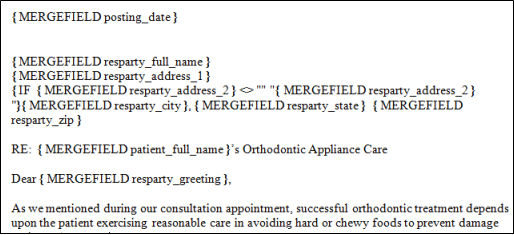
Once you have properly inserted a variable, it appears in the text of your document. (If you are using a word processor and do not see the codes, press Alt+F9 on your keyboard.) You can copy and paste the code, and if you are using a work processor, edit the code to change it into another variable, but be careful - spelling counts! (You can insert, copy, and paste variables in documents created with the HTML editor, but you cannot edit them.)
Save and Exit
Click the X in the upper right corner of the document window. As you exit, you have the opportunity to save the document.