
Assign Reward Points to a Subgroup of Patients
Use the Assign Points to Subgroup feature to add reward points to groups of patients.
Set Up Custom Rewards
Use the Patient Reward Custom Point List editor to create a list of ways individual patients and subgroups of patients can earn points, such as attending your office open house, earning good grades at school, or volunteering in your community.See "Custom Points Editor" for details.
Assign Points to a Subgroup of Patients
-
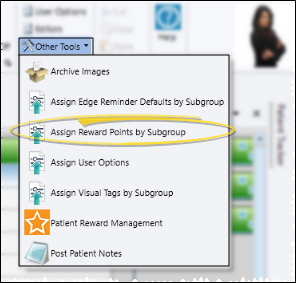
Open the Assign Points Window - Select Other Tools from the Tools section of the Home ribbon bar, and choose the Assign Reward Points via Subgroup option.
-
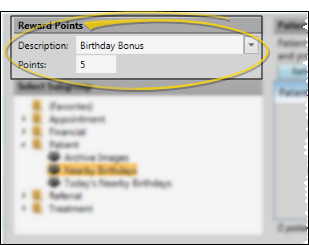
Choose Reward Description and Points - Select the description to use from your Custom Points table, or type a new description for the award. You can change the point value to assign, if needed.
-
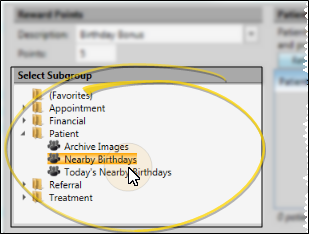
Choose Subgroup - Choose the subgroup to use for the reward points. (See "Subgroup Editor" for details about creating subgroups.)
-
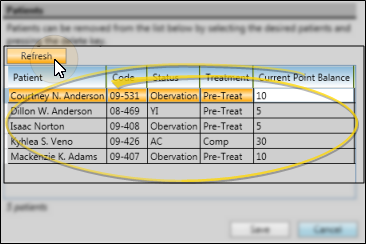
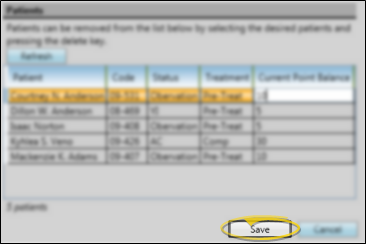
Review / Edit Patient List - Click Refresh to generate the list of patients that fit your selected subgroup. To remove a patient from the list, click the patient name, then press the Delete key on your keyboard. If you press Refresh again, the selected subgroup will be re-generated, and the deleted names will return to the list.
-
Assign Points - When you are satisfied with the patient list, click Save. The number of points you have entered are immediately added to each record.
Review Patient Reward Ledger
Review the Point Ledger section of the Patient Points window to view the details of reward points that have been rewarded and deducted from individual patient records, as well as prizes that have been redeemed. If an item has been entered in error, click the item in the ledger, then click Delete item to remove it from the record. See "Patient Reward Management" for detailsabout reviewing the ledger.