
Custom Points Editor
Use the Patient Reward Custom Point List editor to create a list of ways individual patients and subgroups of patients can earn points, such as attending your office open house, earning good grades at school, or volunteering in your community.
Open the Custom Points Editor
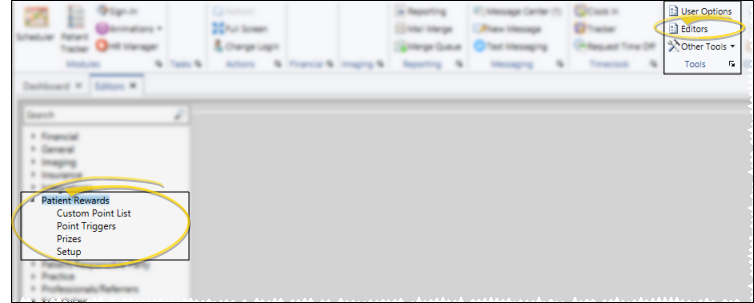
Select Editors from the Tools section of the Home ribbon bar. Then, from the Patient Rewards section, open the Custom Points editor. (You can also use the Search field to look for the editor you want to work with.)
Custom Points Settings and Options

Create a New Custom Points Item - Click Add. Then enter a description of the action that earns the reward, and the default number of points (either positive or negative) associated with that action. The descriptions you enter here are the descriptions that will appear in the Manage Patient Points window; both you and the patient will be able to see these messages.
Edit Custom Points Item - Select an existing Custom Points item column, and change the description and default point value as needed.
Delete Custom Points Item - Select the item to work with, and click Delete. This removes the action from your Custom Point List, but does not remove it from any patient records that have already received the points.
Save Changes
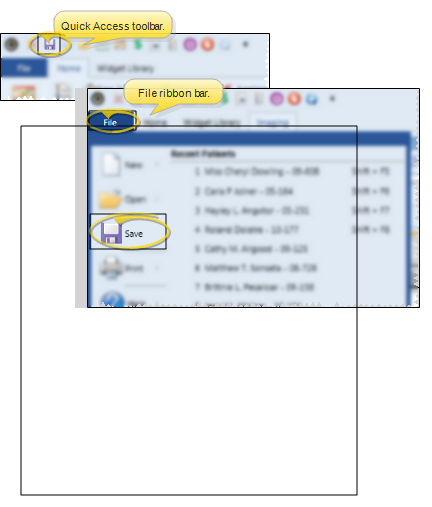
Click Save in your Quick Access toolbar or File ribbon bar (or press Ctrl+S on your keyboard) to save any changes you have made.
Award Custom Points
Award Custom Points to Individual Patients - You manually award points from this table with the Patient Points tab of the Manage Patient Points option. Although the default point value appears when you select the action to award, you can enter a different point value for the patient as needed. See "Patient Reward Management" for details.
Award Custom Points to Subgroups - Use the Assign Points to Subgroup feature to add reward points to groups of patients. See "Assign Reward Points to a Subgroup of Patients" for details.