
Patient Barcodes
Use barcode actions to assign, print, and copy barcodes. Printed barcodes can be attached to patient records or appliances. When you scan a patient barcode, the associated patient folder is opened for you. When you scan an appliance barcode, you are prompted to flag the associated appliance as "received".
Get Started
Barcode Scanner, Printer, and Format
Use the Barcode fields of your Scanners user options to select the type of barcode scanner you have, which format to generate, and which printer to use to obtain a hard copy of the codes. See "Scanner User Options" for details.
Initiate Barcode Actions
You can assign a barcode to a patient folder and to the patient's appliances: Use the appropriate method to open the type of barcode you want to work with.
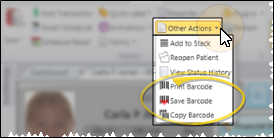
Patient Folder Barcodes - Select Other Actions from the Patient ribbon bar, and select a barcode action, described below. (An Edge Cloud patient folder must be open for the Patient ribbon bar to be available.)
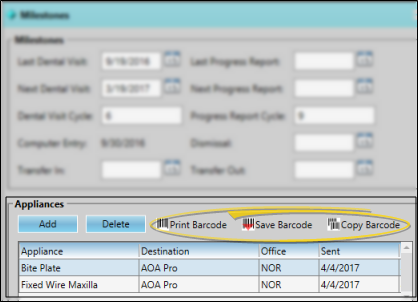
Appliance Barcodes - Open the patient folder Home page and enable the Milestones panel. Expand the panel to access the barcode actions. See "Patient Appliances" for details.
Barcode Actions
Use barcode actions to assign, print, and copy barcodes. Printed barcodes can be attached to patient records or appliances. When you scan a patient barcode, the associated patient folder is opened for you. When you scan an appliance barcode, you are prompted to flag the associated appliance as "received".
Assign / Print Barcode - Select Print Barcode to obtain a full-size hard copy of the currently assigned barcode. You can then attach the print-out to the corresponding record, appliance, or other item you are tracking. If no barcode exists, Edge Cloud prompts you to generate one before printing. After creating a new barcode, be sure to save your changes before exiting the patient folder.
Barcode Labels - You can also print label-sized barcode labels for existing barcodes from the Reporting window. See "Patient Barcode Labels" for details.

Save Barcode Assignment - If you have a printed barcode that you want to assign, select Save Barcode, then scan the printout. If no barcode exists, the code is assigned automatically. If a barcode is already assigned, you can either overwrite it with the newly scanned code, or cancel the action and keep the original barcode.
Copy Barcode - Select Copy Barcode, then choose to save the barcode text or image to your clipboard. You can then paste the copied code into another application, such as a word processing document or label.
Barcode Indicator - After you save a barcode for an appliance, an icon appears in the barcode column of your Milestones panel and your Appliance tracker,
Barcode Scanner, Printer, and Format
Use the Barcode fields of your Scanners user options to select the type of barcode scanner you have, which format to generate, and which printer to use to obtain a hard copy of the codes.See "Scanner User Options" for details.
Scan Barcodes
Scan Patient Barcodes - When you scan a patient barcode, the associated patient folder is opened for you.
Scan Appliance Barcodes - When you scan an appliance barcode, you are prompted to flag the appliance as "received". See "Patient Appliances" for details.
Print Barcode Labels
Run a Patient Barcode quick label to generate a label that originally includes the patient's id number(s) and associated barcode that, when scanned, opens the Edge Cloud patient folder. The quick labels are formatted to print on single-column label paper with an approved printer. This provides you with a way to print barcode labels rather than barcode QR codes. See "Patient Barcode Labels" for details.