
Patient Arrival Log
The patient Arrival Log details the appointment activity of a specific patient, as calculated by your Patent Tracker.
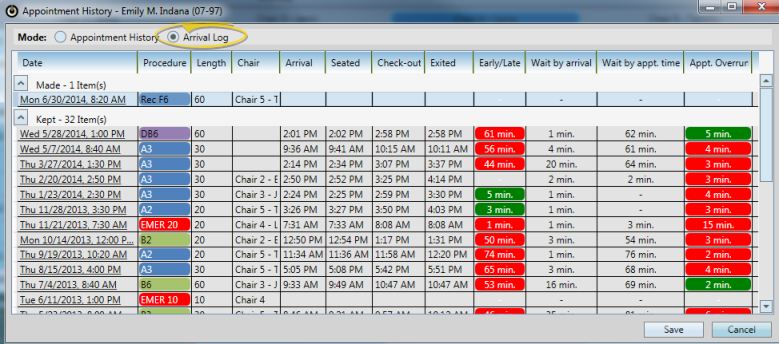
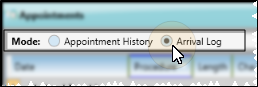
Open the Arrival Log
Open the patient's
Appointment History
, then enable the Arrival Log option at the top of the window.
Open the Appointment History
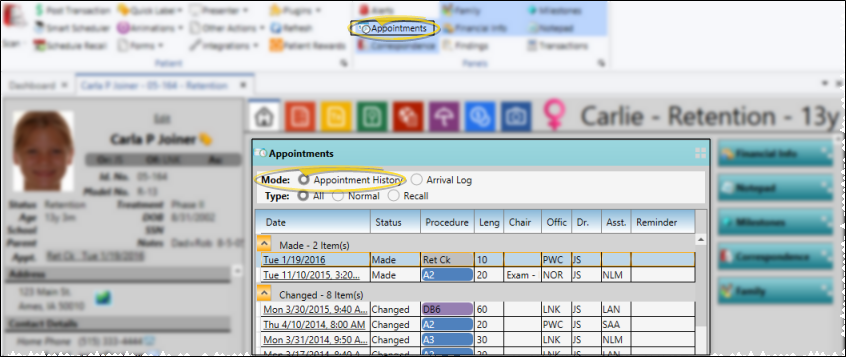
Patient Folder Home Page - To open the Appointment History from the patient folder, open and expand the Appointments panel on the Home page, and enable Appointment History mode.
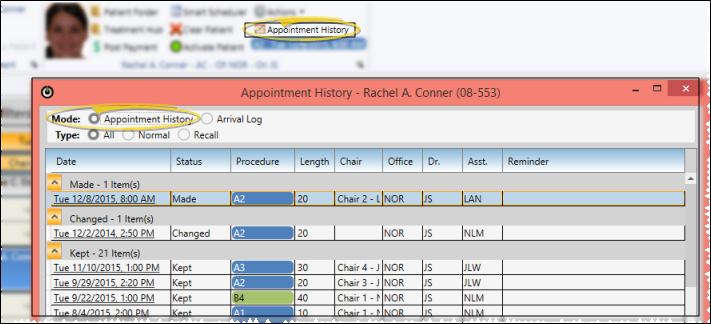
Scheduler Ribbon Bar - To open the Appointment History from the Scheduler ribbon bar, first activate the patient, then select the Appointment History icon from the Active patient section, and enable Appointment History mode. (You cannot print the Appointment History from here.)
Right-Click Scheduler Appointment - To open the Appointment History from a patient's appointment, right-click the appointment in your Scheduler, and select Appointment History. Then be sure Appointment History mode is enabled. (You cannot print the Appointment History from here.)
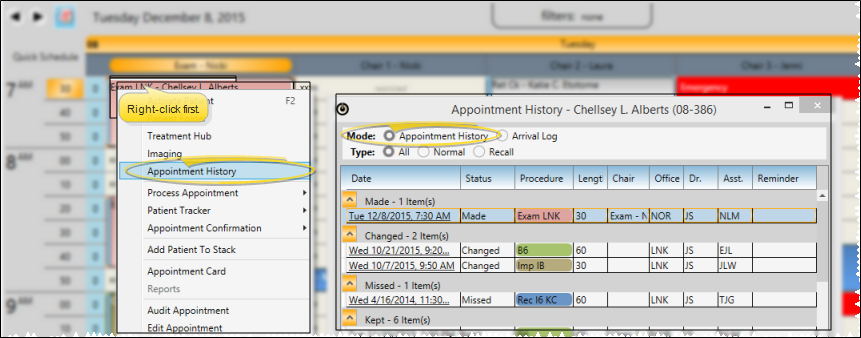
The Arrival Log Window
Sort Data - Click a column heading to sort the data by that column. Click the same column heading to reverse the sort order.
Missing Columns - You may have narrowed a column so much that you can no longer see it. To restore column widths, exit and re-enter the patient folder to return the columns to their defaults.
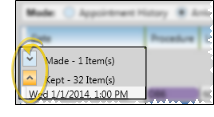
Collapse / Expand Sections
- You can click the arrow in each status heading to collapse / expand that section, allowing more room on your screen for the type of appointments you wish to view.
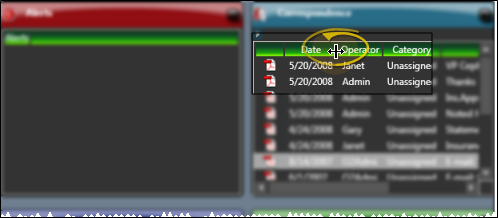
Adjust Column Width
Click the bar between two columns to reallocate the column space. Be aware that it is possible to adjust a column to be so narrow that you no longer see it.
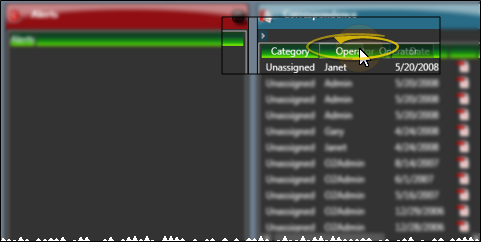
Change Column Order
Click a column heading and drag it to a new location within the window. Other columns adjust accordingly.
Review & Edit Details
Click the column you want to change, and enter the time of day the patient arrived, was seated, placed in check-out or exited the operatory. The remaining columns are calculated automatically, and cannot be edited by you.
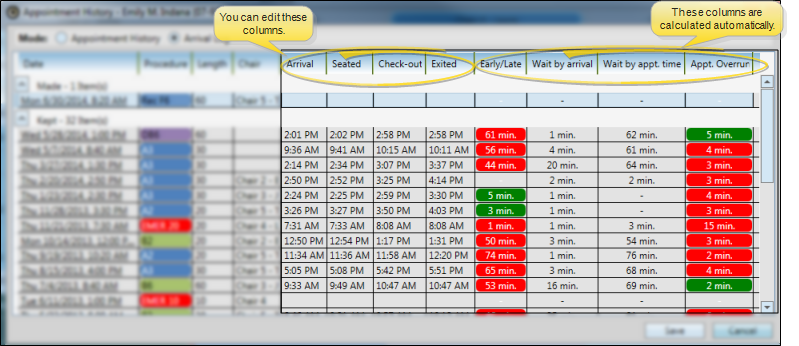
Early/Late - This column indicates the number of minutes the patient was early or late for the appointment.
Wait by Arrival - This column indicates the number of minutes the patient waited to be seated since the time they signed into your office.
Wait by Appt. Time - This column indicates the number of minutes the patient waited past the scheduled appointment time.
Appt. Overrun - This column indicates the number of minutes the appointment went over (shown in red) or under (shown in green) the scheduled appointment length.
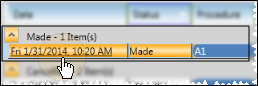
Audit Appointment - Right-click an appointment to view the date and time the appointment was made, the last time it was changed, and the operator who processed those changes.
Go to Appointment
Click an appointment to open your Scheduler to that date, with the appointment selected and the patient activated.
If you have multiple Scheduler tabs open, clicking a patient appointment link will bring the left-most tab to the front of your Edge Cloud window. Note that before you click the link, you can reorder your tabs by simply dragging them into place, thus selecting which Scheduler tab you want to work with. See "Scheduler User Options" for details about enabling/disabling the multiple Scheduler option.
Save Changes
Click Save, either from the Quick Access toolbar, or the bottom of the window, depending on how you opened the Arrival Log to save any changes you have made to the appointment details.
Save from patient folder Home page Appointments panel:
Save from Scheduler Appointment History window:
More Information
View Arrival Log For a Specific Date - You can view the list of arrival details for all patients on any given date by viewing the Arrival Log option of your Scheduler's List View mode. See "View Detailed Appointment List" for details.
Print Arrival Log Report - Run the Arrival Log report to see your Patient Tracker activity for any range of dates. Most offices run the report for today or yesterday, but it can be run for any past date range. You will receive information such as patient name and procedure code, when the patient arrived / was seated / exited, how long they waited, and the actual amount of time their appointment took. In addition, the end of the report includes a summary of the data by procedure code, doctor, office, and assistant. This information is useful in determining for how long an appointment procedure should ideally be scheduled. See "Arrival Log Report" for details.