Edge Cloud 7.2
Welcome to Edge Cloud 7.2! This release introduces Edge Proposal, a powerful new way to create interactive orthodontic contract proposals, along with Canadian ACH support, gender identity features, and numerous online form and scheduling improvements.
Edge Proposal
All Edge Cloud users can now use Edge Proposal to create orthodontic contract proposals that allow your responsible parties to select the terms of their contract with easy-to-use interactive sliders. You set the treatment fee, define the parameters your office is comfortable with, and offer a list of treatment add-ons. The responsible parties do the rest in the Edge Proposal companion app.
When you upgrade to Edge Cloud 7.2, you can use either the original Legacy proposal system, Edge Proposal, or both. Your system will default based on your recent proposal activity. You can choose which proposal system to use at any time in your System Financial Settings editor. Existing proposals will continue to use the proposal system you used to create them.
Create and Manage Proposals
After you set up your Edge Proposal Add-Ons and Templates editors, create Edge Proposal orthodontic contract proposals from the Finance page of the Edge Cloud patient folder. Each proposal can include multiple treatment and template combinations to provide your patient families with a variety of treatment options.
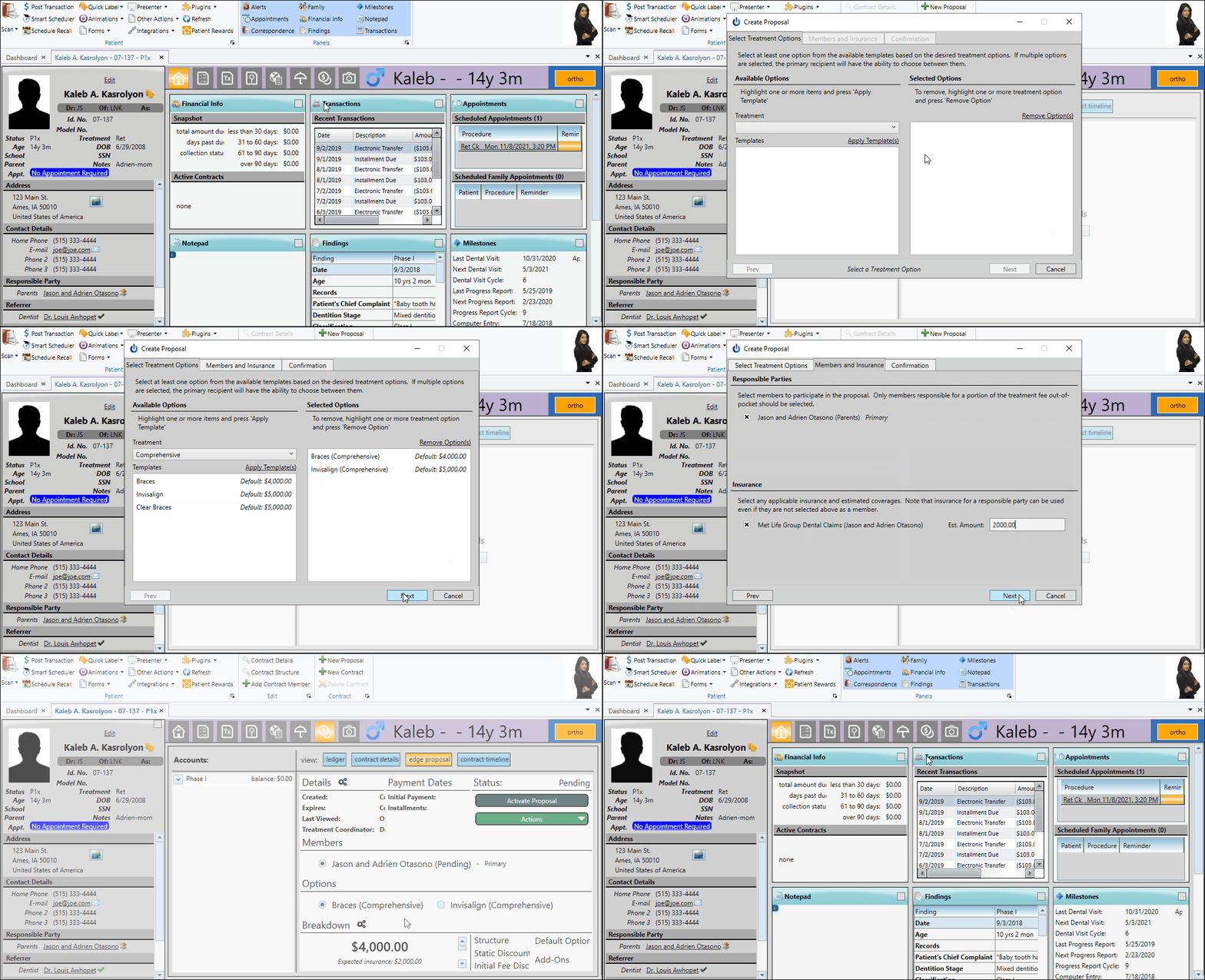
Tell me about creating proposals…
Tell me about managing proposals…
The Edge Proposal App
Once you activate a proposal, share it with the responsible party via email, text, QR code, or a direct link. The responsible party uses the link to open the Edge Proposal app where they:
- Select treatment options
- Fine-tune their payment plan with interactive sliders
- Accept the treatment terms
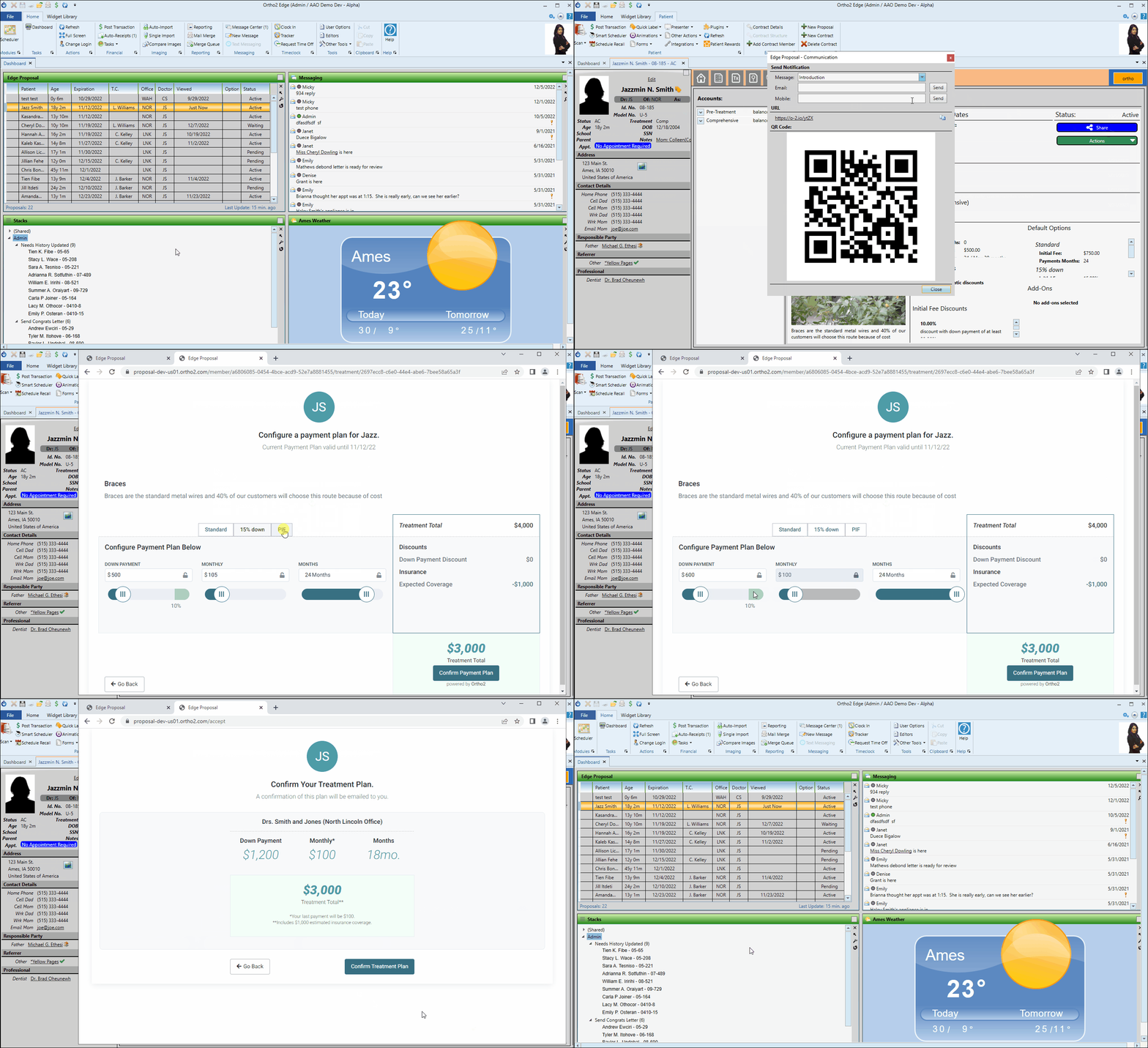
The Edge Proposal Widget
Use the Edge Proposal widget to review and manage your patient contract proposals. The widget displays:
- Proposal expiration date
- Whether the responsible party has viewed the proposal
- Current status
Filter the widget results to view only relevant proposals. You can open the patient folder to the proposal page and share proposals with responsible parties directly from the widget.
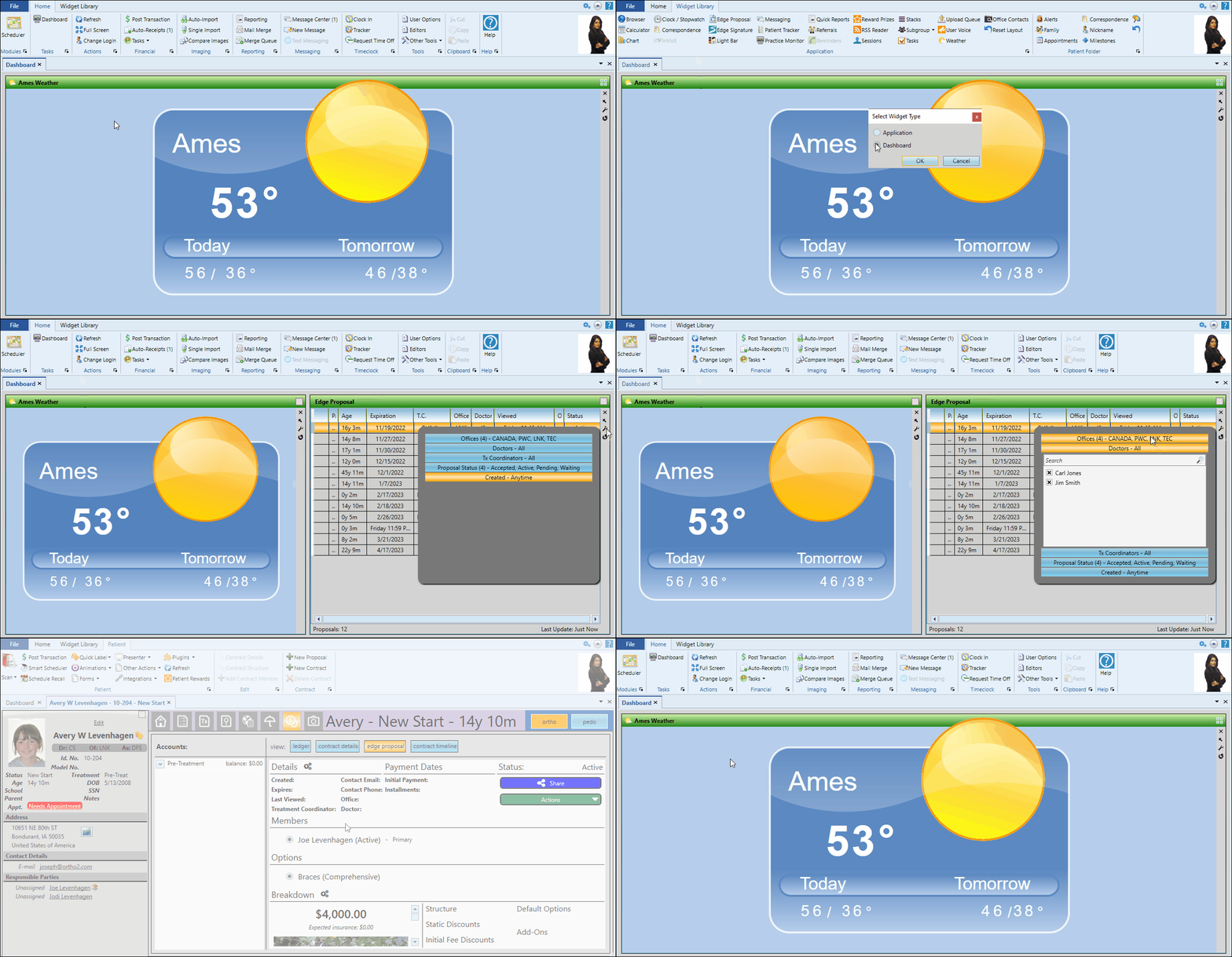
Edge Proposal Mail Merge Documents
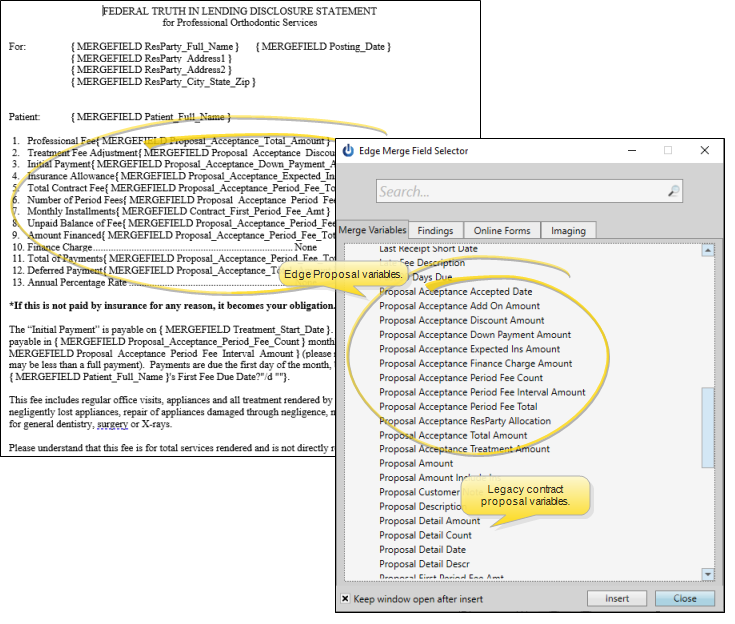
Use the "Proposal Acceptance" variables to include accepted Edge Proposal details in your mail merge documents. Documents using these variables must be set to the Proposal Acceptance document selection type in your Mail Merge Documents editor for the data to merge correctly.
Use the "Proposal Acceptance" variables for Edge Proposal data. The "Proposal" variables are for use with the legacy contract proposal system only.
Canadian ACH Transaction Support
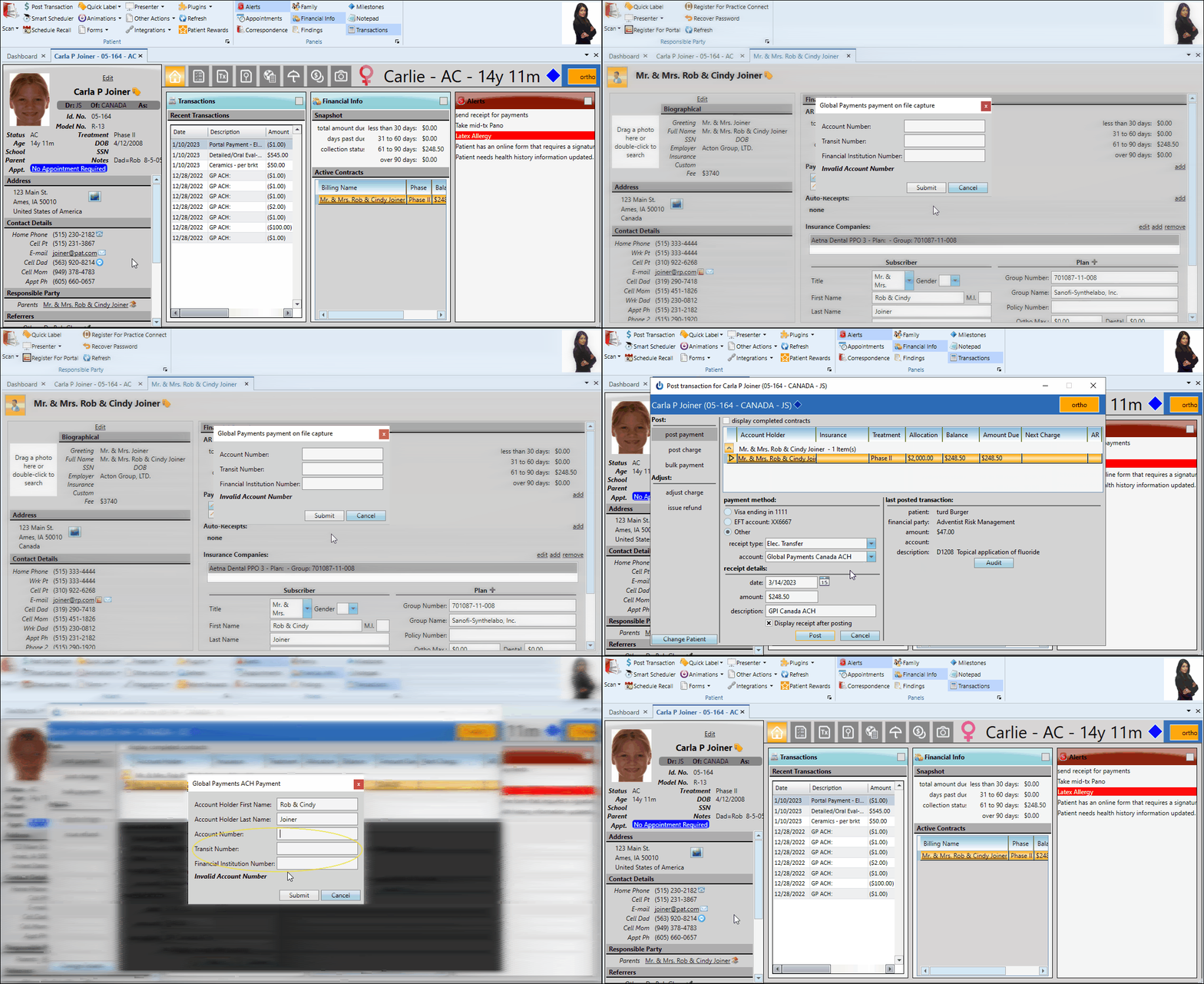
Edge Cloud users in Canada can now save ACH (electronic bank transfer) payments on file for their billing parties, as well as manually post ACH transactions and refunds for patients.
Requirements
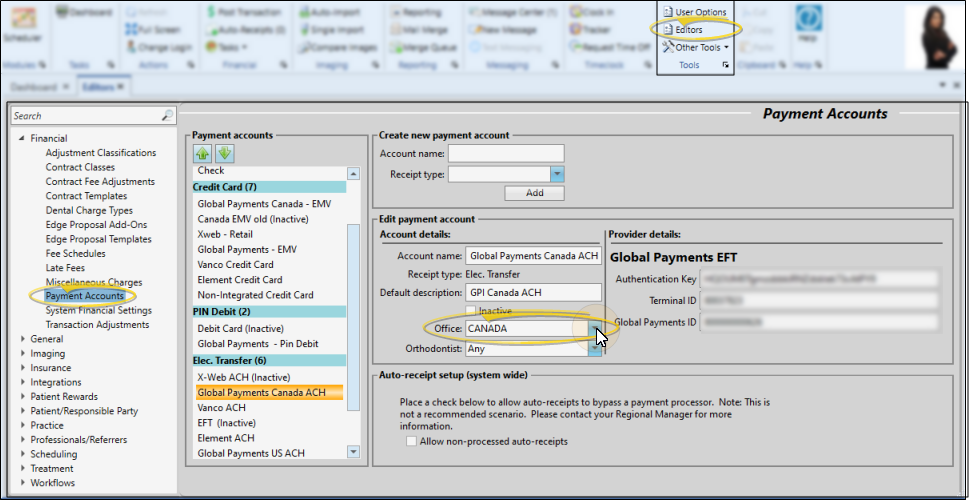
- A valid Global Payments Integrated payment account set up for Electronic Transfer in your Edge Cloud Payment Accounts editor
- If you practice in both the United States and Canada, set up a payment account for each country
- To differentiate the Canadian account, either the office assigned to the payment account must have a Canadian address, or the default country in your Practice editor must be Canada
When you create a payment on file or post an ACH transaction, you will be prompted for Canadian banking fields rather than United States fields.
Gender Identity Support
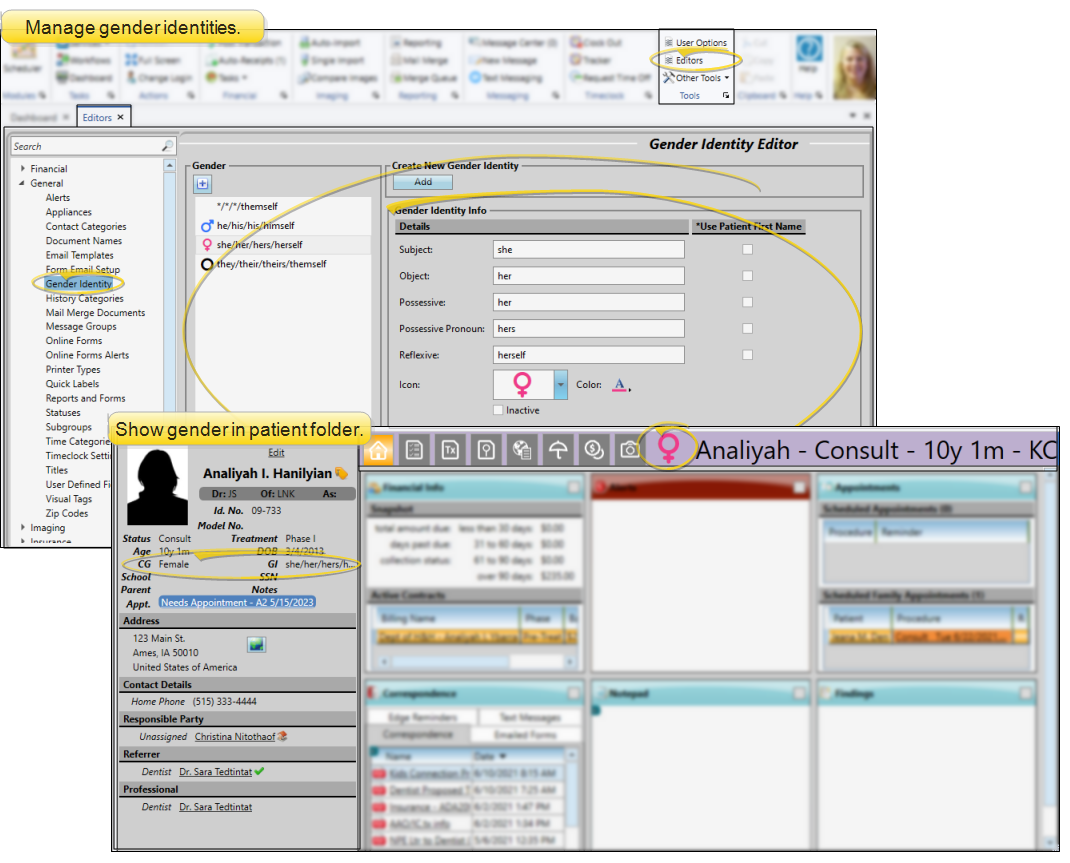
You can now identify both the patient's clinical gender and gender preference, providing easy access to both the patient's clinical presentation and preferred pronouns.
Features
- The new Gender Identity editor includes standard identity pronouns and associated visual icons (customizable for your practice)
- When creating new patient folders, select both the clinical gender and preferred gender identity
- Abbreviations "CG" (clinical gender) and "GI" (gender identity) appear on the Patient Information panel
- Use Visual User Options to show/hide the gender identity icon in the patient folder header
- Gender identity mail merge variables available for documents
- Both clinical gender and gender identity can be used in Edge Cloud subgroups
The Edge Cloud preferred gender identity feature is provided to help you better understand and communicate with your patients. Areas of Edge Cloud that require the patient's gender at birth, such as insurance details, will remain the clinical gender only.
Online Form Links can Specify Doctor, Office and Other Metadata
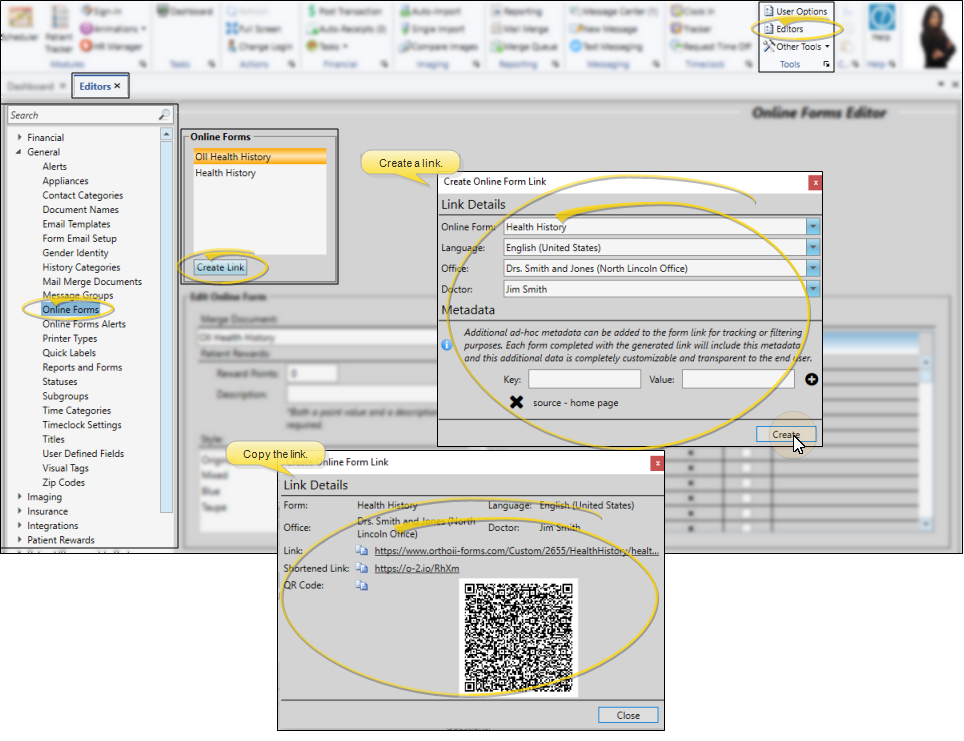
Use your Online Forms editor to create data-specific links that you can add to your website and send in patient emails. The links can be specific to:
- Individual doctor
- Office
- Ad-hoc metadata for tracking and filtering
When the patient clicks the link and submits the form, their information will be associated with the specified doctor, office, and metadata. To create this type of link, open the Online Forms editor and click Create Link.
You can also include ad hoc metadata when you launch an online form for a new or existing patient from the Online Forms service window. Click for details
Online Forms Can be Filtered by Doctor, Office and Other Metadata
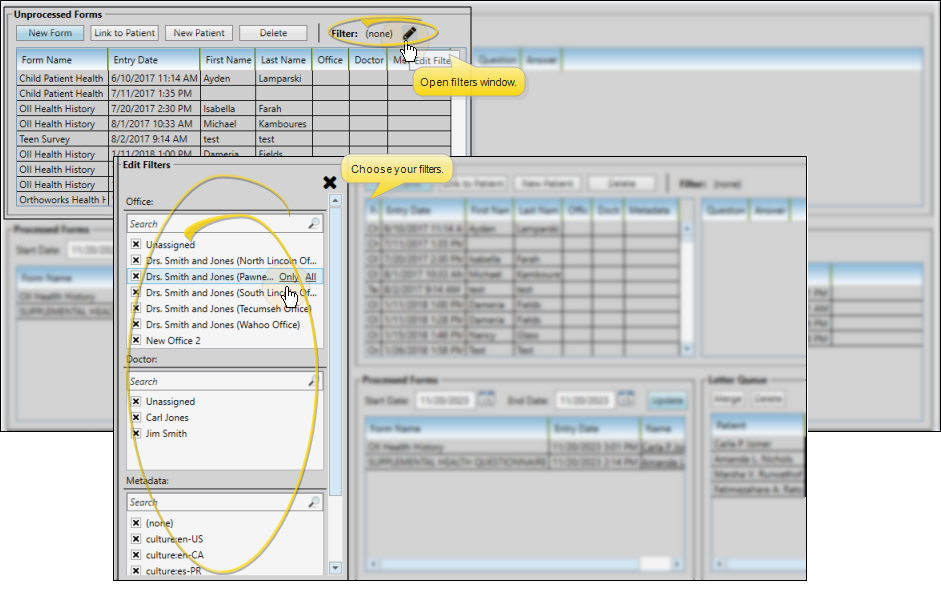
When you open the Online Forms service, use the Filter options to download and process only the forms relevant to you. Edge Cloud remembers your filter settings between sessions. In very large practices, this can help facilitate downloading and listing relevant forms more quickly.
To open the filter options:
- Click the Edit icon beside the Filter field
- Choose the doctors, offices, and metadata types you want to work with
- Click X to save your choices and close the window
Online Scheduling Form Required Cell Phone Option
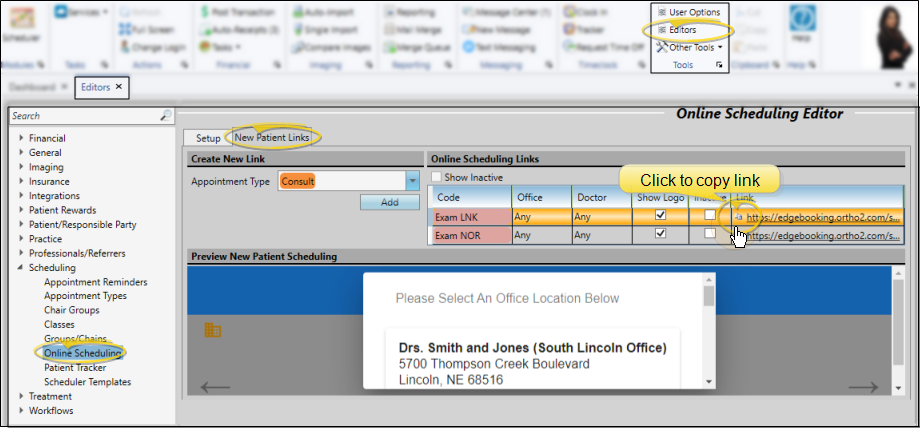
You can now require new patients to provide a cell phone number when using Online Scheduling to book an appointment. Add the code &cellrequired=true to the end of the scheduling link before adding it to your website or emailing it to prospective patients.
Example link:
https://edgebooking.ortho2.com/search?catalog=xxxxxxx&code=xxxx&cellrequired=true
Find your scheduling links on the New Patient Links tab of your Edge Cloud Online Scheduling editor.
Online Scheduling Honors Procedure Start and End Times
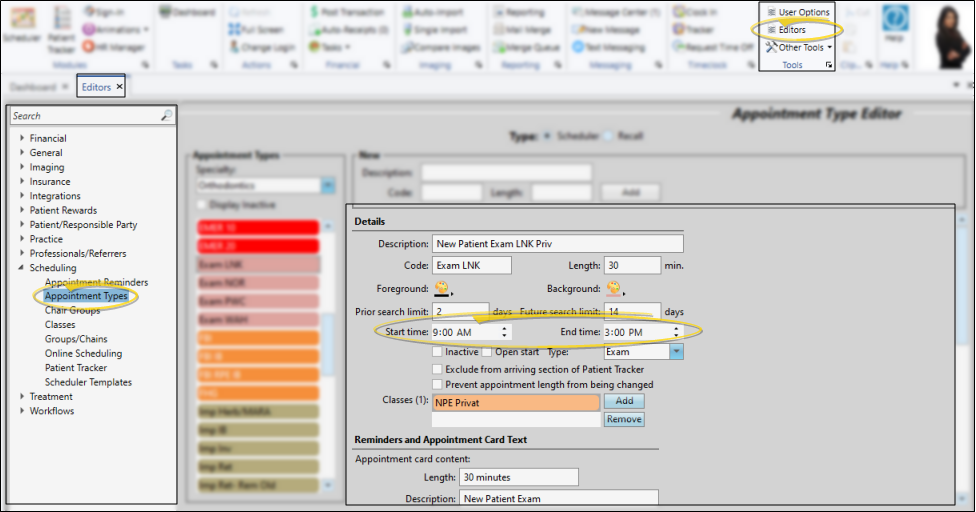
When a new patient uses Online Scheduling to book an appointment, the procedure start and end times (if they exist in your Edge Cloud Appointment Types/Procedures editor) are taken into account when searching for available appointment openings.
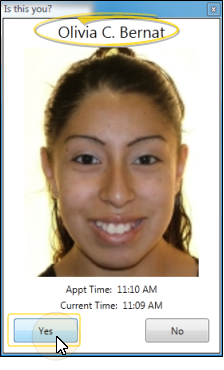
Patient Sign In Confirmation Uses Nickname
When a patient uses Sign In at your office, the confirmation screen will now display their nickname (if there is one) along with their last name. Previously, the first name and last name were always used.
Security Added to System Integration Editor
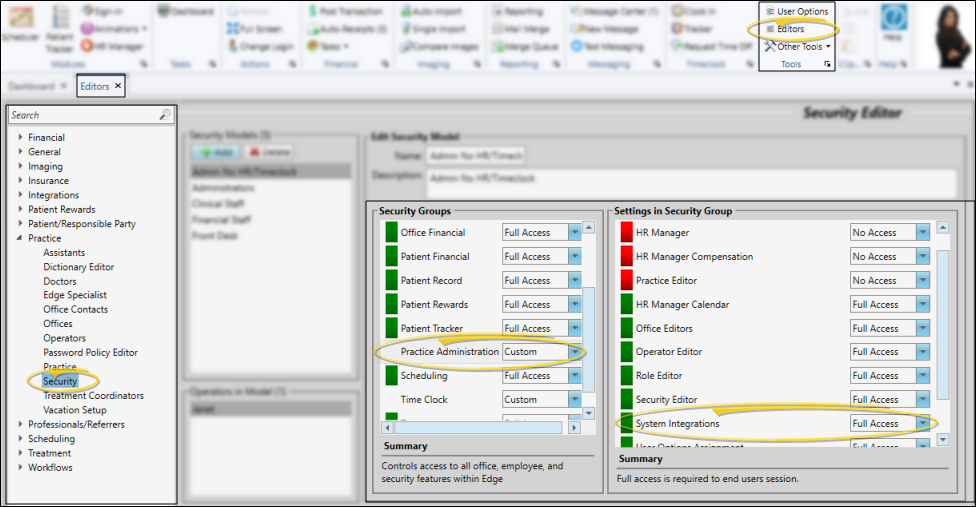
Users must now have full security access to open the System Integrations editor, which controls how several third-party programs integrate with Edge Cloud.
With this update, your security access to the System Integrations editor will match your current access to the Offices editor. To change the access level, an administrator will need to open the Security editor and edit the System Integrations setting of the Practice Administration security group.
Treatment Chart Required Fields Option
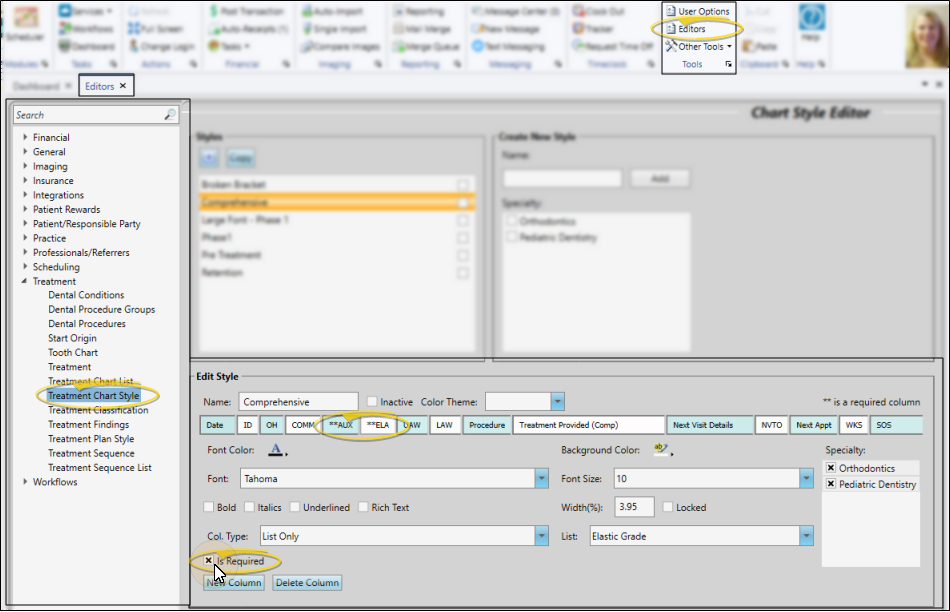
You can now set up your Treatment Chart styles to require users to fill in certain fields before the chart can be saved.
To flag a field as required:
- Open the style in your Treatment Chart Styles editor
- Select the column you want to require
- Enable the Is Required option
- Two asterisks will appear in the column heading to indicate the requirement
- Save your changes
When using this style to enter a treatment chart record, the user must complete the required field before the record can be saved.
This feature applies to treatment chart styles only. Treatment plan styles do not have this feature.
Treatment Chart/Plan List Report
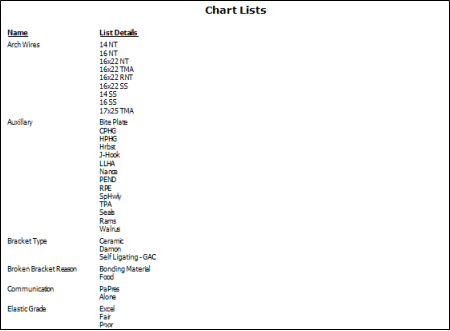
Run the new Chart List report from the Tables section of your Reporting window to view all of the lists you have created to use with your Treatment Chart and Treatment Plan styles, in alphabetical order. The report includes both the name of the list and all of the responses in that list.
[Tell me more…](/reporting/chart-list-report]
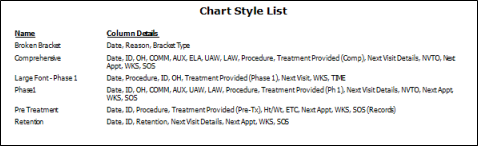
Treatment Chart Styles List
Run the new Chart Styles List report from the Tables section of your Reporting window to view all of the Treatment Chart Styles you have created. The report includes both the name of the style and the column headings in that style.
This report includes your Treatment Chart styles only. Treatment Plan styles are not included.