School / Work Excuse Forms
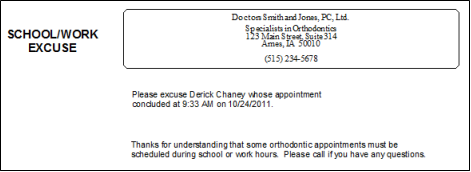
You can optionally include school / work excuse details on appointment cards you print for your patients. You choose whether to print the current time, the scheduled appointment ending time, or a time you type in as the appointment conclusion time.
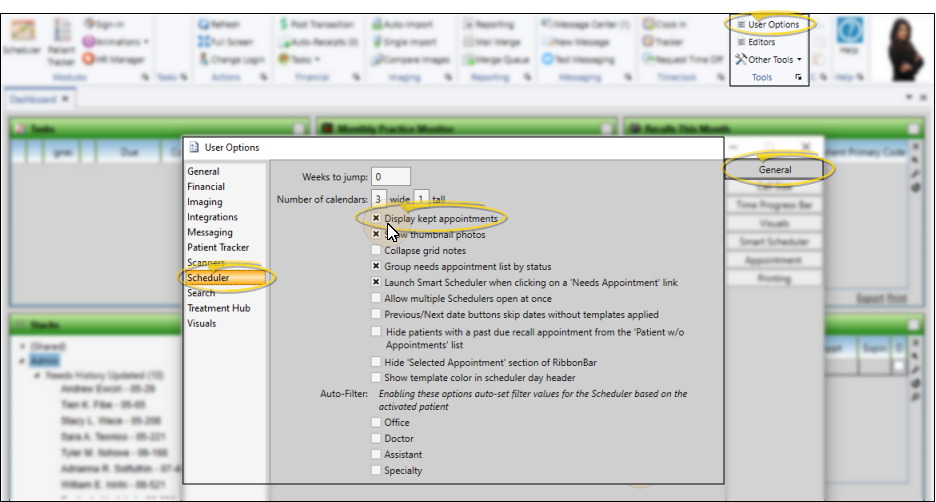
Enable Kept Appointment Display
Your Scheduler must show appointments that you have processed as Kept in order for you to be able to print School / Work Excuse slips for patients whose appointments have already been processed. See "Scheduler User Options" for details.
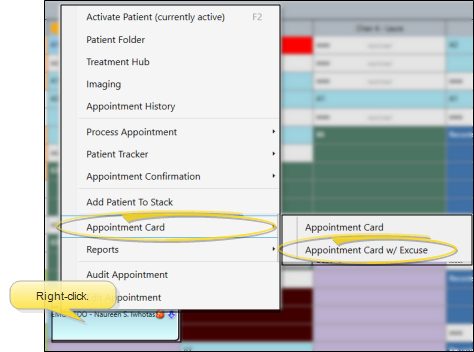
Open the Appointment Card Window
From your Scheduler, right-click the appointment and select Appointment Card. Choose the Appointment Card w/ Excuse option. (See "Appointment Cards" for details. about other ways to open the Appointment Card window.)
School / Work Excuse Options
Quick Report Settings - When you print a form from the Patient or Home ribbon bar, the results default to the Quick Report settings. If those settings include printing the form immediately, you will not have an opportunity to review before the form prints. See "Quick Reports" for details about creating / updating these settings.
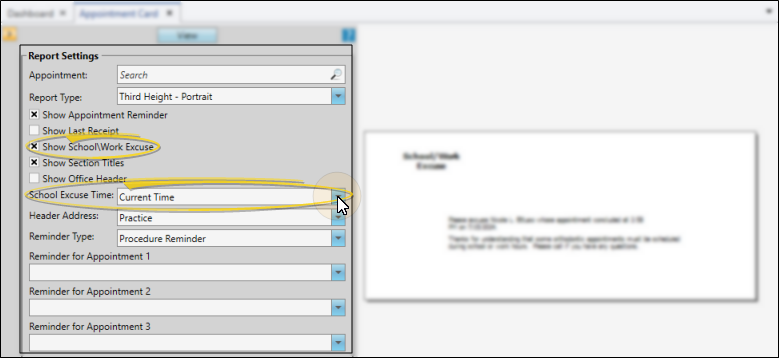
With the Appointment Card settings on your screen, choose any appointment card format except the 4.25-inch format. Then enable the Show School / Work Excuse option, and choose which date / time stamp to use as the appointment conclusion. These options provide you with a way to print an excuse slip at any time, if the patient needs it, not just immediately following the appointment.
See "Appointment Cards" for details. about other appointment card settings.
Get Detailed Report Description
Click the icon to the right of the View button to open the help article with the detailed description of the report.
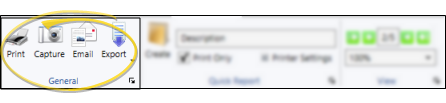
Choose the Output
With the results on your screen, you can choose the output with the toolbar at the top of the report window. See "Report Output Options" for details.