Family Labels
Run Family labels to generate mailing labels for one or more patient Families. Originally, your Edge Cloud mailing labels and quick labels are formatted to print the recipient's name and address. However, you can use the Quick Label editor to change the label contents. These labels print 3-across on full-size label sheets.
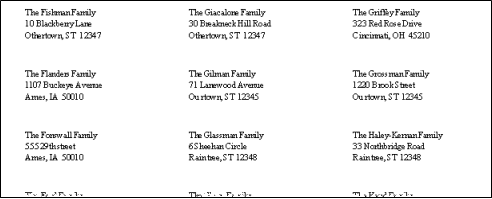
Family Names and Addresses
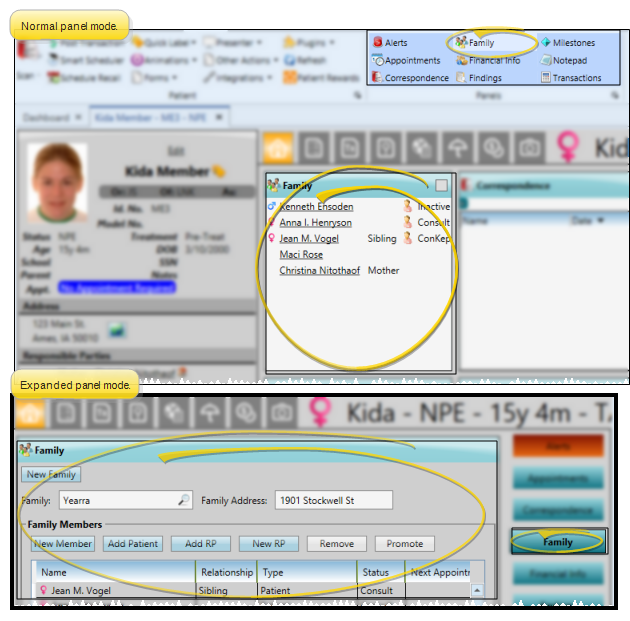
These labels obtain family names and addresses from the Family panel of the patient Home page.
Change Label Contents
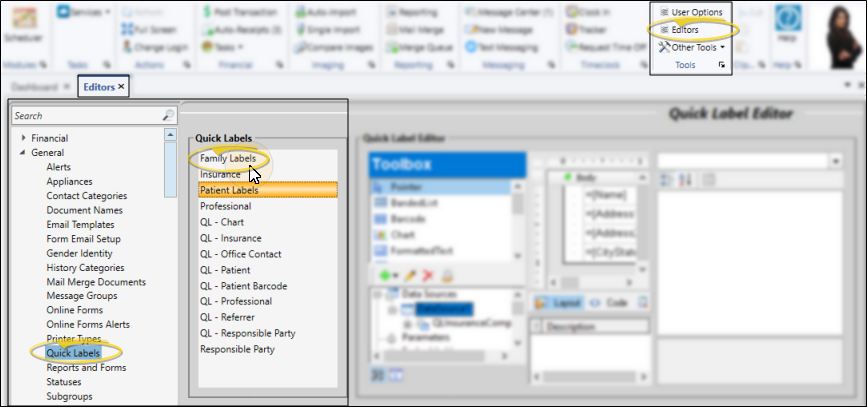
Originally, your Edge Cloud mailing labels and quick labels are formatted to print the recipient's name and address. However, you can use the Quick Label editor to change the label contents.
Do Not Use Partial Label Sheets
If you do not print an entire sheet of 3-column labels in one print job, do not re-feed the unused portion of the label sheet through your printer! You could seriously damage your printer!
Print Family Labels
Open the Label
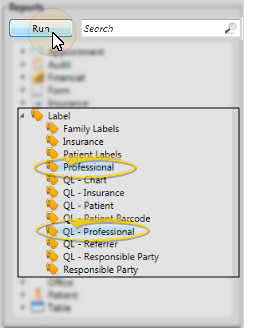
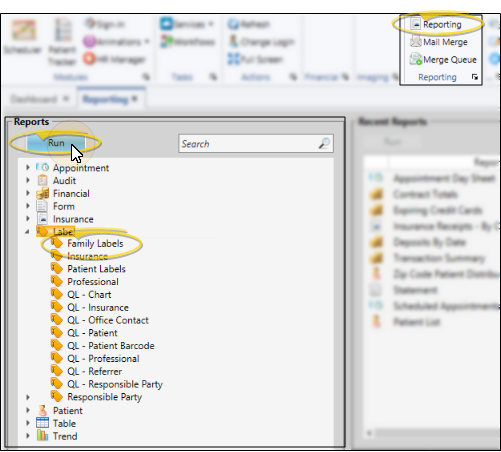
Select Reporting from the Reporting section of the Home ribbon bar. Then from the Label section, open the Family Label. (You can also use the Search field to find the label you want to work with.) You might also be able to run this label from your Recent Reports or Quick Reports list. See "Run Edge Cloud Reports" for details.
Choose Families
When you print Family labels you may choose a specific family to print for, or select a subgroup. If you do not select either a patient or a subgroup, a label will print for each patient in your Edge Cloud system. If multiple patients are assigned to the same family, a label will print for each patient, not each family, which may result in multiple labels printed for a single family. These labels print 3-across on full-size label sheets.
View Results
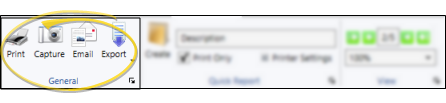
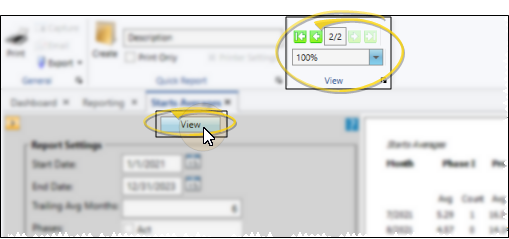
If needed, click View at the top of the report settings panel to view the results on your screen. When you run a report or form from your Recent Report list, or when you run a Quick Report, the initial results are sent to your screen immediately, with one exception: A Quick Report that has the Print Only option enabled will not show your results on the screen at all, but continue with the printing options. See "Report Output Options" for details.
Manage Options and Output
With the results on your screen, you can choose the output with the toolbar at the top of the report window. See "Report Output Options" for details.