Morning Meeting Report
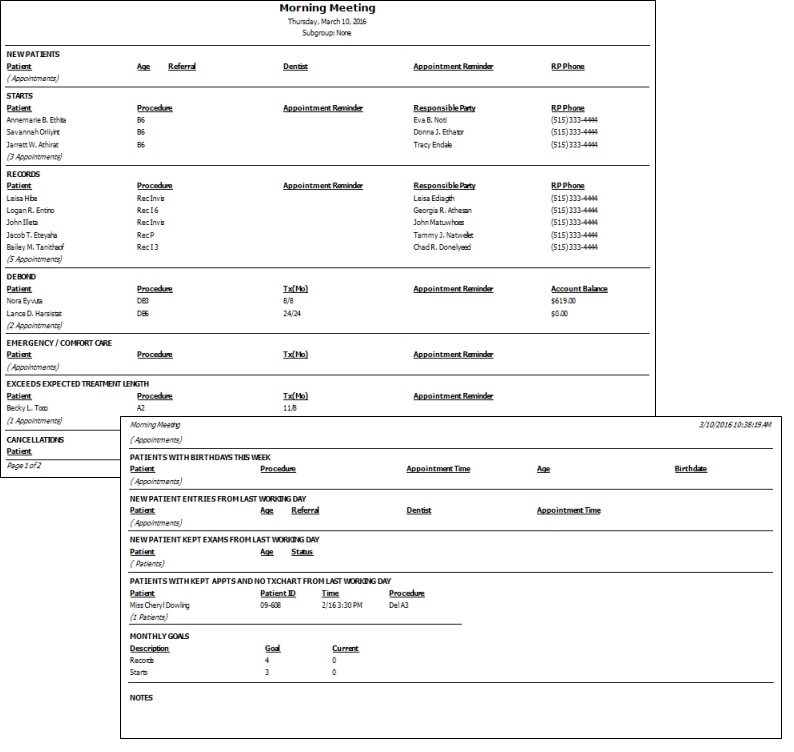
Run a Morning Meeting report to obtain quick access to key pieces of data that are useful for your morning meeting, including the types of procedures scheduled, upcoming birthdays, and progress toward your goals. Most offices run the report for today or tomorrow in preparation for the day.
Run This Report
-
Open the Report
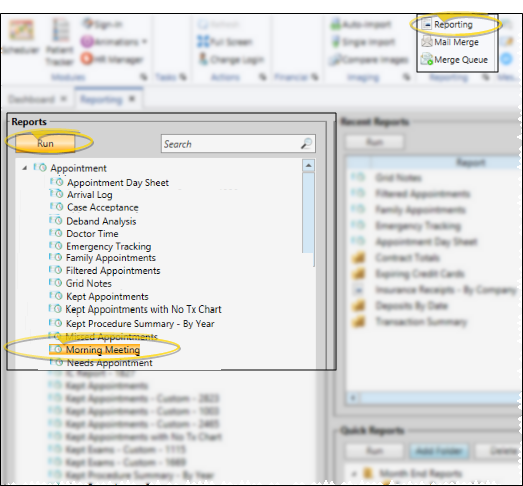
- Home ribbon bar > Reporting section > Reporting > Appointment> Morning Meeting > Run. (You can also use the Search field to find the report you want to work with.) You might also be able to run this report from your Recent Reports or Quick Reports list. See "Run Edge Cloud Reports" for details.
-
Report Settings
Select the options to use for choosing records and generating this report. Choose carefully, as your selections will affect which patients are included in the report. (If the settings panel is not visible, click the Show/Hide icon in the upper left corner of the Reporting window.)
Date - Choose the date to use. You can type a date in the Date field, or click the v button to select a date from a calendar. You can also enable the Today option to use today's date. If Today is enabled, you cannot type a date or open the calendar: Disable the Today option first if you want to choose a specific date. The date or you select will appear just under the report title; if you select a date that is not "today", this date will be different from the run date that appears in the report header.
Records Monthly Goal - Type the ideal number of records you would like to have for the month.
Starts Monthly Goal - Enter your goal for the number of starts for the month.
Notes - Enter comments about the day's events. For example, you might want to note special lunches, staff absences, and community activities.
-
Subgroup - You can optionally choose a subgroup to use to narrow the records to include on the report. Only records that fit your selected subgroup as well as all other report settings will be included. If you use a subgroup, the report will display the name of your selected subgroup just under the report name, so you know which criteria was used to generate the results. See "Subgroup Editor" for details.about creating subgroups.
-
View Results - If needed, click View at the top of the report settings panel to view the results on your screen. When you run a report or form from your Recent Report list, or when you run a Quick Report, the initial results are sent to your screen immediately, with one exception: A Quick Report that has the Print Only option enabled will not show your results on the screen at all, but continue with the printing options.
-
Manage Options and Output - With the results on your screen, you can choose the output with the toolbar at the top of the report window. See "Report Output Options" for details.
More Information
Exceeds Expected Treatment Length Section - Only patients who have exceeded their treatment time and are still in treatment are included in the Exceeds Expected Treatment Length section of the report. Patients whose treatment time exceeded the expected length (as calculated from the dates on the Findings page of the patient folder), but whose treatment has now ended (determined by the Actual Appliance Removal date on the Findings page) do not appear on the report.
Report Title & Header - Whether you view the report on your screen or print it, the report title and run date appear in the header of each report page. If you used subgrouping or other report options, that information appears just under the report title so you know which criteria was used to generate the results.
Open the Patient Folder / Responsible Party Record
While viewing some Edge Cloud reports, you can click a patient name or responsible party name to open that record. Not all Edge Cloud reports support this feature. If your cursor changes to look like a hand, the feature is available.