
Online Forms Viewer
Installing the Online Forms Viewer application is optional. However, if you do install it, you can use the Viewer to launch online forms without having to open your entire Edge Cloud system. For example, you might install the Viewer on a laptop or other workstation in your reception area to provide a convenient place for patients to fill out new forms and update their health histories.
Online Forms Viewer Requirements
Edge Cloud - You can install the Online Forms Viewer on any workstation that has Edge Cloud installed.
Microsoft .NET Framework 4.0 (or greater). If not already present, you are prompted to install it before installing the viewer.
Active Internet Connection - An active Internet connection is required for this feature to work.
Install / Update the Forms Viewer
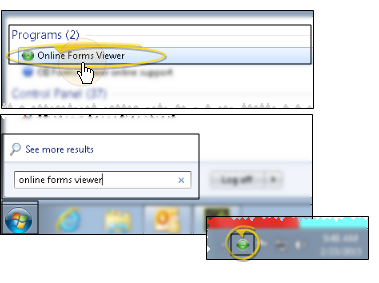
Go to System Programs or All Apps > Ortho2 Edge Cloud > Online Forms Viewer. (Or use your program search bar to locate the application.) If the viewer is not currently installed, you are prompted to begin the Edge Cloud update that installs the viewer on your machine. After installation, the viewer is loaded on to your workstation, indicated by the Edge Cloud Online Forms icon in your computer's notification area.
Use the Online Forms Viewer
Load the Forms Viewer - If the Viewer icon is not in your computer's notification area, you will need to load it. Go to System Programs or All Apps > Ortho2Edge Cloud > Online Forms Viewer (or use your program search bar to locate the application). You may want to add a desktop shortcut to facilitate loading the viewer on your machine.
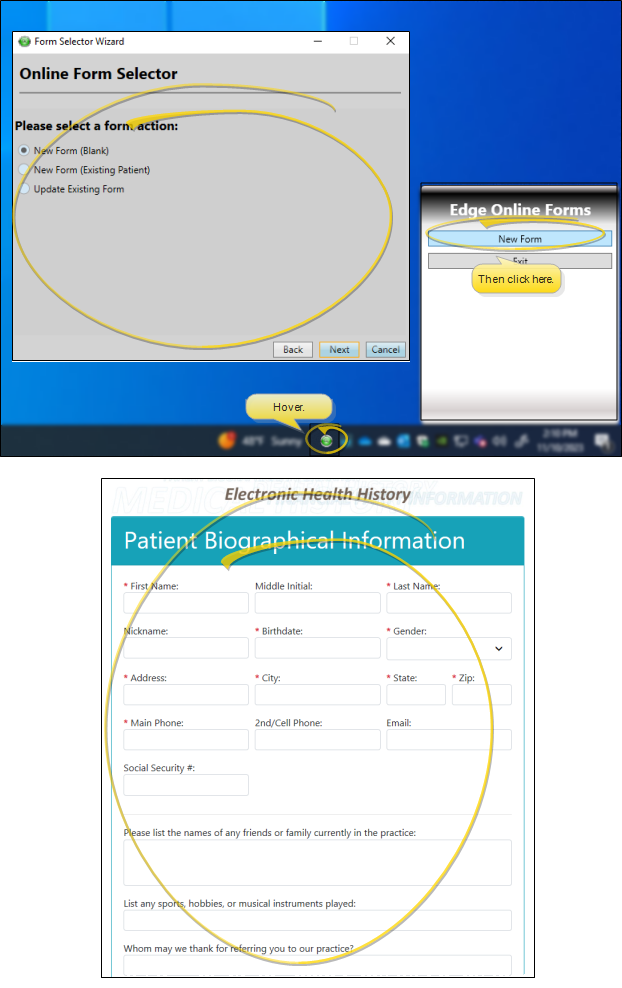
Launch a Form - With the Forms Viewer loaded on your workstation, hover over the Viewer icon, and select New Form.You will need to sign in with your Edge Cloud user name and password (blank passwords are not allowed), and select the appropriate form to launch. (See "Fill Out and Submit Online Forms" for details.)
Exit Forms Viewer - To close the Forms Viewer, hover over the Viewer icon in your computer's notification area, and choose the Exit option.