
Printing from Edge Cloud
You can easily print the contents of many Edge Cloud screens.
Open the Print Window
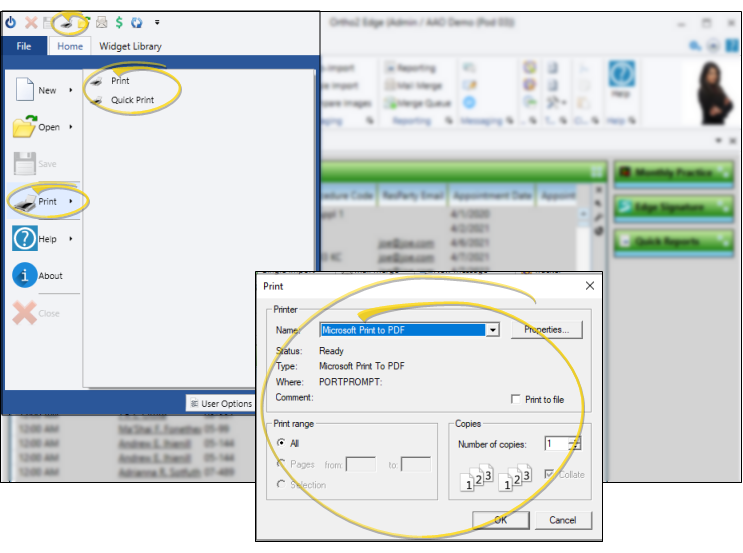
Click the Print icon on the File ribbon bar to go directly to the output options. Or, hover over the icon to select the Print or Quick Print option. (You can also open this feature from the Quick Access toolbar at the top of your Edge Cloud system window. Or, Press Ctrl-P on your keyboard to bring up the printer window.) Then select the printer to use, the number of copies, and more,
Printing Details
All Window Contents Printed - Even if you have to use scrollbars to view all the information in the active window, the entire contents of the window will be included in the printout, and not just the currently visible portion.
Printing Not Always Available - You cannot use the print function in all areas of Edge Cloud. If the print icon is dim, that window is not available for printing.
Printing Images & Layouts - Instead of using the Edge Cloud print window to print image, you can easily print an individual patient image, or entire image layouts directly from Edge Imaging. See "Print Patient Images & Layouts" for details.