
Referral Analysis Report
Run a Referral Analysis report to obtain statistical data regarding how many patients were referred by your referral sources within a range of dates, and the percentage of your patients' dentists that are also their referrers. You can choose to run the report according to the patients' entry date, start date, exam date or referral date, and include or exclude professional referrers, patients that referred other patients, and your list of "other" referrers. You can also choose to include only primary referrers on the report, or include secondary referrers as well, and run the report for a specific office and / or doctor, or include all data in the report.
Open the Report
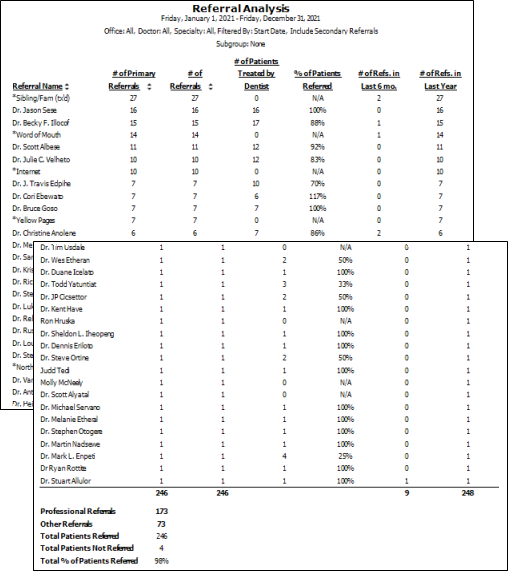
Select Reporting from the Reporting section of the Home ribbon bar. Then from the Patient section, open the Referral Analysis report. You can double-click the report name, or click Run at the top of the window to continue.(You can also use the Search field to find the report you want to work with.) You might also be able to run this report from your Recent Reports or Quick Reports list. See "Run Edge Cloud Reports" for details.
Choose Your Report Settings
Select the options to use for choosing records and generating this report. Choose carefully, as your selections will affect which data is included in the report. (If the report settings panel is not visible, click the Show/Hide icon in the upper left corner of the Reporting window.)
Important Calculation Factors - The calculations in this report are based on the date range you enter, the date filter type you select, and whether you include secondary referrers in the report. Today's date, as well as the dates of other data in the patient folder, are ignored. If secondary referrers are not included, they are ignored as well, even if they fit the date and filter criteria. So, you could have very different results depending on your report settings. For a complete explanation of each report calculation, see the calculation information below.
Start / End Dates
Enter the range of dates to include on this report, or select a single date for both the Start Date and End Date fields to run the report for an individual date. You can type a date in the fields, or click the calendar icon to select a date. Your selected date or date range will appear just under the report title when you view your report; if you select a date that is not today, this date will be different than the run date that appears in the report header.
Filter By (Date Type)
Choose which type of date to use for determining which patients should be included.
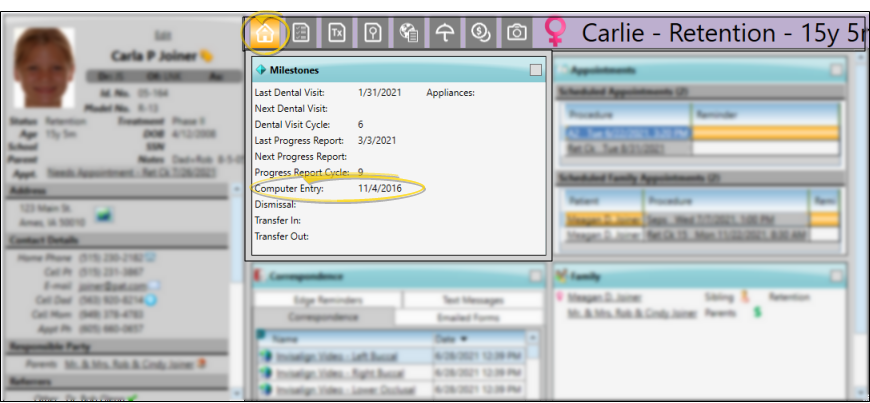
Entry Date - The date the patient was first entered into Edge Cloud. This is found on the Milestones panel of the patient folder Home page. This date cannot be changed by you.
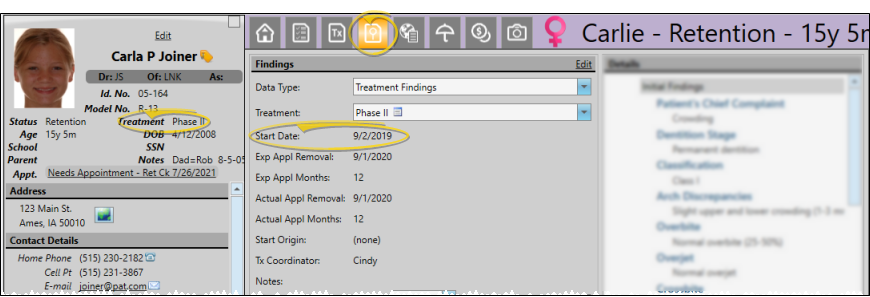
Start Date - The Start Date of the patient's current treatment phase. This is found on the Findings page of the patient folder, and correlates with the contract start date. The start dates of other treatment phases are ignored.
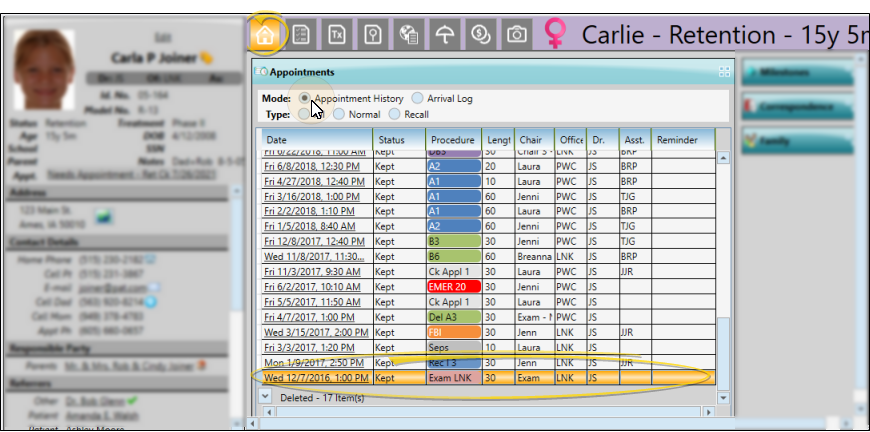
Exam Date - The date the patient kept an appointment with the procedure type (not procedure description) of "exam". This is found in the Appointment History option of the Appointments panel of the patient folder Home page. The panel must be expanded in order for you to see the appointment history.
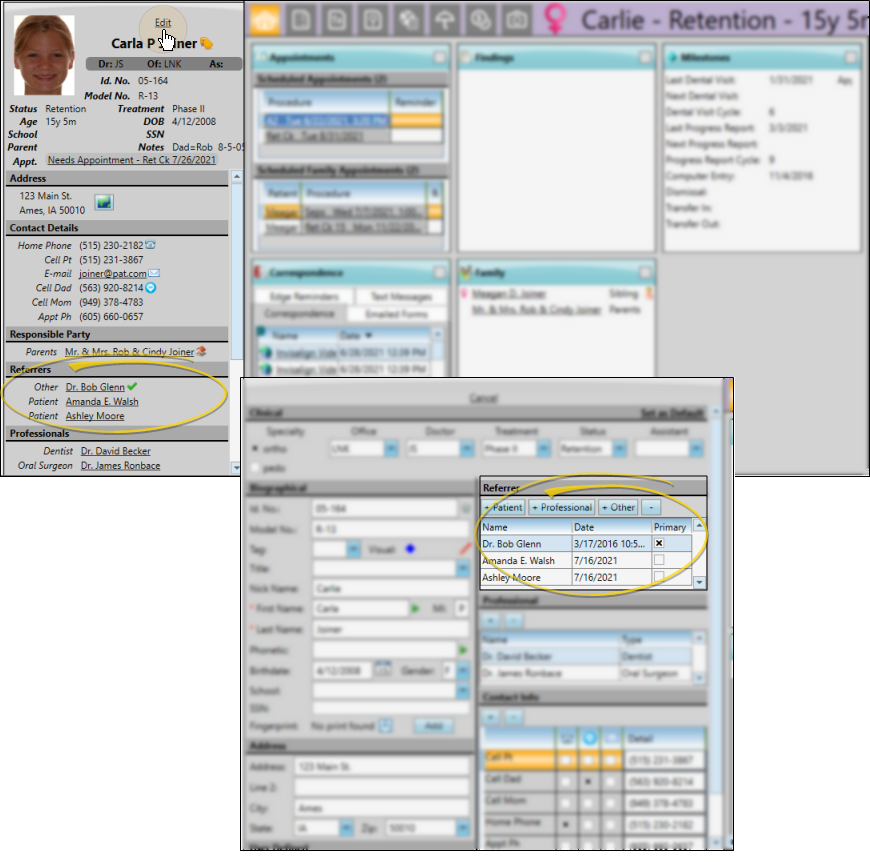
Referral Date - The date the patient was referred to you. You can see this date when you edit the Patient Information Panel.
Referral Type
Select to include Professional, Patient and/or Other referral sources in the report. Professional referrers (i.e. Dentists, Pedodontists) are found in your Professionals editor. Patient referrers are existing patients in your Edge Cloud system. "Other" referrers are found in your Other Referrers editor.
Include Secondary Referrals
Enable this option to include both primary and secondary referrals in certain report calculations. If this option is disabled, only the patient's primary referral source will be used to calculate the results. Refer to the report calculations, below, for an explanation of how this option affects the report results.
Office
Choose to include only the records for a specific office, or include the records for all office locations in your practice.
Orthodontist / Doctor
Choose to include only the records for a specific doctor, or include the records for all doctors in your practice.
Specialty
If you have Edge Specialist, you may choose to include only records for a specific specialty, or include the records for all specialties in your practice.
Subgroup
You may optionally select a subgroup to use when generating this report or form. Only records that fit your selected subgroup as well as all other report parameters will be included. See "Subgroup Editor" for details about creating your subgroups. To include all records that fit the other report criteria, select None. The report will display the name of your selected subgroup just under the report name, so you know which criteria was used to generate the results.
View Report Results
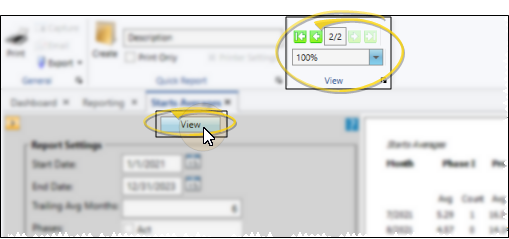
If needed, click View at the top of the report settings panel to view the results on your screen. When you run a report or form from your Recent Report list, or when you run a Quick Report, the initial results are sent to your screen immediately, with one exception: A Quick Report that has the Print Only option enabled will not show your results on the screen at all, but continue with the printing options. You can use the arrows in the View section of the ribbon bar to view additional pages of a multiple-page report. You can also use the dropdown button or type a number in the zoom field to change the size of the report in your window.
Report Title & Header
Whether you view the report on your screen or print it, the report title and run date appear in the header of each report page. If you used subgrouping or other report options, that information appears just under the report title so you know which criteria was used to generate the results.
Show / Hide Details
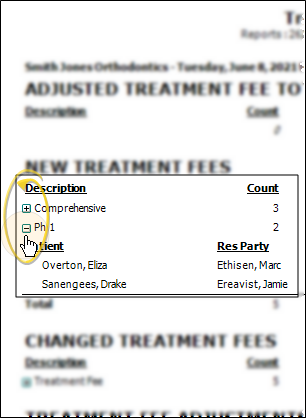
If this report supports showing / hiding the details that comprise report totals, you can click the expand / collapse icons to show / hide the details. Not all Edge Cloud reports support this feature. If your cursor changes to look like a hand, the feature is available.
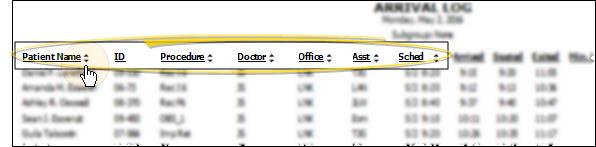
Use Arrows to Re-Sort Report
While viewing certain Edge Cloud reports, you can use the arrow beside certain column headings to re-sort the report according to that column's criteria. Click the arrows a second time to sort that column in reverse order, or click the arrows beside a different column to change the sort order again. (Not all Edge Cloud reports support this feature. If your cursor changes to look like a hand, the feature is available.)
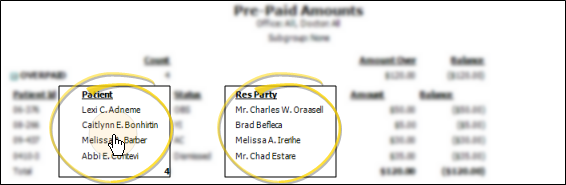
Open the Patient Folder / Responsible Party Record
While viewing some Edge Cloud reports, you can click a patient name or responsible party name to open that record. Not all Edge Cloud reports support this feature. If your cursor changes to look like a hand, the feature is available.
Get Detailed Report Description
Click the icon to the right of the View button to open the help article with the detailed description of the report.
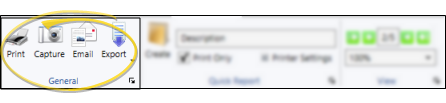
Choose the Output
With the results on your screen, you can choose the output with the toolbar at the top of the report window. See "Report Output Options" for details.
Report Columns and Calculations
Important Calculation Factors - The calculations in this report are based on the date range you enter, the date filter type you select, and whether you include secondary referrers in the report. Today's date, as well as the dates of other data in the patient folder, are ignored. If secondary referrers are not included, they are ignored as well, even if they fit the date and filter criteria. So, you could have very different results depending on your report settings. For a complete explanation of each report calculation, see the calculation information below.
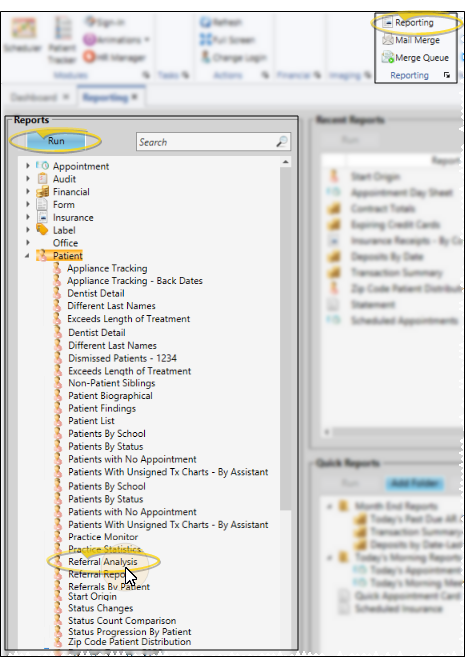
Referral Name
The report lists the full referral name. You can click the arrow beside the Referral Name column heading to sort the results by referrer, in alphabetical order by last name.
# of Primary Referrals / # of Referrals
This column shows the number of referrals attributed to each referral source, where the referred patient fits the date range and date type filter. This is only the number of referrals that fit the criteria of this report, and not necessarily the referrer's total number for all time.
For example, if your date range is 1/1/2023 - 6/30/2023 and your date filter type is Start Date, a patient will be counted if their current start date is within the date range, regardless of their referral date or any other date in the patient folder.
Secondary Referrals Excluded - If secondary referrals are excluded, you see only a "# of Referrals" column, and all secondary referral data is ignored, even if it fits the date range and date filter type. The total at the bottom of the report column is the sum of primary referrals that fit your date range and date filter type.
Secondary Referrals Included - If secondary referrals are included, you see both "# of Primary Referrals" and "# of Referrals" columns. The "# of Primary Referrals" column is the number of primary referrals by each referral source that fit the criteria of this report. Secondary referrals are excluded from this number. It is the same as the "# of Referrals" column when secondary referrals are excluded (see above). The "# of Referrals" column shows all referrals for each referrer, including both primary and secondary referrals attributed to that referrer. So, this column is often larger than the "# of Primary Referrals" column because a referrer may have both primary and secondary referrals within the date range, and other referrals that are only secondary referrers are included as well.
# of Patients Treated by Dentist (Professional)
This column shows the number of referred patients included in the report that are also treated by the dentist / professional. "Patient" and "Other" referral sources will show "0" in this column. This only reflects the number of patients included in this report, not necessarily all patients that are treated by the professional.
% of Patients Referred
This column shows the percentage of referred patients included in the report that are both referred by and treated by the same professional. "Patient" and "Other" referral sources will show "NA" in this column. For example, if the oral surgeon Dr Brown refers 5 patients to your practice (according to the report criteria) and treats all 5 of them, the % of Patients Referred would be 100%. But if Dr. Brown refers 5 patients, and treats 10 of the referred patients, the % of Patients Referred would be 50%. This only reflects the number of patients included in this report, not necessarily all patients that are referred by and treated by the professional.
# of Referrals in Last 6 Months / Last Year
These columns of the report calculate the number of primary referrals by each referral source within the last 6 months, and the last year, based on the starting date of your date range. Any referrer that has a referral that fits the date range and date type filter will be listed, even if they have no referrals within your date range itself.
Professional, Patient and Other Referrals
The number of Professional, Patient, and Other Referrals at the bottom of the report indicate the number of primary referrals by each referral type. When all three referral types are included in the report, the sum of these numbers equals the "# of Referrals" column total, or the "# of Primary Referrals" column total if secondary referrals are included in the report. These summary totals always show the professional, patient, and other referral totals, even if those referrer types are not listed in the report itself.
Total Patients Referred
This field shows the number of patients that fit your selected date range and filter type that have a referral date in their Patient Information Panel. If your filter type is Referral Date, this matches the total number of referrals, but it may not be the same for other date filter types.
Total Patients Not Referred
This field shows the number of patients that fit your selected date range and filter type that do NOT have any referrals assigned in their Patient Information Panel. So, if your date range is January 1, 2023 - June 30, 2023 and your filter type is Entry Date, a patient with an entry date within that date range that does not have an asisgned referral would be included in the count. However, if your filter type is Start Date, and that patient does not have a start date within the date range, that patient will NOT be included in the count.
Percent of Patients Not Referred
This field is the result of adding the "Total Patients Referred" and the "Total Patients Not Referred", and dividing the "Total Patients Referred" by that number. If your date type filter is "Referral Date", no patients without referral dates will be included on the report, and the result will always be 100%. However, if your date filter type is something else, such as "Entry Date", the report might include patients that do not have a referral date and this result could be less than 100%.