Transaction Report
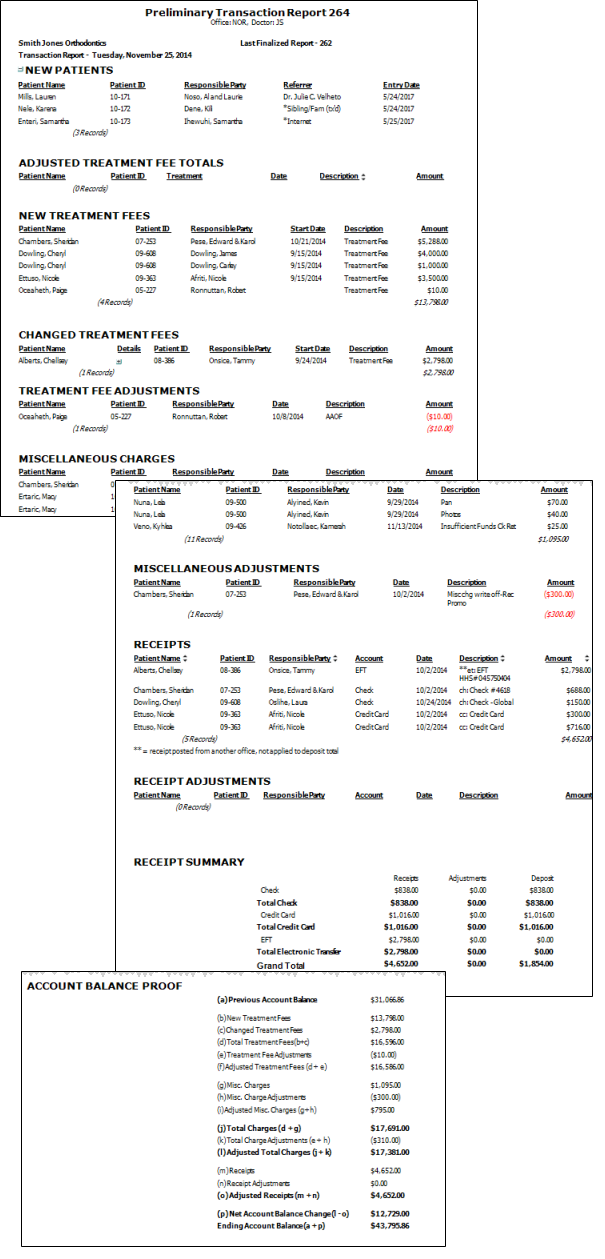
Run the Transaction report to obtain an audit trail of new patient folders, new and changed contracts, and other financial transactions posted to your Edge Cloud system. Newly-created Transaction reports are run automatically whenever you finalize transactions. You can also run Transaction reports from the Reporting window. Choose to generate a "Preliminary" report to see un-finalized transactions. Or generate an "Old" Transaction report to see the records and transactions finalized in the past.
Run a Transaction Report
-
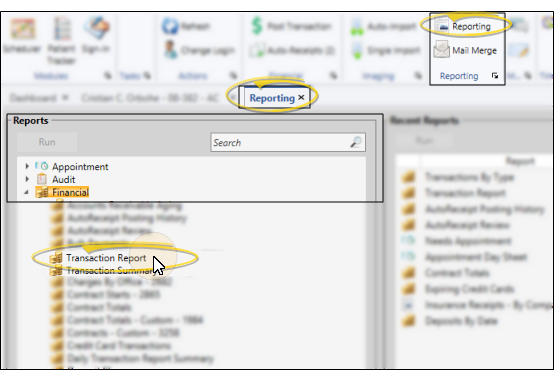
Open the Report - Select Reporting from the Reporting section of the Home ribbon bar. Then from the Financial section, open the Transaction report. You can double-click the report name, or click Run at the top of the window to continue. (You can also use the Search field to find the report you want to work with.) You might also be able to run this report or form from your Recent Reports or Quick Reports list. See "Run Edge Cloud Reports" for details.
noteNewly-created Transaction reports are run automatically whenever you finalize transactions. (See "Finalize Transactions" for details.)
-
Report Settings - Select the options to use for choosing records and generating this report. Choose carefully, as your selections will affect which patients are included in the report. (If the settings panel is not visible, click the Show/Hide icon in the upper left corner of the Reporting window.)
Type - Choose Preliminary Report to include information that has not yet been finalized (generally patients and transactions entered so far today); or, choose Old Report to include finalized transactions.
Choose Report - (Available only for Old Reports) You can find the report to generate either by entering a finalized Transaction report number in the By Report Number section of the window, or by using the date, office, and doctor fields in the By Search section of the window.
Report Filters - You may choose to run the report for an individual doctor and/or office, or include all orthodontists and offices on the report.
noteTo print a Deposit Slip for today's receipts that you can take to the bank, be sure to first finalize the transactions for the day. If you routinely finalize transactions for individual offices, doctors or Edge Specialist specialties, rather than finalizing all at once, be aware that the transactions of un-finalized groups will not be included on the Deposit Slip.
Show Practice Financial Summary - Enable this option to include an Account Balance Proof at the end of the report. When you choose to include the financial summary at the end of the Transaction report, you must then choose how to calculate the previous account balance. You can: 1) Disable the Use Practice Totals option to include only the offices selected for the report (generally recommended), or 2) Enable the Use Practice Totals option to calculate the previous account balance from all offices. Depending on how you post transactions to offices, these two options may provide very different results.
-
View Results - If needed, click View at the top of the report settings panel to view the results on your screen. When you run a report or form from your Recent Report list, or when you run a Quick Report, the initial results are sent to your screen immediately, with one exception: A Quick Report that has the Print Only option enabled will not show your results on the screen at all, but continue with the printing options.
-
Manage Options and Output - With the results on your screen, you can choose the output with the toolbar at the top of the report window. See "Report Output Options" for details.
Report Sections and Calculations
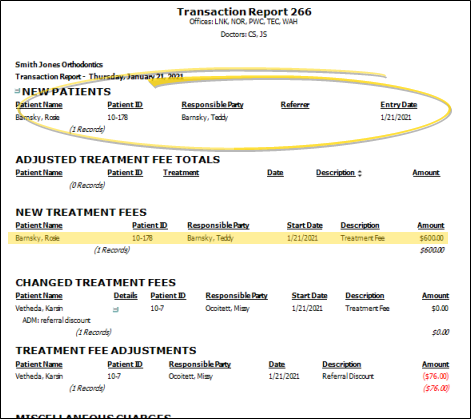
New Patients - This section lists all of the patient folders that were either created from scratch, or created by promoting a non-patient family member. The records are listed alphabetically by patient last name.
More...
This section includes the patient name, primary ID code, responsible party name, primary referral source, and the date the record was created. If multiple responsible parties are linked to the patient, the patient will be listed with the primary party only.
If a contract was created for the patient as well, that information will be included in the New Treatment Fees section of the report.
This section ends with the total number of patient folders created.
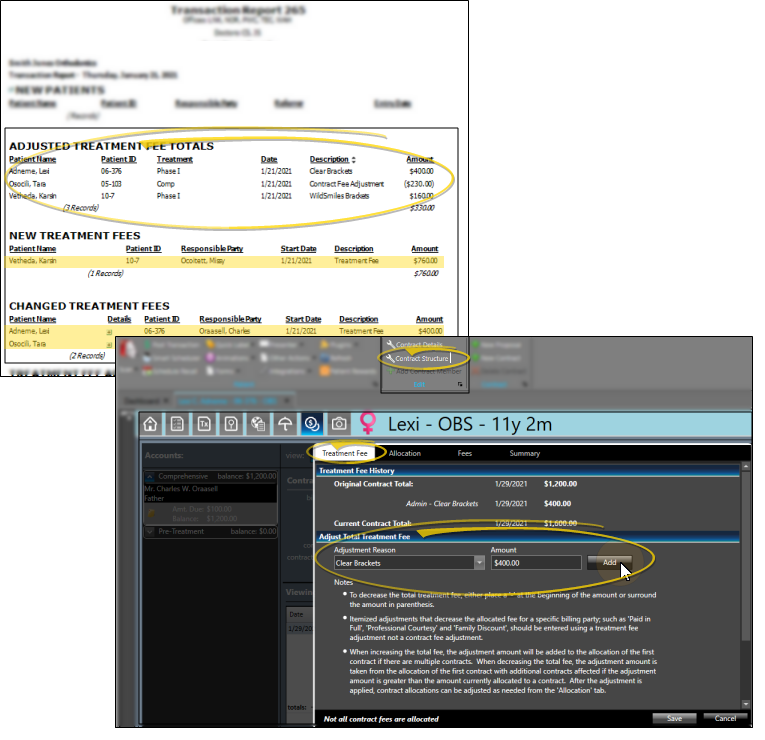
Adjusted Treatment Fee Totals - This section lists production adjustments applied to the Treatment Fee tab of the Contract Structure editor. You might do this, for example, to apply additional fees for selected product upgrades. The transactions are listed alphabetically by patient last name.
More...
Date - The date column shows the date the transaction was applied, which is not necessarily the same as the Transaction report date.
Amount - The amount added to or subtracted from the treatment fee. Production adjustments are listed in the Adjustment Treatment Fee Totals section of the Transaction report. In addition, if a new contract and production adjustment are included on the same Transaction report, the contract amount in the New Treatment Fees section of the report will include the original contract fee plus the adjustment, and the adjustment will also appear in the Adjusted Treatment Fee Totals section of the report. Otherwise, the adjustment appears in the Adjusted Treatment Fee Totals section and the Changed Treatment Fees section of the report.
The total number and amount are shown at the bottom of the section.
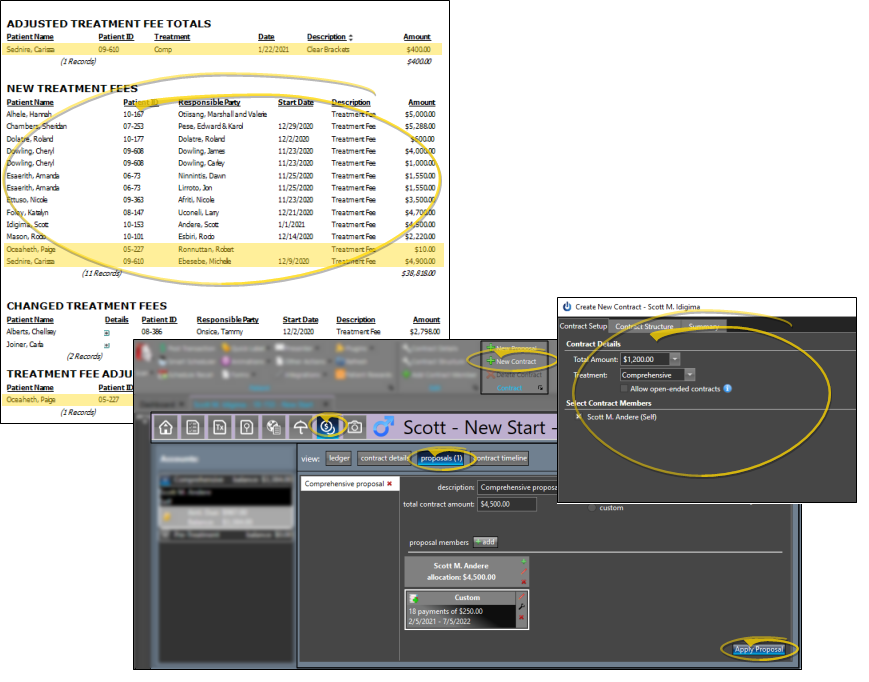
New Treatment Fees - This section includes the full treatment fee amount of new contracts, created either with the New Contract editor or by activating a contract proposal. Open-ended contract fees that fall due during this time are included as well. Contract proposals that are not active are not included in this calculation. The contracts are listed alphabetically by patient last name.
More...
Start Date - The date column shows the date the transaction was applied, which is not necessarily the same as the Transaction report date.
Amount - Total amount of the new contract. Any production adjustments applied to the Treatment Fee tab of the Contract Structure editor are included in the new treatment fee amount. These transactions also appear in the Adjusted Treatment Fee Totals section. (Any non-production adjustments applied to the Fees tab of the Contract Structure editor are not reflected in the new treatment fee amount, but appear in the Treatment Fee Adjustments section.)
The total number and amount are shown at the bottom of the section.
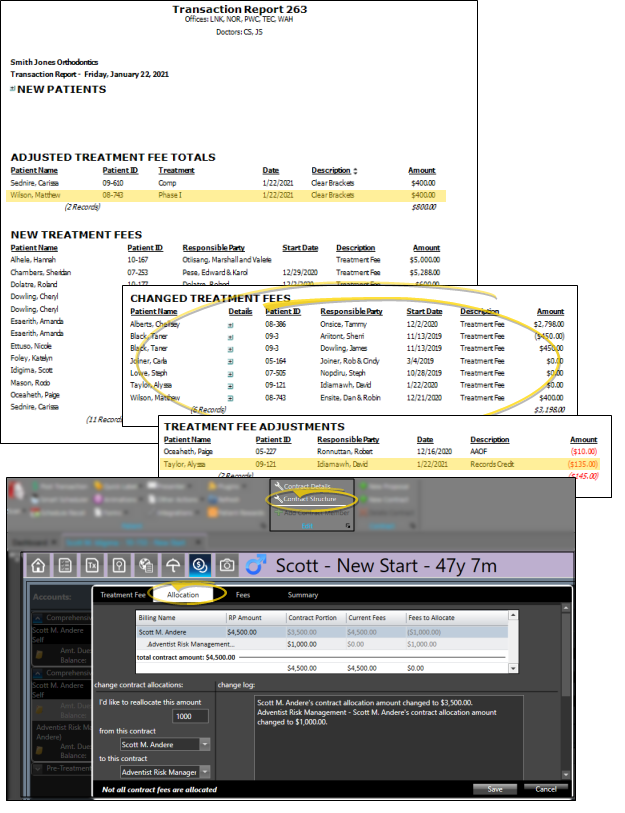
Changed Treatment Fees - This section includes production and non-production adjustments applied to existing orthodontics contracts, as well as contract member allocation changes. The transactions are listed alphabetically by patient last name.
More...
Start Date - The date column shows the date the transaction was applied, which is not necessarily the same as the Transaction report date.
Details - You can expand this section to see the transaction details.
Amount - Any production adjustments applied to the Treatment Fee tab of the Contract Structure editor are included in this section. These transactions also appear in the Adjusted Treatment Fee Totals section. Any non-production adjustments applied to the Fees tab of the Contract Structure editor are included in this section. These transactions also appear in the Treatment Fee Adjustments section. Allocation changes among contract members (applied to the Allocation tab of the Contract Structure editor) result in $0.00 net change, but are listed in the Changed Treatment Fees section of this report.
Non-production adjustments change the total financial obligation, but do not affect the treatment fee itself. Therefore, this type of adjustment shows as $0.00 in the Changed Treatment Fees section of the report, but shows the amount of the adjustment in the Treatment Fee Adjustments section of the report.
The total number and amount are shown at the bottom of the section.
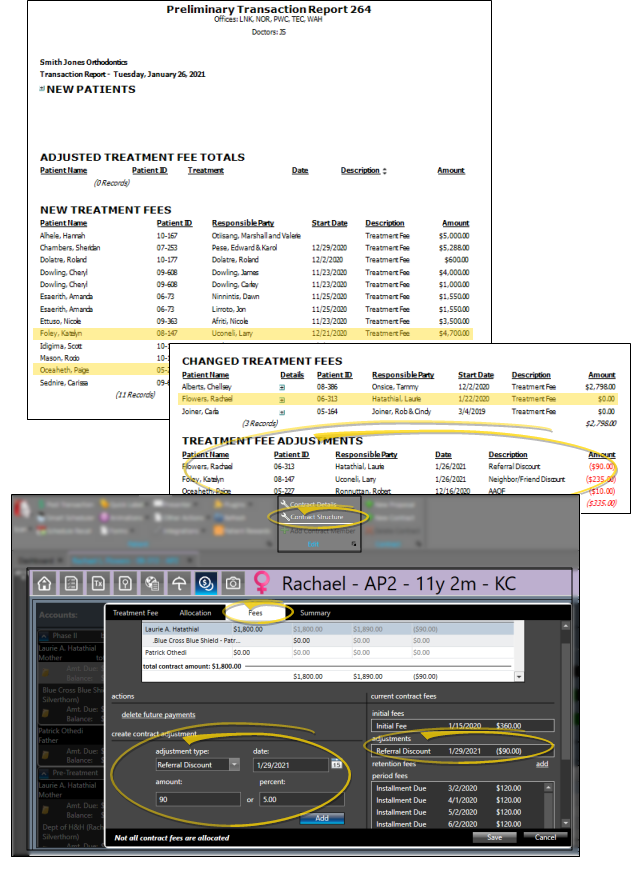
Treatment Fee Adjustments - This section lists non-production adjustments applied to the Fees tab of the Contract Structure editor. You might do this, for example, to apply referral discounts. The transactions are listed alphabetically by patient last name.
More...
Date - The date column shows the date the transaction was applied, which is not necessarily the same as the Transaction report date.
Amount - The amount subtracted from the total financial obligation.
Because this type of adjustment does not alter production, it does not change the treatment fee amount of the contract. However, when applied to existing contracts, the adjustment requires a change to the allocation and fee structure of one or more responsible parties, so the transaction will appear in the Changed Treatment Fees section of the Transaction report, with a net amount of $0.00.
The total number and amount are shown at the bottom of the section.
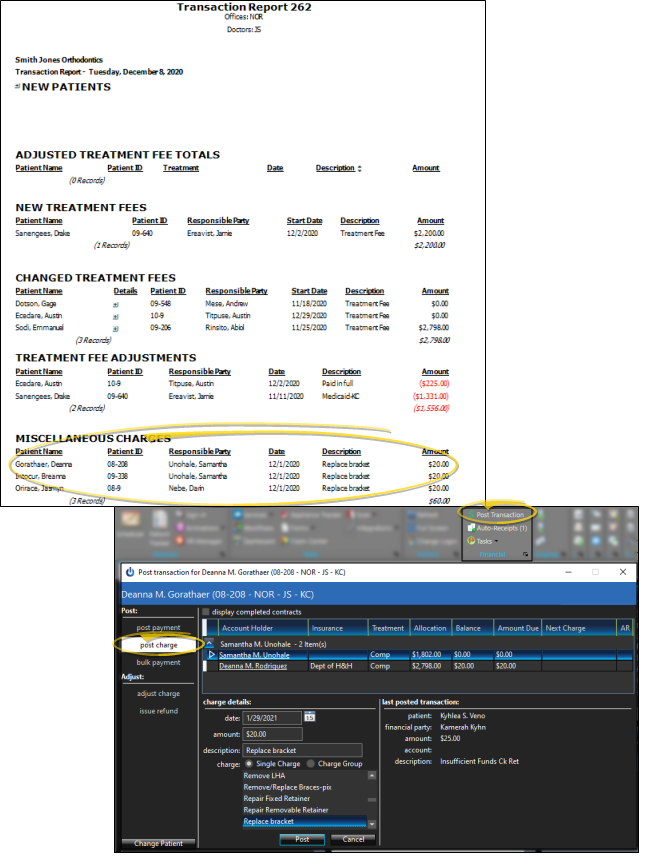
Miscellaneous Charges - This section lists miscellaneous charges posted from the Post Transaction window. The transactions are listed alphabetically by patient last name.
More...
Date - The date column shows the date the transaction was applied, which is not necessarily the same as the Transaction report date.
Amount - The amount of the posted transaction.
The total number and amount are shown at the bottom of the section.
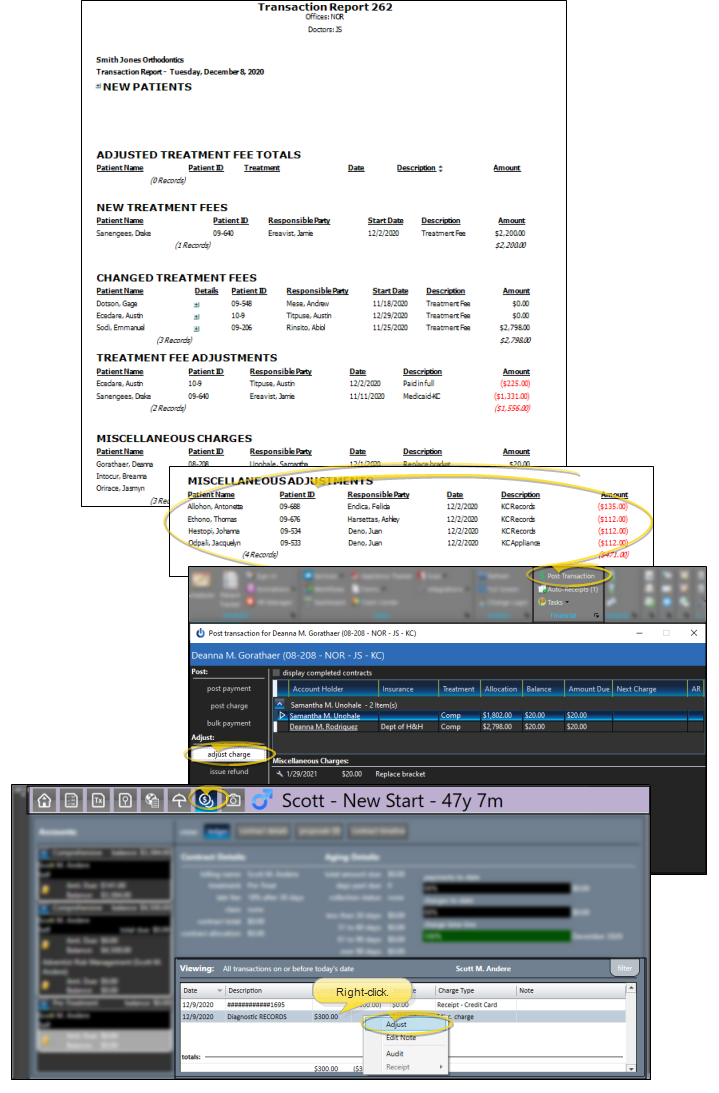
Miscellaneous Adjustments - The Miscellaneous Adjustments section of the Transaction report lists transactions entered as charge adjustments from the Post Transaction window or by right-clicking the miscellaneous charge in the patient's ledger. The transactions are listed alphabetically by patient last name.
More...
Date - The date column shows the date the transaction was applied, which is not necessarily the same as the Transaction report date.
Amount - The amount of the posted transaction.
The total number and amount are shown at the bottom of the section.
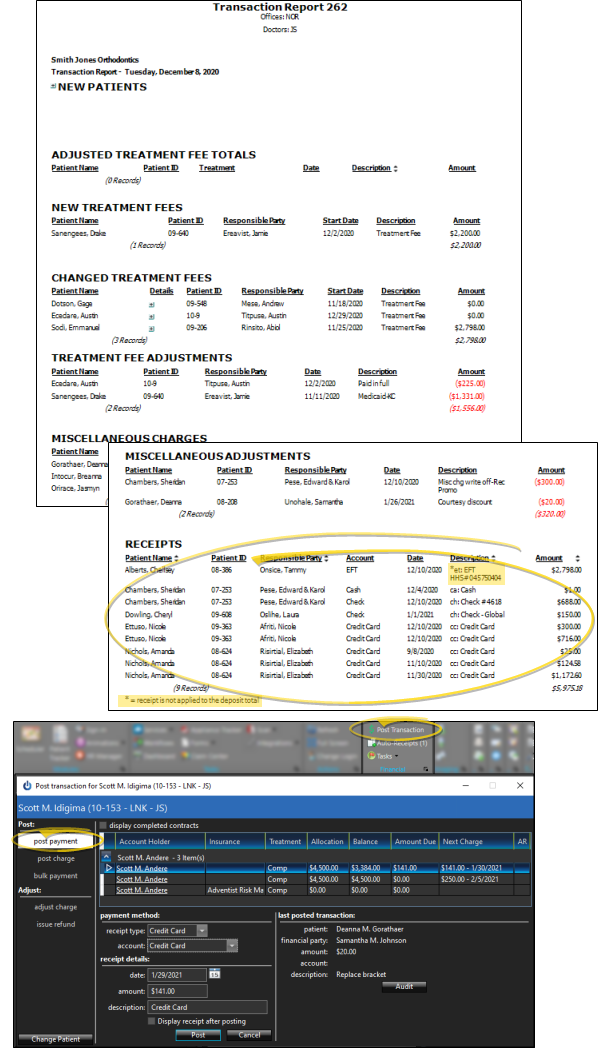
Receipts - This section lists all transactions posted as payments from responsible parties and insurance. Each transaction is treated separately, even if they were posted together as a bulk payment. The transactions are listed alphabetically by patient last name.
More...
Date - The date column shows the date the transaction was applied, which is not necessarily the same as the Transaction report date.
Description - This column indicates the type of transaction posted: ca = cash; cc = credit card; et = electronic transfer; mo = money order; ot = other. Receipts that were both posted and adjusted on the same Transaction report, as well as receipts flagged with Exclude from Deposit Slip in the patient ledger, include an asterisk ( * ), indicating that they are not included in your deposit total.
Amount - The amount of the posted transaction.
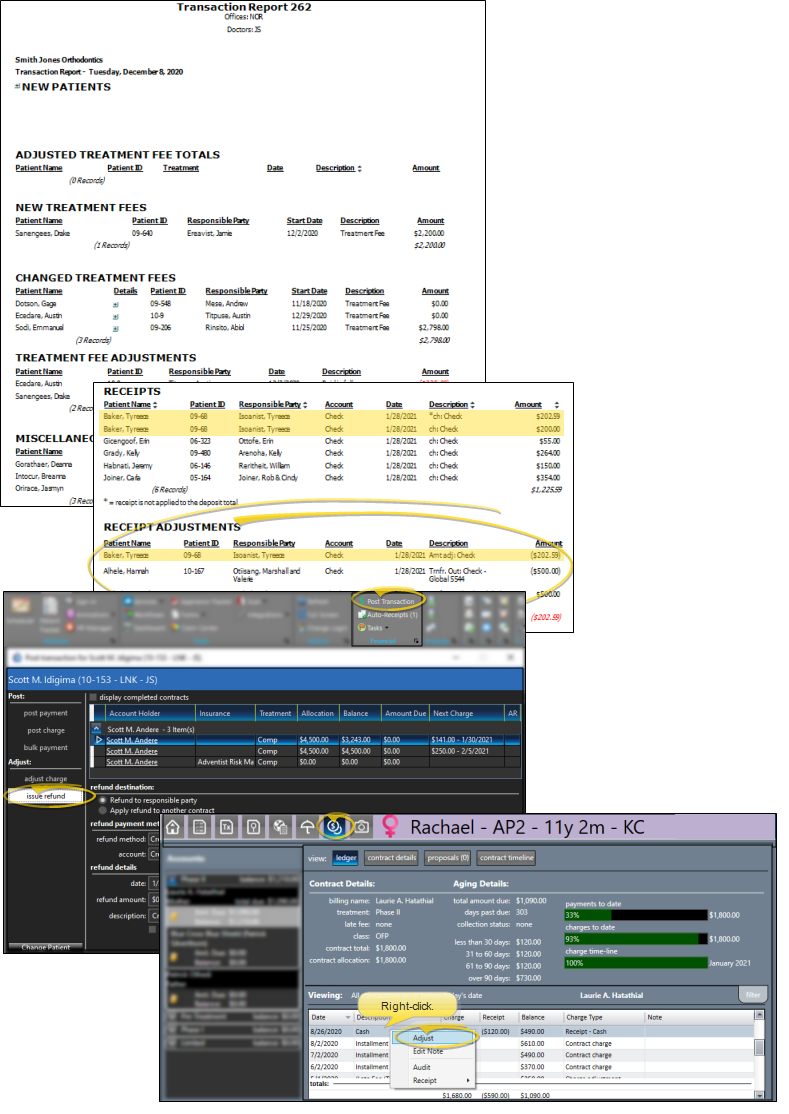
Receipt Adjustments - The Receipt Adjustments section of the Transaction report lists transactions entered as receipt adjustments by right-clicking the receipt in he patient's ledger, as well as refunds applied from the Post Transactions window. These transactions are not included in your deposit total. The transactions are listed alphabetically by patient last name.
More...
Date - The date column shows the date the transaction was applied, which is not necessarily the same as the Transaction report date.
Description - This column indicates the type of transaction that was adjusted. If the receipt adjustment was posted on the same Transaction report as the original receipt transaction, the Receipts section will show an asterisk ( * ) beside the corresponding transaction.
Amount - The amount of the posted transaction.
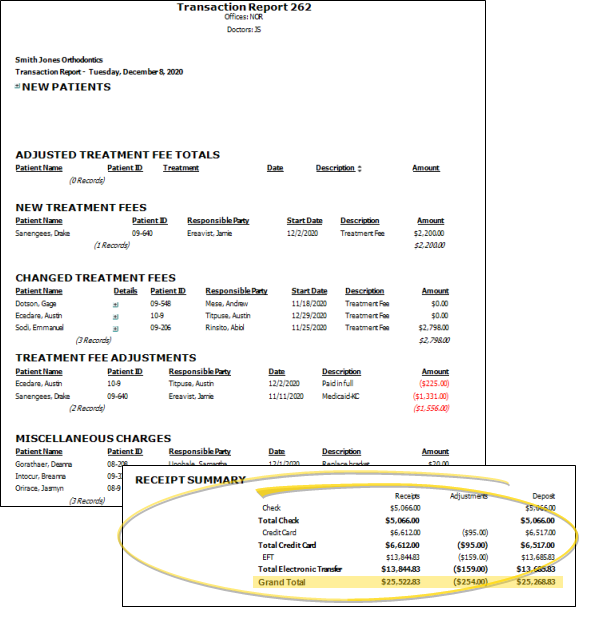
Receipt Summary - This section includes totals for each type of receipt transaction and adjustment, as well as a grand total. The receipts total, adjustments total, and deposit total are each listed separately.
More...
Receipt Total vs Deposit Total - Due to the timing and reason for receipt adjustments, as well as the potential to manually flag transactions with Exclude from Deposit in the patient's ledger, simply subtracting the adjustment total from the receipts total will not always equal the deposit total. When this is the case, look carefully for corresponding receipts and receipt adjustments, as well as asterisks ( * ) in the Receipts section of the Transaction report to help you identify the transaction(s) that have been excluded from the deposit total.
Account Balance Proof
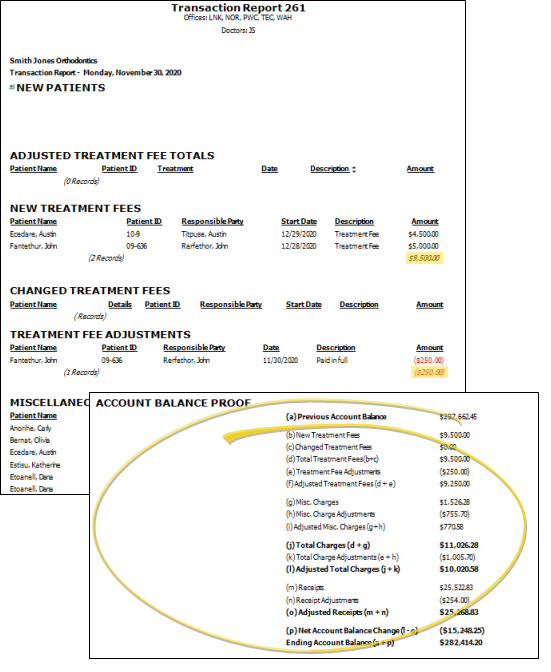
If you enabled the Show Practice Financial Summary option of the Transaction report, an Account Balance Proof will appear at the end of the report, detailing each section to calculate your new accounts receivables balance.
When you choose to include the financial summary at the end of the Transaction report, you must then choose how to calculate the previous account balance. You can: 1) Disable the Use Practice Totals option to include only the offices selected for the report (generally recommended), or 2) Enable the Use Practice Totals option to calculate the previous account balance from all offices. Depending on how you post transactions to offices, these two options may provide very different results.
(a) Previous Account Balance - This number is carried over from the total account balance on the previous Transaction report. If you enabled the Use Practice Totals option, this total includes all offices, even if you selected to include only certain offices on the report. To calculate this number from only the selected offices, leave the Use Practice Totals option disabled.
(b) New Treatment Fees - This number matches the New Treatment Fees total on this report.
(c) Changed Treatment Fees - This number matches the Changed Treatment Fees total on this report.
(d) Total Treatment Fees (b+c) - This number is the sum of the New Treatment Fees and Changed Treatment Fees amounts.
(e) Treatment Fee Adjustments - This number matches the Treatment Fee Adjustments total on this report.
(f) Adjusted Treatment Fees (d+e) - This number is the sum of the Treatment Fees and Treatment Fee Adjustments amounts.
(g) Misc. Charges - This number matches the Miscellaneous Charges total on this report.
(h) Misc. Charge Adjustments - This number matches the Miscellaneous Adjustments total on this report.
(i) Adjusted Mics. Charges (g+h) - This number is the sum of the Miscellaneous Charges and Miscellaneous Adjustments amounts.
(j) Total Charges (d+e) - This number is the sum of the Total Treatment Fees and Miscellaneous Charges amounts.
(k) Total Charge Adjustments (e+h) - This number is the sum of the Treatment Fee Adjustments and Miscellaneous Adjustments amounts.
(l) Adjusted Total Charges (j+k) - This number is the sum of the Total Charges and Total Charge Adjustments amounts.
(m) Receipts - This number matches the Receipts total on this report.
(n) Receipt Adjustments - This number matches the Receipt Adjustments total on this report.
(o) Adjusted Receipts (m+n) - This number is the sum of the Receipts and Receipt Adjustments amounts.
(p) Net Account Balance Change (l-o) - This number is the difference between the Adjusted Total Charges and Adjusted Receipts amounts.
Ending Account Balance (a+p) - This number is the sum of the Previous Account Balance plus the Net Account Balance Change. Once you finalize this report, this Total Account Balance will become the Previous Account Balance for the next Transaction report.
More Information
Open the Patient Folder / Responsible Party Record
While viewing some Edge Cloud reports, you can click a patient name or responsible party name to open that record. Not all Edge Cloud reports support this feature. If your cursor changes to look like a hand, the feature is available.