Transaction Summary
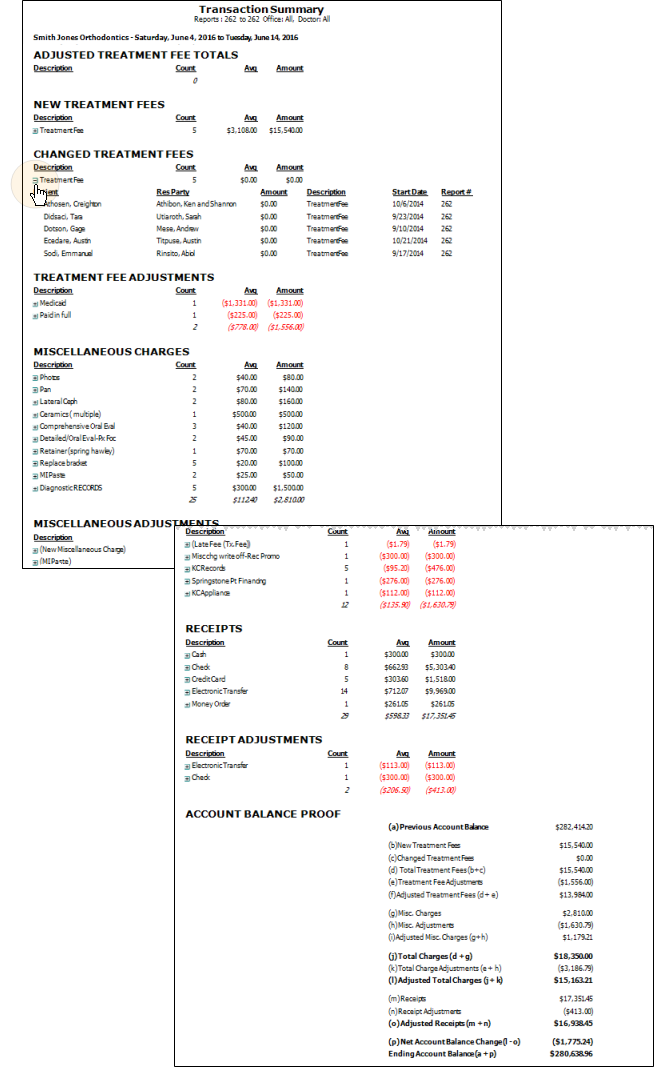
The Transaction Summary report summarizes one or more final Transaction reports for any range of dates or Transaction report numbers. For each transaction type, the report includes the number of posted transactions and the average and total amounts for that type. The report is designed to be printed at the end of each month to include all transactions entered for that month. However, it can be used for any desired range of dates.
This report defines a transaction date as the date of the Transaction report on which it was included. Although it is possible to post-date or back-date transactions, they always appear on the next Transaction report. This allows you to reconcile specific Transaction reports with your Transaction Summary report.
Finalized Transactions Required - You must finalize transactions regularly for this data to be accurate.
Run This Report
-
Open the Report
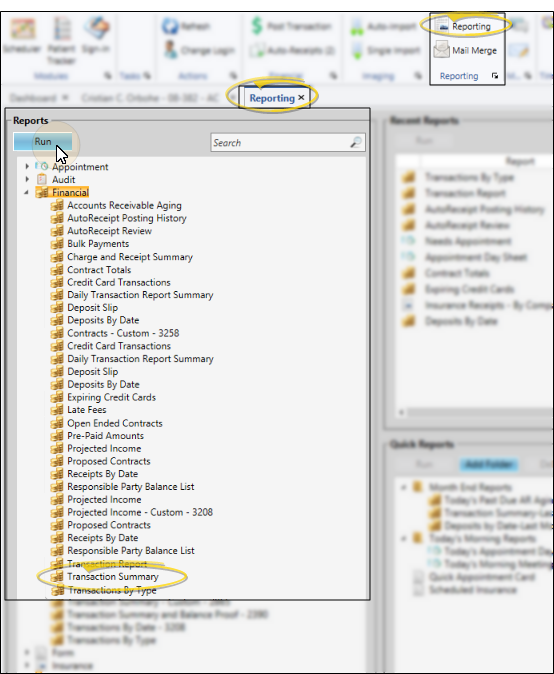
- Home ribbon bar > Reporting section > Reporting > Financial > Transaction Summary > Run. (You can also use the Search field to find the report you want to work with.)You might also be able to run this report from your Recent Reports or Quick Reports list. See "Run Edge Cloud Reports" for details.
-
Report Settings
- Select the options to use for choosing records and generating this report. Choose carefully, as your selections will affect which patients are included in the report. (If the settings panel is not visible, click the Show/Hide icon in the upper left corner of the Reporting window.)
First / Last Report Dates or Numbers - Enter the first and last transaction dates to include, or specify a range of Transaction report numbers to include. Or, choose a smart date option (Last Month, Month to Date, etc) instead of supplying specific dates or report numbers.
Office - Choose to include only the records for a specific office, or include the records for all office locations in your practice.
Orthodontist / Doctor - Choose to include only the records for a specific orthodontist / doctor, or include the records for all orthodontists in your practice.
Show Section Detail - Choose which transaction details to display initially when you run the report. You can click to include / exclude individual sections, or click to display the detail of None or All. Sections that you do not select will still be in the report, but their details will initially be hidden. After the report generates, you can always expand and collapse section details as needed.
-
View Results - If needed, click View at the top of the report settings panel to view the results on your screen. When you run a report or form from your Recent Report list, or when you run a Quick Report, the initial results are sent to your screen immediately, with one exception: A Quick Report that has the Print Only option enabled will not show your results on the screen at all, but continue with the printing options.
-
Manage Options and Output - With the results on your screen, you can choose the output with the toolbar at the top of the report window. See "Report Output Options" for details.
More Information
Show / Hide Details
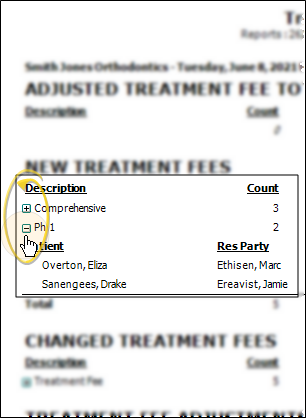
If this report supports showing / hiding the details that comprise report totals, you can click the expand / collapse icons to show / hide the details. Not all Edge Cloud reports support this feature. If your cursor changes to look like a hand, the feature is available.
Open the Patient Folder / Responsible Party Record
While viewing some Edge Cloud reports, you can click a patient name or responsible party name to open that record. Not all Edge Cloud reports support this feature. If your cursor changes to look like a hand, the feature is available.